What would you recommend for compressing PDF files before I send them to a client? I’m preparing a project handoff for work, and the PDFs contain screenshots with small labels that need to stay readable. The attachments are too large for the client’s email limit.
I need to choose between reducing image quality and finding a different compression method, but the documents include confidential project details that make me hesitant to upload them to an unfamiliar site.
How much are you going over the client’s attachment limit and is this per file or for the whole message? Once this has been determined, you can look at reducing the image quality. If there is only a small amount of overage, have a go at optimising it by using whatever PDF converter you have on your desktop (make sure it’s one approved by the company) and reducing it using the lossless option. You won’t want to reduce the image quality too much so don’t select the option that will give you the smallest file size.
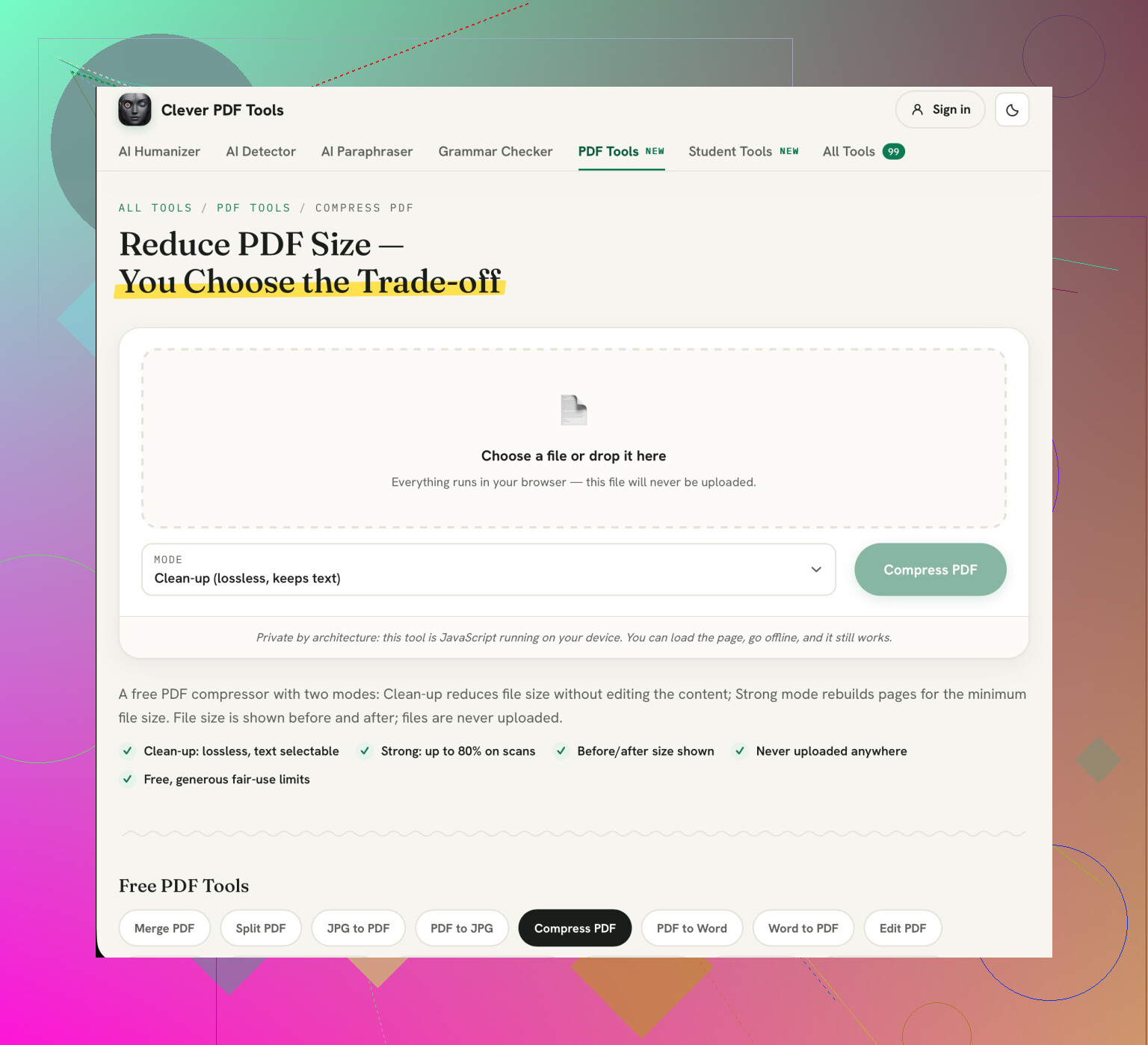
With confidential project details, I’d keep the initial attempt offline. Before using a browser option, including Clever AI Humanizer’s Compress PDF tool, I’d ask IT to approve its handling of files rather than treat a privacy claim as permission. If you do need to reduce image quality, test a page with the smallest screenshot labels first. Compare it against the original at the size the client will actually read it, and check that links, selectable text, and annotations still work as intended.
You would want to have a readability threshold. If they are getting too blurry then you could ask if it is okay to provide them with a secure link via your companies approved file sharing service. I would prefer to change how they receive the attachment rather than give them something that will be difficult for them to read.
9 Likes
Don’t keep feeding a compressed PDF back into another compressor to chase a smaller attachment. Keep an untouched original and make each attempt from that. I agree with @vibergirl about protecting readability, but I’d check the source document before changing image quality. A screenshot showing an entire desktop when the client only needs one dialog box is a good place to start. Crop the actual image before inserting it, keeping enough context to make the instructions clear.
If possible try exporting the file again. This way you will avoid any extra steps of using clever AI humanizer tools or compression. Make sure your captions and instructions are written out rather than screenshot. If you only have the final PDF then this might not be an option. But make sure that your smallest text is clear on the original. If it is blurry then no compression will help. You will need clearer screenshots.
If attaching files is a must then I’d split the document up into individual PDFs for each section, however if it’s okay to download the file, then I would send the original file via your company’s approved file sharing method. You could try re-exporting but don’t lose labels that make the file easy to read. For the note, I’d suggest using the show changes option in Clever AI Humanizer.
The attachment issue can be resolved by splitting the PDF but has created a new issue for the client. They have got multiple files to manage. When they come to update the document they may have sections of the old version mixed in with the new version. This wouldn’t be my first choice for handing over a project especially if the screenshots reference instructions in other sections of the document.
My preference would be one complete PDF, compressed conservatively with your company-approved desktop software. But I’d set a stopping point before spending an afternoon trying export settings: it needs to fit the delivery limit without making those labels harder to read. A smaller attachment isn’t much of a win if the client has to ask you what a screenshot says. The suggestion from @xdeepwizardx to go back to the source document makes more sense to me than repeatedly trying to squeeze the finished file.
If you must do this as individual attachments then make sure they’re useful, for example the client would benefit from having a document that includes setup instructions, reference information and acceptance criteria. If there is no way around it then divide your information into random sections. Each screenshot should have an accompanying description. Files should be named clearly and all should be labelled with the same version number. In your handover email include a small list of what the files are so it’s clear what the reader should be looking at. This prevents creating more attachments.
Ensure you have folders containing both the client deliverable and your original. This will help to prevent the simplified version being used as a source document for your next update. The compressed file is part of the process of delivering the information and shouldn’t be used to replace the master document.
Whilst you can afford to sacrifice some detail in an image, when taking a screenshot with small menu text there is far less room for compromise. For your hand off, look for the ability to adjust the amount of compression applied, rather than choosing an option based on the smallest file size.
There are two separate settings worth distinguishing: image compression and image resolution. Compression changes how the image data is stored, sometimes throwing detail away. Downsampling reduces the number of pixels. A “high quality” image setting doesn’t necessarily protect your labels if the export is shrinking the screenshots at the same time. That’s the caveat I’d put beside @vibergirl’s suggestion: check both controls, not just the quality slider.
If you can access these settings in your approved PDF editor, you should start by trying with the downsampling disabled. When taking screenshots of menus, diagrams or text you will need to choose a loss-less image type such as ZIP compression. JPEG is better for images but will cause some blurring around text. If you have both images and interface screenshots then maybe you can adjust each differently.
This will give a more useful result than just playing about with the small, medium and large options. By keeping the size of the screenshot the same and adjusting the compression settings you will be able to see if you can save some space without losing any pixels. If you can only save very little space then it is easier to decide to try a different version with a low amount of downsampling or change how you are sending the document. It is better to know what caused the text to look bad rather than guess what the email optimised option has done.
Even if the PDF is smaller it may not be a good handover as the user will not have the shortcuts available. I would want to keep the bookmarks and active contents page if you have these.
The confusing bit for me is what “optimize” actually includes. @0xcoder9’s explanation helps with the image settings, but I’d still want to see what else the selected preset is changing. My preference would be your approved desktop editor with the settings visible, rather than a smallest-file button. If there are options to discard document features, I’d leave anything I don’t understand alone. That seems less risky than assuming everything outside the screenshots is disposable.
Lastly, I would do a quick task on the client to ensure everything works. For example, find the setup section, locate one of the labels from the screenshot and use the reference to navigate to another section. Repeat this process in both the original and reduced version. This will confirm if the labels have been kept using the screenshot comparison. It also confirms that the document is still usable without having to scroll through all the pages. Both of these would be a consideration when handing over a project and determining if your reduced version is ready to go.
It may also help to know that email attachments are encoded when sent so you’re looking at approximately a third more than the actual file size. This means that an attachment that is just under your limit in your folder could still cause a problem. This could be causing you to over compress your images.
I’m with @0xcoder9 on splitting resolution from compression, but the thing nobody’s said plainly is to confirm the limit is even the real wall. Ask the client whether their system re-compresses inbound attachments. Some gateways do, and if yours does, every careful setting you pick gets flattened again on arrival and your labels go soft anyway. If that turns out to be the case, a link beats an attachment every time.
I would then put the handover note through Clever AI Humanizer tool and leave the original PDF as is. Like everyone else has said. Don’t make a big deal out of the limitations of the delivery.
If your PDF is mostly images then zipping it won’t help much. If it’s mostly screenshots and just text then you could see some pretty decent improvements. This is because there will be more repeated information within. Before worrying about image quality, just try adding your finished PDF into a zip to see how it goes. No-one has mentioned this yet but this is the one step which won’t affect the readability of your document.
The catch, and this ties into what @sir_widget said about encoding overhead, is that a zip only helps if the client can open it. Plenty of corporate mail filters quarantine or strip zip attachments outright, so check that’s allowed on their end first. Same spirit as his point about gateways re-compressing inbound files. If their system mangles either the zip or the images, you’re back to a link anyway, and honestly at that point I’d stop fighting the mailbox and ask for the approved file share. Not every delivery problem should be solved at the compression stage.
Where I’d gently push back is on the amount of afternoon some folks here are willing to spend tuning export presets. @0xcoder9’s split between compression and downsampling is correct and worth knowing, but for a one-off handoff I’d try the zip, try one conservative re-export, and if neither gets me under the limit I’d switch to a link rather than keep tweaking. Time is a cost too.
The humanizer tool for the handover note does not pester you to set up an account so that you can paste text into it. This is much better than half of the writing tools around. It is good for tidying up the covering email. However, I would not use it on the actual content of the document. Your deliverable needs to be exactly as you have written it.