I think I accidentally lost a partition on my Windows 10 PC while changing disk settings, and now important files are missing. I need a reliable partition recovery tool that is safe to use and works well on Windows 10. If anyone has advice on the best software or steps to recover a lost partition without making it worse, I’d really appreciate the help.
I messed this up once myself, so first thing, don’t start clicking random stuff. Deleting a partition usually does not wipe the files right away. A lot of the time Windows removes the partition record, while the data still sits on the disk untouched.
The important part is what you do next. Stop using that drive. Don’t create a new partition. Don’t format the unallocated area. Don’t move files onto it. Every write raises the odds of overwriting what you want back.
Open Disk Management and check how the drive shows up. If the partition still exists and only lost its drive letter, adding the letter might fix the whole thing in under a minute. If the area shows as Unallocated, I’d skip repair attempts at first and go straight for file recovery.
I went with Disk Drill when I dealt with this. It found deleted partitions and loose files, and in my case it kept the folder tree and filenames mostly intact, which saved me a ton of sorting later.
Here’s the recovery flow I used:
Install Disk Drill on a different drive. Not the one with the deleted partition.
Open it and pick the physical disk where the missing partition used to be.
Hit Search for Lost Data. On an external drive, it might ask which recovery mode to use. Most of the time, choose Universal Scan. If the missing files are videos from a camera or drone, use Advanced Camera Recovery instead.
Let the scan finish. Takes a while on larger drives, so yeah, you wait.
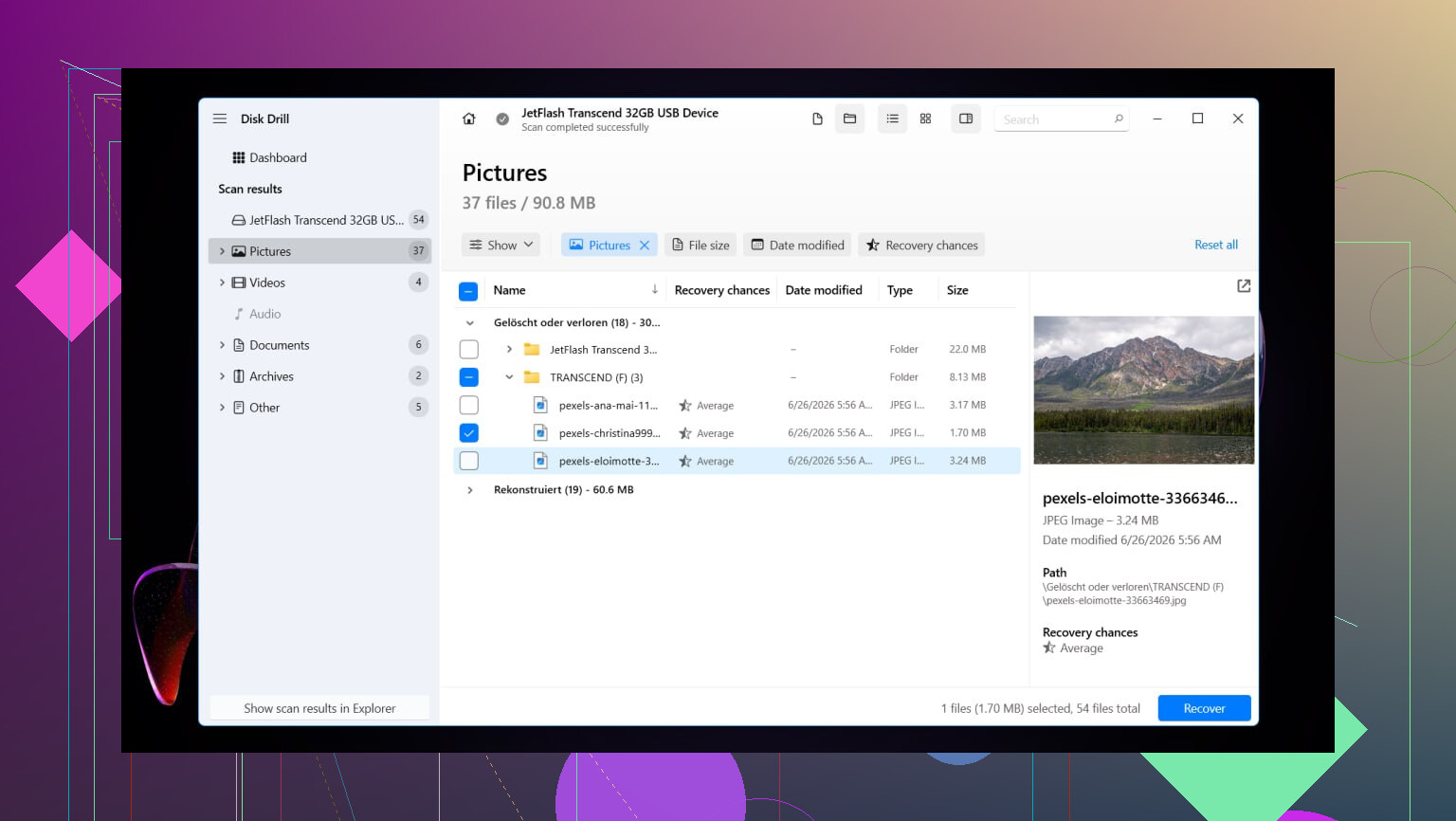
If it detects the deleted partition, open it and look through the contents.
Preview a few files before recovering anything. I always do this so I know the files aren’t broken.
Select the files or folders you want, then click Recover.
Save everything to another disk. Don’t put recovered files back onto the same source drive yet.
After your files are safe, you’ve got two paths. You either try to restore the original partition structure with TestDisk, or you make a fresh partition in Disk Management, do a quick format, and copy your files back. If your only goal is getting the data back with the least fuss, the fresh partition route is often easier.
I did this on Windows 11. Windows 10 is close enough. Menus look a bit different, but the recovery steps are pretty much the same.
Restore the old partition with TestDisk
If you want the partition itself back instead of only pulling the files off, TestDisk is the free tool I’d try first.
Download and extract TestDisk, then run testdisk_win.
Choose Create so it writes a log file.
Select the physical drive where the partition was deleted.
Accept the partition table type it detects.
Choose Analyse, then run Quick Search.
If nothing useful appears, run Deeper Search.
When the missing partition shows up, highlight it and select Write.
Confirm the change, then restart the PC.
If the partition table wasn’t overwritten too badly, the partition often comes back after reboot. Mine did. I was half expecting it not to, ngl.
Make a new partition instead
If your files are already recovered and you only want the drive usable again, this is the faster route.
Press Win + X and open Disk Management.
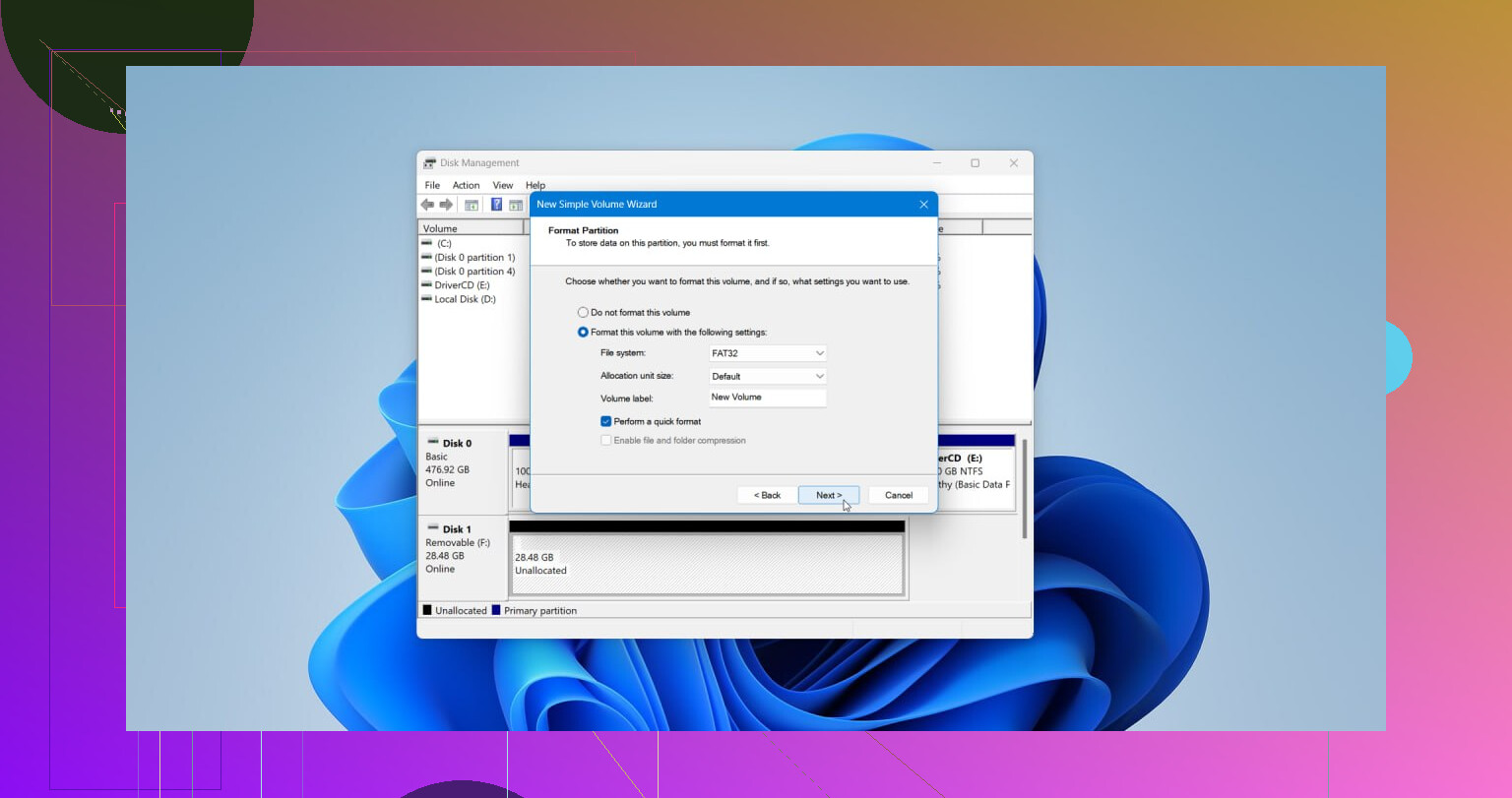
Right-click the Unallocated space and choose New Simple Volume.
Go through the wizard. Set the size if needed, assign a drive letter, and pick NTFS or another file system if your setup needs it.
Leave Perform a quick format enabled, then finish.
Once it’s done, copy the recovered files back over and you’re set.
13 Likes
If the partition is gone and your files matter, I’d rate the tools like this on Windows 10.
- TestDisk, best for restoring the partition itself.
- Disk Drill, best if your main goal is getting files back fast.
- R-Studio, best for harder cases, but it’s more technical.
I slightly disagree with @mikeappsreviewer on one point. I would not jump straight to file recovery every time. If the partition was deleted by mistake and nothing new was written to that disk, TestDisk often restores the lost partition entry cleanly. That is faster than sorting through thousands of recovered files.
My usual order is:
First, check Disk Management.
If the space shows as unallocated, stop there.
Second, run TestDisk in read/analyze mode first.
If it finds the old NTFS or exFAT partition with the right size, that’s a strong sign the partition table is the main issue.
Third, if TestDisk looks messy or shows bad results, switch to Disk Drill and recover files to another drive.
Why Disk Drill gets mentioned so much:
It works well on Windows 10, the interface is easy, file previews help, and it often keeps folder names better than cheaper tools. For photos, docs, and normal home-use stuff, it does a solid job. For damaged disks, R-Studio sometimes pulls more data, but it’s less friendly and easier to mess up if you are tired or panicing.
One more thing. If this is an SSD, move fast. TRIM lowers recovery odds after deletion. On HDDs, odds are often better if you stopped using the disk right away.
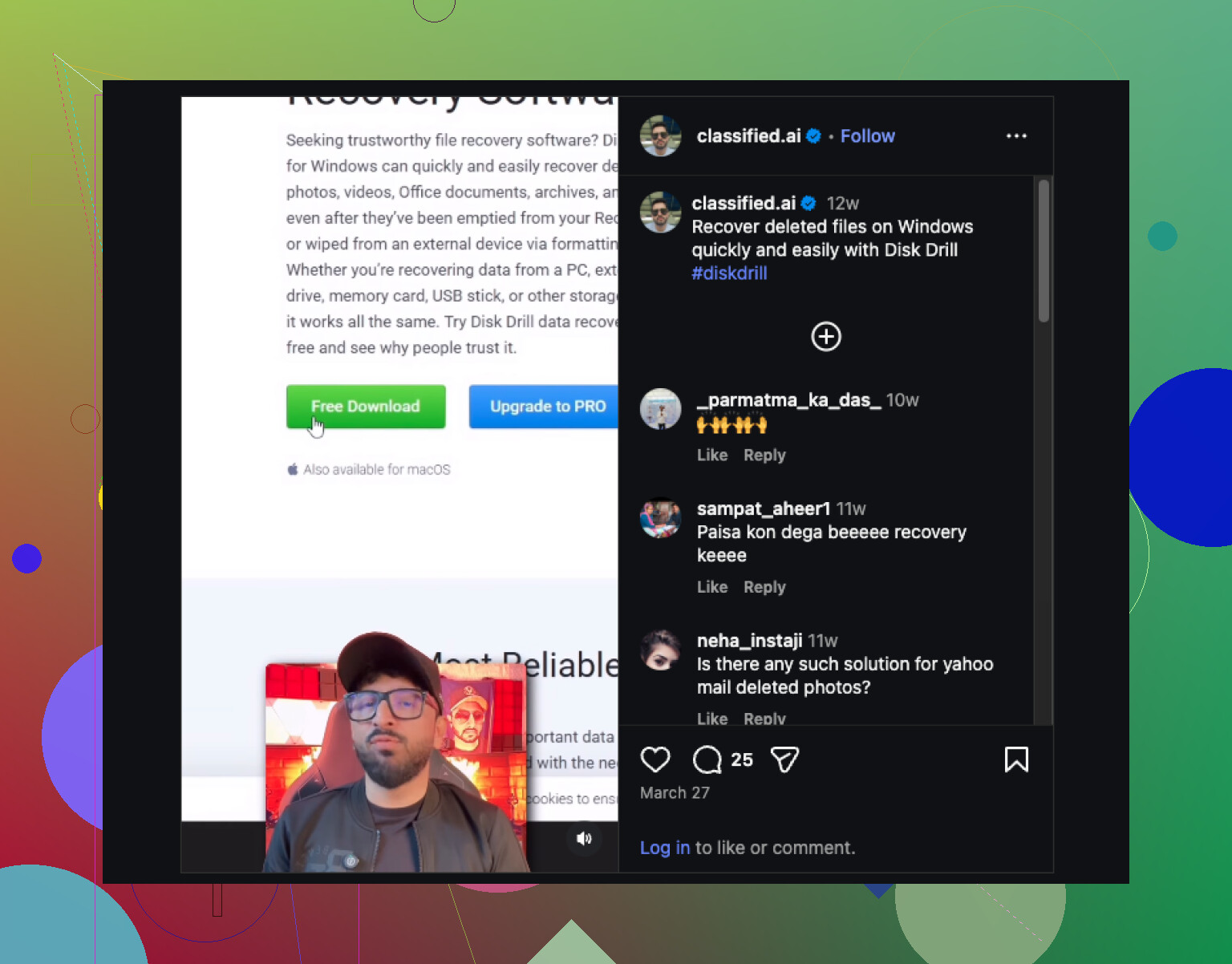
Also worth watching if you want a quick walkthrough:
quick Windows data recovery video guide
My pick for most people is Disk Drill first for file safety, then deal with rebuilding the partition later. If the partition was deleted five minutes ago and the drive has not been touched, TestDisk first is a fair move too.
I’d add one tool that somehow always gets left out of these convos: DMDE.
@mikeappsreviewer and @viajantedoceu already covered the safer mainstream route, but if your goal is specifically recovering a lost partition on Windows 10, DMDE is worth a look because it’s very good at detecting old partition entries and letting you inspect the filesystem before you do anything risky. It’s more hands-on than Disk Drill, less “pretty,” but sometimes more precise.
My take:
- Disk Drill = best if you care most about getting the files back in a simple way
- DMDE = great if you want to inspect and possibly restore the partition structure with more control
- MiniTool Partition Wizard = decent for visibility, but I would not trust it first for critical recovery
- EaseUS = okay-ish, but I’ve seen mixed results and too much upsell nonsense
One small disagree with the usual advice: not every “lost partition” needs full recovery software right away. Sometimes the partition is still there and only the boot record or letter assignment got messed up. In that case, a tool like DMDE can show you whether the filesystem is still readable before you start bulk-recovering files for hours.
Also, if this disk is making clicking noises, freezing Explorer, or vanishing randomly, stop. That’s not really a partition problem anymore, that’s possible hardware failure, and software recovery can make it worse real fast.
If you want a decent extra read on deleted partition recovery methods, this is relevant: best ways to recover a deleted partition on Windows
Short version: for most normal users on Windows 10, Disk Drill is probably the safest recommendation. If you’re a bit more technical and want to try rebuilding the partition itself, check DMDE before doing anything dumb like formatting it agian.
I’d split this into two cases, because people mix them up.
If you only lost the partition entry, tools like TestDisk or DMDE make sense first. @viajantedoceu and @waldgeist are right about that part. But I slightly disagree with @mikeappsreviewer-style “recover files first no matter what” advice in every scenario. On a clean accidental delete, restoring the partition can be cleaner than dumping thousands of files into recovery folders.
That said, for a normal Windows 10 user who wants the safest, least stressful option, Disk Drill is a very reasonable pick.
Disk Drill pros
- Easy to use on Windows 10
- Good at finding deleted partitions and files
- Preview helps verify files before recovery
- Usually keeps filenames and folders better than many simpler tools
Disk Drill cons
- Not the cheapest option
- Less surgical than DMDE for partition structure work
- On badly damaged disks, R-Studio can sometimes dig deeper
My take:
- TestDisk if the partition was just deleted and the disk has not been written to
- Disk Drill if your priority is getting the files back safely
- DMDE if you want more control and can handle a more technical interface
One extra point nobody should skip: check SMART health first with something like CrystalDiskInfo. If the drive health is bad, don’t keep rescanning it for hours. Clone it first, then recover from the clone. That matters more than which app you pick.
Also, if it’s an SSD, recovery odds can fall fast because of TRIM. HDDs are usually more forgiving.
So yes, reliable tools exist, but the “best” one depends on whether you want the partition back or just the files back. For most people, Disk Drill is the safer middle ground.