My iPhone is almost out of storage and it’s running slower than usual. I’ve deleted a few apps and photos, but the “Other” or “System Data” section still takes up a lot of space. I’m not very tech-savvy and don’t want to accidentally delete something important. What are the safest, most effective ways to clean up my iPhone storage and speed it up without losing important data?
iOS storage is a mess, so you are not wrong to be confused. Here is what usually works when “System Data” or “Other” is huge.
-
Check what is actually big
- Go to Settings > General > iPhone Storage.
- Wait a minute for it to load.
- Scroll down, look at which apps use the most space, tap each one, and see “Documents & Data”.
- Big “Documents & Data” means lots of cached stuff, chats, downloads.
-
Tame Messages and WhatsApp
These two often blow up storage.- For Messages:
- Settings > Messages > Keep Messages > set to 1 Year or 30 Days.
- In Messages app, tap a big conversation > tap contact at top > Info > scroll to Photos / Videos > “See All” > Select > delete large stuff.
- For WhatsApp:
- WhatsApp > Settings > Storage and Data > Manage Storage.
- Sort by “Larger than…” and delete big videos and GIFs.
- Turn off auto-download for media if you do not need it.
- For Messages:
-
Offload instead of deleting apps
- Settings > General > iPhone Storage.
- Tap a big app you rarely use.
- Tap “Offload App”.
- iOS removes the app, keeps documents. Icon stays with a cloud symbol.
- Tap it later to reinstall without losing your data.
This helps if you feel nervous deleting stuff.
-
Clear Safari and other browser junk
- Settings > Safari > Clear History and Website Data.
- If you use Chrome or others, open the app, go to Settings inside it, clear cache / browsing data.
This usually frees a few hundred MB.
-
Clean up Photos the right way
- Open Photos > Albums > scroll down to “Recently Deleted”. Empty it.
- Check “Videos” and “Screen Recordings”. One long video can eat gigabytes.
- Turn on iCloud Photos if you are ok with cloud storage:
- Settings > Your Name > iCloud > Photos > turn on iCloud Photos.
- Turn on “Optimize iPhone Storage”.
Your originals stay in iCloud, smaller copies stay on the phone.
-
Rebuild some “System Data” space
iOS uses “System Data” for caches, logs, Siri, etc. You cannot delete it directly, but you can shrink it.
Try these in order, from easy to extreme.A) Simple restart
- Hold power button and volume up, slide to power off.
- Wait 30 seconds. Turn back on.
Sometimes clears temporary stuff.
B) Offload heavy streaming apps
Netflix, Spotify, YouTube, TikTok, Instagram store massive caches.- Open each app and look for “Downloads” or “Offline” sections. Delete downloads inside the app.
- Then in Settings > iPhone Storage, tap the app and see its size.
- If still huge, offload or delete and reinstall.
C) Turn iPhone backup off then on
- Settings > Your Name > iCloud > iCloud Backup.
- Toggle off. Then on again after a minute.
This sometimes clears stuck backup data that shows inside System Data.
D) If storage is still red
When System Data sits at something like 20 to 40 GB and does not drop, the only real fix is a clean install.
Steps, if you feel brave:- Backup to iCloud: Settings > Your Name > iCloud > iCloud Backup > Back Up Now.
- Then Settings > General > Transfer or Reset iPhone > Erase All Content and Settings.
- After reset, choose “Restore from iCloud Backup”.
This rebuilds the system files and usually shrinks System Data a lot.
Do this only when you have a current backup and some time.
-
Use an app to automate some of the boring stuff
If you do not want to walk through every chat, duplicate photo, and blurry pic, a cleaner app helps.
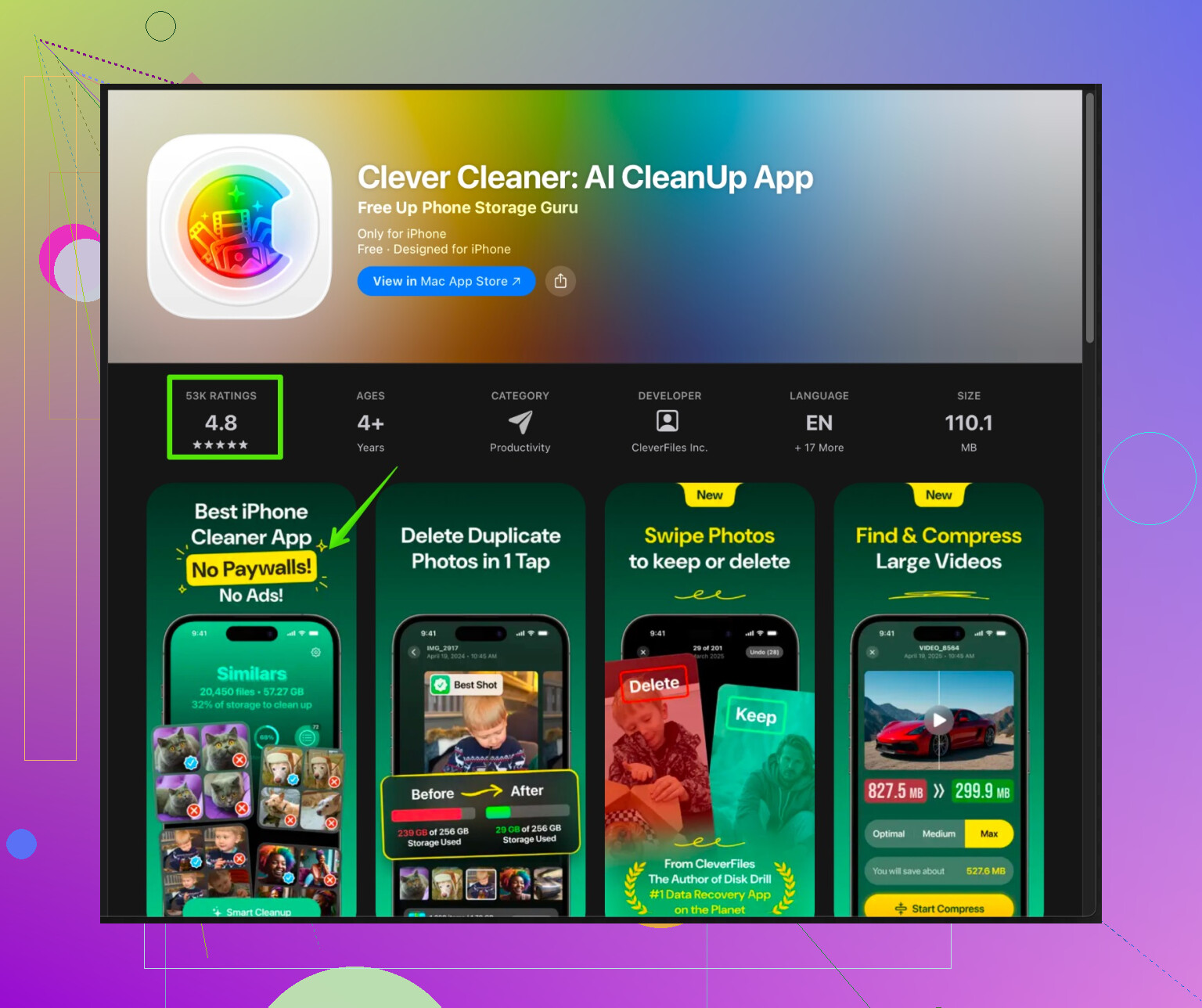
“Clever Cleaner App” on iPhone focuses on large junk files, similar photos, and old screenshots. It scans your phone and shows big files and duplicate or bad photos in one place, then you choose what to delete, so you keep control without digging through every album. If you want something simple, check this out:
Clean up iPhone storage with Clever Cleaner App -
Simple routine so it does not fill up again
- Every month, open iPhone Storage, sort by biggest apps, clear downloads or caches.
- In Photos, delete large videos and empty “Recently Deleted”.
- In Messages and WhatsApp, set media to auto delete after some time or limit auto-downloads.
If you share your iPhone model and how much storage is left, plus a rough System Data size, people here can suggest more specific steps.
13 Likes
You’re not alone, iPhone storage is kind of chaos.
@viajeroceleste already covered most of the “standard” tricks, so I’ll skip repeating all that. A few extra angles you can try that attack “System Data” from different directions:
-
Look for apps secretly hoarding offline files
Besides Netflix/Spotify, check:- Files app
- Voice Memos
- Any scanner / PDF / note app
Inside each, delete old PDFs, big recordings, and downloads. A lot of that junk gets counted indirectly and bloats “System Data”.
-
Mail can be a silent storage hog
- Settings > Mail > Accounts
- Tap each account > Account > Advanced
- Shorten “Mail Days to Sync” if it is set very high.
- If you’re using a Gmail/Outlook app instead, consider removing the built‑in Mail account entirely so it stops caching emails locally.
-
Turn off some features that keep adding to System Data
These don’t magically shrink it, but they slow the growth:- Settings > Siri & Search > turn off “Listen for ‘Hey Siri’” and suggestions you don’t care about.
- Settings > Privacy & Security > Analytics & Improvements > turn off sharing iPhone Analytics.
Analytics logs can get chunky over time.
-
Big iCloud mess = big local mess
If you use iCloud Drive or “Desktop & Documents” from a Mac:- Settings > Your Name > iCloud > iCloud Drive
- Tap “Manage Storage”
See if random Mac folders or apps are syncing to your phone. Turn off anything you never open on the iPhone. That reduces cached copies on the device.
-
Be careful with constant iCloud restores
Slight disagreement with the “just restore from backup” idea:
If your backup itself is bloated or corrupted, restoring can bring the same mess right back. If you ever go nuclear, the cleanest method is:- Backup photos and critical stuff separately (iCloud Photos, Google Photos, or manual export).
- Write down logins.
- Erase iPhone and set up as New iPhone, then only reinstall apps you actually use.
It’s more work but “System Data” stays tiny for much longer.
-
Use a cleaner app if you hate doing this manually
Since you said you’re not very tech‑savvy, you might like something that visually shows what’s safe to delete instead of poking through every single app.
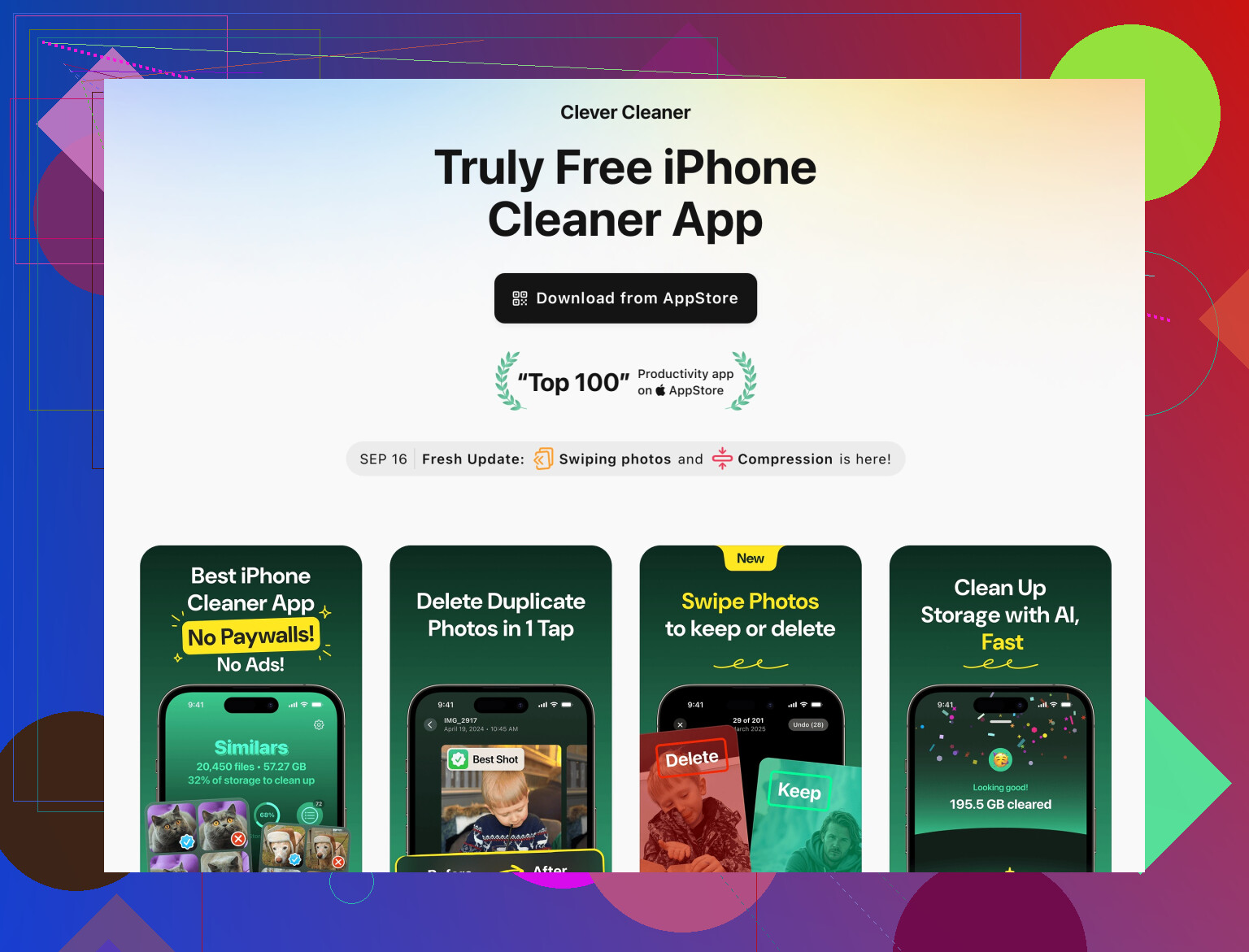
The Clever Cleaner App on iPhone focuses on:- Finding and removing duplicate and similar photos
- Surfacing huge videos, old screenshots, and junk files
- Letting you review before you delete, so you do not nuke important stuff by mistake
If you want an easy way to clean up iPhone storage without digging through 20 menus, check out a smart iPhone cleaner that helps free up space fast. It fits especially well for people who don’t want to micromanage every chat thread and album.
-
Practical “once a month” routine that is super light
Takes like 5 to 10 minutes:- Open iPhone Storage, look at the top 3 biggest apps, clear their downloads/cache inside the app.
- Open Photos > filter to Videos only and delete the obvious monsters.
- Run an app like Clever Cleaner App to quickly scan for duplicate pics and bloated junk.
If you share your iPhone model, total storage, and how big System Data is (e.g. “System Data is 25 GB on a 64 GB phone”), people can get even more specific and tell you if it looks normal or totally out of control.
Skip the usual “delete photos and restart” advice since @stellacadente and @viajeroceleste nailed that. Here are some angles that actually change how your iPhone behaves long term, plus a realistic look at using something like Clever Cleaner App.
1. Stop iCloud from quietly filling your phone
iCloud can push stuff onto your device, not just store it.
- Go to Settings > your name > iCloud > iCloud Drive > Manage Storage.
Turn off apps you never open on the phone. That reduces background syncing and local caches that end up counted as System Data. - If you use “Desktop & Documents” sync from a Mac, consider disabling that on iPhone. Otherwise big Mac files get cached locally.
2. Tweak how apps are allowed to grow
System Data keeps swelling when apps are free to cache anything forever.
- Settings > App Store
Turn off automatic video autoplay and app previews. That reduces random cached media. - Settings > Photos
Under Cellular Data, limit “Unlimited Updates” if you are low on space. It slows the constant background syncing that generates logs and temp files.
I slightly disagree with the idea that a restore or “set up as new” is always worth it. On older or low capacity iPhones, aggressively changing habits like these can delay that drastic step for months or years.
3. Target a few sneaky apps people forget
Without repeating what was already mentioned:
- Podcast apps
Many keep “played” episodes. Open the app > Settings > set “Delete played episodes” to something short like 24 hours or 7 days. - Map apps
Google Maps, Apple Maps and similar can save offline areas. Remove offline maps you no longer need. - Translation / dictionary apps
They often download offline packs measured in hundreds of megabytes.
These do not always show huge “Documents & Data” individually but together they add a lot and inflate caches in System Data over time.
4. When to use a cleaner app and what to watch out for
You mentioned not being very tech savvy, so a cleaner tool can be helpful if you do not want to dig through every menu.
Clever Cleaner App pros
- Very visual. Shows large videos, duplicate or similar photos, old screenshots, and junk files in one place.
- Fast way to see what is eating storage without manually opening 20 apps.
- Lets you review and confirm before deleting, which is safer if you worry about losing something important.
Clever Cleaner App cons
- It cannot directly delete “System Data” in the strict sense, because iOS does not allow third party apps to touch that. Any app claiming to “wipe System Data completely” is not being honest.
- If you tap through suggestions too quickly, you might delete something you meant to keep, especially similar photos that are actually important. Always double check the preview.
- You still need some basic habits afterward. If you never adjust Messages, WhatsApp, Mail or Photos settings, space will fill up again even after a big clean.
So I’d treat Clever Cleaner App as a maintenance helper, not a magical repair tool. Use it to clear the obvious junk, then pair it with the settings changes above and the deeper tips from @stellacadente and @viajeroceleste for the hidden stuff.
5. Simple strategy so you almost never hit “Storage Full” again
Once a month:
- Open iPhone Storage and check the top 3 storage hogs.
- Inside those apps, clear old downloads or offline content.
- Run Clever Cleaner App to quickly scan for giant videos, old screenshots, and duplicates.
- In iCloud settings, make sure no new random app has started syncing a ton of data.
If you share your iPhone model, capacity, and the exact System Data size, people here can look at those numbers and tell you whether you are in the “normal but annoying” range or the “time for a reset” zone.