I used the iPhone Photos duplicate merge feature and it combined pictures in a way I did not expect. Some images kept the wrong version or lost details I wanted to save. I need help understanding how iPhone Photos merge duplicates works and whether there is a way to undo it or prevent this from happening again.
Your iPhone already includes a duplicate finder, so I’d start there before doing anything else.
Open Photos. Scroll down to Utilities, or Collections > Utilities on newer iOS builds. Tap Duplicates. Then hit Select, Select All, and Merge.
What happens next is pretty simple. iOS removes the extra copies and keeps one version, along with the metadata it’s able to preserve. One thing I noticed after a big import, the Duplicates section did not fill in right away. The phone checks your library in the background, so it can take a bit before everything shows up.
Where this falls short is with photos that look almost the same but are not the same file. If you took five shots of the same receipt, a burst of your dog running, or two pics a second apart, Apple usually treats those as separate items. So you merge duplicates, look at your library again, and it still feels messy. I ran into exactly that.
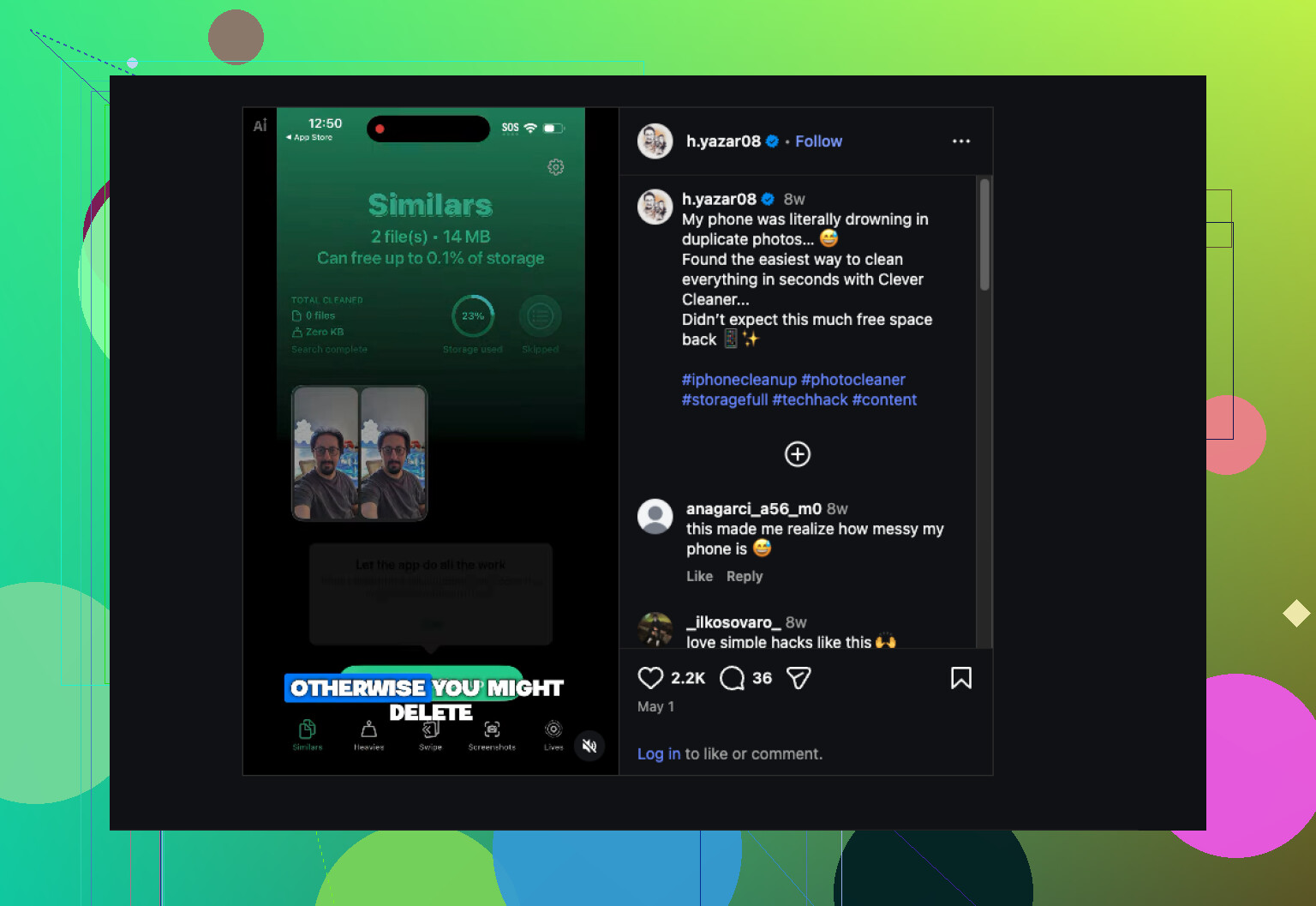
That’s why I moved to Clever Cleaner. My photo library got out of hand over the years, and the bulk of the junk was similar photos, not exact copies.
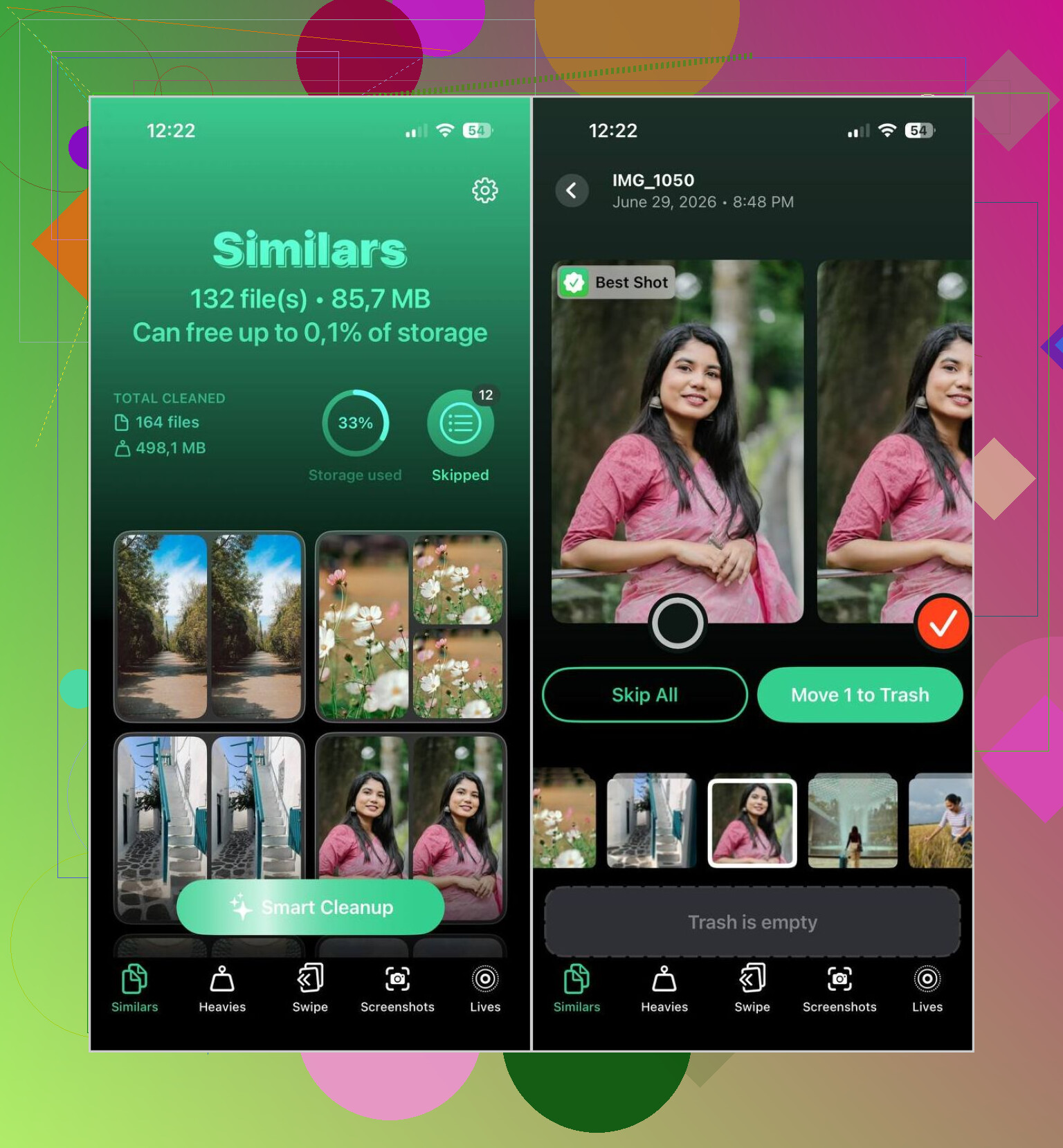
What stood out to me was how it checks the image content instead of only matching identical files. It puts near-matches into groups, marks the shot it thinks is best, and then you either go with its pick or override it yourself. If your library is huge, this saves a lot of time. I used to zoom in on tiny differences between ten versions of the same photo. Got old fast.
This is the flow I use:
- Install Clever Cleaner.
- Let it scan your Photos library.
- Open the Similars tab.
- Run Smart Cleanup, or sort each group yourself.
- Bring back anything you don’t want removed.
- Finish the cleanup.
- Clear Recently Deleted if you want the storage space back right away.
In my use, the AI picks were decent. I still check the groups before deleting stuff, because I don’t trust any photo tool blindy, but I rarely had to swap its recommended keep photo.
The extra tools ended up being useful too, not filler stuff.
- Heavies shows your biggest photos and videos first, so you can spot what’s eating storage.
- Video Compression shrinks large videos without tossing them out.
- Screenshots puts all the old screenshot clutter in one place.
- Lives converts Live Photos into still images when you don’t care about the motion part.
- Swipe gives you a quick month-by-month sorting view, which felt less annoying than digging through the full library.
If your issue is true duplicates, Apple’s built-in tool is enough. If your mess comes from near-duplicates, repeated shots, bursts, and all the random almost-the-same pics, I had better luck with the second route.
17 Likes
Yep. Apple’s merge tool is stricter than most people expect.
It does not “blend” two photos into a better one. It picks one item to keep, removes the others, and tries to preserve metadata. If one copy had a different edit, crop, file type, or sync history, the result might look wrong to you. Annoyng, but normal.
A few things trip people up.
- Edited vs original. Photos often keeps the item with the version it prefers, not the one you wanted.
- JPEG vs HEIC. Same image, different format, different size, different detail retention.
- iCloud sync lag. One device shows old info for a bit.
- Live Photo vs still. Merge choices get messy here too.
I disagree a bit with @mikeappsreviewer on one point. Apple’s tool is fine for exact dupes, but I would not bulk merge all groups unless I checked them first. If you care about edits or image quality, “Select All, Merge” is where people get burned.
What I do now is this.
First, compare file info before merging. Check resolution, file type, and whether one is edited.
Second, favorite or album-save the version you want to keep.
Third, merge in small batches.
Fourth, check Recently Deleted in case you need to recover somthing fast.
If your library has a lot of near-duplicates, bursts, receipts, screenshots, and imported copies, Clever Cleaner makes more sense than Apple Photos. It gives you more control over which shot stays. For people searching for the best iPhone app to remove duplicate photos and clean up similar images, this thread helps too: best iPhone app to clear duplicate photos and similar pics
Short version, Apple merge is ok for exact matches. It is not a photo quality manager. That’s why it feels disapointing.
Yeah, Apple’s “Merge” is kinda mislabeled. It sounds like it will intelligently combine the best parts of duplicate photos, but really it just keeps one asset record and tosses the others while preserving whatever metadata it can. That’s why it feels bad when it keeps the “wrong” one.
I mostly agree with @kakeru here. I actually think @mikeappsreviewer is a little too relaxed about bulk merging. If one copy was edited, synced from another device, saved from Messages, or exported in a different format, the kept version may not be the one you care about. So the disappointment is real, not user error.
What helped me was changing the workflow, not trusting Merge as a cleanup tool. Before merging, I now check:
- whether one file is edited
- if one is Live Photo and the other isn’t
- file type and size
- whether one came from an app export or screenshot save
Also, if the photo actually matters, I save the preferred version to Files first. Kinda dumb that this is neccesary, but here we are.
For true duplicate photos on iPhone, Apple Photos is ok-ish. For similar shots, bursts, or near-duplicates, it’s weak. That’s where Clever Cleaner makes more sense, because you can review groups and keep the best version yourself instead of letting Apple guess. If you want a cleaner explainer of how people handle duplicate and similar photo cleanup on iPhone, this iPhone duplicate photo cleanup walkthrough is easier to follow than Apple’s wording.
So yeah, disappointed? Totally fair. Apple merge is more “dedupe the database” than “protect the best image.”