My SD card suddenly stopped showing up on my Mac after I moved some important photos and video files from a camera. Disk Utility can see the card, but I can’t access the files, and I’m worried they may be corrupted or accidentally deleted. I need help with safe SD card recovery on Mac without making the data loss worse.
I’ve been there, and yeah, it sucks. You finish a shoot, plug the SD card into your Mac, and the folder is empty. Or you tap “delete all” by mistake and your stomach drops. I’ve done both. A couple times with macOS and camera cards, the mess was worse than it should’ve been.
First thing, stop using the card right now. Pull it out of the camera. Unplug it from the Mac. When a file gets deleted, the data usually still sits on the card for a while. The system marks the space as free, then new files start taking over. If you keep shooting or copying stuff, you raise the odds of wiping out the photos you want back. After overwrite, you’re done.
Before you install anything, do the boring checks.
Look at the little lock switch on the SD card. If it slid into Lock, your Mac might act weird with it or fail to show files properly.
Try another card reader.
Try another USB port.
Clean contacts if they look dirty. I had one cheap adapter cause a fake “dead card” scare for half an hour. Annoying stuff.
One thing a lot of people miss on Mac, deleted files from external media sometimes land in a hidden folder on the card itself, not in the main Trash on your computer. Open the card in Finder, then press Command + Shift + . You should see hidden items. Look for a faded folder named .Trashes or something close to it. I pulled back a full batch of images this way once, no recovery app needed.
If the card doesn’t appear in Finder, check Disk Utility. Use Spotlight, open it, then inspect the sidebar. If the card shows up in gray, hit Mount. If it appears but looks off, First Aid is there, though I’d be careful. I’ve seen repair tools make later recovery harder because they rewrite parts of the file system.
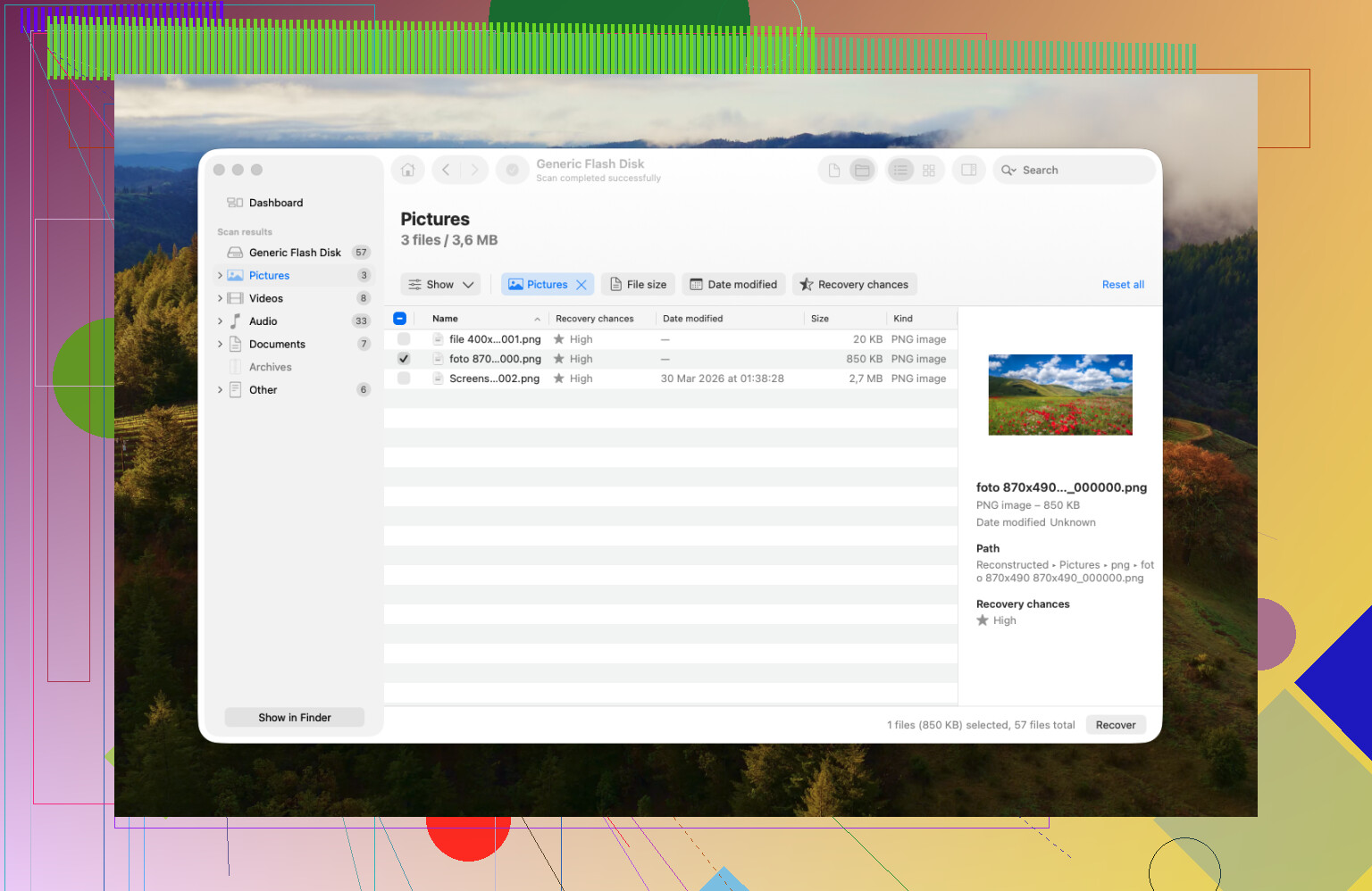
When Mac’s built-in tools get you nowhere, recovery software is usually the next move. After trying a bunch over the years, I keep coming back to Disk Drill on Mac.
Why this one. Mostly because it doesn’t feel awkward on macOS. Some recovery apps feel like old Windows software dragged onto a Mac and left there. This one is easier to work through, and one feature matters more than people think, Byte-to-Byte backup. Make an image of the SD card first, then scan the image instead of hammering the card itself. If the card is unstable, this matters a lot. I learned this after a flaky card got worse halfway through a scan. Since then, I clone first when a card looks suspicious.
If you shoot video, there’s another reason people keep bringing it up. Fragmented clips, especially from action cams or drones, tend to come back broken in a lot of tools. Black screen, no playback, useless file. Disk Drill has an Advanced Camera Recovery option for stuff like that. It did better for me with camera footage than the generic scanners I tried before. You can scan first and see what turns up before paying, which helps if you don’t want to throw money at a blind guess.
If your budget is zero and you don’t mind rough edges, PhotoRec is still worth a look. It’s free and open-source. It’s also ugly, terminal-based, and not forgiving. No nice interface. Recovered files usually come back with generic names like File001.jpg, File002.jpg, and so on. If you recover a big card, sorting it all later is a pain. Still, I’ve seen it pull files off cards people had already given up on, so I wouldn’t dismiss it.
A few things I do now because I learned the hard way:
- Do not save recovered files back to the same SD card. Put them on your Mac or an external drive first.
- Eject the card properly. Pulling it mid-process is one of the easier ways to corrupt it.
- Format the card in the camera after recovery, not in Disk Utility. Cameras like their own file structure. I get fewer weird card issues when I do it there.
Keep calm, don’t write anything new to the card, and work from the least invasive steps first. If the card still responds, your odds are decent. Typos aside, I’d start with hidden files, then Disk Utility, then a cloned scan.
5 Likes
If Disk Utility sees the SD card, your Mac still detects the hardware. That matters. The problem is often the file system, not the flash memory itself.
I’d do two checks first, since @mikeappsreviewer already covered the common recovery route.
- Open Terminal and run:
diskutil list
Find the SD card identifier, like disk4 or disk5. Then run:
diskutil info /dev/disk4
Look for the file system type and mount status. If it says the partition exists but won’t mount, try:
sudo diskutil mountDisk /dev/disk4
If mount fails with file system errors, stop there. Don’t keep poking it.
- Check if the photos are visible from a lower level.
Try:
ls /Volumes
If the card appears there, list contents with:
ls -la /Volumes/YourCardName
I disagree a bit with using First Aid too early. On a shaky SD card, repair attempts sometimes change directory data you still need. For photo recovery, read-only access first is safer.
If Finder stays blank, make a disk image, then scan the image. Disk Drill is fine for this on Mac, esp if your card drops out during reads. PhotoRec is stronger than people give it credit for, but sorting output is a pain and filenames are trashed.
If the card came from a camera, one more thing. Check for a DCIM folder from Terminal even if Finder shows nothing. I’ve seen exFAT cards with broken directory flags still expose files this way. Weird, but it hapens.
Also, this helps if you want a clean walkthrough for SD card recovery on macOS:
step by step SD card file recovery on Mac
Do not reformat yet. If the card disconnects, clicks, or reads at 0 bytes, move to pro recovery. That usually means hardware trouble, not a simple corruptoin.
If Disk Utility sees it but Finder doesn’t, I’d treat it like a logical corruption case, not a dead card yet. Slightly differ from @mikeappsreviewer and @boswandelaar here: I would not spend too much time trying to force-mount it over and over. Repeated retries on a flaky SD card can make things worse, esp if the reader/card keeps dropping.
What I’d do instead:
- Check Console on Mac while inserting the card. Sometimes macOS logs I/O errors, unsupported filesystem, or repeated disconnects.
- Try the card on another Mac or even a Windows PC. Not for recovery, just to confirm whether the issue is Mac-specific.
- If the card is from a camera, test whether Image Capture sees anything. Weirdly, Finder can fail while Image Capture still grabs photos.
- If the files matter, make a full image first and work from that, not the card itself.
That’s where Disk Drill makes sense on Mac. Not saying it’s magic, but for SD card recovery on Mac, the useful part is imaging the card first, then scanning the image for photos/videos. Safer than poking the original media fifty times. For busted directory structure, that’s often the diffrence between “some files back” and “oops, now it’s toast.”
Also, if these are video files from a camera, don’t judge recovery by filename alone. Sometimes clips recover but lose names/folder structure while the media is still playable.
If the card shows wrong capacity, disconnects mid-read, or gets super hot, stop DIY stuff and go pro. That’s usually not a simple filesystem hiccup.
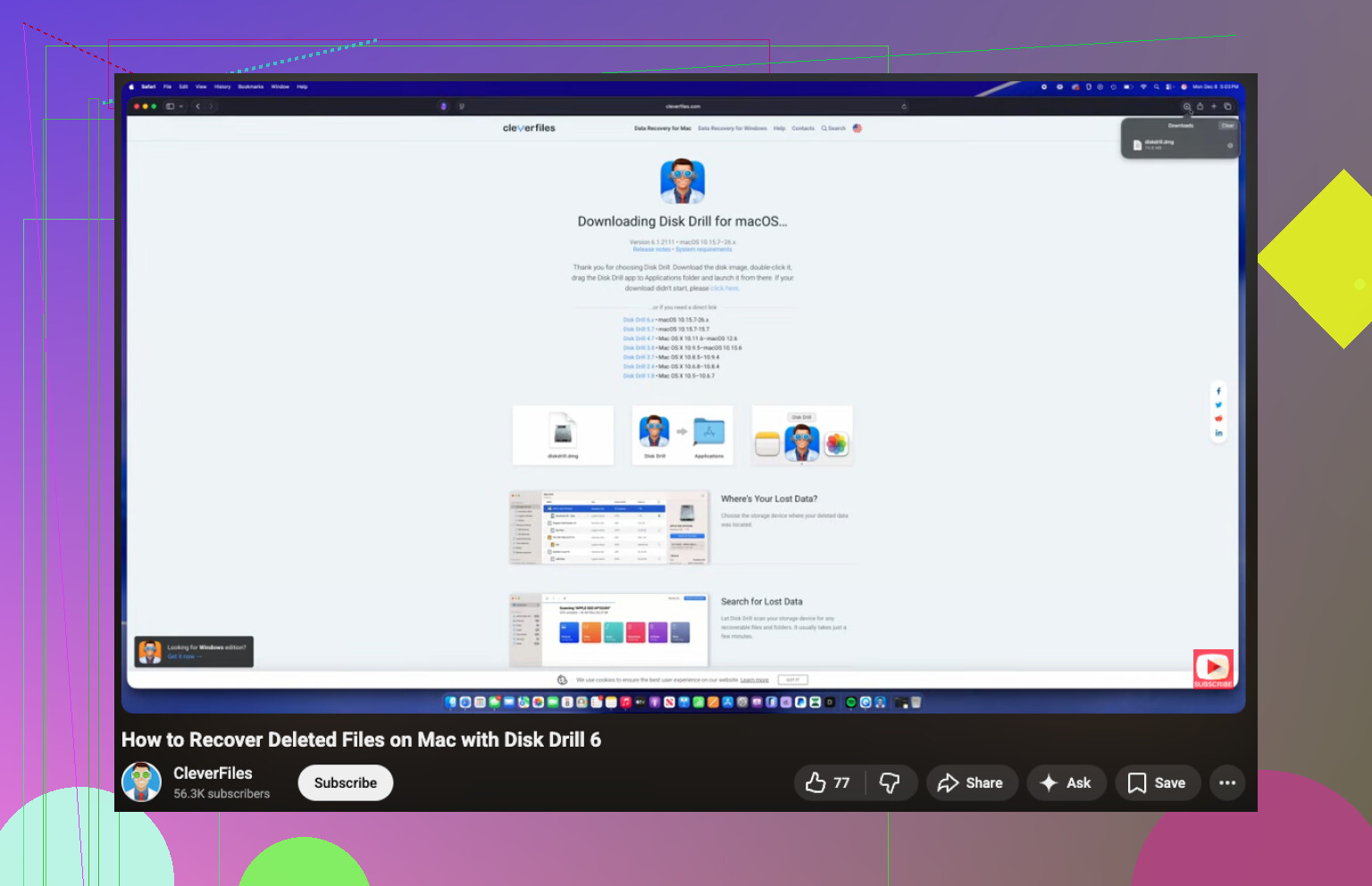
For a related Mac walkthrough, this thread is actually pretty relevant:
practical SD card data recovery on Mac from a Reddit case