I’m testing Clever AI Humanizer on dense technical documents and code-heavy text, but I’m not sure if it’s preserving accuracy while making the language more readable. Sometimes the output feels oversimplified, and I’m worried important technical details might be lost or changed. Has anyone used Clever AI Humanizer for highly technical writing, and can you share whether it keeps terminology, structure, and meaning intact? Any tips on settings or workflows to get better results would really help.
You know that moment when you paste your ChatGPT essay into an AI detector and it just screams “100% AI” at you? That is basically how I ended up messing around with Clever AI Humanizer in the first place.
A lot of tools promise to “make AI text undetectable,” “sound human,” etc., but most of them either want your credit card up front or break your formatting and give you something that reads like a bad rewrite. I didn’t want another one of those. So I actually sat down, ran proper tests, threw a bunch of raw AI text at Clever AI Humanizer, and checked it against several detectors to see what really happens.
Below is everything I wish someone had posted before I tried it.
What Clever AI Humanizer Actually Is
Clever AI Humanizer lives here: https://aihumanizer.net/
Basic idea: you paste text that came from ChatGPT or some other LLM, pick a tone, hit a button, and it spits back a version that reads less like “AI wrote this at 3x speed” and more like something a person could plausibly have typed.
The claim on their site is that it can “make writing sound more human” and help avoid AI flags. That’s what I wanted to test, not just repeat.
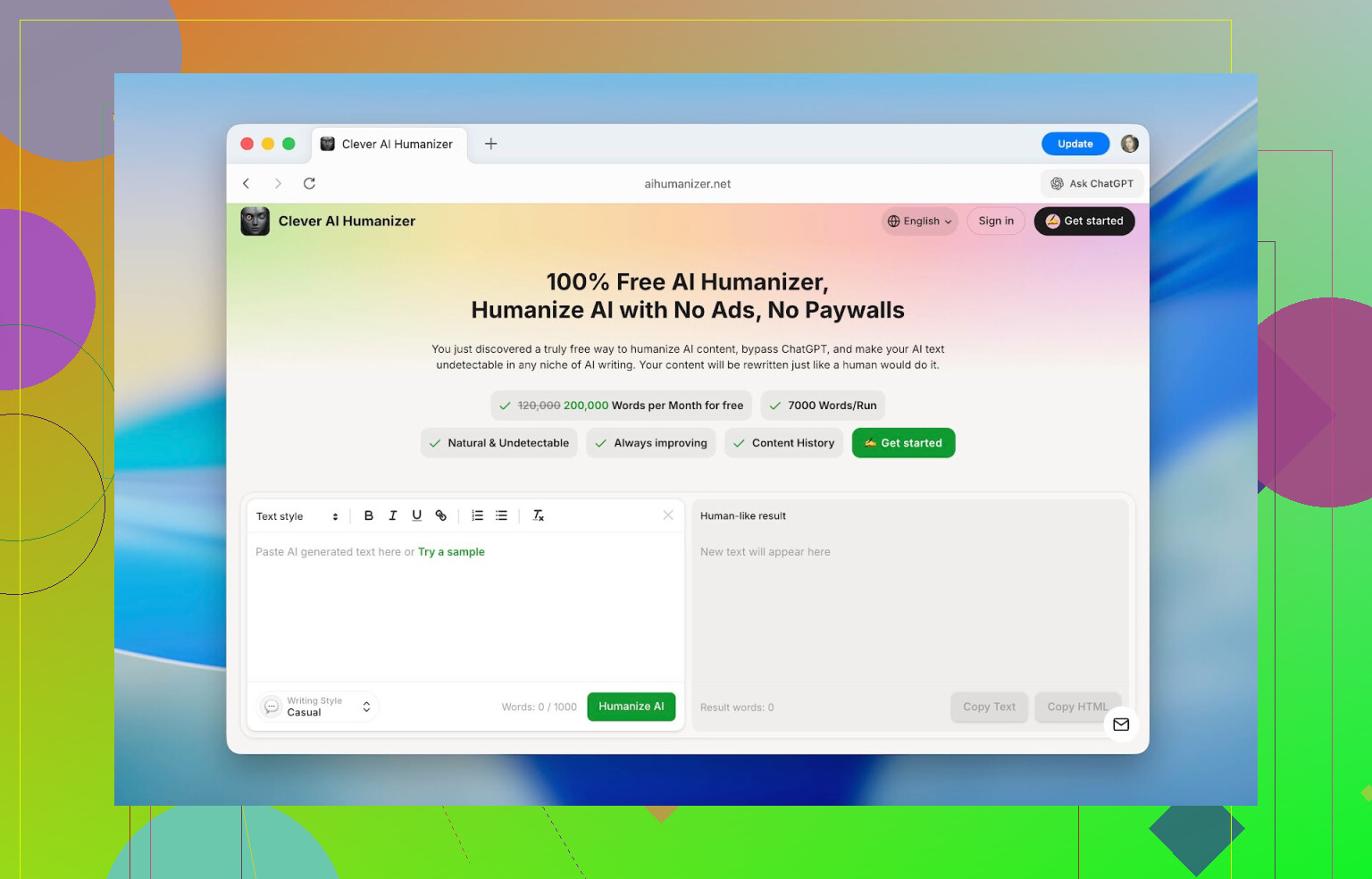
First surprise was the interface. Most AI humanizer sites look like some weekend side project: a tiny box, walls of ads, and a “Pro” popup before you even paste anything. This one actually feels like someone designed it for real use: clean layout, big enough editor, clear word counter, and obvious “before/after” panels. No hunting for buttons.
And yes, it’s actually free in a way that isn’t fake-free:
- Up to 1,000 words per run
- Up to 7,000 words per day
- 4,000 without an account
- Extra 3,000 if you register
So it’s not “3 tries then pay us.” You can realistically process multiple essays, articles, or notes in a day without pulling out a card. That alone already separates it from half the “AI humanizer” sites.
Main Features That Actually Matter
I went into this thinking: “Okay, it rewrites AI text, what else is new.” But a few things turned out to be more interesting in practice than they sound on paper.
1. Detection Drop Is Not Just Cosmetic
I wanted to see whether detectors would still scream “AI” after humanization.
So I did the laziest possible thing:
- Asked ChatGPT a generic question
- Took the first answer (no editing, no clever prompting)
- Ran that text through several detectors:
- ZeroGPT
- QuillBot AI Checker
- GPTZero
- Undetectable AI’s detector
Result for the raw text: basically 100% AI across the board.
Then I ran the exact same text through Clever AI Humanizer once (no manual fixes), and checked again.
Repeatedly, the scores dropped to things like:
- 13%, 6%, sometimes close to 0% on various checks
So it’s not just swapping a few synonyms. Whatever they are doing with sentence structure and rhythm, detectors reacted to it.
Quick reality check though:
No “AI humanizer” can promise permanent 0% detection. Detectors update their models constantly and look at statistical patterns, not magical keyword lists. But the difference in how the text feels and how tools classify it was big enough that I’d call it meaningful, not marketing fluff.
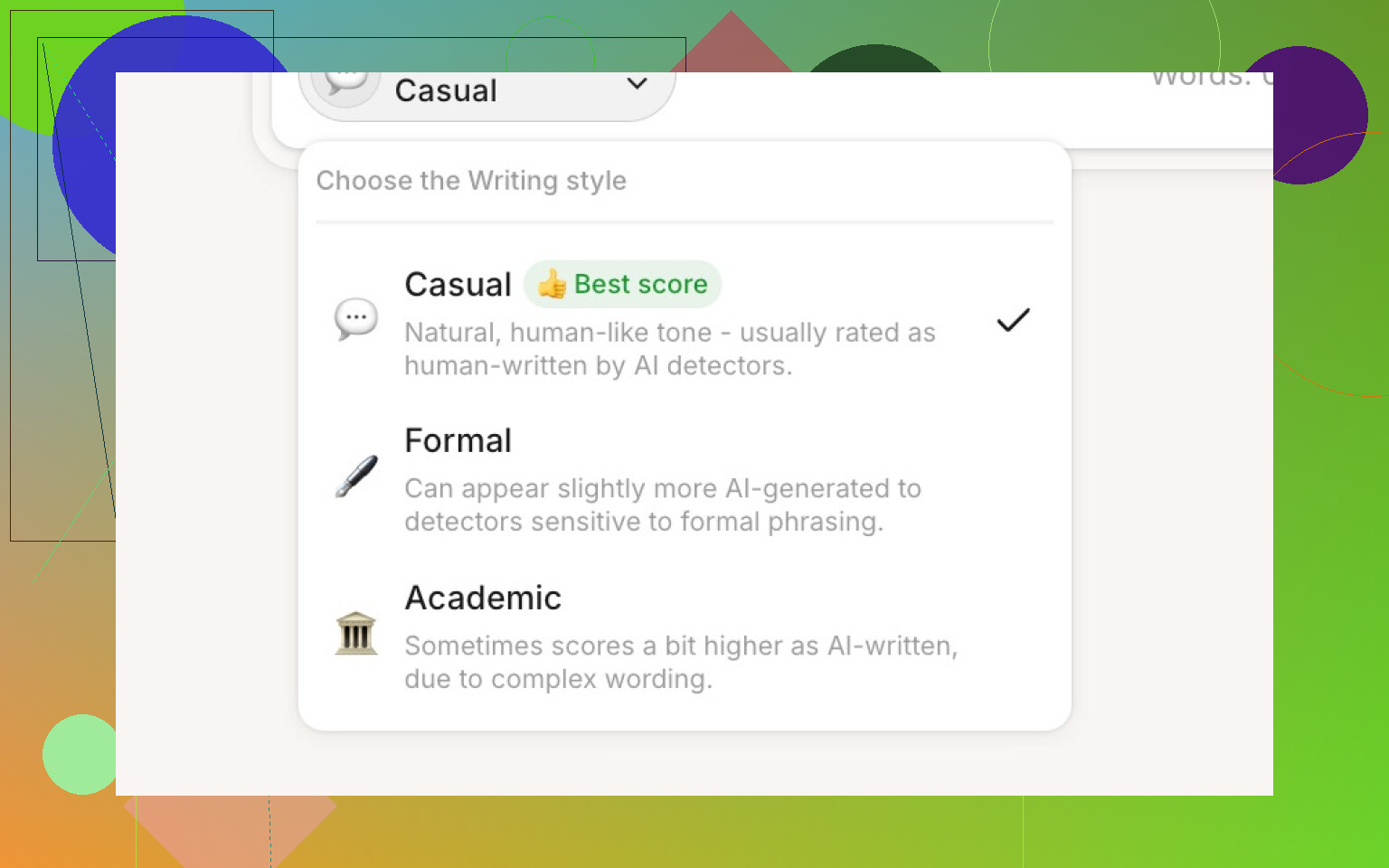
2. Three Distinct Tones That Aren’t Just Labels
You can choose between:
- Casual
- Formal
- Academic
And they’re not pretend labels. The output actually shifts:
- Casual: reads like a normal person explaining something, softer and conversational.
- Formal: sounds like something you’d send in a business email or report.
- Academic: longer phrases, more structured, very “research paper” energy.
Detectors did score them slightly differently (usually within 3–5% of each other), but nothing huge. For most of my tests, I stuck with Casual because it felt closest to normal human writing and seemed like the best “generic” option for essays and articles.
3. Built-In History (This Ends Up Being Surprisingly Useful)
Once you create an account, the tool logs all your previous rewrites:
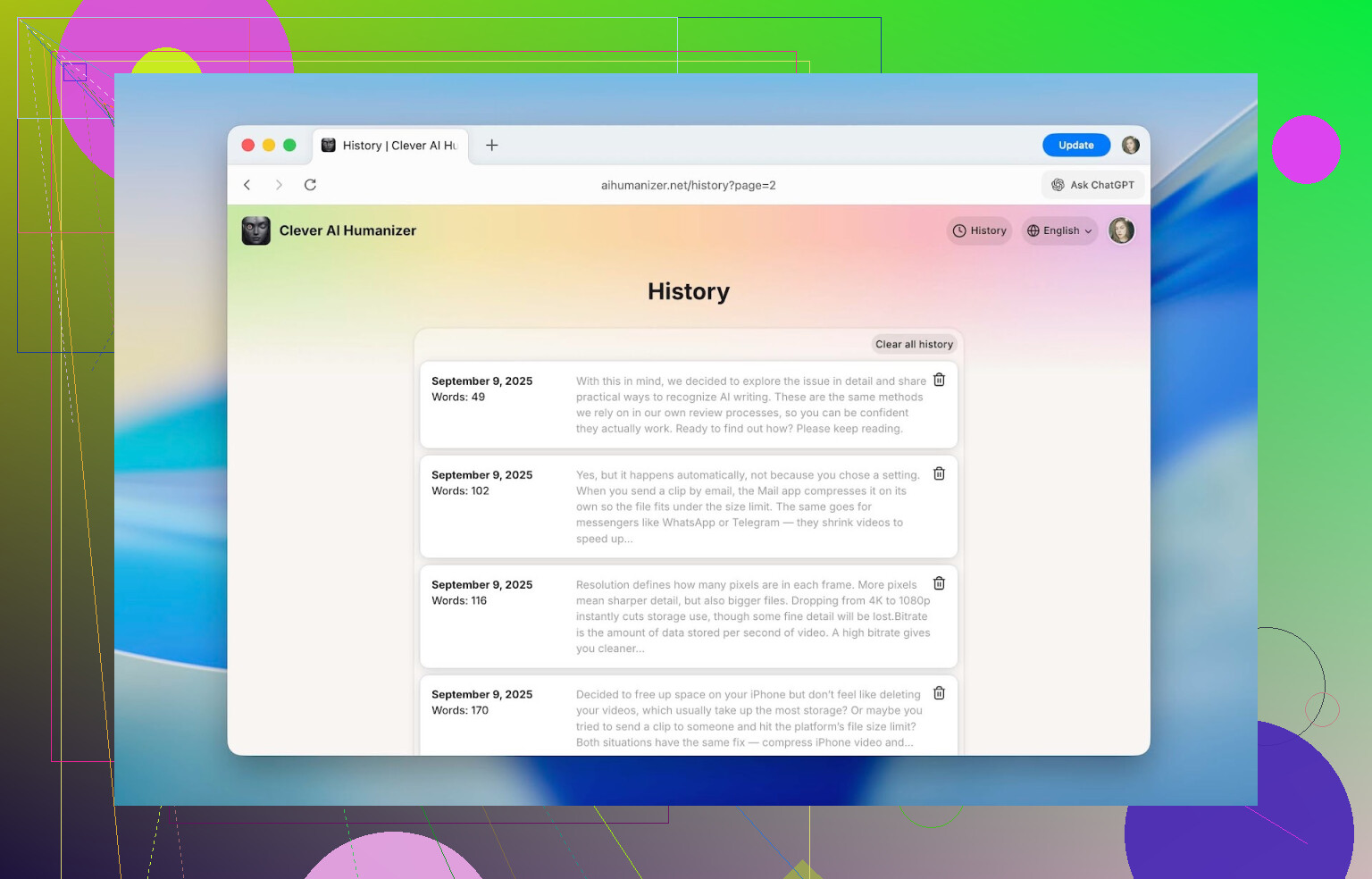
It stores:
- Date
- Word count
- Short snippet of the text
I didn’t think I’d care about this until I had to go back weeks later and find which version of a text I actually used. Everything I humanized in September was still there.
If you’re working on long-term projects (thesis, big content batches, company docs), being able to retrace what you changed and when is way more useful than I expected.
4. Formatting Doesn’t Get Wrecked
This was a huge one for me.
Inside the editor you can:
-
Add headings
-
Use bold, italics,
underline
-
Add links
-
Insert bullet lists / numbered lists
And the important detail:
All that formatting survives the humanization and copy-paste.
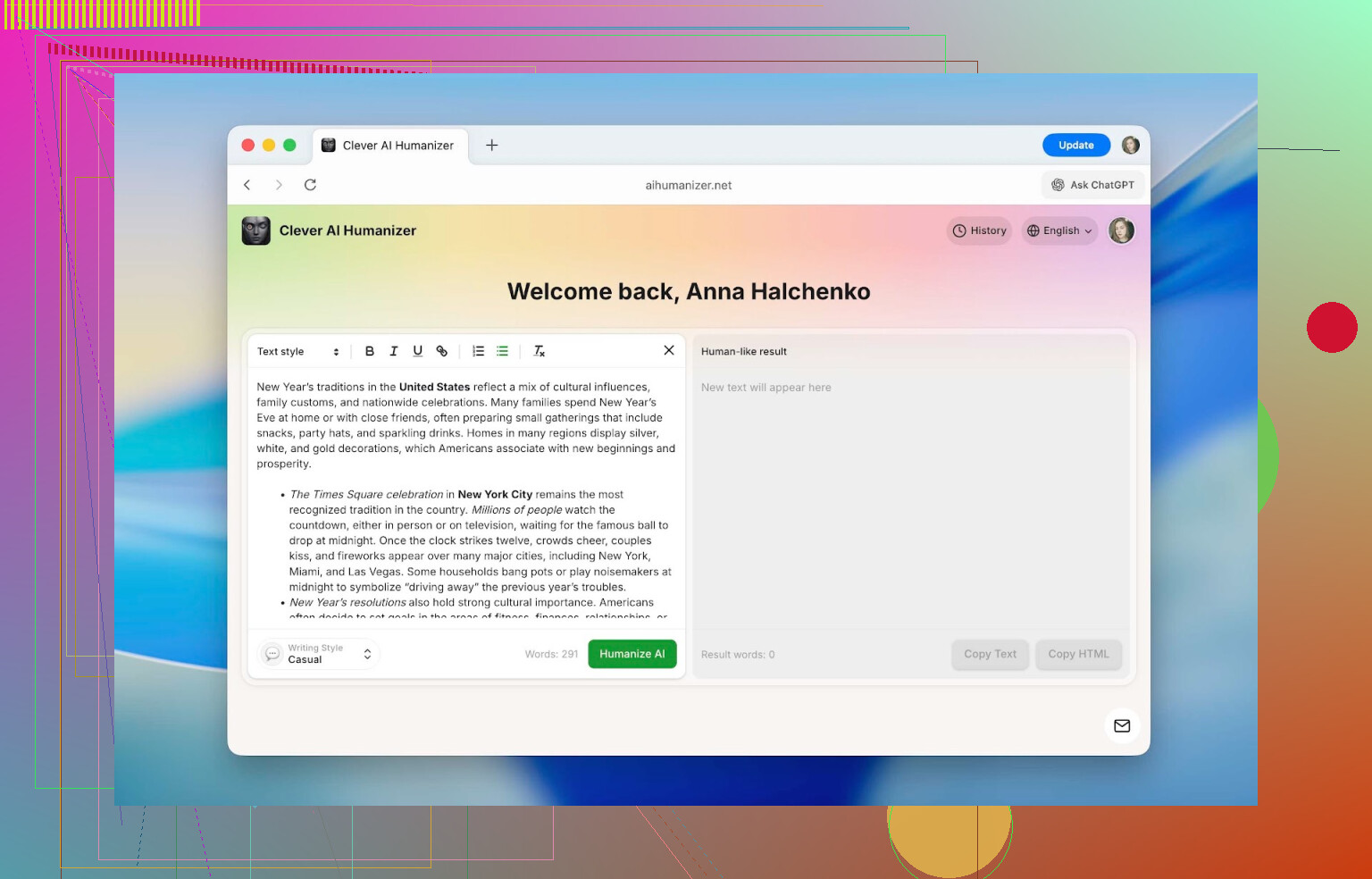
Most tools just strip everything and give you bare paragraphs, so you end up redoing all formatting in Google Docs, Word, Notion, etc. Here, if you paste in a properly formatted assignment or blog draft, you get it back formatted.
That alone saves time if you’re dealing with school templates, technical docs, or blog posts with headings.
5. It Isn’t Locked To English
It also works with:
- French
- Spanish
- Italian
- German
- Dutch
- Portuguese
- Polish
- And more
Plus the interface itself can switch languages, so non-native English users don’t have to rely on browser auto-translate to navigate the UI.
How You Actually Use It (Step-by-step)
This isn’t complicated and you don’t need a tutorial video. Here’s the full workflow from scratch:
-
Open the site:
https://aihumanizer.net/ -
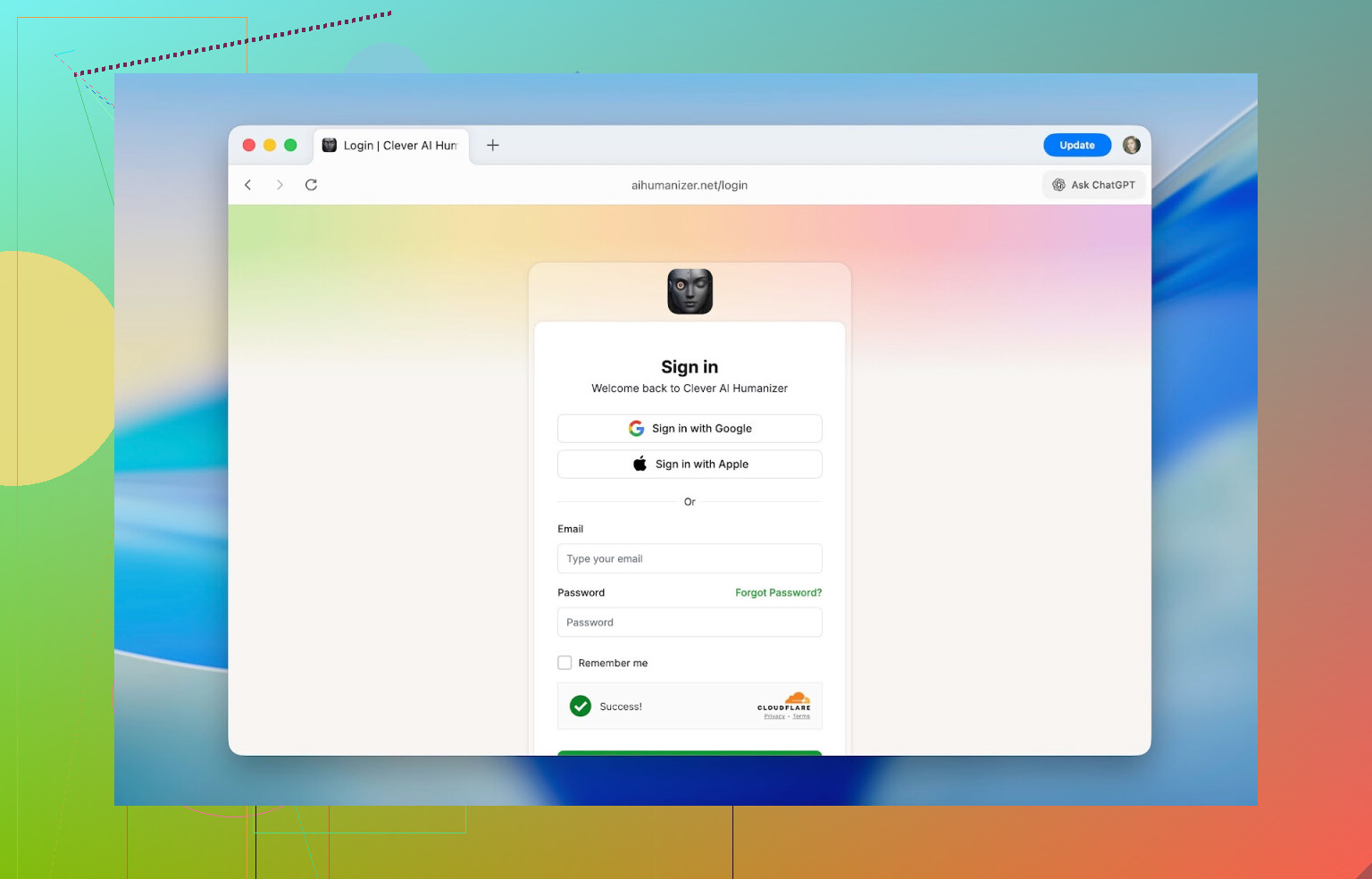
Optional but recommended: click Sign In in the top right.
You can use:- Apple
- Email + password
Logging in gives you:
- Higher daily word limit
- Access to your rewrite history
-
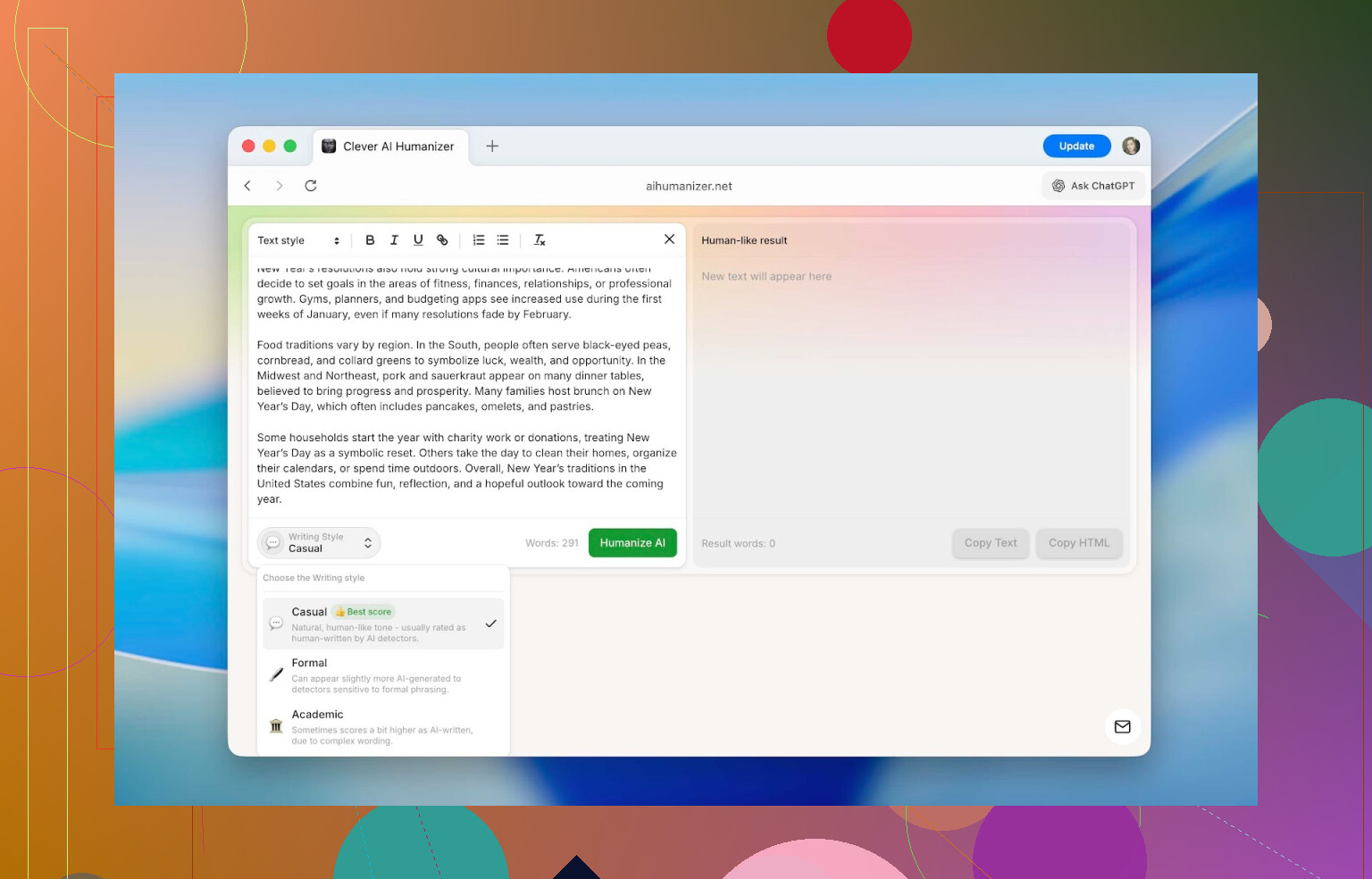
Copy your AI-generated text and paste it into the left panel. That’s the “input” side.
-
At the bottom, choose your style: Casual, Formal, or Academic.
Then click Humanize AI. -
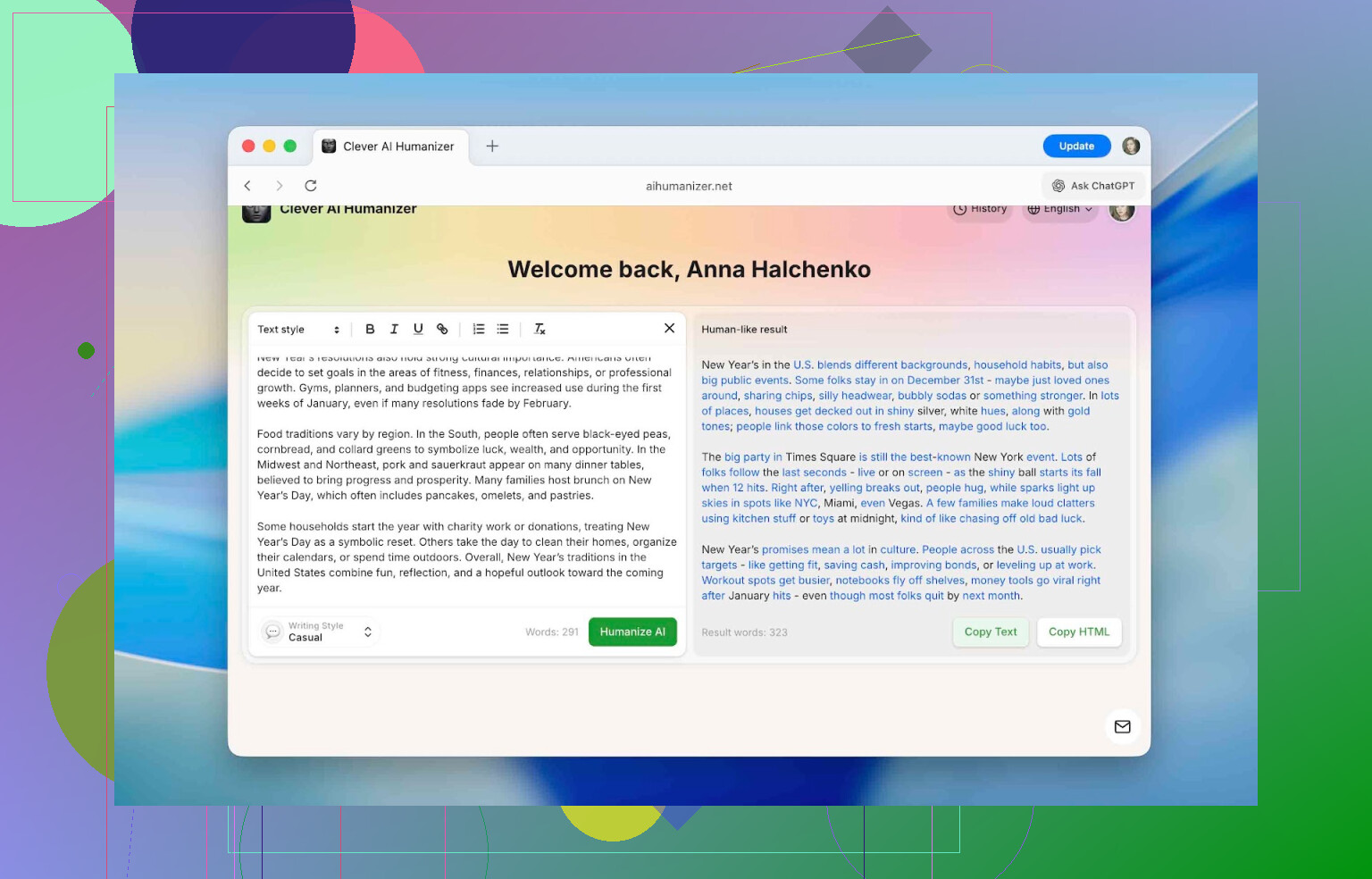
Wait a moment. Your result appears in the right panel.
- The tool highlights changed parts in blue
- You can see exactly what it rewrote and how
Then just copy the output and paste it wherever:
- Essay
- Article
- Company doc
- Or straight into an AI checker to see how it scores
Does It Actually Beat AI Detectors?
This is where it gets interesting.
Most people using something like this don’t actually care about UI or languages; they just want to know:
“Will detectors still call my text AI after using this?”
So I recreated a scenario that looks like what most people would realistically do.
I used these detectors:
- QuillBot AI Checker
- ZeroGPT
- GPTZero
- Undetectable AI detector
Here’s how I tested:
-
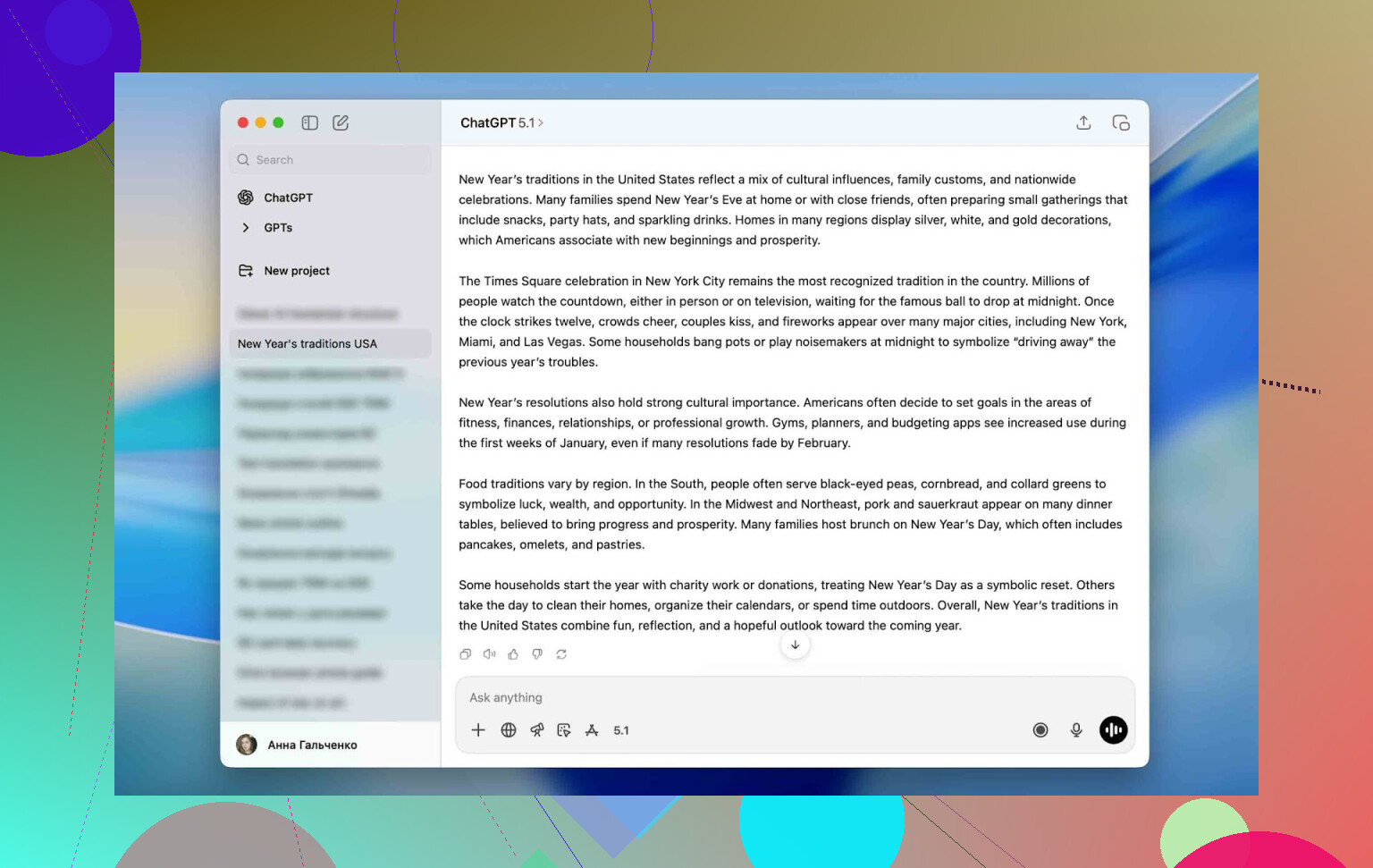
Generated a basic paragraph in ChatGPT. No tricks, just a normal generic answer.
-
Ran that raw text through all four detectors.
All of them labeled it as AI with very high scores. -
Took that same text, pasted it into Clever AI Humanizer, chose Casual, hit Humanize AI.
-
Copied the result and ran the humanized version back through the same detectors.
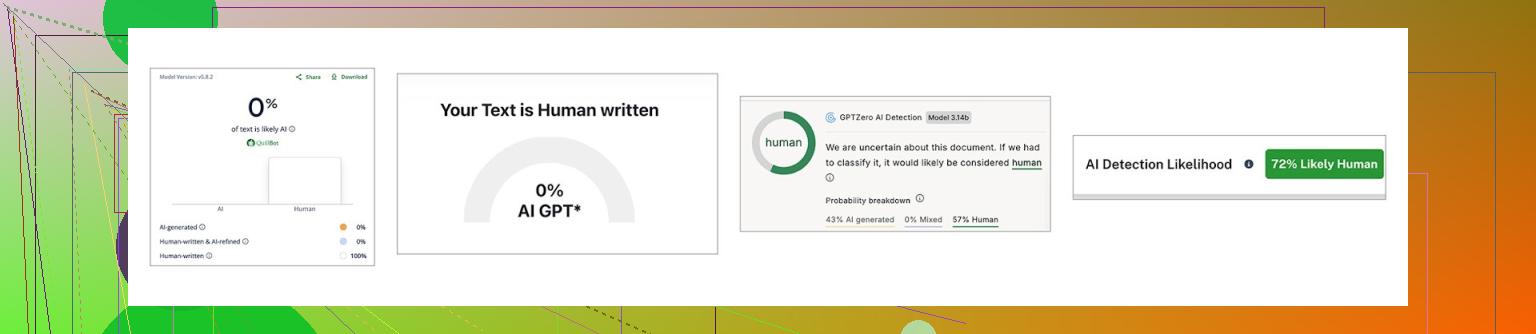
Here are the numbers:
| QuillBot | ZeroGPT | GPTZero | Undetectable AI | |
|---|---|---|---|---|
| Before, % | 98 | 100 | 100 | 90 |
| After, % | 0 | 0 | 43 | 27 |
So:
- QuillBot: from 98% to 0%
- ZeroGPT: from 100% to 0%
- GPTZero: from 100% to 43%
- Undetectable AI: from 90% to 27%
The detectors clearly “saw” something different in the rewritten text. It’s not bulletproof (GPTZero still flagged it partially), but the change is big enough to shift a text from “obviously AI” to “could easily be human.”
Also, detectors don’t agree with each other. That’s normal. Like I mentioned, they each use different signals and assumptions. More here if you care about the nitty-gritty:
[https://www.insanelymac.com/blog/clever-ai-humanizer-review/[sc%20name=](https://www.insanelymac.com/blog/clever-ai-humanizer-review/[sc%20name=)
None of these tools can prove with 100% certainty that something is AI. The best they can say is “this strongly resembles AI-style writing.” Context still matters. Human judgment still matters.
Quick ethical note
Personally, I wouldn’t recommend:
- Generating your entire paper with AI
- Running it through a humanizer
- Submitting it as if you wrote it yourself
The approach that feels “least bad” and most realistic is:
- You write the actual content/ideas yourself.
- You use AI to suggest edits or fill in some clunky phrasing.
- You run those AI-heavy chunks through a humanizer to remove that obvious “ChatGPT tone.”
So the ideas and structure stay yours; the tools are just smoothing edges, not replacing your thinking.
How It Stacks Up Against Other Humanizers
I didn’t want to look at Clever AI Humanizer in a vacuum, so I grabbed a handful of popular alternatives that show up when you Google “AI humanizer.”
The tools I looked at:
- Clever AI Humanizer
- Humanize AI
- Originality.ai Humanizer
- Undetectable AI Humanizer
- QuillBot AI Humanizer
- AI Humanize
- Decopy AI Humanizer
For a fair-ish comparison, I focused on:
- Pricing model
- Monthly word limits
- Extra features
- Detection drop on the same test text using ZeroGPT as the evaluator
I reused the exact same ChatGPT paragraph as before, humanized it with each tool, then checked every result with ZeroGPT.
Here’s the snapshot:
| Metrics | Clever AI Humanizer | Humanize AI | Originality.ai Humanizer | Undetectable AI Humanizer | QuillBot AI Humanizer | AI Humanize | Decopy AI Humanizer |
| Pricing model | Free | Light $19 / Standard $29 / Pro $79 | $14.95/month or pay-as-you-go $30 | from $19/month | $9.95/month | Basic $15 / Pro $25 / Unlimited $40 | Free |
| Monthly word limit | 210000 | 20000 | 200000 | 20000 | Unlimited | 15000 | Unlimited |
| Additional features | Formatting preserved, rewrite history, 3 tone modes | Humanization style | Plagiarism/AI detection, scan history, 4 tone modes, control of the output text length | – | Rewrite history | 8 tone modes, rewrite history | 8 tone modes, control of the output text length |
| Detection drop in tests (ZeroGPT) | 0% | 100% | 100% | 17.76% | 65.12% | 53.74% | 62.4% |
Couple of observations:
- Some tools have basically useless free tiers or none at all. For those, I looked at the cheapest paid option because that’s what you’d realistically end up on if you actually wanted to use them.
- When you strip away the bells and whistles, two metrics really matter:
- How well it helps you avoid AI flags
- How much you pay for that result
On those two points, Clever AI Humanizer came out on top:
- Detection: ZeroGPT score dropped to effectively 0%
- Cost: Free
- Word allotment: enough for real work, not just toy examples
The biggest shockers for me were:
- QuillBot AI Humanizer
- Originality.ai Humanizer
Both have strong names behind them and paid plans, but in this specific “can you make this look less like AI to ZeroGPT” test, they did not justify the price. The text still showed up as basically 100% AI. If your main goal is specifically to reduce AI detection, those wouldn’t be my first picks.
The only other tool that came close in terms of detection drop was Undetectable AI Humanizer, but it’s paid and the pricing changes based on how many words you want. The entry-level tier is around $19 per month.
So for: “I want decent undetectability and I don’t want to pay,” Clever AI Humanizer was the obvious winner in my tests.
Where It Actually Makes Sense To Use It
Everyone immediately thinks “homework” or “essays,” but that’s only one use case.
Realistically, anywhere ChatGPT text starts to sound the same as everyone else’s, this type of tool is useful.
Typical scenarios I’ve seen:
-
Cleaning up AI-heavy parts of:
- Essays
- Homework
- Reports
- Presentations
-
Rewriting social media stuff:
- Instagram captions
- Threads posts
- TikTok / YouTube descriptions
-
Refreshing product descriptions so they:
- Don’t sound like straight copy-paste AI
- Build more trust with buyers
-
Polishing blog posts or site content that started life as AI drafts
-
Making internal documents less robotic when they were heavily AI-assisted
-
Adapting:
- Guest posts
- Sponsored content
- Submissions for editorial platforms
In all of these, the main problem is the same: “This sounds like ChatGPT wrote it.” Clever AI Humanizer fixes that “tone and pattern” issue in one pass, without forcing you to manually rewrite line by line.
Final Thoughts After Using It For A While
After going through all the tests, re-checking outputs with multiple detectors, and comparing it with other options, here’s where I landed.
- The marketing claims are not purely hot air.
- It does noticeably lower AI detection scores on several major tools.
- It does that while being completely free with a usable daily limit of around 7,000 words.
- The extra stuff (history, multiple tones, formatting preserved) is actually practical and not just checklist features.
It ended up at the top of this broader ranking for a reason:
[https://www.insanelymac.com/blog/clever-ai-humanizer-review/[sc%20name=](https://www.insanelymac.com/blog/clever-ai-humanizer-review/[sc%20name=)
If what you want is:
- Text that sounds closer to you than to “generic AI assistant”
- Less chance of detectors going full red
- A free tool that doesn’t immediately hit you with a paywall
Then it is absolutely worth trying.
Just one last reminder: AI tools are supposed to help you express your own ideas better, not replace them entirely. If you lean on them to do all the thinking for you, you’re not really saving time; you’re just borrowing trouble for later.
If you’ve already played with Clever AI Humanizer or have strong opinions about “humanized” AI content, there’s an active discussion here:
https://www.insanelymac.com/forum/
People are sharing their experiences, detector results, and general thoughts, and it is actually useful to see how others are using tools like this in the wild.
6 Likes
Short answer: it can handle complex technical stuff okay, but you absolutely cannot trust it blindly on dense docs or code-heavy text.
Here’s what I’ve seen in practice:
-
Concepts vs. precision
- For high-level explanations (what a load balancer is, how REST works, why indexes speed up queries), Clever Ai Humanizer does a solid job making it more readable.
- For precision-heavy material (algorithm complexity, cryptography, compiler flags, edge-case behavior of APIs), it tends to smooth out the language in a way that sometimes quietly drops nuance. That’s the “oversimplified” feeling you’re noticing, and yeah, it’s real.
-
Code snippets are a weak spot
- It usually keeps fenced code blocks intact, but:
- Comments around the code can get “nicened up” and lose key hints.
- Inline code (
likeThis()) occasionally gets reworded or turned into normal text, which in technical docs is… bad.
- I’ve seen it change wording like “must” to “should” or “O(n log n)” to “fast for most cases,” which is the kind of thing that will wreck correctness even if the detector score looks great.
- It usually keeps fenced code blocks intact, but:
-
Structure vs. semantics
- It’s very good at adjusting tone, sentence length, and rhythm.
- It is not a technical editor. It doesn’t “know” which pieces are normative, which are requirements, which are warnings, etc. If your document has any kind of spec-like language (MUST / SHOULD / MAY, versioning guarantees, exact error messages), you need to lock that down or restore it manually afterward.
-
Oversimplification is almost a “feature”
Tools like this are optimized to break obvious AI patterns: predictable structure, repetitive phrasing, super tidy transitions. Simplifying or paraphrasing aggressively helps with that… but it’s exactly what makes technical accuracy slip.
So yeah, in that sense I’d slightly disagree with @mikeappsreviewer: for casual content or essays, the “just paste and run it” flow is fine. For technical docs, “one pass and done” is too risky. -
How to use it without trashing your tech content
What has worked best for me is:-
A. Segment your text
- Run explanatory sections through Clever Ai Humanizer.
- Leave the following parts untouched or only lightly edited:
- Requirements / specs
- Error codes / messages
- CLI flags, config keys, environment variables
- Code samples and anything that looks like syntax
-
B. Lock code & formal terms
- Keep code in fenced blocks and inline code in backticks before humanizing.
- Afterward, diff the result and check:
- Are function names / types / constants still exact?
- Any math expressions changed into prose?
- Any “MUST/SHOULD/SHALL” turned into softer wording?
-
C. Use it as a style pass, not a content pass
Treat Clever Ai Humanizer like a glorified stylistic rewriter:- Let it rework long, stiff paragraphs into more natural English.
- Then do a technical review line by line to reinsert exact phrasing where needed.
-
-
When it actually shines for technical stuff
It’s especially useful for:- “Intro” sections in docs: overview, motivation, non-critical analogies.
- Dev blog posts about a library or feature where tone matters more than strict RFC-level wording.
- Internal wikis where some small imprecision is acceptable as long as the idea is clear.
It’s much less safe for:
- Security docs
- API references
- Database migration guides
- Anything where one wrong word can cost money or downtime
-
Detection vs. correctness tradeoff
If your main goal is “don’t trip AI detectors,” Clever Ai Humanizer does its job reasonably well and I get why @mikeappsreviewer rated it highly there.
If your main goal is “don’t mislead engineers,” then detection is honestly a secondary concern and you should budget time for a human technical review after running it.
Bottom line:
Yes, Clever Ai Humanizer can handle complex technical content in the sense that it won’t just explode, and it will usually produce something readable. But it has no real notion of “this detail must not change,” so oversimplification is not a bug, it’s a byproduct of how it avoids AI patterns.
Use it surgically:
- Explanations: OK.
- Specs, code, strict definitions: manual or very carefully checked.
If you treat it as a style layer on top of already-correct technical writing rather than a fire-and-forget fix, it’s actually pretty useful.
Short version: it’s “good enough” for tech content if you treat it like a style pass, not a truth engine. If you’re expecting it to keep every technical nuance perfectly intact on autopilot, you’re gonna be dissapointed.
Couple angles that haven’t been hit as hard yet:
-
It has no idea what’s critical vs cosmetic
@mikeappsreviewer focused a lot on detectors (fair), and @reveurdenuit covered oversimplification. The missing piece for me is priority:timeout=0vstimeout>0is a huge difference.- “At least once” vs “usually” is a huge difference.
Clever Ai Humanizer happily rewrites both like they’re stylistic fluff. It does not protect “danger words” or invariants.
-
High‑entropy text survives better than low‑entropy text
Weirdly, longer and more “idiosyncratic” technical prose tends to survive with less damage. Super clean, textbook‑ish writing is where it starts doing the most flattening, because that’s exactly what detectors flag as AI-like.
In other words, the more “clean spec” your doc looks, the more aggressive the changes. -
It’s decent at clarifying, terrible at disambiguating
If your paragraph is already unambiguous and precise, the humanizer often turns it into something more ambiguous but friendlier.
If your paragraph is a bit messy but the intent is obvious to an engineer, it can actually help by:- Splitting long sentences
- Killing redundant phrases
- Making preconditions and results read more naturally
As long as you re-validate the exact claims afterward.
-
Code-adjacent text is where things break first
Not just code blocks. Stuff like:- “If
foois null, the function throwsInvalidOperationException”
can quietly turn into - “If foo is missing, the function might raise an error”
That “might” looks harmless but is technically wrong in many contexts. The more your doc reads like “runtime guarantee table,” the less you should let Clever Ai Humanizer touch it without a diff review.
- “If
-
It’s actually useful for team workflows
One scenario where I think it’s underrated compared to what @mikeappsreviewer and @reveurdenuit said:- Senior dev writes ultra-dense, accurate docs.
- You run only the intro, rationale, and examples sections through Clever Ai Humanizer to make them more junior-friendly.
- The spec, signatures, and error semantics stay literal.
That gives you a “two-layer” doc: humanized narrative on top, untouched ground truth beneath.
-
How I’d practically use it on dense tech stuff
- Keep these off-limits or only lightly edited:
- API references
- Config tables
- Error code lists
- Security sections & auth flows
- Let Clever Ai Humanizer work on:
- Overviews and “why this exists”
- High-level architecture sections
- Walkthroughs and “let’s build X with this API” posts
Then do a fast, paranoid skim: search for “must/should/might/may” and math notations to see what got “softened.”
- Keep these off-limits or only lightly edited:
So yeah, Clever Ai Humanizer can totally be part of a technical writing toolkit. Just don’t confuse “sounds more human” with “still technically equivalent.” For dense or code-heavy docs, treat it like a stylistic layer you lay on top, then have your engineer brain (or another human) re‑assert the exact guarantees after the fact.
Short version: it can handle complex tech content, but only if you fence it in.
Since others already covered detectors and oversimplification, here’s a different angle: where I’d trust Clever Ai Humanizer on dense / code-adjacent text, and where I’d keep its hands off.
Where it works well for technical content
Pros:
- Good at untangling long paragraphs about high-level behavior, architecture, or tradeoffs.
- Helps non-native speakers make explanations sound more natural without rewriting everything from scratch.
- Plays nicely with headings, lists, and inline formatting, so structured docs don’t get shredded.
- The tone options (Casual / Formal / Academic) are actually helpful when you need to match a team’s documentation style.
Use it for:
- Intros: “What this service does, why it exists.”
- Conceptual sections: eventual consistency vs strong consistency, sync vs async, etc.
- Walkthroughs and tutorials: “First, call this endpoint, then check this field.”
- Internal wikis where humans will proofread anyway.
Where it becomes risky
This is where I slightly disagree with how relaxed some takes are. Clever Ai Humanizer is not context aware about technical landmines.
Cons:
- It will casually weaken or strengthen guarantees: “must” to “should,” “throws” to “might fail,” “constant time” to “usually fast.”
- It may blur exact terminology: “idempotent” turned into “safe to call multiple times” is fine once, but if you are defining terms, that is not equivalent.
- Code-adjacent language can drift: error names, config flags, environment variables, even default values can get paraphrased into something that no longer exists in the actual system.
- For math-heavy or spec-like text, its attempt to “sound human” often turns precise statements into hand-wavy approximations.
Avoid using it on:
- API reference sections
- Security, auth, and permission docs
- Config tables, error lists, protocol specs
- Anything where exact wording ties directly to code behavior
How to make it play nice on complex docs
Different focus than @reveurdenuit, @viajeroceleste, and @mikeappsreviewer:
-
Segment your doc.
Run only the narrative parts through Clever Ai Humanizer. Leave code blocks, parameter lists, and bullet-point requirements unedited. -
Protect “contract language.”
Before pasting, mark lines that are effective contracts, like:- “The function returns 404 if and only if …”
Treat those as untouchable or review them in diff mode afterward.
- “The function returns 404 if and only if …”
-
Search for “weasel words” after.
After humanization, scan for:- might, usually, generally, often, probably
If the original was a strict guarantee, those are red flags.
- might, usually, generally, often, probably
-
Let engineers have the last word.
Clever Ai Humanizer can make text more approachable for PMs, juniors, or external readers, but a domain owner should do a final pass to reassert invariants.
Compared with the approaches from @reveurdenuit and @viajeroceleste, I’d say: they’re right about oversimplification, but I think the tool is safer than they imply if you isolate it to non-normative text. Compared with @mikeappsreviewer’s detector-heavy testing, my priority is the opposite: correctness first, detection scores second.
If you treat Clever Ai Humanizer as a “style filter” on top of already-correct technical writing, it can absolutely help with readability without wrecking your content. If you treat it as a one-click fix for dense specs, it will eventually bite you.