I accidentally formatted an external hard drive that had important photos, work files, and backups on it. I stopped using the drive right away because I’m worried new data could overwrite everything. What’s the best way to recover data from a formatted hard drive before it’s too late?
I know this one too well. You format the wrong drive, then your stomach drops a second later. I’ve done it, and the first mistake after that is usually panic-clicking around and making it worse.
If this happened to you, stop using the drive now. Don’t copy files to it. Don’t install anything on it. If it’s an external disk, unplug it. If it’s the internal system drive, keep writes to a minimum. Every write eats into your odds.
Start with backups, before anything else
Before you run recovery apps or spend money, check whether your files already exist somewhere else. A lot of people forget sync services were saving copies the whole time.
I’d check these first:
- OneDrive, Google Drive, or iCloud trash and recently deleted sections
- Time Machine backups on a Mac
- File History on Windows
If your files are in one of those places, you skip the messy part and restore them fast.
Recovery software is usually the next move
If there’s no backup, I’d move to recovery software right away. For a formatted drive, that’s often the most practical route.
I’ve had decent results with Disk Drill. It works on Windows and Mac, supports formatted drives, and it handles the file systems most people run into. Not magic, still, but usable.
The safe process is pretty simple:
- Install Disk Drill on a different drive, never on the one you formatted
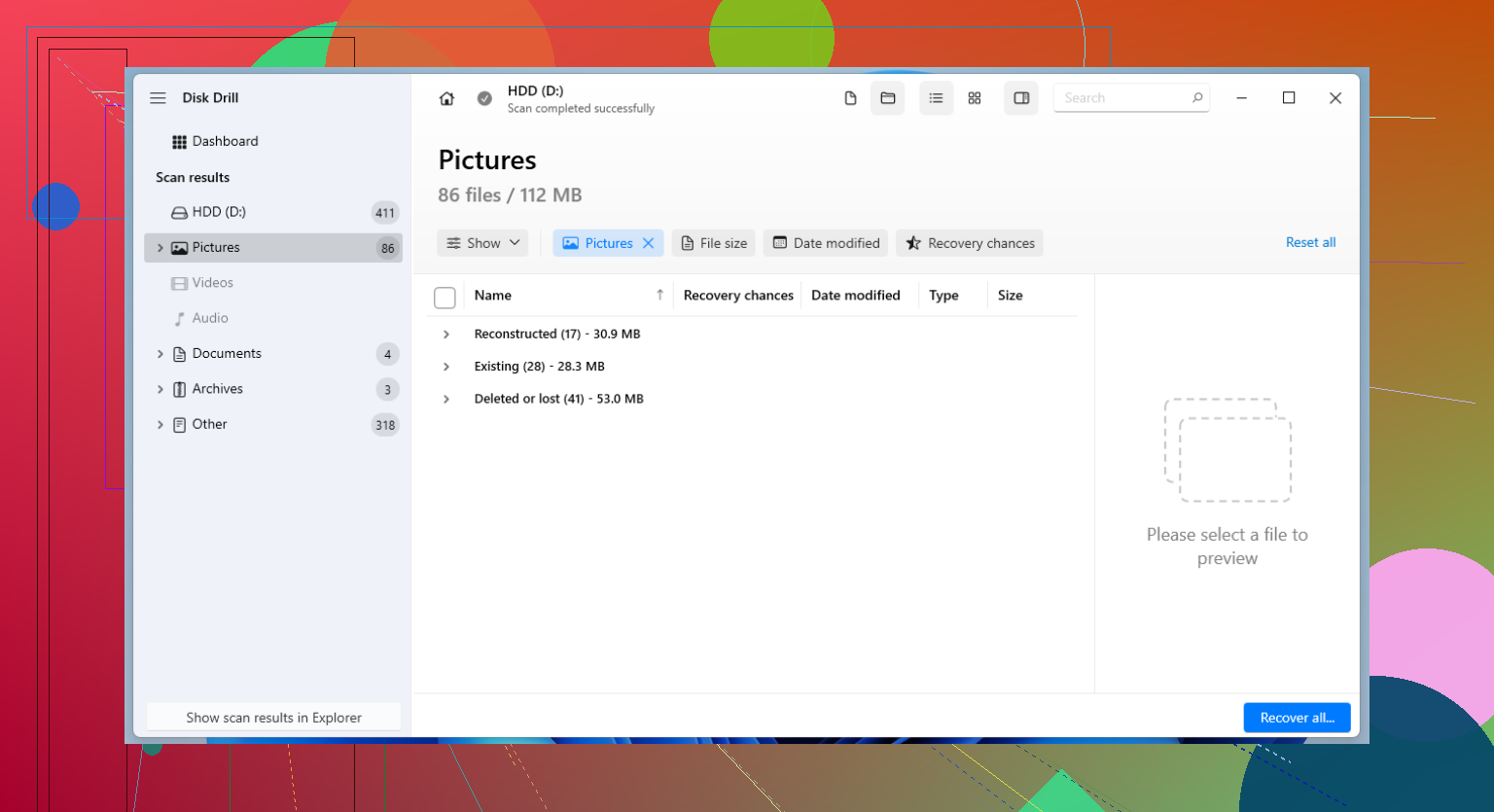
- Run a scan on the formatted drive and look through what shows up
- Save recovered files to another disk or external device
If you want a free route, PhotoRec does pull a lot of data, though it’s rough to use and filenames often come back mangled or gone. Recuva is easier on Windows, though I’ve seen it miss more on badly formatted partitions.
When software isn’t enough
If the files matter a lot, family photos, legal docs, work archives, stuff you can’t rebuild, a recovery lab is the next step. It costs more. A lot more, sometimes. But they have tools and procedures home software doesn’t.
One thing people miss is the type of format you ran. That changes the odds more than most guides admit.
- Quick Format usually removes the file system map, so the data blocks might still sit there until new data overwrites them
- Full Format is worse. On modern Windows systems, it writes zeros across sectors and checks for errors. Once the old data is overwritten, recovery software won’t pull it back
So the order matters. Stop using the drive. Check backups. If no backup exists, scan it with a recovery tool and recover files onto a different device. If the data is critical and the scan turns up junk, hand it off before you keep poking at it. Speed matters here, and so does restraint, which sucks, becuase the first urge is to keep trying things.
11 Likes
Yes, if the format was quick format, your odds are still decent. Stopping use right away was the right move. That matters more than people think.
One point I’d add to @mikeappsreviewer, don’t scan the original drive over and over if it starts throwing errors or disconnecting. First make a sector-by-sector image of it with something like HDD Raw Copy Tool or ddrescue. Work from the image, not the disk. That reduces risk if the drive is unstable. A lot of people skip this and regret it.
What changes the odds:
- Quick format, better chance.
- Full format, much worse.
- SSD with TRIM, often bad news.
- HDD, better recovery odds than SSD in most cases.
Best path:
- Connect the drive read-only if your adapter or dock supports it.
- Clone or image the drive to another healthy disk.
- Scan the clone with Disk Drill or PhotoRec.
- Recover files to a different drive, never back to the formatted one.
Disk Drill is a solid pick here because it handles formatted partitions well and its preview helps you sort photos and docs faster. If you want a quick look at Disk Drill features, recovery modes, and extra tools, watch see how Disk Drill recovers formatted drives.
If the drive was used for backups, check whether those backup files were encrypted containers or proprietary images. Some recovery apps find the giant backup file, but not the contents inside it. That part trips people up alot.
If the data is worth real money, stop DIY after the image step and send it to a lab. That gets expensive fast, but repeated home scans can make things worse.
If you stopped right away, that was the single best move. The main thing I’d add to what @mikeappsreviewer and @chasseurdetoiles said is this: figure out whether the format actually changed the file system type. If you went from, say, NTFS to exFAT or APFS to ExFAT, recovery can get messier because the old metadata gets replaced differently. Not impossible, just less clean.
Also, don’t trust the first scan result too much. A lot of people run one tool, see missing filenames/folders, and assume the data is gone. Sometimes a second pass with a different scan method finds the same files by signature instead of directory structure. That’s where something like Disk Drill is useful, because you can often preview the recoverable photos/docs before wasting hours exporting junk. Preview matters more than ppl think.
One small disagreement with the usual advice: I would not rush straight to a recovery lab just because the files are important if the drive is healthy and readable. Labs make sense for failing hardware, clicking drives, disconnects, water damage, etc. For a normal accidental format on a stable external HDD, software recovery first is usually the sensible move.
A couple extra gotchas:
- If the drive was encrypted with BitLocker/FileVault, recovery odds depend on whether you still have the key.
- If those “backups” were from Mac Time Machine or Windows system images, you may recover the backup container file, not nicely browsable folders.
- If it’s an SSD, TRIM may have already nuked chunks of recoverable data. HDDs are usually way more forgiving.
I’d also read this thread for more formatted drive recovery tips that actually make sense.
Short version: yes, recovery before overwrite is absolutely possible, especially after a quick format, but don’t keep poking the drive too much or you can turn a saveable mistake into a permanent one.
One angle I think @chasseurdetoiles, @andarilhonoturno, and @mikeappsreviewer only partly touched: check what kind of formatting actually happened at the partition-table level. If the format also recreated the partition map, some tools will show the drive as “empty” even though the old volume boundaries are still guessable. In that case, partition recovery can sometimes restore folder structure better than plain file carving.
I’d also push one caution harder: if this is an SMR external HDD, repeated full-disk scans can be painfully slow and sometimes trigger weird pauses that look like failure. Not always damage, just how those drives behave. People panic and restart scans too soon.
My take:
- HDD + quick format + no new writes = decent chance
- SSD + TRIM + time passed = much uglier
- Reformat to different file system = metadata recovery gets worse, raw recovery may still work
Disk Drill is fine here, especially for previewing photos and filtering by file type before recovery.
Pros:
- easy to sort recoverable files
- good preview support
- handles formatted volumes pretty well
Cons:
- can be expensive if you only need one recovery job
- deep scans may return lots of raw files with bad names
- not the lightest option on weak machines
Small disagreement with the usual “recover everything” advice: don’t. Recover a sample set first. Open 20 to 50 photos, a few documents, maybe one archive. If those are corrupt, change strategy before wasting hours and destination space exporting garbage.
If the drive mounts, reports the right size, and sounds normal, software first makes sense. If it clicks, disappears, or stalls hard, stop DIY.