I accidentally formatted my GoPro memory card before backing up my videos, and now I’m trying to figure out if the footage can still be recovered. The card had important clips from a recent trip, so I really need help with the best recovery options and what I should avoid doing next to prevent losing the files for good.
I’ve been in this spot before, and yeah, it sucks. You finish a trip or a long shoot, get home, pull the card, and the clips are gone. The one thing I’d do first is slow down. With GoPro footage, the next few minutes matter more than people think.
First things first
Stop using the camera. Take out the SD card.
Don’t shoot anything else on it. Don’t format it again. Don’t run repair tools because some of them make a mess. When a video gets deleted or a card gets formatted, the data often sits there until new footage lands on top of it.
Before running recovery software, I’d check the easy stuff:
- GoPro cloud storage, if your account had Auto Upload turned on
- The Trash or Recently Deleted area in your GoPro account
- The camera screen for a file repair prompt
- LRV preview files still sitting on the card
- A different card reader or another computer, because sometimes the card is fine and the reader is junk
Then I’d look at how the card behaves. If it is invisible on every device, gets hot fast, drops connection over and over, freezes your system, or has obvious physical damage, I would stop there. At that point, software tends to waste time. Physical card failure is a different problem.
Why GoPro footage is harder to recover than people expect
This part catches a lot of people off guard.
Photo recovery is often simple. Documents too. Action camera video is not. GoPro clips are often stored in a fragmented way, with video streams, audio, preview data, metadata, GPS info, and other chunks written across the card in pieces. So what looks like one MP4 to you might be split into hundreds, sometimes thousands, of fragments.
A lot of tools find those fragments and then fall apart when it’s time to rebuild them. I’ve seen scans report success, then the recovered files won’t open, skip sections, freeze during playback, or import into an editor and fail anyway.
Usual symptoms look like this:
- Videos fail to open
- Parts of the clip are missing
- Playback is corrupted or broken
- Recovered MP4 files show up but refuse to play in VLC or Premiere
So if you’re wondering why a random recovery app handles JPEGs fine but chokes on GoPro, DJI, or Insta360 footage, this is usually why.
What I’d try first
If I were doing this on my own card, I’d start with Disk Drill.
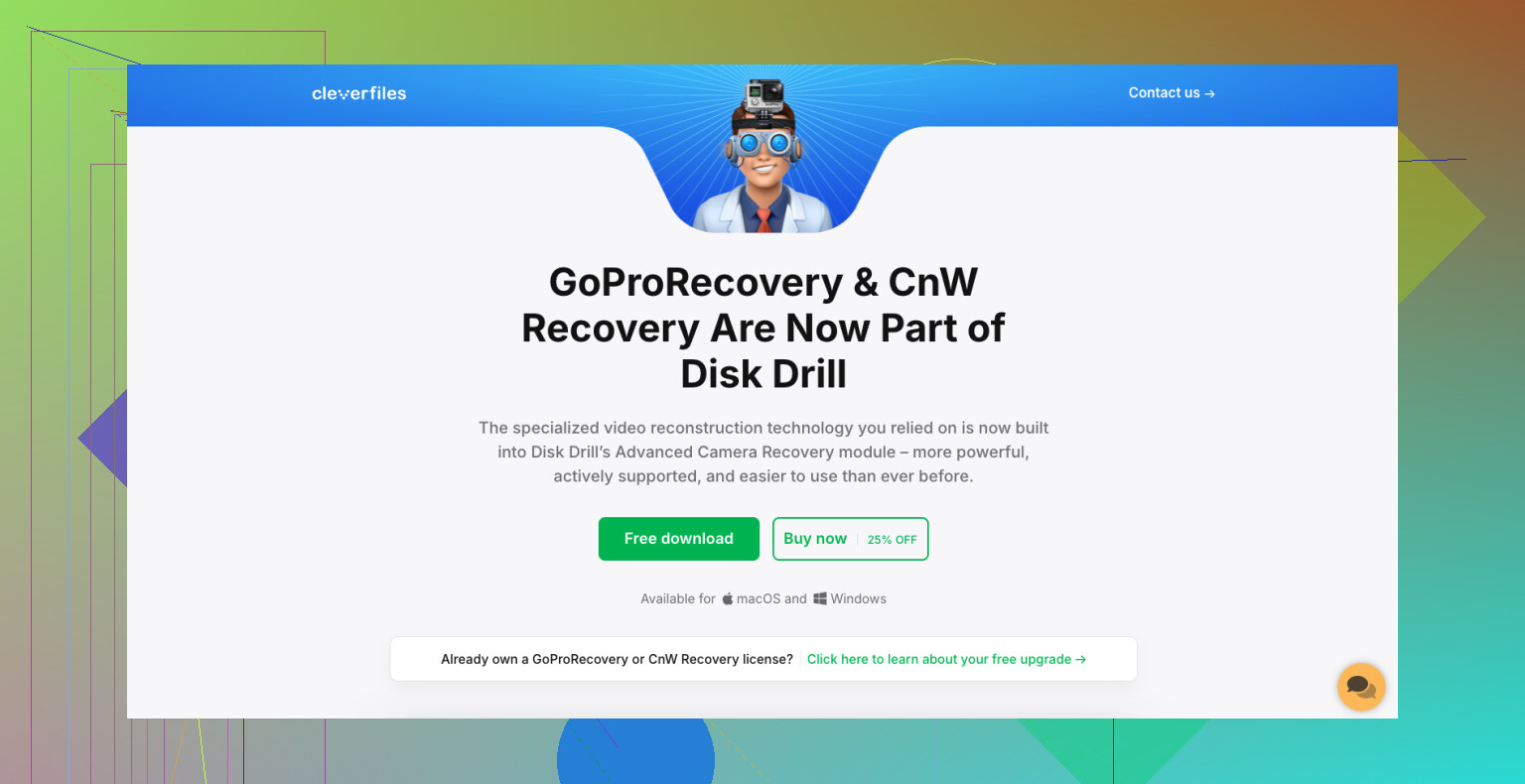
The reason is simple. Its Advanced Camera Recovery mode was built for fragmented camera footage. From what I’ve seen, this is where it stands out. It uses tech related to the older GoProRecovery and CnW Recovery tools people leaned on for years, and the newer version supports more file systems and more devices than those old tools ever did.
The steps are short:
- Put the SD card in a card reader
- Open Disk Drill
- Pick Advanced Camera Recovery
- Scan the card
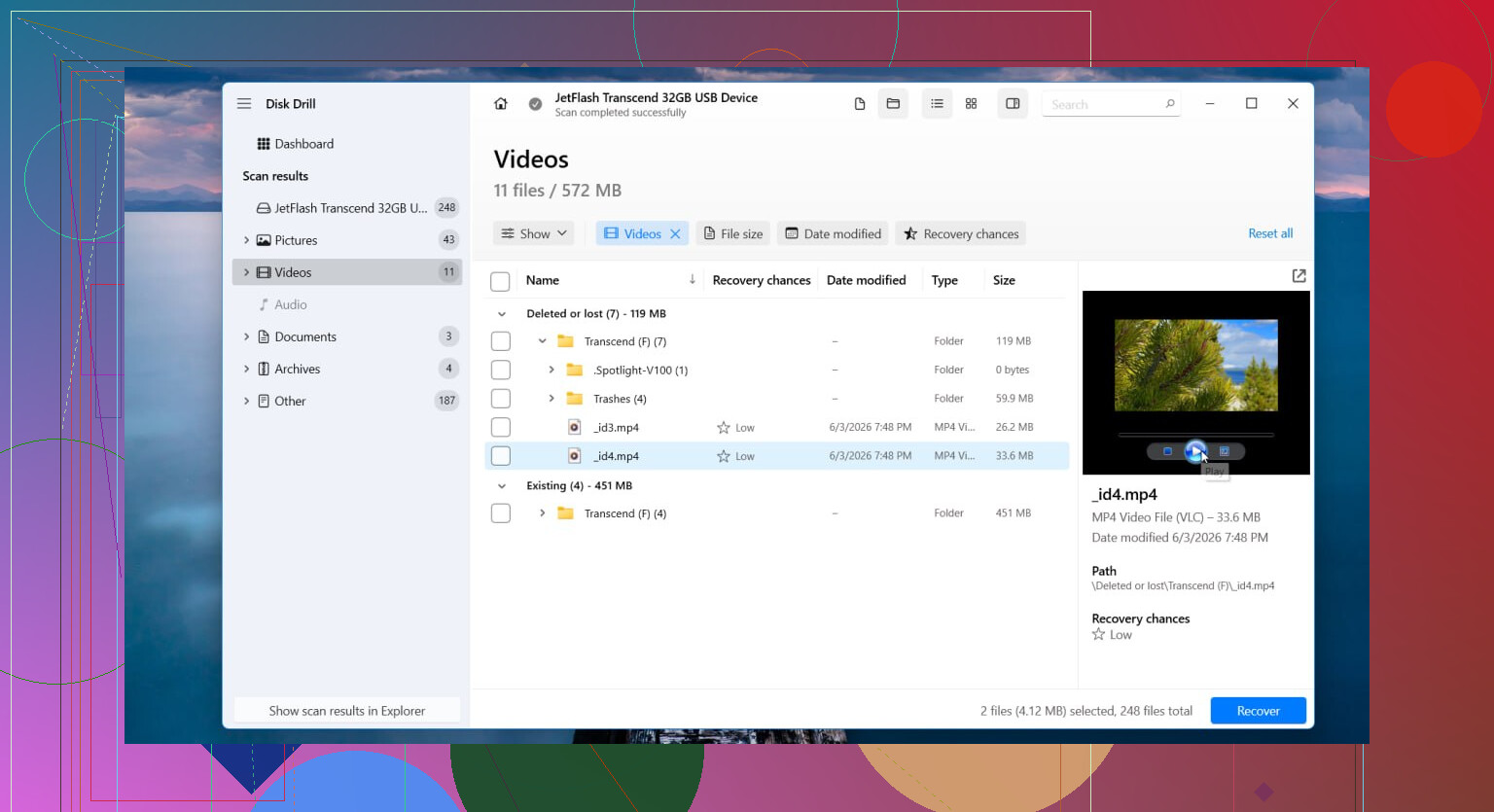
- Preview what it finds
- Save recovered files to a different drive, never back to the same card
The preview step matters. A lot of software loves to tell you it found 200 videos. Then you recover them and half are dead. Being able to check if a clip plays before saving it saves a lot of time.
Other tools people bring up
PhotoRec gets mentioned a lot, and fair enough, it’s free and pulls up a ton of data. I’ve used it. The problem is it does not do the same kind of GoPro-specific reconstruction, so you often end up with a mountain of files and a long sorting session. Fine if you’ve got patience. Rough if you want your trip footage back tonight.
UFS Explorer is on the other end. Strong tool. More pro-level. Better suited for people who already know their way around recovery work. I wouldn’t call it friendly for first-time users, though in harder cases it earns its reputation.
If your loss came from deletion, formatting, or file system damage, I’d still try Disk Drill before those two.
When I’d stop doing this myself
DIY recovery makes sense for logical issues. Deleted files. Quick format. Corrupted file system. Stuff like that.
I’d move to a recovery lab if:
- The SD card is physically damaged
- No device detects it at all
- It keeps disconnecting
- The GoPro throws card errors every time
- Recovery software fails before finishing a scan
- The footage matters enough that you only get one shot at recovery
Labs cost more, yeah. But they have hardware tools and methods you won’t get from consumer software.
If the card was only deleted or formatted by mistake, and you haven’t kept recording over it, I’d say your odds are still decent. Once new footage starts filling the same space, things go downhill fast. Until then, there’s still a shot.
Yes, if it was a quick format, your footage still has a shot.
I agree with @mikeappsreviewer on one big point. Stop using the card. Every new write lowers recovery odds. But I’d add one step before any scan. Make a full image of the SD card first. Work from the image, not the card. If the card starts throwing read errors mid-scan, you still keep one clean snapshot of what was there. On Windows, USB Image Tool works. On Mac or Linux, dd or ddrescue works if you know your way around it.
A full format is worse than a quick format. If your GoPro did a normal in-camera format, it is often closer to quick format behavior, so recovery is still possible. exFAT cards also tend to lose directory info fast, which means file carving matters more than filename recovery.
Disk Drill is a solid pick for GoPro footage because it handles fragmented video better than a lot of generic tools. I would test it on the card image first. If it finds playable clips, recover them to your computer, not back to the SD card. If it finds files with odd lengths, like a 12 GB clip from a 20 second ride, skip those first and focus on previewable results.
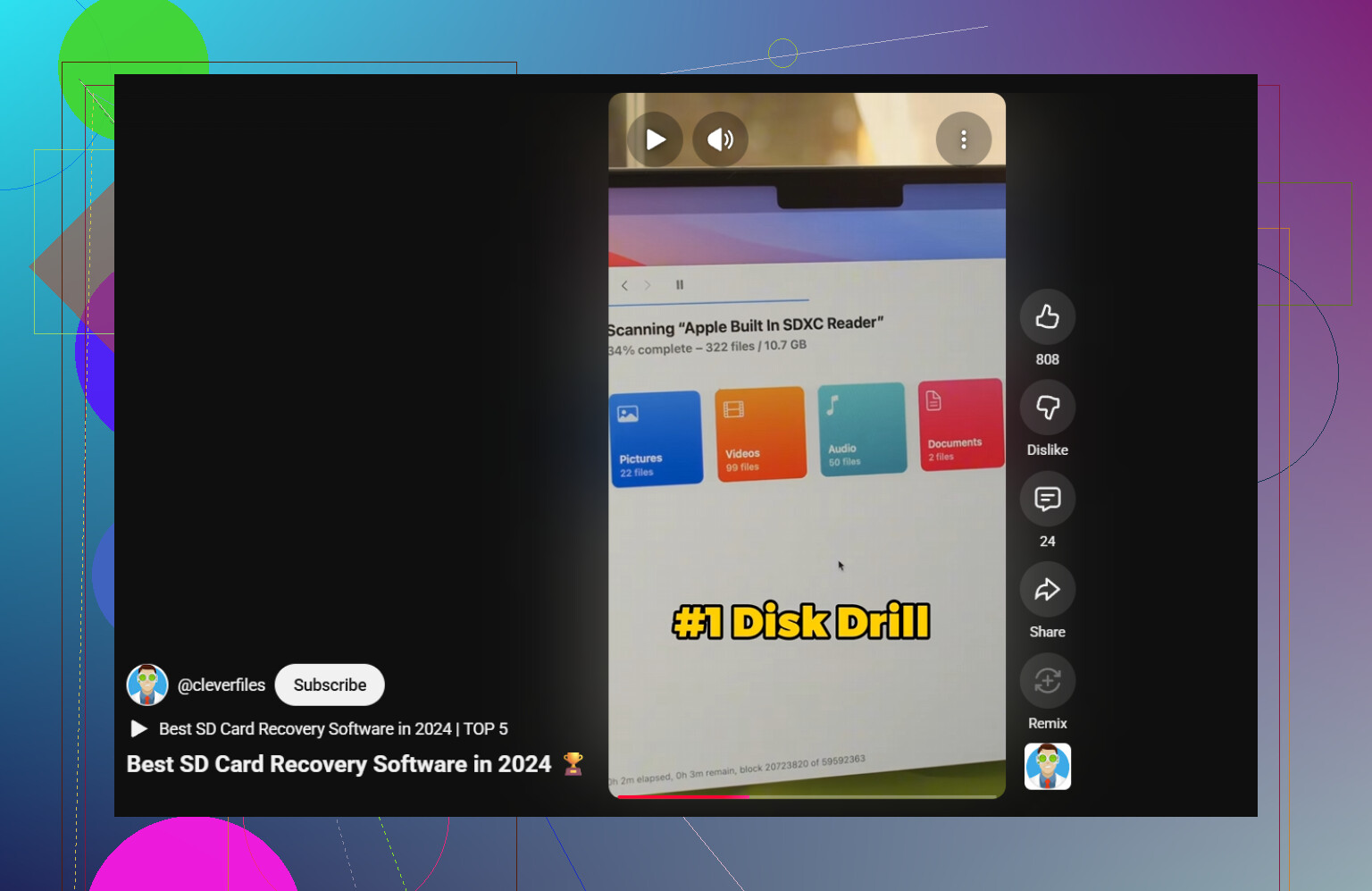
For SEO-friendly reading on SD card recovery software recommendations, this short video helps explain what to look for in a tool, watch this quick SD card recovery software guide.
One small disagreement with the usual advice. Don’t spend too long checking LRV files if the trip clips matter. Those are low-res previews. Fine for proof, bad for saving memories in decent quality.
If the card disconnects, shows 0 bytes, or asks to be formatted agian, stop DIY and go to a lab. That is where people make it worse.
Yes, maybe. Not guaranteed, but formatting a GoPro card does not always erase the actual video data right away.
I mostly agree with @mikeappsreviewer and @suenodelbosque, but I’m a little less convinced that people should jump straight into trying every recovery trick on the original card. If the footage is truly irreplaceable, the smartest move is to treat the card like evidence, not a test project. Every extra mount, scan, or “let me just check one more thing” can make recovery harder if the card is flaky.
A few extra points that haven’t been hit enough:
- GoPro sometimes splits recordings into chapters, so don’t assume a missing long clip means everything is gone. You may recover partial segments.
- If you used apps like Quik, check temp/cache folders on your phone or computer. I’ve seen people “lose” footage that was still sitting there in low-res or partially synced form.
- If the card was formatted in the camera and then not used again, odds are way better than if you recorded even 5 mins after. Overwrite is the real killer.
- Don’t trust file names or folder structure if recovery works. Judge by playback.
For software, yeah, Disk Drill is one of the better options for GoPro SD card video recovery because it handles camera footage better than a lot of generic undelete tools. I’d still be realistic though: it may recover 80% of the clips, or 20%, or files that look fine until halfway through and then just die. That’s pretty normal with action cam footage.
Also, if you want more discussion from people dealing with SD card video recovery, this thread is worth a read:
best ways to recover videos from an SD card after formatting
If the card shows 0 bytes, keeps disconnecting, or your computer starts lagging when it’s inserted, stop messing with it. That’s not “run one more app” territory. That’s lab territory. Kinda sucks, but better than cooking the card completely.
So yeah, recoverable? Possibly yes.
Recoverable at home? Often yes, if it was just a format and no new footage was recorded.
Recoverable perfectly? ehhh, not always. GoPro files can be annoying as hell.
If the card was formatted and then reused, be a little careful with the “still recoverable” optimism from @suenodelbosque, @nachtdromer, and @mikeappsreviewer. Even a short new recording can overwrite the exact blocks your best clips were sitting in, and GoPro writes big video chunks fast.
One thing I’d check that nobody really stressed enough is whether your recovered files have the right codec/container structure, not just whether they appear in a scan result. GoPro footage can come back as MP4 files that technically exist but have busted headers or missing moov atoms. In that case, recovery is only half the battle.
About Disk Drill:
Pros
- good at finding camera/video data
- easier to use than many recovery tools
- preview helps weed out junk results
- decent choice for formatted SD cards
Cons
- found files are not always actually playable
- video recovery quality depends heavily on fragmentation
- not the cheapest option
- deep scans can take a while
So yes, Disk Drill is worth trying, but I would judge success by clips that truly play start to finish, not by file count. If the card reads inconsistently or vanishes mid-copy, stop the DIY route. That’s where home recovery usually gets worse, not better.