I unplugged an external drive from my Mac, and now I keep getting com.apple.diskmanagement.disenter error 49244 when I try to reconnect or mount it. I need help figuring out if the drive is corrupted, if Disk Utility can fix it, or if there’s a safe way to recover my files.
I hit this same mess before. The drive showed up in Disk Utility, gray icon, refused to mount, and macOS threw the “com.apple.DiskManagement.disenter” error. What I learned the hard way, macOS still sees the hardware, but it loses its grip on the file system.
In my case, one of these was usually behind it:
- I pulled the drive without ejecting it first
- the file system got scrambled or conflicted
- macOS started a disk check in the background and never finished
Don’t treat it like total data loss yet. I’d start with the low-risk stuff first.
1. Kill a hung fsck check
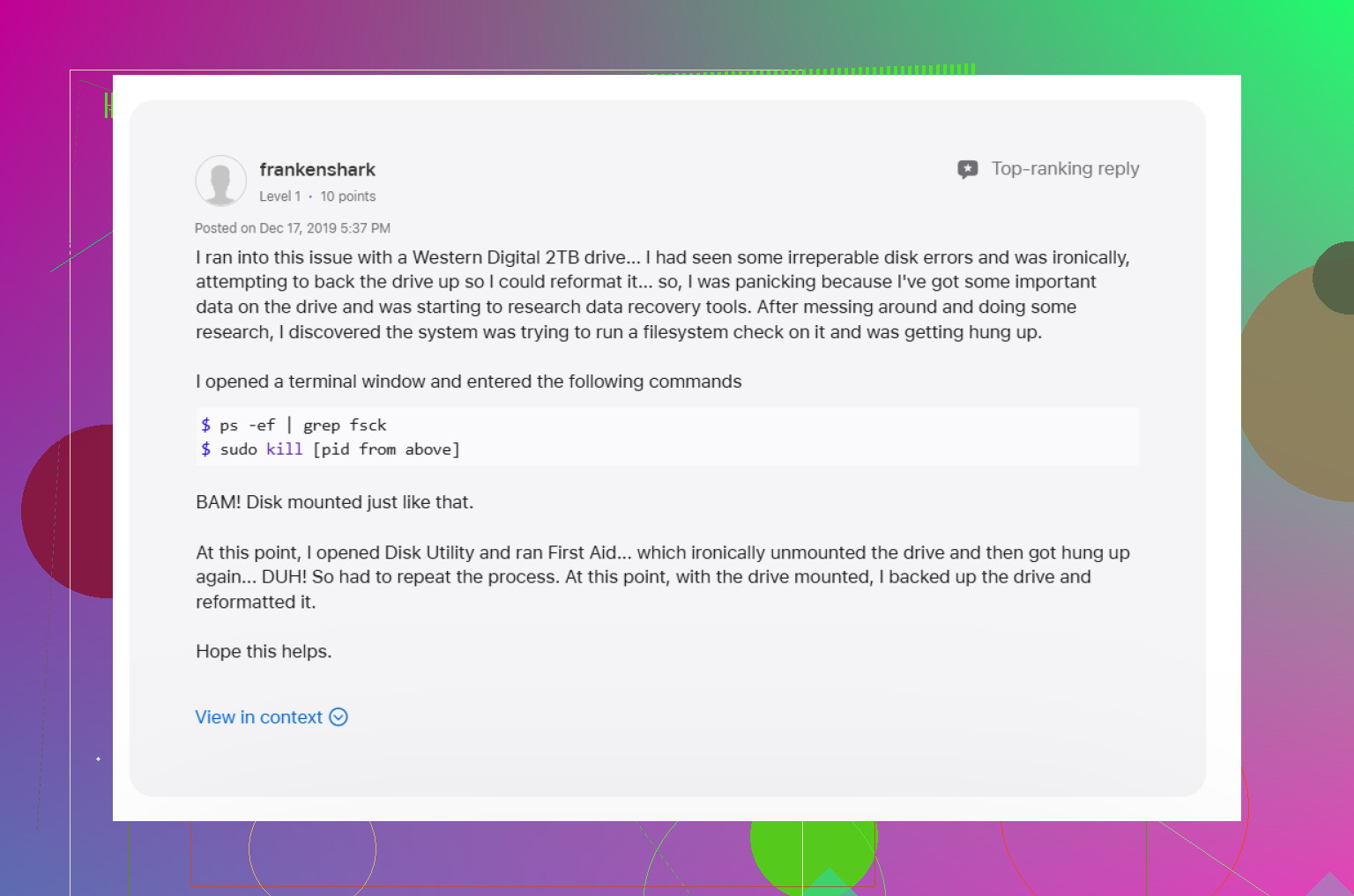
After an unsafe unplug, macOS often launches fsck on its own. The idea is fine. The result, sometimes not. While it runs, the disk stays locked and won’t mount. I saw this drag on forever with big external drives and exFAT volumes.
Open Terminal from Applications > Utilities, then run:
sudo pkill -f fsck
Type your Mac password when asked. You won’t see the cursor move or letters appear. macOS does this on purpose.
If fsck was the thing blocking access, the drive often pops back up right after. If it comes back read-only, don’t poke around too much. Copy your important files off it first.
2. Run First Aid on the whole chain, not one piece
This part gets skipped a lot. In Disk Utility, click View, then Show All Devices. You want the full layout visible, not only the final volume.
I’d run First Aid in this order:
- physical disk
- container, if there is one
- volume
I had one drive fix itself only after a second pass. So if the first run doesn’t clean it up, doing it again is worth a shot.
3. Sign out and test from another account
This sounds dumb until it works. I had a case where the disk was fine, but DiskManagement on my main account was acting broken. Logging out and back in helped once. Another time, the drive mounted under a different macOS user account with no fight at all.
If it works there, your main profile might be carrying the problem, permissions, settings, or some weird cached behavior.
4. Look at Time Machine
If the disk was ever used with Time Machine, macOS sometimes keeps its hands on it longer than you’d expect. Backup processes, snapshots, old associations, any of those seem to get in the way.
I’d open System Settings and switch off automatic Time Machine backups for a bit. A few times, this was enough to free the drive so it would mount normally.
5. Stop repairing it over and over if nothing changes
This is where I messed up once. I kept trying to force a mount, reran repairs, tried again, then made the file system worse.
If Terminal and First Aid go nowhere, stop there. Repeated repair attempts on a damaged directory structure can push it further downhill.
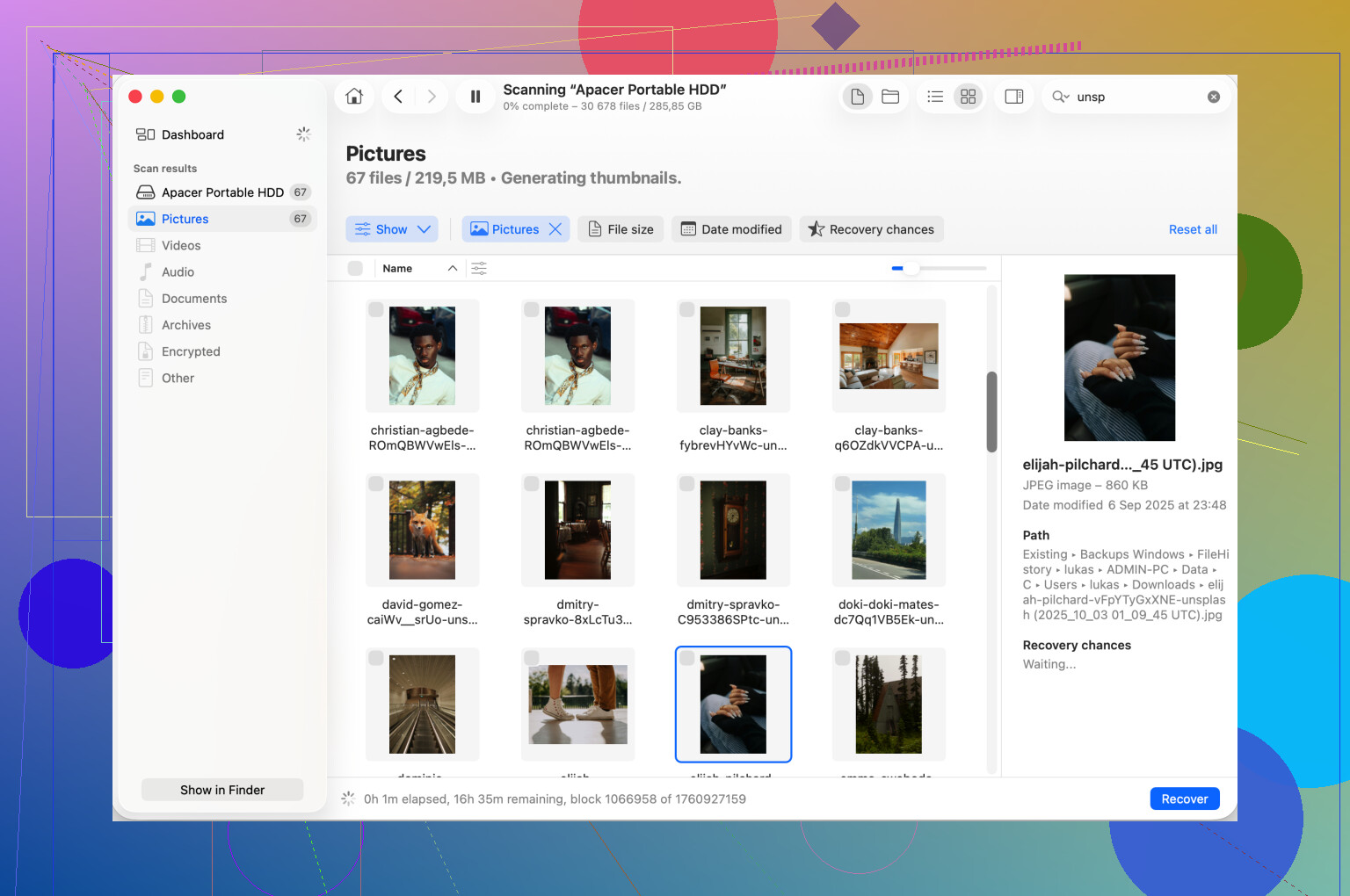
At that stage, I’d move to recovery first. Disk Drill is one route. It scans the raw drive even when macOS won’t mount it in the usual way, and sometimes it pulls enough structure back to recover your files onto another disk.
The order matters. Save data first. Fix or wipe the disk after.
6. Reformat only when your files are somewhere else
Once the important stuff is copied out, erase the drive in Disk Utility. Pick the physical drive itself, then Erase.
What format I’d pick:
- APFS for current Mac-only use
- Mac OS Extended Journaled for older Mac setups
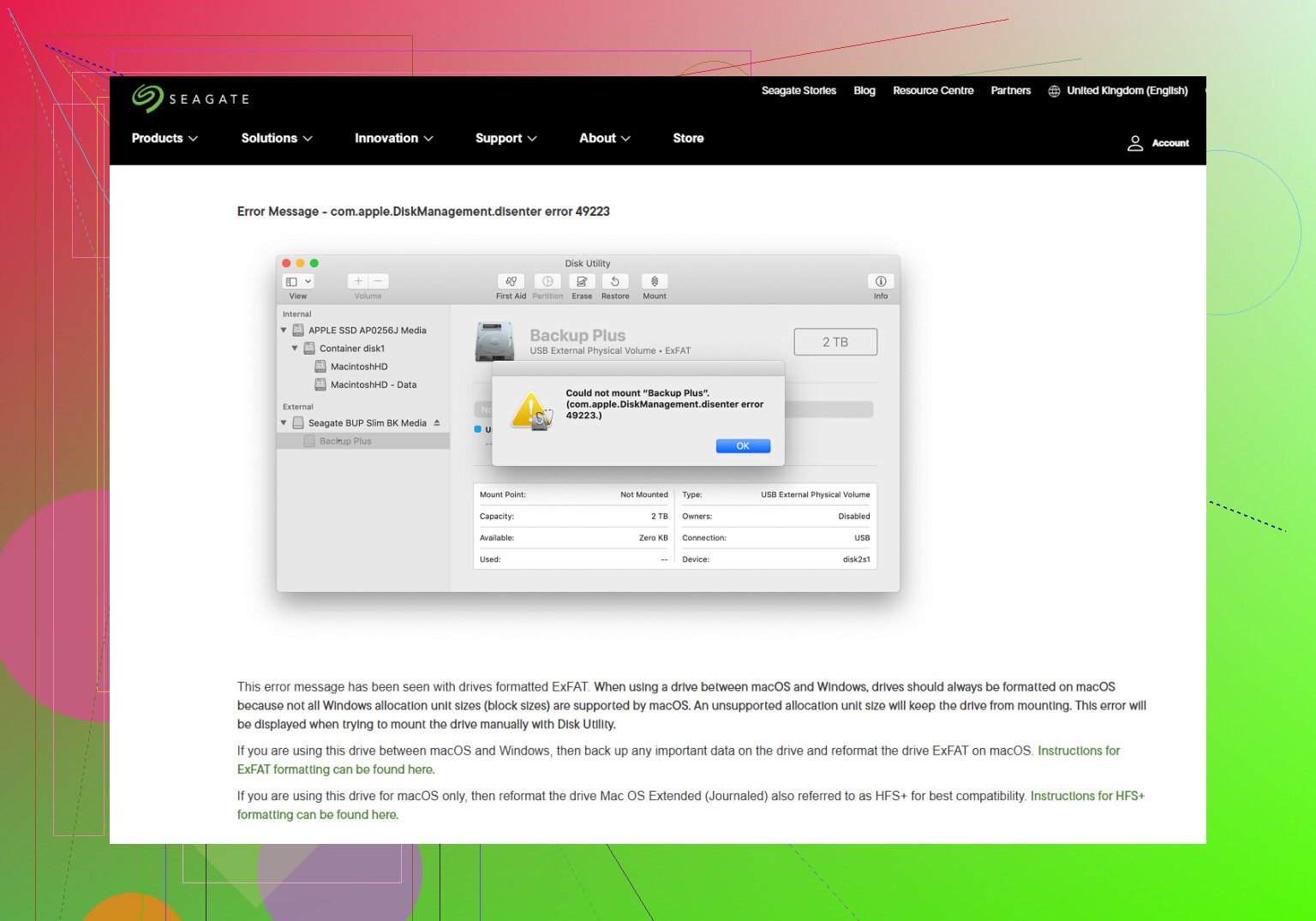
- exFAT if the drive needs to move between Mac and Windows
I’ve had fewer weird issues when exFAT drives were formatted on the Mac before using them across both systems.
One last thing. Eject external drives every time, even if you’re in a hurry. I ignored this for years, then got burned by it. Also, big drives take a while during checks, so give First Aid some time before calling it dead.
16 Likes
49244 usually means macOS sees the device, but refuses the mount request. I’d treat this as a file system or partition map problem first, not instant hardware death.
I slightly disagree with @mikeappsreviewer on one part. I would not start by killing fsck unless Activity Monitor or Terminal shows it stuck for a long time. An interrupted check sometimes does more good than harm if you let it finish.
What I’d do instead:
-
Check if the Mac sees the disk at all.
System Information, USB or Thunderbolt, depending on the drive. If it shows there but not mountable, the bridge and cable are still talking. -
Test the connection path.
Swap cable. Swap port. If it is a desktop external, test a diffrent power supply if you have one. Bad USB cables cause a shocking number of mount errors. -
Use Terminal to inspect the map.
Run:
diskutil list
Then:
diskutil info /dev/diskX
Look for No Media, Unrecognized, or a missing partition scheme. If the partition type looks blank, Disk Utility often fails too.
-
Try a non-forcing mount command.
diskutil mountDisk /dev/diskX
If the error returns, note the exact text. It helps narrow it down fast. -
If the disk mounts on another Mac or PC, copy data off first. Do not keep testing on the problem Mac.
If your files matter, stop write activity and scan with Disk Drill before erase attempts. That gives you a better shot if the directory is damaged.
For background, this thread on stopping access to a problematic external disk on Mac covers the idea of leaving the drive alone until recovery or repair starts.
If Disk Utility shows the physical disk size as 0 bytes or the drive clicks, I’d lean hardware fault, not macOS.
I’d check one thing neither @mikeappsreviewer nor @himmelsjager really leaned on enough: whether the enclosure is the actual problem, not the disk.
Unsafe unplugging can corrupt a file system, sure. But with these 49244 mount errors, I’ve also seen the USB-to-SATA bridge inside the external case freak out and present the disk to macOS in a half-broken way. Disk Utility then acts like the drive is cursed when really the enclosure board is just being dumb.
What I’d do:
- Put the drive on a diferent Mac if possible
- If it’s a removable drive inside an enclosure, take it out and connect it with another adapter/dock
- Check Console app for live mount errors while plugging it in
- Run
log stream --predicate 'process == 'diskarbitrationd'' --infoin Terminal and watch what macOS says in real time
That last one is super useful because Disk Utility hides the actual reason half the time. If the log mentions invalid superblock, dirty bit, unsupported fs, or I/O errors, you know where this is headed.
Also, I kinda disagree with the “just keep using First Aid” angle. First Aid is fine for mild metadata damage, but if the directory is really busted, it often just shrugs and gives you a vague failure. If the data matters, switch priorities fast: recover first, repair later. That’s where Disk Drill makes sense, since it can scan a drive that won’t mount normally and recover files to another disk.
If this is a Seagate external, their own macOS Disk Utility notes are worth checking too: Seagate guide to fixing Disk Utility and disenter errors on macOS
One more tell:
- shows correct size = maybe file system damage
- shows 0 bytes / no media = likely hardware or enclosure failure
- clicks, disconnects, remount loops = stop testing and recover what you can
If you post the output of diskutil list, this gets way easier to narrow down.
I’d add one angle to what @himmelsjager, @chasseurdetoiles, and @mikeappsreviewer covered: check whether macOS is refusing the mount because of ownership or a stale mount point, not just file system damage.
A few things I’d try that are different:
-
In Terminal:
mount | grep Volumes
If the old volume name is still hanging there weirdly, reboot before more repair attempts. -
Try mounting read-only:
diskutil mount readOnly /dev/diskXsY
If that works, your priority becomes copying data, not fixing. -
If the disk is exFAT, test it on Windows too. Sometimes Windows will offer a repair that macOS refuses to do cleanly.
-
In Disk Utility, check S.M.A.R.T. status if the bare drive is visible through the enclosure. If it says Failing or doesn’t report at all on a known-good SATA dock, I’d get suspicious fast.
I slightly disagree with the “different user account” idea as a likely fix unless there’s evidence of a per-user mounting oddity. Most 49244 cases I’ve seen were lower-level than that.
If the data matters, Disk Drill is reasonable before erase/repartition. Pros: easy scan workflow, can read drives macOS won’t mount, good for previewing recoverable files. Cons: deep scans take ages, recovery quality depends on how damaged the metadata is, and the best features are not really free in practical use.
If read-only mount fails, size shows wrong, or the disk keeps disconnecting, stop testing loops. That’s when recovery first makes more sense than “one more First Aid pass.”