My external hard drive was working fine, but now Windows suddenly shows it as RAW instead of NTFS, and I can’t access any of my files. I haven’t reformatted it because I’m trying to avoid data loss. Is there a way to restore the original NTFS partition or repair the RAW drive without losing data?
I ran into this a while back. A drive showing up as RAW does not always mean your files are gone. Most times, Windows lost track of the NTFS structure, or parts of it got wrecked. The data often still sits there, but the map to it is broken.
I would not start by trying to turn RAW into NTFS. First get your files off. After that, deal with the drive.
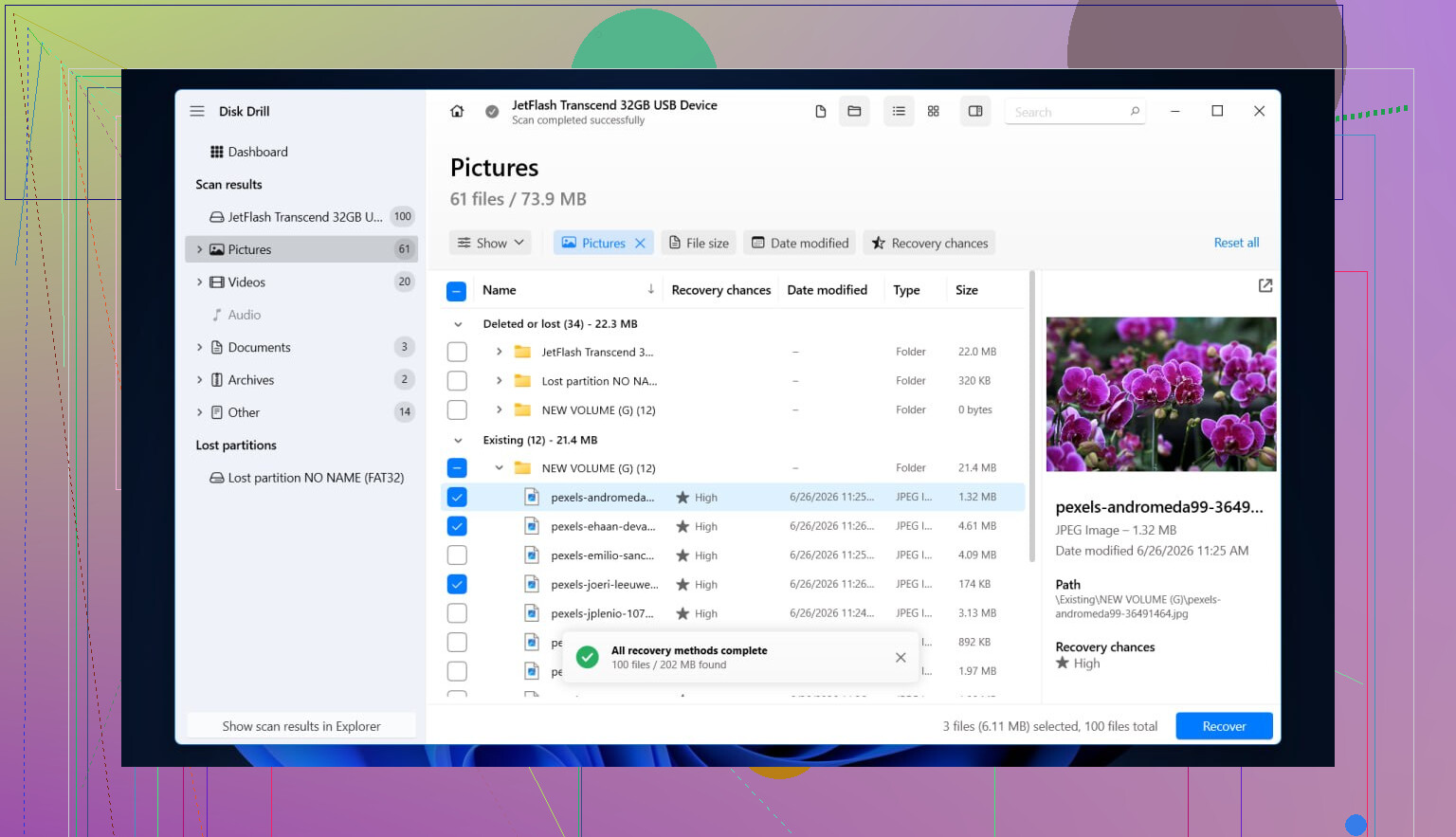
First, pull the data off with Disk Drill
- Stop writing anything to the RAW drive. Don’t format it. Don’t initialize it. Don’t run CHKDSK.
- Install Disk Drill on some other disk. Not the broken one.
- Launch it and pick the RAW drive from the list. If it shows both the partition and the full physical device, I’d scan the full disk.
- Hit Search for lost data.
- Wait. On a big external hard drive, this part drags.
- When results load, look through Existing, Deleted or lost, and Reconstructed.
- Use filters and the search field so you’re not scrolling forever.
- Preview a handful of files before you recover them. If previews open cleanly, I’d take it as a decent sign.
- Pick what you need.
- Recover everything to a different drive with enough free room. Do not write it back to the RAW disk.
What helped in this case is Disk Drill reads RAW volumes without waiting for Windows to mount them first. If the NTFS records are partly intact, you might get original folder names and filenames back. If the file system is too far gone, signature scan results still give you a shot at pulling out photos, docs, video, and other common file types.
Then fix the drive itself
Once your files are somewhere safe, then you can rebuild the disk as NTFS.
Option 1, format it in Disk Management
- Open Disk Management.
- Find the partition showing as RAW.
- Right-click it, then choose Format.
- Select NTFS.
- Keep Quick Format checked.
- Name the drive if you want.
- Click OK and let it finish.
This is the cleanest route if your goal is to make the disk usable again. It is still a format, so do it after recovery, not before.
Option 2, do the same thing from File Explorer
- Open This PC.
- Right-click the RAW drive.
- Choose Format.
- Set the file system to NTFS.
- Leave Quick Format on.
- Start it.
Option 3, use DiskPart if the normal format fails
- Open Command Prompt as admin.
- Type
diskpart - Type
list disk - Type
select disk X, replace X with the RAW drive number. - Type
list volume - Type
select volume X, replace X with the RAW volume. - Type
format fs=ntfs quick - Type
assign - Type
exit
Go slow with DiskPart. One wrong disk number and you’ll nuke the wrong drive. I’ve seen people do it in about ten seconds and then spend two days regretting it.
One more thing. If the drive formats fine, then flips back to RAW later, I would stop trusting it. In my case, behavior like this lined up with failing sectors or flaky hardware. At tht point, I’d treat the disk as suspect and keep nothing important on it.
14 Likes
If Windows suddenly sees the drive as RAW, the original NTFS partition is not always gone. A lot of the time, the boot sector, MFT, or partition entry got damaged. Your files might still be there.
I agree with @mikeappsreviewer on one big point. Do not format first. I disagree a bit on jumping straight into repair tools though. Before any repair attempt, check the hardware side. Swap the USB cable. Try a different USB port. Try another PC. For externals, bad bridge boards and weak power cause RAW reports more often than people think. I’ve seen drives come back as normal NTFS after a cable swap. Stupid, but it happns.
If the drive still shows RAW, your best path is this:
-
Check SMART health with CrystalDiskInfo or similar.
If health looks bad, or you see pending/reallocated sectors climbing, stop poking at it. -
Make a sector-by-sector image first, if the data matters.
Use something like HDD Raw Copy Tool or ddrescue. Work on the image, not the original disk. This matters if the drive is degrading. -
Try NTFS repair only after you have a backup image.
TestDisk is the usual tool here. It sometimes restores the lost partition entry or repairs the NTFS boot sector from its backup copy. When it works, the volume mounts again with original filenames and folders intact. No format needed. -
If TestDisk does not restore access, switch to file recovery.
This is where Disk Drill makes sense. It handles RAW drives well and often pulls data with folder structure if NTFS metadata is still readable. If not, it falls back to file signatures. Save recovered files to a different disk.
One thing to avoid is CHKDSK on a RAW volume. People suggest it all the time. Bad idea. On a damaged NTFS structure, it often makes the mess worse, especailly if the disk has weak sectors.
After recovery, wipe the partition table and format NTFS. If the drive turns RAW again later, retire it.
If you want a simple walkthrough, this guide on how to convert RAW to NTFS without losing data covers the order pretty well.

RAW does not always mean “dead partition,” but I’m gonna disagree slightly with @mikeappsreviewer and @jeff on one thing: not every case needs an immediate repair attempt. If this happened suddenly on an external, sometimes Windows is reacting to a dirty disconnect, flaky enclosure, or a corrupt partition entry rather than a fully trashed NTFS volume.
What I’d do first is check how the disk appears in Disk Management:
- If the size is correct and the partition is still there, but file system says RAW, that leans toward damaged NTFS metadata.
- If the whole partition is missing/unallocated, that’s more of a partition table problem.
- If the capacity is wrong or the drive keeps disconnecting, that smells like hardware.
At that point, the “restore NTFS” question depends on what broke. If it’s just the NTFS boot sector or partition record, restoration is sometimes possible without formatting. If the MFT is badly damaged, file recovery is usually more realistic than true partition restoration.
I would also avoid getting too excited about “conversion” tools. A lot of them are basically marketing with extra steps. If the data matters, safest order is:
- Minimize power cycles on the drive.
- If the drive is unstable, clone/image it first.
- Try read-only recovery or non-destructive partition inspection.
- Recover files to another disk with something like Disk Drill if mounting can’t be restored cleanly.
Disk Drill is useful here because it can scan a RAW external hard drive directly and recover files even when Windows refuses to mount the NTFS partition. That’s often the practical answer, even if it’s not the magical “flip RAW back to NTFS” button people want.
One more thing people skip: check the enclosure. I’ve seen the SATA-to-USB board in an external case cause weird RAW detection while the actual drive inside was fine. If you can safely test it with another adapter/enclosure, worth a shot.
For extra background, I found this best data recovery software for RAW and corrupted drives video useful, and if you’re comparing tools, look up a best recovery software list for RAW, NTFS, and external hard drive recovery.
So yes, the original NTFS partition can sometimes be restored, but don’t count on that as the main plan. Think “recover data first, repair second.” That’s the part people regret skipping.

I’m with @jeff and @voyageurdubois on one key point: RAW does not automatically mean the NTFS partition is gone forever. But I’ll push back a bit on “restore first.” If this is an external HDD, sometimes the file system damage is just the symptom, not the real problem.
A couple of checks people skip:
- Look in Event Viewer for disk, ntfs, or storahci errors around the time it flipped to RAW.
- In Device Manager, uninstall the USB mass storage device and reconnect. Rarely fixes it, but I’ve seen Windows cache nonsense.
- If the drive is in an enclosure, listen for spin-up, clicking, or repeated reconnect sounds. That matters more than people think.
As for restoring original NTFS, yes, sometimes possible if only the NTFS boot sector or partition metadata got corrupted. No, not guaranteed. If the drive is physically shaky, every extra scan is a gamble.
Where I differ slightly from @mikeappsreviewer: I would not make “repair the partition” the main objective. Main objective is preserving readable data. If the disk seems stable enough, imaging is ideal. If not, recover what you can while it still responds.
Disk Drill is fine for this kind of case because it can scan a RAW volume without Windows mounting it. Pros: simple UI, good at pulling files from damaged NTFS, often preserves names and folders when metadata survives. Cons: deep scans take forever on large externals, results can get messy if NTFS is badly broken, and the best features are not really for people expecting a completely free recovery ride.
My order would be:
- Rule out enclosure or cable weirdness.
- Check SMART or at least basic health signs.
- Recover important files to another disk, possibly with Disk Drill.
- Only then try rebuilding or reformatting.
If the drive turns RAW twice, I’d stop trying to “fix” it and retire it. That pattern usually tells you more than the file system error does.