I deleted some photos on my iPhone and then used the Recently Deleted/empty trash option. I’m confused about whether iPhone deleted photos are still kept for 30 days automatically or if emptying trash removes them right away. I need help understanding if there’s any way to recover them.
Yeah, this is one of those iPhone things that feels way more annoying than it should. There’s no single “Empty Trash” button like you’d get on a Mac or Windows PC. Deleted stuff is scattered across different apps, so you have to clear each one separately if you actually want the storage back.
The biggest one is usually Photos. Deleted photos and videos don’t really disappear right away. They sit in Recently Deleted for 30 days, and during that time they still take up space.
If you’re on a newer iOS version and can’t find it, open Photos, go into Collections or scroll down through the library, then look near the bottom under Utilities. Tap Recently Deleted. It may ask for Face ID or your passcode. Once you’re in there, tap Select, then the three dots, then Delete All. That’s the part that actually frees the space.
Notes and Files have their own deleted folders too. In Notes, keep tapping the back arrow until you get to the Folders screen, then look for Recently Deleted. In the Files app, go to Browse, check under Locations, and open Recently Deleted. Those usually stick around for around 30 days as well.
Also check Messages, because that one is easy to forget. Since iOS 16, deleted texts can sit in a separate deleted area. Open Messages, tap Edit or the filter icon at the top, then choose Show Recently Deleted. If you send or receive a lot of videos, this can eat up a surprising amount of storage.
For Mail, it depends on the account. Go into Mailboxes, open each account like Gmail or iCloud, then find its Trash folder. You’ll usually need to hit Edit and then Delete All.
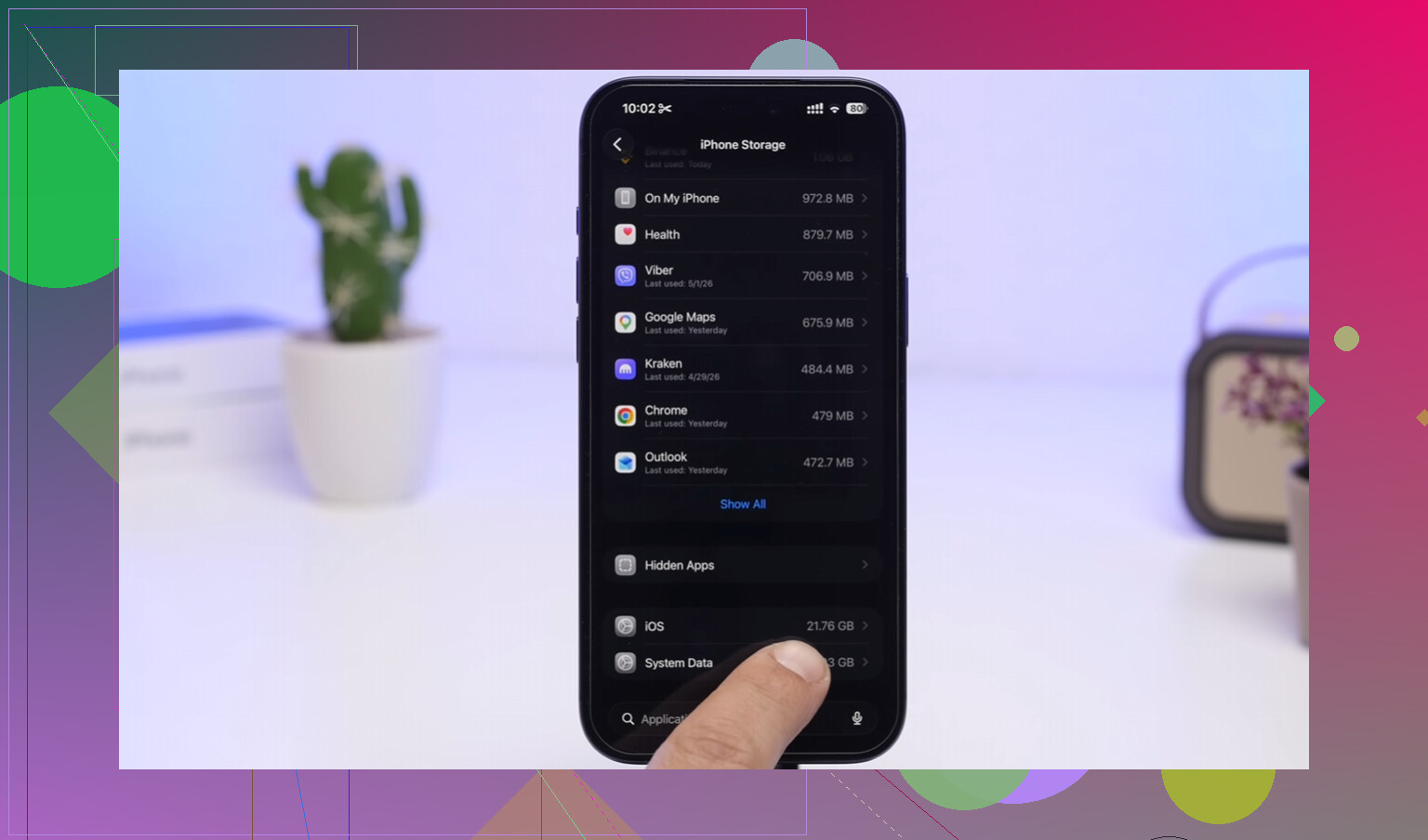
If your iPhone is already full and lagging, that can make everything feel worse. iOS needs some free space for temporary files, cache, logs, and other system stuff. If System Data looks huge in storage settings, try a forced restart. It won’t delete your personal files, but it can clear some temporary junk that doesn’t have an obvious delete button.
Manually doing Photos, Notes, Files, Messages, and Mail works, but it’s a pain. I used to try to stay on top of it and still missed stuff. When my phone got so slow that even opening the camera was a struggle, I looked for something easier.
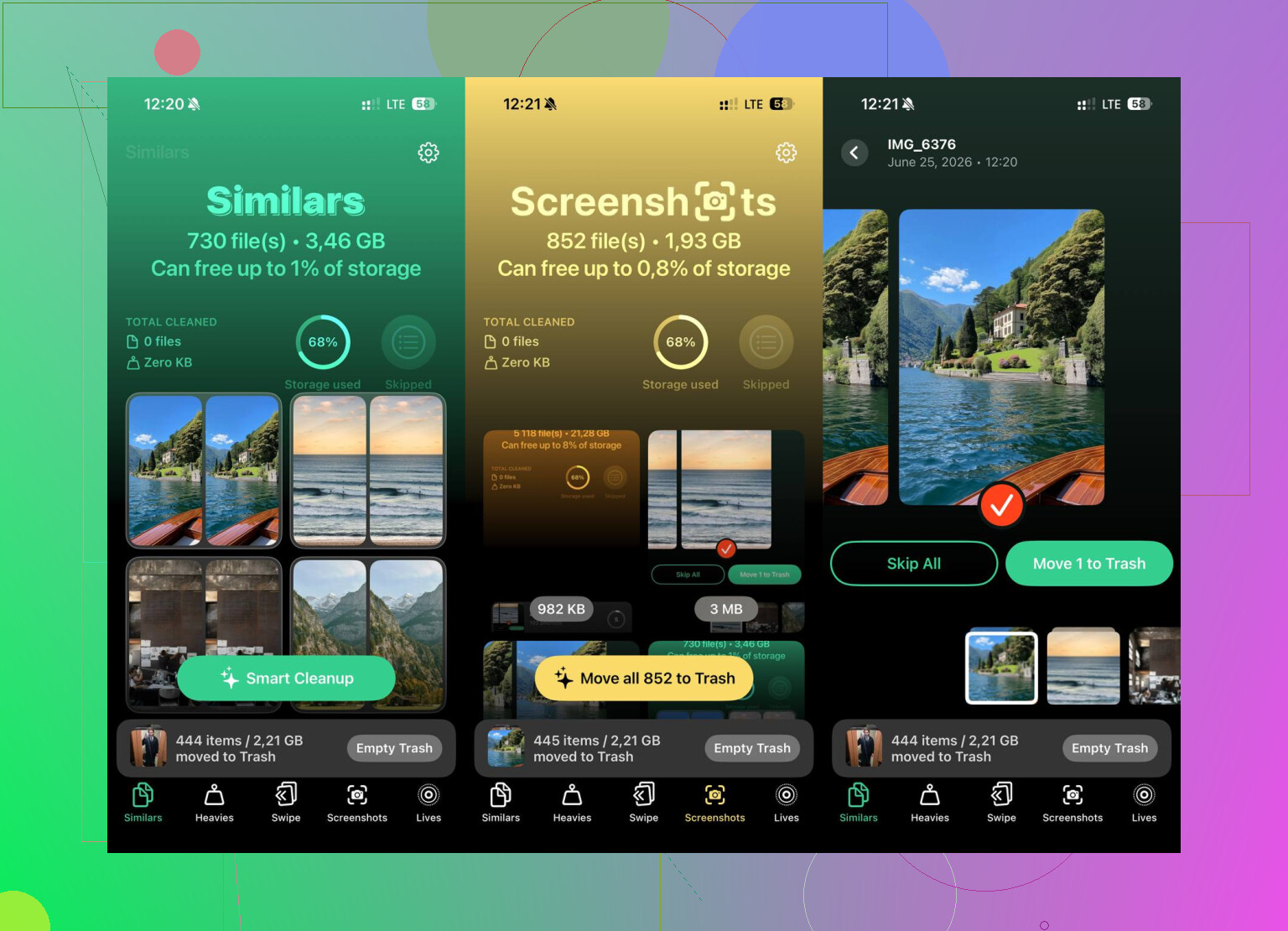
I ended up using Clever Cleaner. The reason I kept it around is that it’s actually free, with no ads every few seconds and no subscription wall just to delete things.
The Heavies tab is useful because it sorts photos and videos by size, so you can get rid of the biggest files first. The Similars tab uses AI to find near-duplicate photos, like all those slightly different shots you took of the same thing. It also shows the exact file size for screenshots and photos, which makes it a lot easier to see what’s taking up space.
I also like that it processes everything on-device, so it’s not sending your photos off to some random server just to scan them.
Clearing the built-in deleted folders is the first thing I’d do, but if storage is still a mess after that, Clever Cleaner is worth checking out. It made a noticeable difference for me.
9 Likes
Emptying Recently Deleted skips the 30 days. The 30-day thing only applies after the first delete, when the photo is sitting in that album waiting to expire. If you go into Recently Deleted and choose Delete All, or delete selected items from there, iOS treats that as permanent removal from Photos. The caveat is iCloud Photos: if that’s turned on, deleting there can sync the deletion to your other Apple devices too. So don’t use “empty trash” as a storage cleanup button unless you’re sure you don’t need those photos back.
Don’t expect the 30 days to keep running after you emptied Recently Deleted. The 30-day timer is basically a grace period only while the items are still sitting in that Recently Deleted album. Once you go in there and delete them again, you have told Photos to remove them permanently.
Where people get tripped up is that “permanently” does not always mean every trace vanishes from every possible place that second. It means they should no longer be recoverable from the Photos app’s Recently Deleted folder. If iCloud Photos is enabled, that delete usually syncs across the devices using the same Apple ID. If the other device is offline, it may catch up later when it reconnects.
The small caveat I think is worth mentioning: storage numbers can lag. You might empty Recently Deleted and still see Photos or System Data looking large for a while. That does not necessarily mean the photos are still waiting in the trash. iOS may need time to recalculate storage, clear cached thumbnails, or finish syncing the deletion. A restart can sometimes make the storage screen update, but it is not a magic undelete button.
Backups are the other confusing bit. If you had an iCloud Backup or computer backup from before the deletion, those photos might exist inside that older backup, depending on your iCloud Photos setup and what was included. But that is different from the 30-day Recently Deleted folder. Restoring a whole backup just to get photos back can replace newer data, so it is not something I would treat casually.
So the practical answer is:
Delete from library: goes to Recently Deleted for about 30 days.
Delete from Recently Deleted: removed from Photos recovery.
iCloud Photos on: deletion can sync to other Apple devices.
Storage not changing instantly: normal, give it some time or restart.
I’d be cautious with cleaner apps here too. Something like Clever Cleaner can be useful for finding big videos or similar shots before you delete them, but once you have already emptied Recently Deleted, it is not going to bring those photos back. At that point you are looking at backups, another synced device that has not updated yet, or nothing.
Deleting from your main library is the “maybe I changed my mind” case; deleting from Recently Deleted is the “I meant it” case. The 30 days does not restart or continue after you empty that album. Check any other photo apps you sync with, like Google Photos, because they can have their own trash separate from Apple Photos.