My external hard drive suddenly shows “The parameter is incorrect” when I try to open it in Windows. It has important files on it, and I’m worried the drive may be corrupted or failing. What’s the safest way to fix this error without losing my data?
First thing I’d do is stop trying to “fix” the drive until the files are copied somewhere else. That Windows message, 'The parameter is incorrect.', is scary, but it often means Windows is running into file system or partition damage. It doesn’t automatically mean the files are gone.
The risky part is that tools like CHKDSK, formatting, and some Windows repair prompts write changes to the disk. If the drive is already unstable, that can make recovery harder.
Start with the simple stuff before assuming the worst:
- Swap the USB cable.
- Try a different USB 3.0 port.
- Plug the drive into another computer.
- Check Disk Management and see if the drive still shows up with the right capacity.
I’d also check the drive health with CrystalDiskInfo or Disk Drill’s built-in S.M.A.R.T. monitor. If you see warnings about pending sectors, reallocated sectors, or the overall health looks bad, treat it like a failing drive and avoid hammering it with repeated scans.
If Disk Management still sees the drive, even if File Explorer refuses to open it, recovery is still pretty realistic in a lot of cases.
For that, I’d use Disk Drill. It can work with damaged NTFS, exFAT, FAT32, RAW partitions, and drives Windows won’t mount normally.
The safer order would be:
- Install Disk Drill on your internal drive, not on the problem drive.
- If the drive is acting flaky, make a Byte-to-byte Backup first so you can scan the image instead of stressing the actual drive.
- Run a Universal Scan on the image, or directly on the drive if it seems stable.
- Preview the files before recovering anything.
- Save recovered files to another drive, never back onto the damaged one.
The Windows version also lets you recover up to 100 MB for free, which is useful for checking whether the files are actually recoverable before paying.
Once your important files are safe, then I’d think about repairing the drive.
- If the file system is still recognizable, try CHKDSK with
chkdsk X: /r. - If the partition shows as RAW or CHKDSK won’t run, TestDisk is worth looking at. It’s very good for damaged partition tables, but the interface is not beginner-friendly.
- If recovery is already done and nothing else works, a quick format can usually clear logical corruption by creating a new file system.
There are a few Windows-side fixes too, but they’re less common. If this error started happening with multiple drives or in other Windows tasks, check the decimal separator in regional settings. Running SFC and DISM can also help rule out damaged Windows system files.
I’d stop DIY recovery if the drive starts clicking or beeping, keeps disconnecting, disappears from Disk Management, shows serious SMART errors, or Disk Drill can’t finish because the drive keeps dropping offline.
At that point it’s probably hardware failure, and keeping the drive powered on can make things worse. That’s when a data recovery lab makes more sense.
Most decent labs will evaluate the drive first and quote you before doing the recovery. Many also work on a 'no data, no fee' basis, so if they can’t recover anything, you usually don’t pay for the recovery itself. Costs vary, but logical recoveries often start around $300-600 USD. If the drive needs clean-room work or hardware repair, it can easily land around $700 to $2,000+ USD.
Also, once this is sorted, keep at least two copies of anything you care about. External drives are fine for backups, but they shouldn’t be the only place your photos or important files exist.
9 Likes
Check the drive’s power and enclosure before you touch the file system. If it’s a 3.5’ external drive, a weak power brick or flaky USB-SATA bridge can throw weird Windows errors that look like corruption. Try the original adapter, avoid front-panel USB ports and hubs, and if the disk is removable from the enclosure, consider testing it with another adapter or dock. I agree with @mikeappsreviewer on not running CHKDSK first, but I’d be careful assuming this is only a Windows/file system problem. If the drive vanishes, spins down, or changes capacity in Disk Management, recovery software may struggle because the connection is unstable, not because the files are gone. Get the connection stable first, then make an image or recover to a different disk.
Take a screenshot of Disk Management before changing anything, especially if Windows offers to “initialize,” “format,” or “repair” the drive. Those prompts are not recovery steps. They’re Windows saying it doesn’t understand what it’s looking at, and clicking through can write new metadata over the old layout.
The detail that matters is what Disk Management reports. If the drive shows the correct size, the partition is still there, and it just won’t open in Explorer, your data is probably not gone. If it shows RAW, unallocated, no media, 0 bytes, or some nonsense size, treat that as a bigger warning. I agree with @kakeru that connection/enclosure problems can fake corruption, so don’t assume the file system is the only issue.
My order would be: stabilize the connection, check whether the capacity looks right, then image or recover to another disk before running repairs. Disk Drill is fine for this kind of “Windows sees it but won’t open it” situation, mainly because you can preview files before committing, but don’t use the problem drive as the save location. If the files are very important and the drive is clicking, dropping offline, or showing the wrong capacity, skip the software scans and go to a lab. Software can work around damaged file systems, but it can’t make a dying drive behave better.
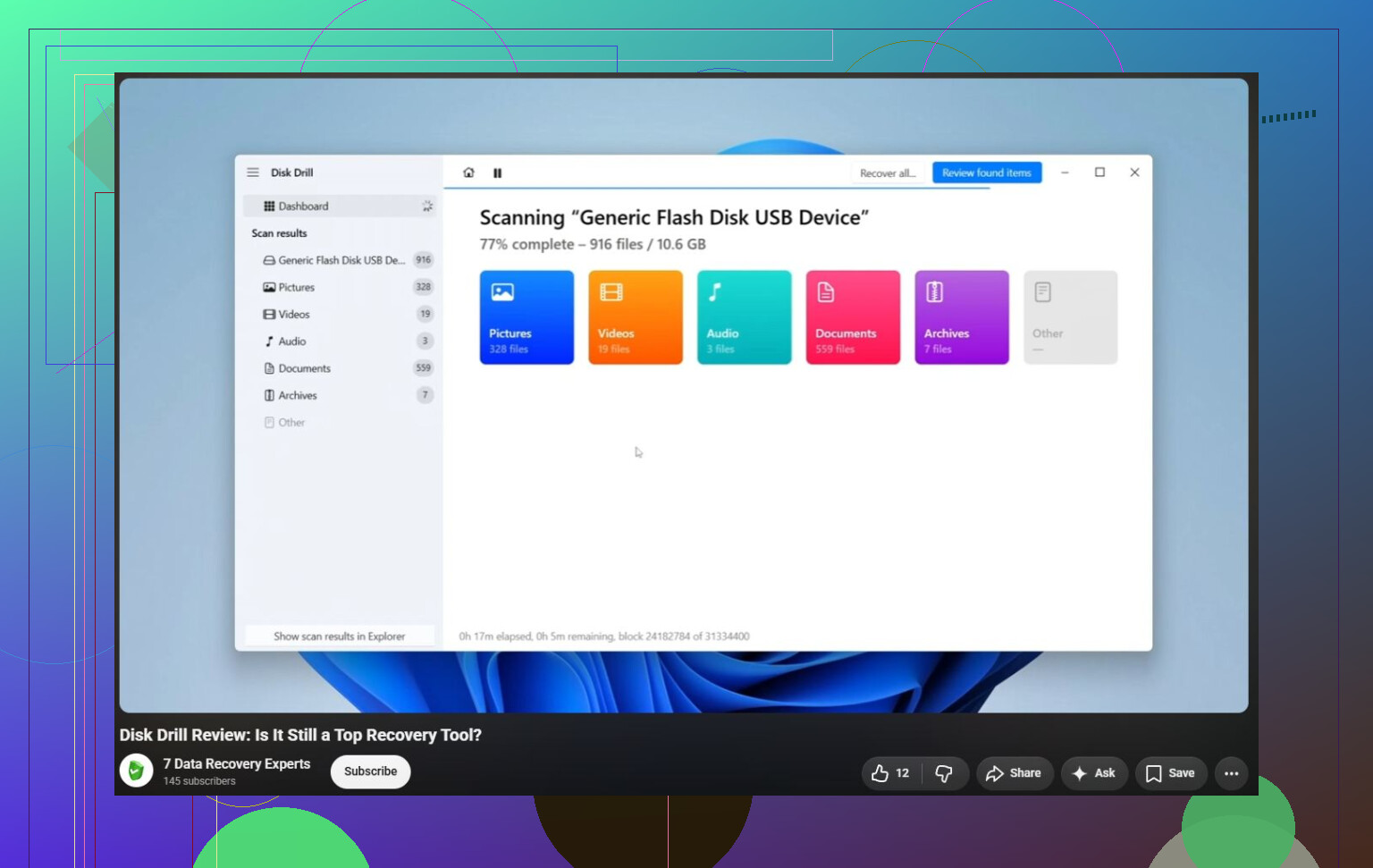
Leaving it plugged in while Windows keeps retrying can be a downside by itself, especially if the drive is failing and clicking through bad sectors. I’d unplug it, decide where the recovered files will go first, then either clone it or scan it with something like Disk Drill only long enough to confirm the important files are visible. Don’t “test” recovery by saving a few files back to that same drive.