I’m writing reports and blog posts in Microsoft Word, but its built-in grammar checker keeps missing awkward phrasing and subtle mistakes. I’d like to find a reliable free grammar check tool that catches more errors, is easy to use, and ideally works with Word or in a browser. What tools are you using that actually improve clarity and correctness, and what makes them better than Word’s default checker?
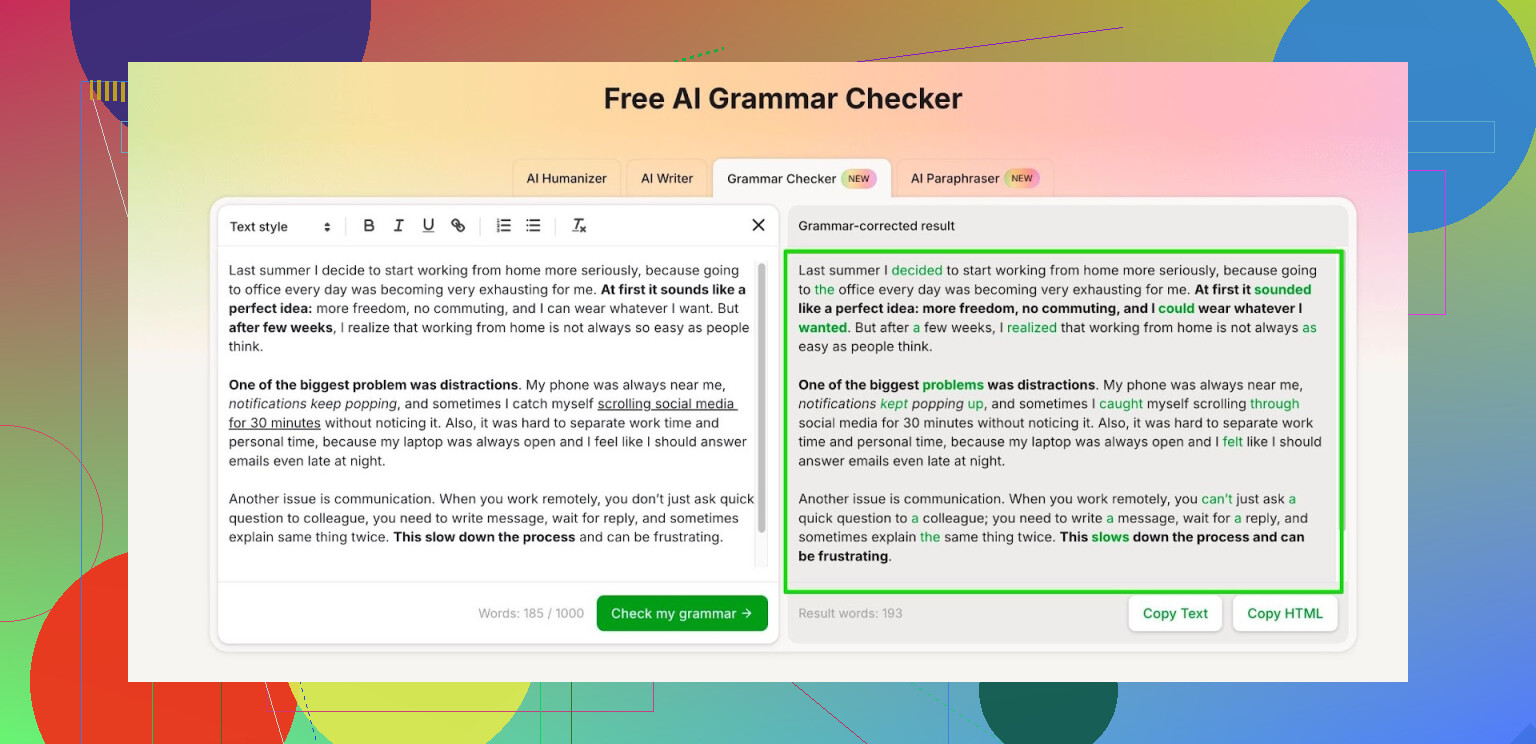
I bounced between grammar tools for a while, so here is what I ended up doing.
I started with the usual stuff. Grammarly, Quillbot, all the things every blog keeps repeating. They were fine at the start, then the free tiers got so limited it felt more like trial popups than tools. A couple of short checks, then paywall.
After that I went looking for something I could actually use every day without babysitting word limits on every paragraph.
Right now I am using the Clever AI Humanizer module called Free AI Grammar Checker:
What I noticed:
- No login: up to 1,000 words per run. That covers a full-page email, a short essay, or a blog post.
- With a free account: up to 7,000 words per day. That is enough for:
- a full school assignment or two,
- a report for work,
- plus some emails on top.
My routine looks like this:
- I write normally in Google Docs or Word.
- I copy chunks of text into the checker, under 1,000 words at a time if I am not logged in.
- I fix the obvious grammar issues it flags, but I keep my tone. I do not accept every change, because some of them make the text sound stiff.
- I paste it back and read it once more before sending.
If you write essays, reports, or posts and you do not want to juggle tiny free quotas, that daily 7,000 word limit has been enough for me so far. For longer stuff like a thesis, I break it into sections and run them separately.
13 Likes
I agree with @mikeappsreviewer on not relying only on Word, but I went a bit different direction.
If you want a free upgrade over Word for reports and blog posts, here is what I use in practice:
-
Turn on Word’s advanced settings
Go to File → Options → Proofing → Settings.
Enable checks for clarity, conciseness, split infinitives, passive voice, pronoun use, etc.
Out of the box, Word leaves a lot of those off, so it misses awkward stuff. -
Use an external checker for style and nuance
For web style and awkward phrasing, LanguageTool’s free version is solid.
Browser extension works in Word Online and in many CMS editors.
Catches repeated words, wrong collocations, tone issues.
Daily limit exists, but for most posts and reports it is enough if you paste in chunks. -
Use a second opinion when it feels “off”
When a paragraph feels clunky, I run it through Clever AI Humanizer, not for “humanizing,” but for the Free AI Grammar Checker and rephrase suggestions.
I do not accept full rewrites.
I compare their suggestion line by line and only steal the parts that fix clarity. -
Keep control of your voice
Any tool, including Clever AI Humanizer, tends to flatten style if you accept everything.
I read the original, read the suggestion, then merge.
If it starts to sound like generic corporate text, I undo.
Quick workflow for you:
• Draft in Word with advanced checks on.
• Paste sections into LanguageTool for a first pass.
• For tricky paragraphs or subtle tone issues, paste those into Clever AI Humanizer.
• Edit by hand at the end, read aloud once.
This combo catches much more than Word alone, without hitting harsh paywalls, and keeps your writing from sounding like it was written by a bot trying too hard.
Word’s checker is like a seatbelt: better than nothing, but you still wouldn’t drive into traffic with your eyes closed.
I’m mostly in your use case (reports + blog posts), and I landed on a slightly different setup than @mikeappsreviewer and @andarilhonoturno:
-
Use a “strict” grammar engine, not just a style tool
A lot of the usual suspects (including Word and even LanguageTool sometimes) are good at commas and spelling but weak on meaning-level stuff like:- Wrong word in collocations
- Subtle subject–verb mismatches in long sentences
- Confusing pronoun refs (“this,” “it,” “they” everywhere)
For that, I actually find Ginger (desktop or browser) pretty underrated. The free version is noisy, but it’s sharper than Word on:
- Tense consistency in long paragraphs
- Articles (“a” vs “the”) in more complex sentences
- Weird preposition choices
It will occasionally offer dumb fixes, so you still have to think, but it definitely catches more “Huh, that sounds off” stuff than Word.
-
Use Clever AI Humanizer, but not how it’s marketed
I agree with @andarilhonoturno on using Clever AI Humanizer, specifically the Free AI Grammar Checker, but I actually lean on it differently:- I paste in only my longest, ugliest sentences, not entire sections.
- I ignore the “humanize” angle and focus on the line‑by‑line grammar + clarity suggestions.
- Instead of accepting the rewrite, I rewrite my own sentence using its suggestion as a hint.
Word often misses awkward stacking like:
“This issue has been repeatedly being discussed by the team…”
Clever AI Humanizer will usually propose something like:
“The team has repeatedly discussed this issue.”
I don’t copy–paste. I just look at it and fix mine to match the logic. That keeps my tone intact and avoids the generic AI voice that @mikeappsreviewer warned about.
-
Use a “noise check” instead of another full grammar pass
Hot take: running 3 different grammar checkers on the full document is overkill and they start contradicting each other. Instead:- Turn on Word’s “read aloud” feature or use any TTS.
- Listen once at 1.25x speed.
- Every place you wince or lose the thread, mark it and then send that sentence/paragraph to Clever AI Humanizer or Ginger.
This approach finds “awkward” way faster than blindly trusting red squiggles.
-
Turn off some grammar rules, not on
Small disagreement with @andarilhonoturno: enabling every advanced rule in Word made it borderline useless for me. It nitpicked:- Split infinitives
- Passive voice
- Contractions in blog posts
which is fine for academic stuff but annoying for normal web writing.
I turned off:
- Split infinitives
- “Formal language” warnings
- Most passive voice flags
and focused on: - Agreement
- Clarity
- Conciseness
Result: fewer false alarms, so I actually pay attention to the ones that remain.
Concrete, low‑friction workflow:
- Draft in Word as usual.
- Run Word spellcheck + limited grammar rules.
- Use read‑aloud once and mark messy spots.
- For those marked spots:
- Run them through Ginger if it’s a complex or long sentence.
- Run them through Clever AI Humanizer’s grammar checker for clarity / rephrase ideas.
- Rewrite manually so the final text still sounds like you, not a corporate policy PDF.
None of this is “perfect,” but it’s a big upgrade over Word alone, stays free in normal use, and doesn’t turn your writing into AI-flavored oatmeal.