I accidentally deleted some hidden photos on my iPhone and I’m not sure if they’re still recoverable. I checked the Recently Deleted album, but I can’t find them. Is there any way to restore deleted hidden photos from iCloud, a backup, or another recovery option?
The Hidden album on iPhone is a little less straightforward than it looks. If Face ID won’t pop up, the album seems to be gone, or deleted photos keep showing up somewhere else, it usually comes down to how Photos settings and Recently Deleted work.
First, check the two Photos settings
There are two separate controls for this in Settings > Photos.
Show Hidden Album only controls whether the Hidden album is visible inside Photos. If you turn it off, the album disappears from the Utilities section, but the photos are still there.
Use Face ID controls whether the Hidden album is locked behind Face ID. If this is turned off, the album opens without a Face ID check.
If you tap Hidden and Face ID does nothing, iPhone should eventually offer the passcode instead. If it never gets to that point, restart the phone. That fixes the stuck prompt most of the time.
Deleting all Hidden photos
Go to Photos, open the Albums tab, then scroll down to Utilities and tap Hidden. From there:
- Tap Select in the upper-right corner
- Drag across rows to select a lot of photos quickly
- Tap the trash icon
That does not fully remove them yet. They get moved to Recently Deleted, where they can sit for 30 days and still take up storage.
So if you actually want the space back, go to Recently Deleted under Utilities and use Delete All there too.
If you removed something by mistake, Recently Deleted is also where you get it back. Open the item and tap Recover before the 30 days are up.
What happens if iCloud Photos is on?
Deleting from the Hidden album is still deleting from your photo library. Hidden is not a separate storage area. It is basically a filtered view.
So if iCloud Photos is enabled, deleting something on your iPhone also deletes it from iCloud and from any synced iPad or Mac. This is not a way to remove local copies while keeping the cloud version.
The bigger storage problem is usually outside Hidden
Cleaning out Hidden can help, but it is often only a small part of the mess. Most of the wasted space is usually in the regular library: duplicate-looking shots, burst photos, old screenshots, huge videos, and clips that were never trimmed.
Once iPhone storage gets tight, everything starts feeling worse. The camera can take longer to open, apps may hang more, and background tasks slow down. Clearing Hidden is worth doing, but it usually will not be enough if the main library is packed too.
Cleaning the regular photo library
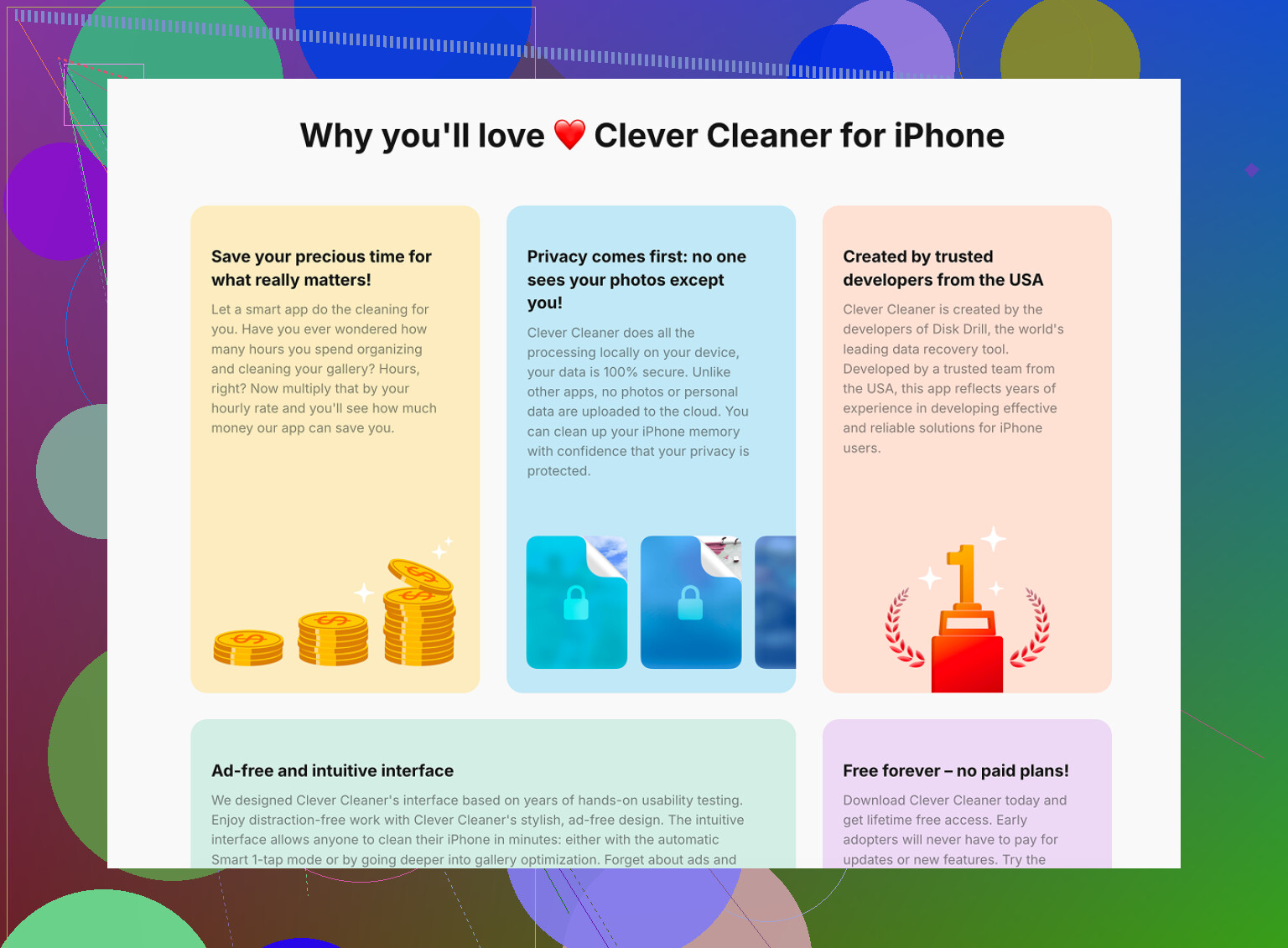
Clever Cleaner cannot read the Hidden album. Apple blocks third-party apps from accessing that folder, so that part has to be cleaned manually with the steps above.
For the normal photo library, though, it is free, with no ads and no subscription.
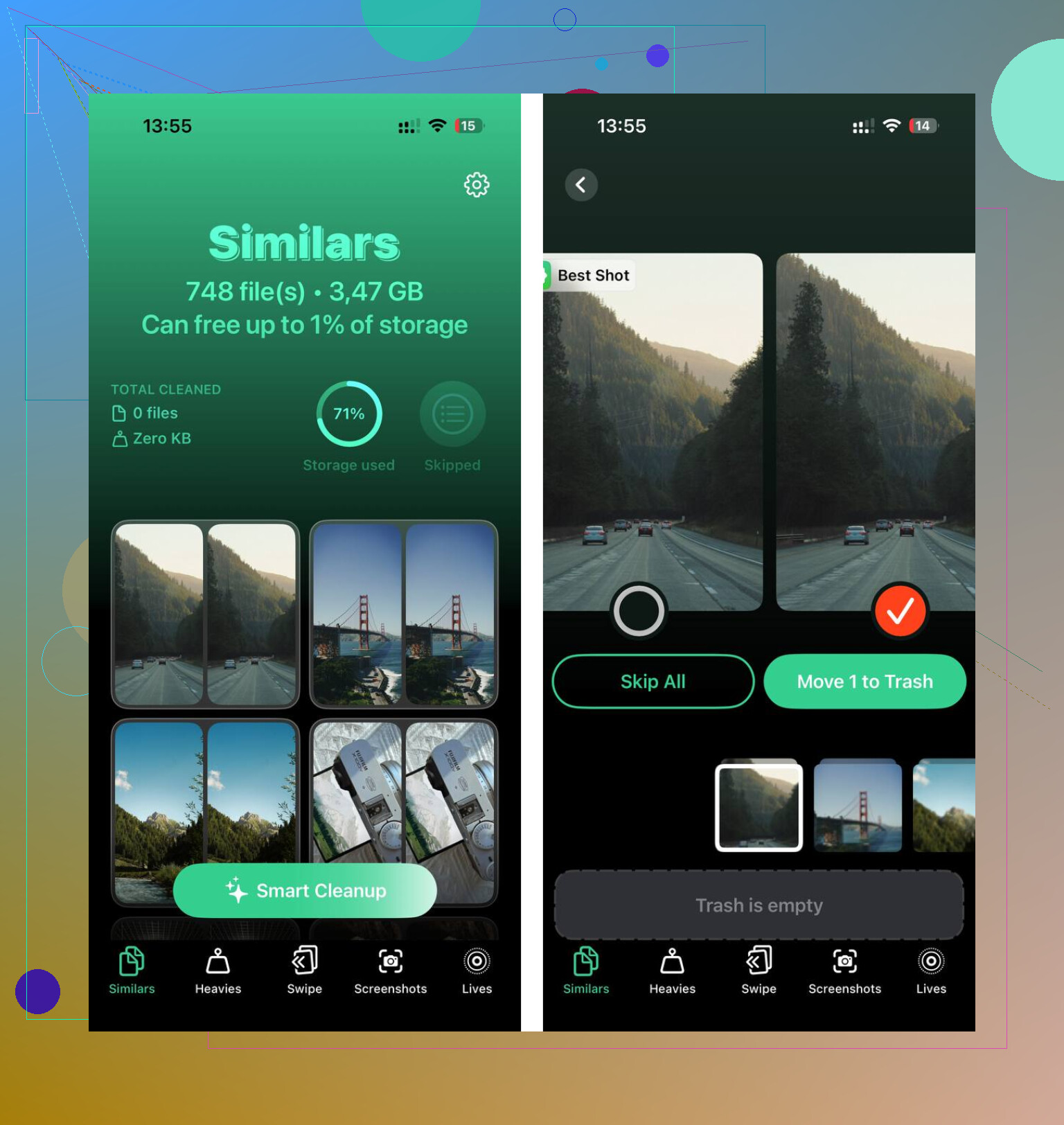
The Similars tab scans your library and groups photos that look almost the same. It suggests a Best Shot, usually the sharpest one, and lets you clear the rest without going through every single image one at a time.
The Heavies tab sorts files by size, biggest first. This is usually where the real storage savings show up, since a few large videos can take more space than thousands of regular photos.
It also shows file sizes on screenshots before you delete them, which makes it easier to decide what is actually worth keeping.
The scan and cleanup happen on the device. Nothing gets uploaded or sent out during the process.
16 Likes
The catch is that restoring from an old iCloud or computer backup may bring those photos back, but it can replace newer stuff on your phone too. If they are not in Recently Deleted on the iPhone or iCloud Photos, check iCloud.com once, then look for an older backup made before the deletion. If no backup exists and Recently Deleted is empty, they are probably gone.
Stop syncing for a minute and check any other Apple device before you do anything else. If you have an iPad, Mac, old iPhone, or even a Windows iCloud Photos setup that has not been online since the deletion, keep it offline, open Photos, and see if the hidden pictures are still there. If they are, export or AirDrop them before reconnecting that device to the internet. Once iCloud sync catches up, it may delete them there too.
The big caveat with backups is iCloud Photos. If iCloud Photos was turned on, those photos usually are not stored inside your normal iPhone iCloud backup in the way people expect. They live in iCloud Photos and sync changes. So restoring an “old iCloud backup” may bring back app data and settings, but it often will not resurrect photos that were managed by iCloud Photos. That is the bit that trips people up.
If iCloud Photos was off, then a computer backup made before the deletion is more promising. A Finder backup on Mac or an iTunes backup on Windows can include the local photo library, depending on how the phone was set up. Restoring that backup is still annoying because it rolls the phone back to that backup date, so I would not do it casually. If the photos matter, make a current backup first, then decide whether the older restore is worth the risk.
I would check in this order:
- Photos app > Utilities > Recently Deleted
- iCloud.com Photos > Recently Deleted
- Other Apple devices that may not have synced yet
- Finder/iTunes backups on a computer
- Old exported copies, Messages, shared albums, email attachments, Google Photos, OneDrive, Dropbox, etc.
That last group sounds obvious, but it is often where people find the “lost” photo. A hidden photo is still just a normal photo in the library, so if it was ever sent to someone, saved to Files, imported to a Mac, or backed up by another photo service, that copy may still exist.
I would be careful with “iPhone photo recovery” apps that promise to scan the phone and bring back deleted hidden photos. On newer iPhones, once the item is gone from Recently Deleted and no backup has it, direct recovery from the phone storage is usually not realistic. A lot of those apps are really just backup browsers with scary marketing. They may find photos inside an iTunes/Finder backup, but they cannot magically pull permanently deleted encrypted photo data out of the phone.
And do not use cleanup tools right now. Clever Cleaner or any similar cleaner app might be useful later for sorting regular library clutter, but it is not a recovery tool and it is not going to access the Hidden album to restore deleted items. First figure out whether a copy exists somewhere, then clean up after.
So the realistic answer is: recoverable if they are still in Recently Deleted, still present on an unsynced device, or included in a real backup/export from before deletion. If none of those exist, they are probably gone.
If you have ever backed this phone up to a computer, copy or archive that old backup before connecting the iPhone again. People forget this part. A good backup from before the deletion can get overwritten by a newer “everything is missing now” backup, and then you’ve lost the best lead you had.
On a Mac, open Finder, select the iPhone, go to Manage Backups, right-click the older backup, and choose Archive if that option is there. On Windows with iTunes, I’d copy the MobileSync Backup folder somewhere else before doing anything. That way, if you decide to experiment later, you still have the old backup untouched.
I agree with the others that Hidden photos are not special files with their own recycle bin. If they were deleted from Hidden, they should have gone to Recently Deleted like normal photos. If they are not there, the next realistic places are synced devices, iCloud.com, or backups. But I would not restore an old backup straight onto your main phone as the first move. That can create a second mess by replacing current messages, app data, and settings.
If the photos are important, a safer route is to inspect the old backup first with a backup browser, or restore it to a spare iPhone if you have one. Some “recovery” apps are basically just doing that under a scarier name, so don’t pay for anything unless it clearly says it can read an existing iTunes/Finder backup. If it claims it can scan a modern iPhone and recover permanently deleted hidden photos from empty storage, I’d be skeptical.
Small thing to check too: make sure you are signed into the same Apple ID and not looking at a different iCloud Photos library or Shared Library view. It sounds obvious, but with family devices, old phones, and shared libraries, people sometimes search the wrong place and assume the photos are gone. If the same account, Recently Deleted is empty, every synced device already caught up, and there’s no pre-deletion backup, then there probably isn’t a hidden recovery trick left.
The clock is the thing nobody’s stressing enough here. Recently Deleted holds items for 30 days, but you don’t know how many of those days already burned before you noticed. Every hour spent testing backups and toggling settings is time coming off that window. So before anything else, if there’s even a chance a copy is still sitting in Recently Deleted, get it out first and troubleshoot later.
Small correction on where people are looking too. Recently Deleted itself can be locked behind Face ID now, and it also has a filter at the top. If it’s set to show only a certain type or sorted oddly, a photo can be sitting right there and you scroll past it. Tap the filter options before you decide it’s empty. I’ve seen people call something gone when it was just hidden by a view setting.
@sognonotturno’s point about unsynced devices is the strongest one in the thread, but it only works if you’re fast and a little lucky. An iPad that’s been sitting in a drawer for two weeks is a decent bet. A Mac you used yesterday already caught up, so don’t waste hope there. And the moment you open Photos on the offline device, don’t let it reconnect until you’ve pulled the images off. AirDrop or export to a folder, then worry about turning WiFi back on.
On the recovery apps, agreed with the skepticism, but I’d put it more bluntly. If it’s gone from Recently Deleted and no backup has it, no app is pulling it back off a modern iPhone. The storage is encrypted and the space gets reused. Anything promising deep scans of the phone itself is selling you a backup browser with a scary name.
The cleaner tool that came up earlier, Clever Cleaner, is fine for what it is, but it has zero role in this situation. It doesn’t touch Hidden and it isn’t a recovery tool. Park that idea until you’ve settled whether the photos still exist somewhere, then use it later if your library genuinely needs thinning out. Right now it’s a distraction.