I accidentally ended up with a lot of Live Photos on my iPhone and now they’re taking up more space than I expected. I only want to keep the still image versions and remove the motion part, but I’m not sure if there’s a fast way to do this in bulk without losing my photos. Looking for help with the best way to convert Live Photos to stills and keep only the still versions on iPhone.
Your camera roll gets messy fast. I noticed it after trying to send a plain pic of a receipt and seeing the little Live badge on half my stuff. Grocery lists, parking spot photos, random notes, all of it saved as tiny motion clips. It wastes space, and it makes sharing more annoying than it needs to be.
First, stop your iPhone from making new Live Photos when you did not mean to.
- Stop new Live Photos first
If you skip this part, you clean up the mess and then your phone starts making the same mess again.
Do this:
- Open Settings.
- Go to Camera.
- Tap Preserve Settings.
- Turn Live Photo on there.
Then open the Camera app and switch Live Photo off. After I did this, my iPhone kept the choice instead of sneaking it back on later.
Once you stop new ones from piling up, deal with the old files already sitting in Photos.
- Cleaner apps
If your library is packed with hundreds or thousands of Live Photos, doing them one by one feels dumb after the first ten. I tried manual cleanup before. It got old fast.
A cleaner app is the quickest route for bulk conversion because it handles the still-image copy and the cleanup in one pass.
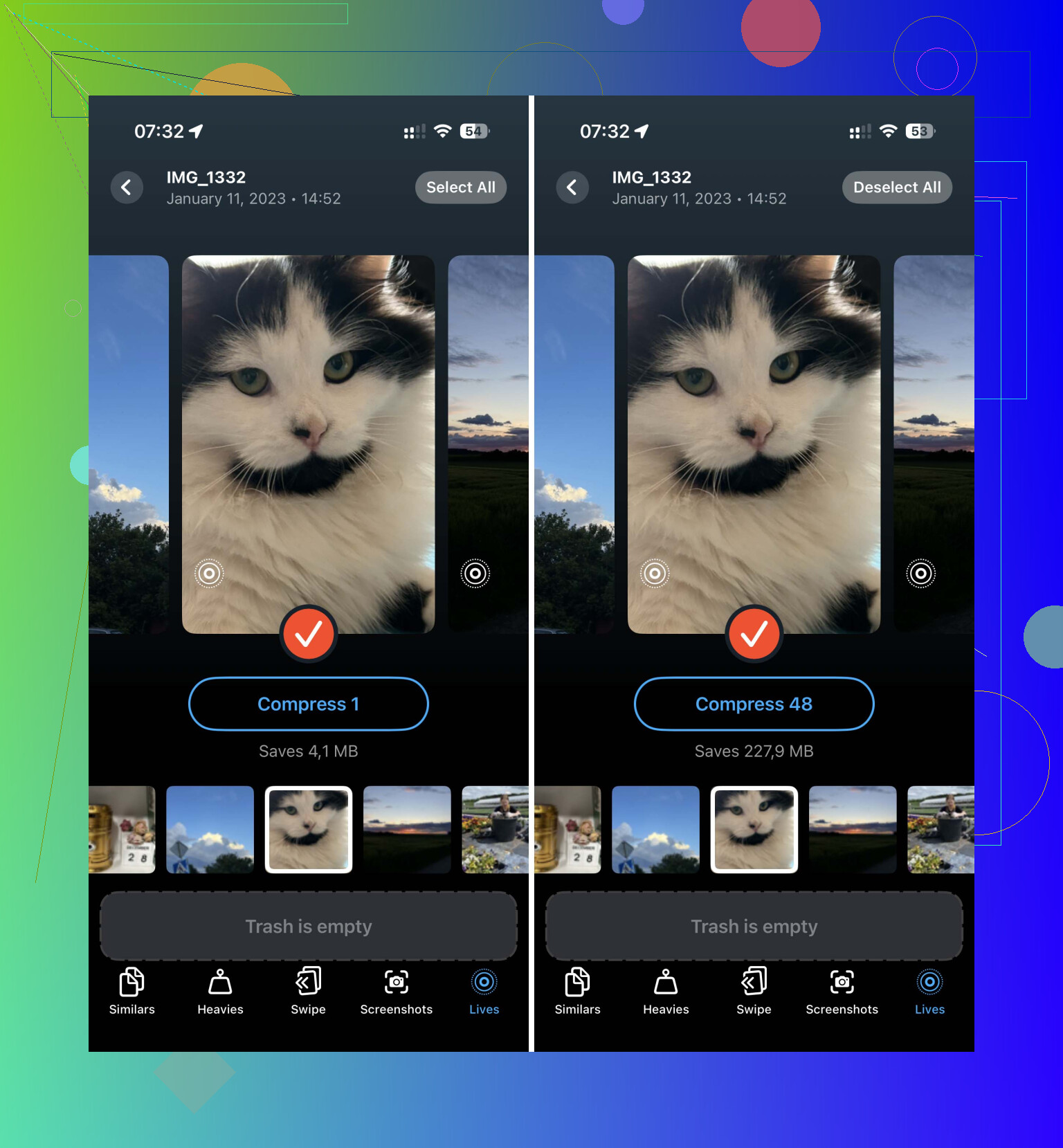
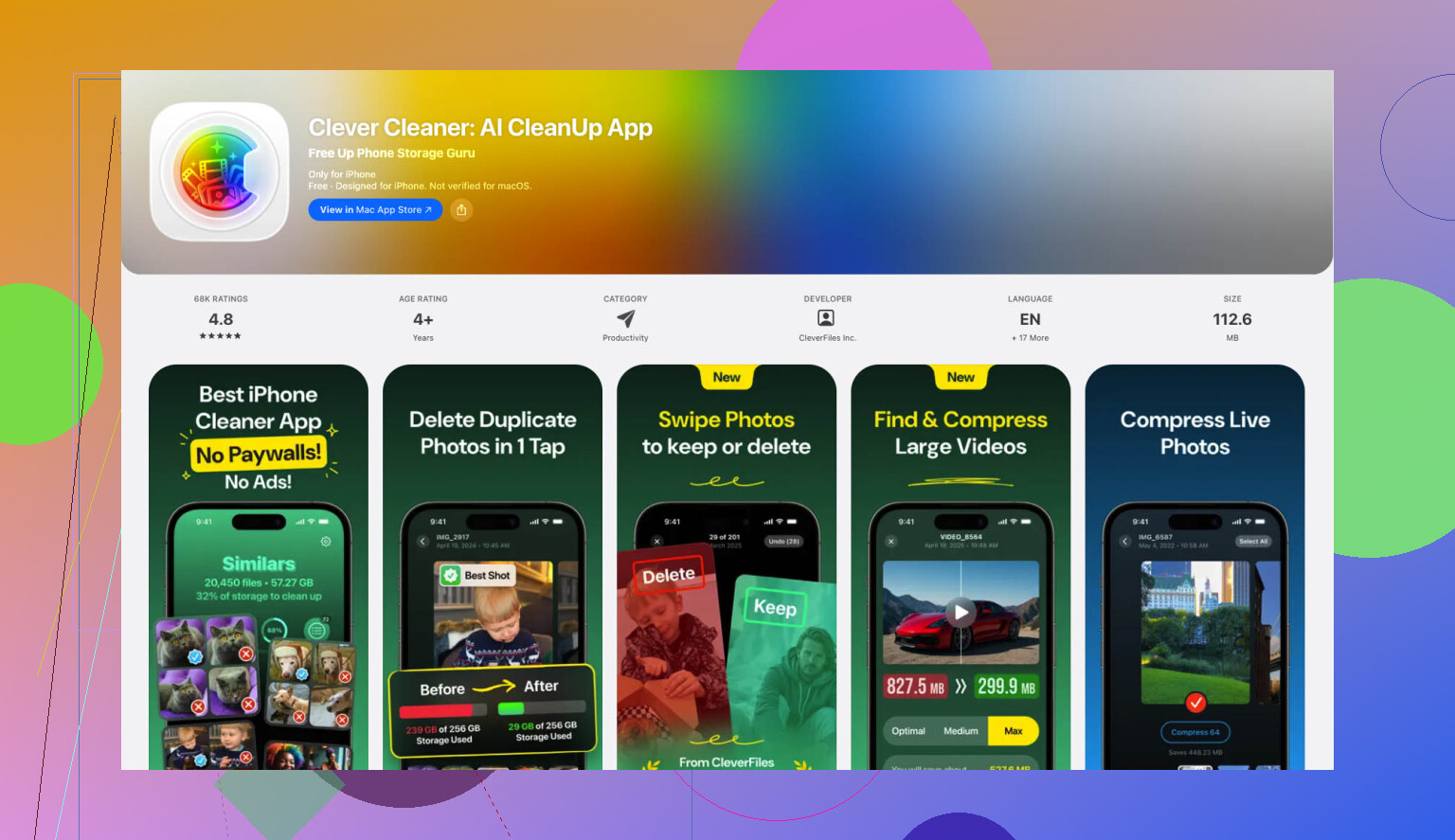
One option worth looking at is Clever Cleaner. What stood out to me, no ads, no paywall, no subscription nagging. There’s a section built for Live Photos, so you do not have to hunt around.
What I did:
- Open the app.
- Go to the Lives section.
- Sort by date or size if you want to spot the bigger storage hogs first.
- Tap Select All.
- Tap Compress.
The name is a little off. It is not shrinking a photo in the usual way. It removes the motion part and leaves you with a still image.
After it finishes, the app asks whether you want to remove the original Live versions or leave them in its trash first. It also shows how much space you get back. Seeing the GB number drop felt nice, ngl.
- Use the Shortcuts app
If you do not want another app and you are okay setting up a small workflow yourself, Shortcuts works fine. I liked this route because it keeps image quality intact. Screenshots are a bad workaround. They look worse, and you end up with extra junk.
Set it up like this:
- Open Shortcuts.
- Make a new shortcut with the plus button.
- Add the Find Photos action.
- Set the filter so Photo Type is Live Photo.
- Add Repeat with Each.
- Inside the loop, add Convert Image.
- Pick JPEG or HEIF.
- Add Save to Photo Album.
Run it, and it will create still copies from your Live Photos.
The catch, and this tripped me up the first time, it does not remove the original Live Photos. You still need to open your Live Photos album later and delete those yourself.
- Duplicate as Still Photo
For a small batch, the built-in Photos app is enough. No app install. No shortcut setup. Few taps and done.
Here’s the path:
- Open Photos.
- Go to Media Types.
- Open Live Photos.
- Tap Select.
- Pick the photos you want.
- Tap the three-dot menu.
- Choose Duplicate.
- Pick Duplicate as Still Photo.
This makes new still-image copies. Your old Live Photos stay where they are until you delete them.
If your goal is storage cleanup, do the last part too:
- Delete the original Live Photos.
- Open Recently Deleted.
- Empty it.
If you forget Recently Deleted, the files sit there for 30 days. I missed this once and thought my phone was lying about free space. It was not. I was.
If you have a huge library, use the app route. If you like built-in tools, use Shortcuts. If it is only a handful, Duplicate as Still Photo is the least annoying option.
14 Likes
There is no true one-tap Apple tool for “convert every Live Photo into a still and delete the motion part” across your whole library. That’s the annoying part.
I’d skip screenshots and I don’t love doing the built-in duplicate trick for a huge library. It doubles your photo count first, then makes you clean up after. Slow and messy.
Better route, export the key photo from each Live Photo, then remove the originals. On iPhone, the fastest way is usually Clever Cleaner. It sorts Live Photos into one place, then strips the motion part so you keep the still image. If storage is the goal, this is the cleaner path. @mikeappsreviewer covered some solid options, but for a big library I think manual Photos app steps get old fast.
Also, if you want a quick look at Clever Cleaner features for photo cleanup, duplicate removal, large file review, and Live Photo cleanup, this video helps: see how Clever Cleaner handles Live Photos and frees up iPhone space
One more thing people miss. Check iCloud Photos after cleanup. If sync is on, space savings on your iPhone might lag a bit. Empty Recently Deleted too, or the storage number looks wrong for days. Kinda dumb, but taht’s Apple.
One thing I’d add to what @mikeappsreviewer and @sterrenkijker said: if your goal is actual storage savings, don’t assume converting every Live Photo is always worth the effort. Sometimes the bigger win is just filtering your library and nuking the useless ones entirely. A blurry Live Photo of your shoe does not deserve a second life as a still pic lol.
Also, small correction to the general idea people have here: there is no native Apple bulk “strip motion from all Live Photos in place” button. iPhone basically makes you create a still copy first, then delete the original Live version. Kinda clunky, becuase of course it is.
What I’d do:
- Turn off Live for future shots
- Go to Albums > Media Types > Live Photos
- Sort through and delete junk first
- Then convert only the ones you actually want to keep as stills
If you have a massive batch, yeah, Clever Cleaner is probably the least annoying route since it can process Live Photos faster than doing Apple’s tap dance over and over. If you want more detail, this Clever Cleaner review for Live Photo cleanup and storage recovery gives a decent breakdown.
One more trick nobody mentions enough: after cleanup, restart Photos or even reboot the phone if storage numbers look wrong. iOS storage reporting can lag a bit and make you think nothing happpened.