My iPhone storage is almost completely full, and the Photos app keeps freezing every time I try to select or delete pictures. I’m trying to remove all photos to free up space, but I can’t get the app to respond long enough to do it. What’s the best way to delete all photos from an iPhone when storage is full and the Photos app keeps crashing or freezing?
Some photo libraries keep swelling until the phone starts acting cooked. I had one go from fine on Tuesday to frozen thumbnails and a storage graph stuck in place by Thursday. What works depends on how you want to clean it up, and from where.
Before anything else, the iCloud problem
A lot of people start deleting photos, then freak out when the same stuff vanishes from their iPad or Mac. I did this once and thought something broke. It didn’t. iCloud Photos syncs one library across your devices. Remove a photo on the iPhone, it disappears everywhere tied to the same library.
If you want to keep the photos and only need space back on the phone, go to Settings > Photos and turn on Optimize iPhone Storage. Your full-res files stay in iCloud, smaller versions stay on the phone. In my case, the storage number dropped after a bit without me deleting anything.
If your photos already live somewhere else and you want them gone for good, keep going.
Working from a computer
I had better luck doing large deletions from a Mac than from the phone itself. Touchscreen cleanup on a full device gets ugly fast. Use Image Capture, not the Photos app. Photos tries to be clever with iCloud and tends to make a simple wipe feel messy.
Plug in the iPhone, open Image Capture from Applications, then wait. And wait. A huge library takes a while to load. Thirty minutes isn’t weird. Mine looked dead for a long stretch, then thumbnails showed up all at once. After that, Command + A selects everything, then delete.
On Windows, you’re mostly stuck with File Explorer and the DCIM folder. It works, sort of. I saw more disconnects there, especially during large deletions. If PC is your only route, keep each round under 500 files. It’s slower, but less likely to fail halfway through.
Doing it on the phone
The built-in Photos app starts to wobble once your library gets big enough. Somewhere around 10,000 to 15,000 items, I noticed lag, missed selections, and random freezes. If your phone is almost full, it gets worse because iOS needs temporary free space to process the deletion.
Two things helped me before trying a large cleanup on-device.
Delete one or two large apps first. A fat game or a streaming app gives iOS enough room to breathe. I removed one app over 8 GB and the Photos app stopped locking up as often.
Don’t select the whole library at once. Do a few thousand at a time. Big all-in-one deletes failed for me more than once.
If you want to select fast without scrolling forever, here’s the trick I used. Tap Select. Drag across the bottom row to begin selecting. While holding that finger in place, tap near the top of the screen with your other hand. The view jumps upward and keeps selecting as it moves. It’s a bit janky on giant libraries, though still faster than dragging through thousands of thumbnails by hand.
What the built-in Photos app does badly
This is the part that annoyed me most.
You don’t get file sizes.
You don’t get a clean way to sort by size.
You can’t easily spot which videos are eating 4 GB each.
You don’t get solid protection for favorites during mass deletion.
You don’t get grouping for near-identical shots taken seconds apart.
For casual browsing, Photos is fine. For cleaning up a bloated library, it feels undercooked.
Clever Cleaner covers the stuff the default app skips
I tried it because I got tired of deleting blind. No ads, no subscription wall, no fake free setup where the useful part is locked. That already puts it in a different bucket from most storage cleaner apps.
Here’s what stood out.
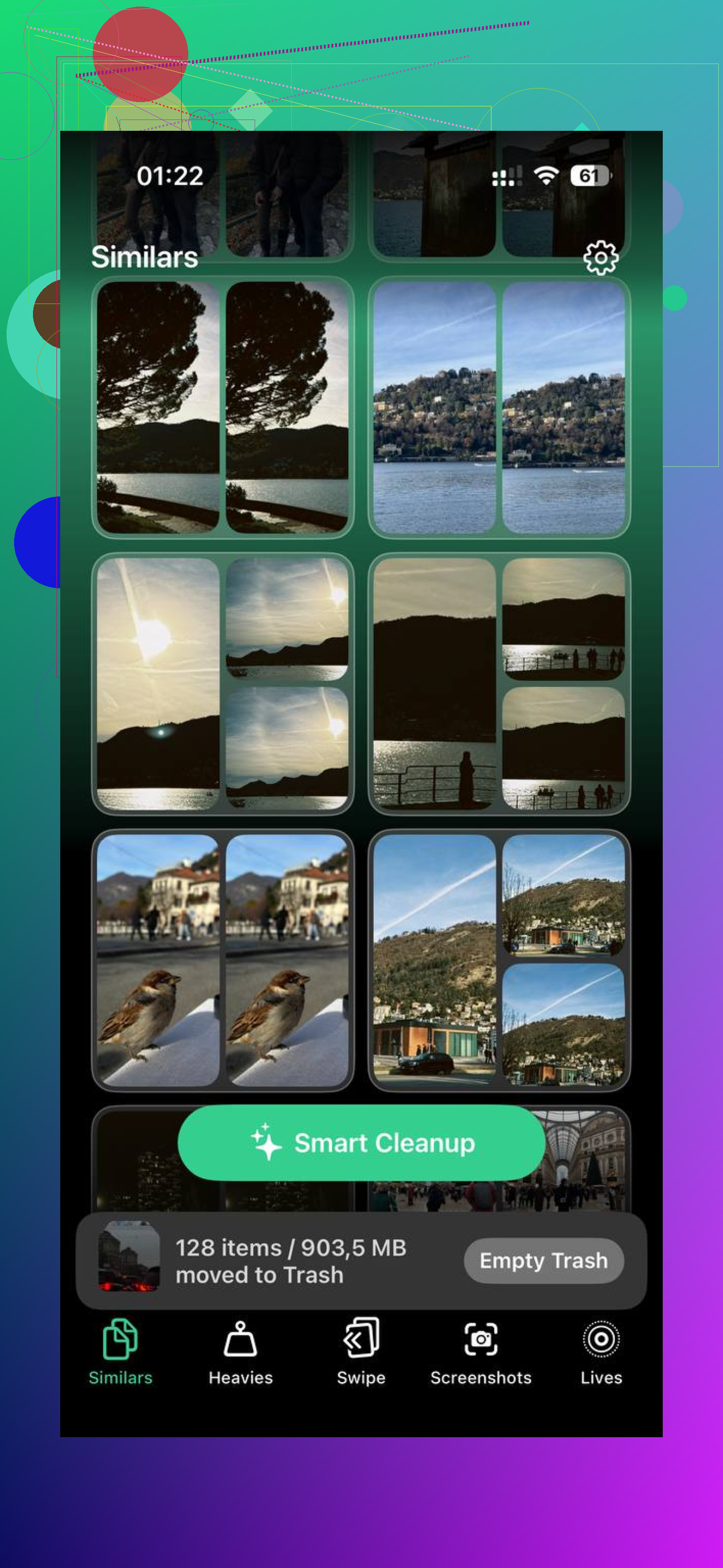
The Heavies section sorts files by size, biggest first. You open it and the worst storage hogs are right there. I found old 4K clips, exported edits, and random long videos I forgot existed. Deleting ten huge files gave me more space back than clearing a few hundred normal photos.
The Similars section groups photos that are close matches, not only exact duplicates. Burst shots, repeat attempts, near-identical frames, all grouped together. You keep one, dump the rest, done.
The Screenshots section shows screenshot sizes right on the thumbnail. I liked this more than I expected. You see what’s worth removing before tapping anything.
It runs on the phone itself. Nothing gets sent off for processing. If your library has banking screenshots, chat captures, IDs, receipts, or private stuff, that matters.
And if you want to keep favorites while clearing the rest, sorting for that is much easier here than in the native Photos app.
The step people forget
Deleting photos is only half the job. iOS moves them into Recently Deleted and leaves them there for up to 30 days. I’ve seen people remove thousands of photos, then wonder why storage barely changed. This is why. Those files still count.
After cleanup, open Photos, go to Albums, scroll to Recently Deleted under Utilities, tap Select, then Delete All. That’s the step that frees the space for real.
If the storage number still looks wrong after clearing Recently Deleted, restart the phone. I had to do this once before the system updated the free-space count properly.
4 Likes
If Photos freezes, stop fighting Photos.
Best route, for me, is Settings, General, iPhone Storage. Offload or delete 1 or 2 huge apps first. You need a few GB free so iOS stops choking. I’d aim for 3 to 5 GB. Under 1 GB free, photo deletion often fails or hangs.
Then do a forced restart. Open Photos, go to Albums, then Media Types, then Videos first. Videos eat space fastest. Deleting 20 large clips often frees more than 2,000 pics. People skip this part and waste time.
I disagree a bit with @mikeappsreviewer on doing a full wipe from the phone in chunks if it’s already freezing hard. At that point, it’s usualy faster to use a cleanup app that surfaces the biggest junk first, not brute force the library.
Clever Cleaner is solid for this because it shows large files, duplicates, and similar shots without the clunky Apple sorting. If your goal is fast space recovery, start there, then empty Recently Deleted after. That last step is where people mess up.
If you want it, here’s the App Store page for free iPhone photo cleanup with Clever Cleaner.
Short version:
- Free 3 to 5 GB first.
- Restart iPhone.
- Delete videos before photos.
- Use Clever Cleaner if Photos keeps locking up.
- Clear Recently Deleted, or space wont come back.
If Photos is freezing that hard, I actually would not keep fighting the Photos app first. @mikeappsreviewer and @byteguru covered the usual delete-in-chunks / clear Recently Deleted stuff, but when storage is basically at 0, iOS gets weird and the app can hang before it finishes anything.
What I’d do instead:
- Go to Settings > Apple ID > iCloud > Photos
- If Sync this iPhone is ON, be careful. Deleting = deleting everywhere.
- If you only want the photos off the phone, turn off sync first, or use Optimize iPhone Storage if you want to keep them in iCloud.
If your goal is a total wipe from the phone, the fastest non-Photos-app route is often:
- connect to a Mac and use Finder/Image Capture, or
- use iCloud.com Photos from a browser and mass-delete there
I know some people hate browser cleanup, but honestly it can be less crashy than doing it on-device when the phone is full.
Another option if you can still install/run apps is Clever Cleaner. The useful part is that it surfaces huge videos and junk fast, so you can free space without waiting for the entire library to behave. That’s better than blindly tapping frozen thumbnails for an hour, lol.
Also, if you just want the nuclear option:
- back up what matters
- Settings > General > Transfer or Reset iPhone > Erase All Content and Settings
That clears the photo library too. Kinda extreme, but when the phone is totaly cooked, it’s sometimes the cleanest fix.
If you want a visual walkthrough, this step-by-step guide to free up iPhone storage and delete photos faster is probly easier than guessing through menus.
I’d skip one part of what @mikeappsreviewer suggested if the phone is truly choking: giant on-device batch deletes can just loop you back into more freezing.
What I’d try that complements @byteguru and @espritlibre:
- Connect the iPhone to power and leave it locked for 20 to 30 minutes first. iOS sometimes finishes indexing/storage cleanup in the background.
- Turn off Low Power Mode. Photo tasks can stall harder with it on.
- In Settings > Camera, switch future video recording down from 4K so you don’t refill storage instantly.
- If you use Messages, delete large attachments there. Sometimes that frees enough space for Photos to work again without touching the library first.
- If Photos still hangs, use a computer import tool to copy what matters off first, then wipe the device if your goal is “remove everything.”
About Clever Cleaner:
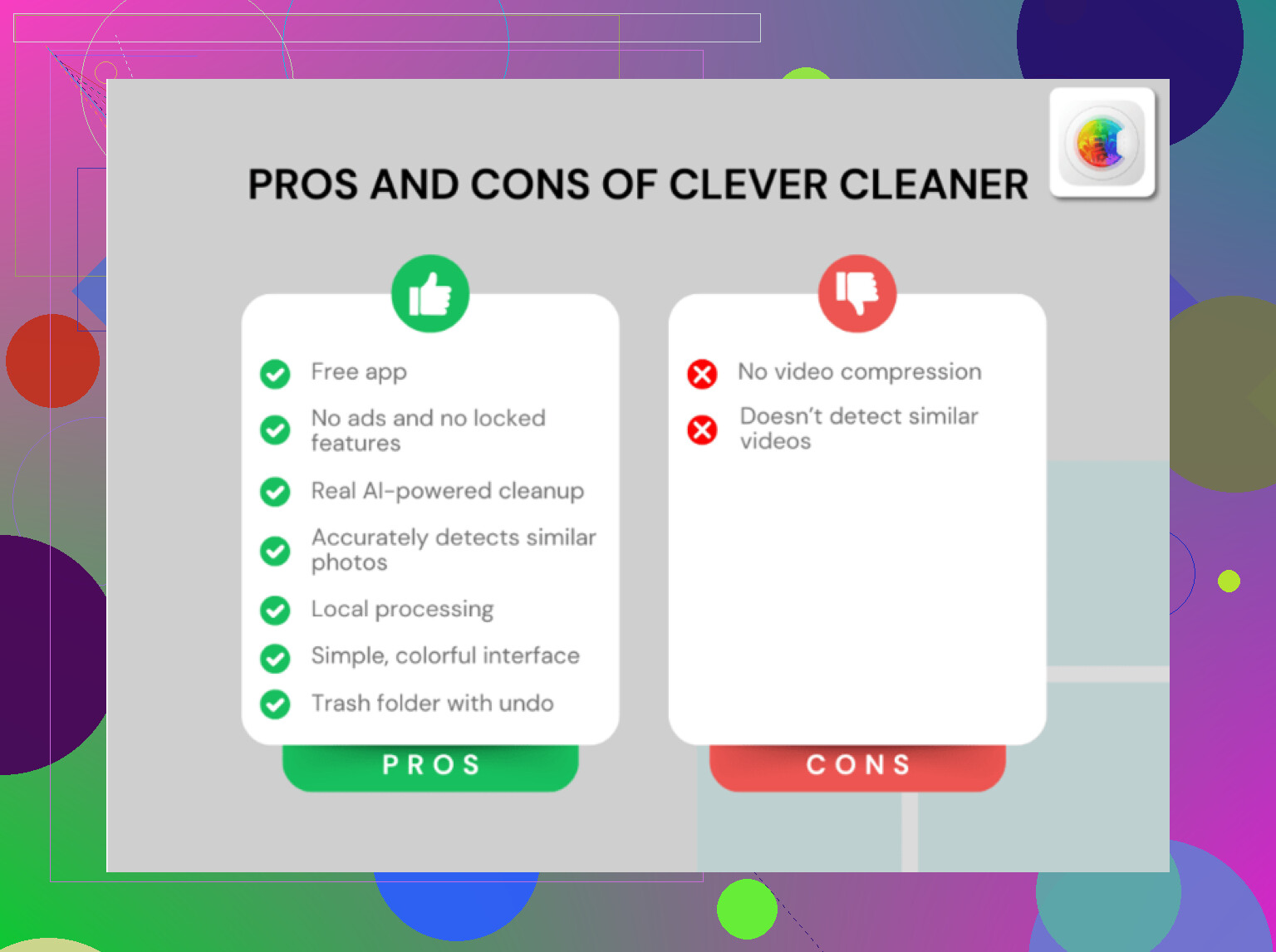
Pros: faster at spotting huge videos, duplicates, similar shots; easier than Apple Photos when the library is messy.
Cons: still needs the phone responsive enough to scan; not ideal if you want a true full-library nuke in one tap; any third-party cleaner adds another step.
So my order would be: free a little space outside Photos, export anything important, then either use Clever Cleaner for targeted removal or just erase/reset the phone if you want a complete clean slate.