My iPhone is almost out of storage, and I’m not sure if paying for iCloud is the right fix. I’ve deleted a few apps and photos, but the storage warning keeps coming back. What are the best ways to free up iPhone storage or add more space before upgrading iCloud?
You can’t really expand an iPhone’s built-in storage the normal way. Some shops may talk about swapping the storage chip, but that’s not a simple upgrade. It’s risky, usually expensive, and can leave you with a phone Apple may not want to service later. For most people, the better fix is clearing out space that’s already being wasted.
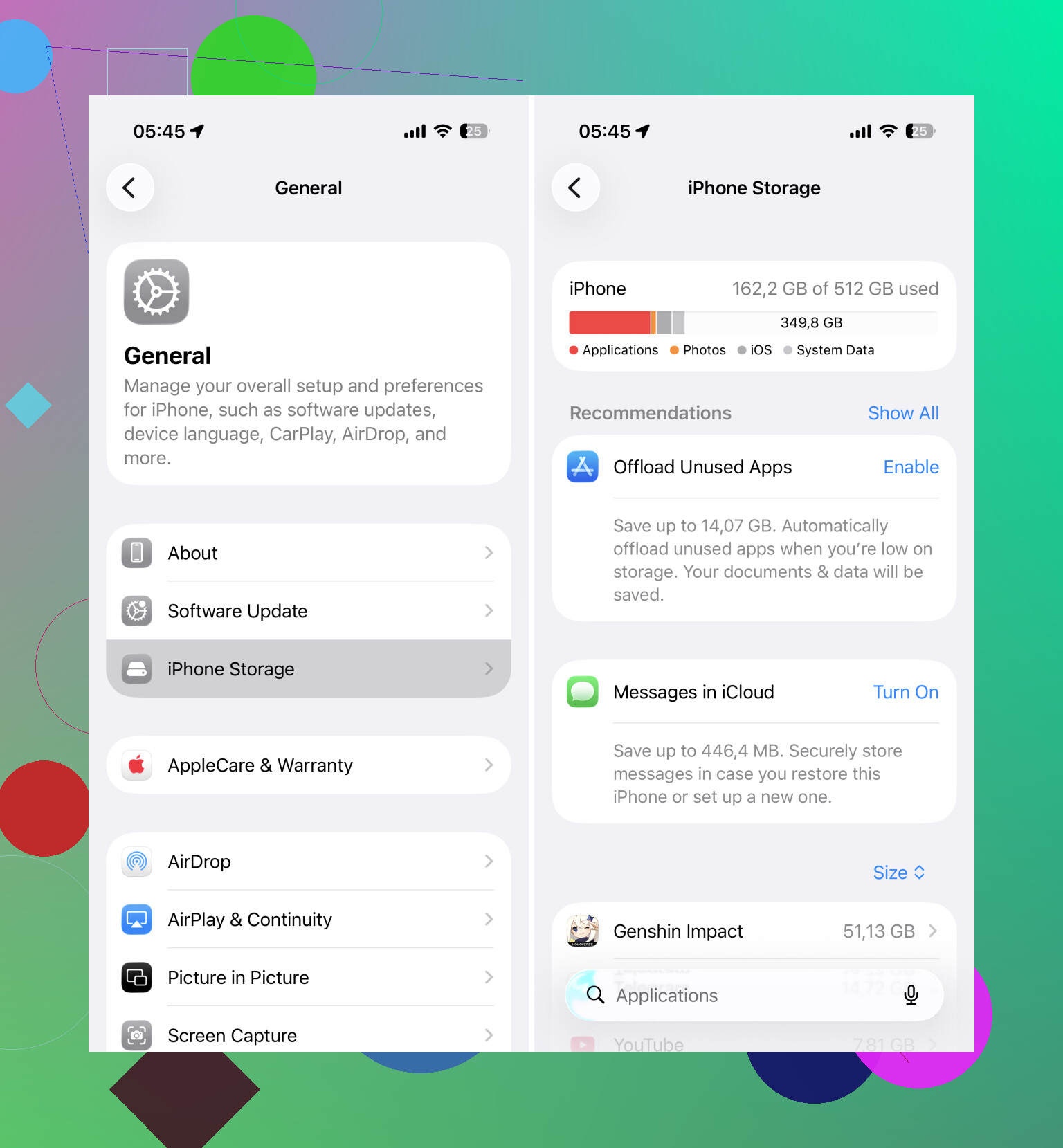
Start with Settings > General > iPhone Storage. That screen will show you what’s eating the most space. A lot of the time, Photos is near the top, especially if you take bursts, save videos, or never clean out old screenshots and duplicates.
The annoying part is that iOS still doesn’t give you great tools for doing this quickly. Apps, files, downloads, messages, and random documents usually need to be handled by hand. Photos and videos are where you can usually win back the most space without spending all afternoon on it.
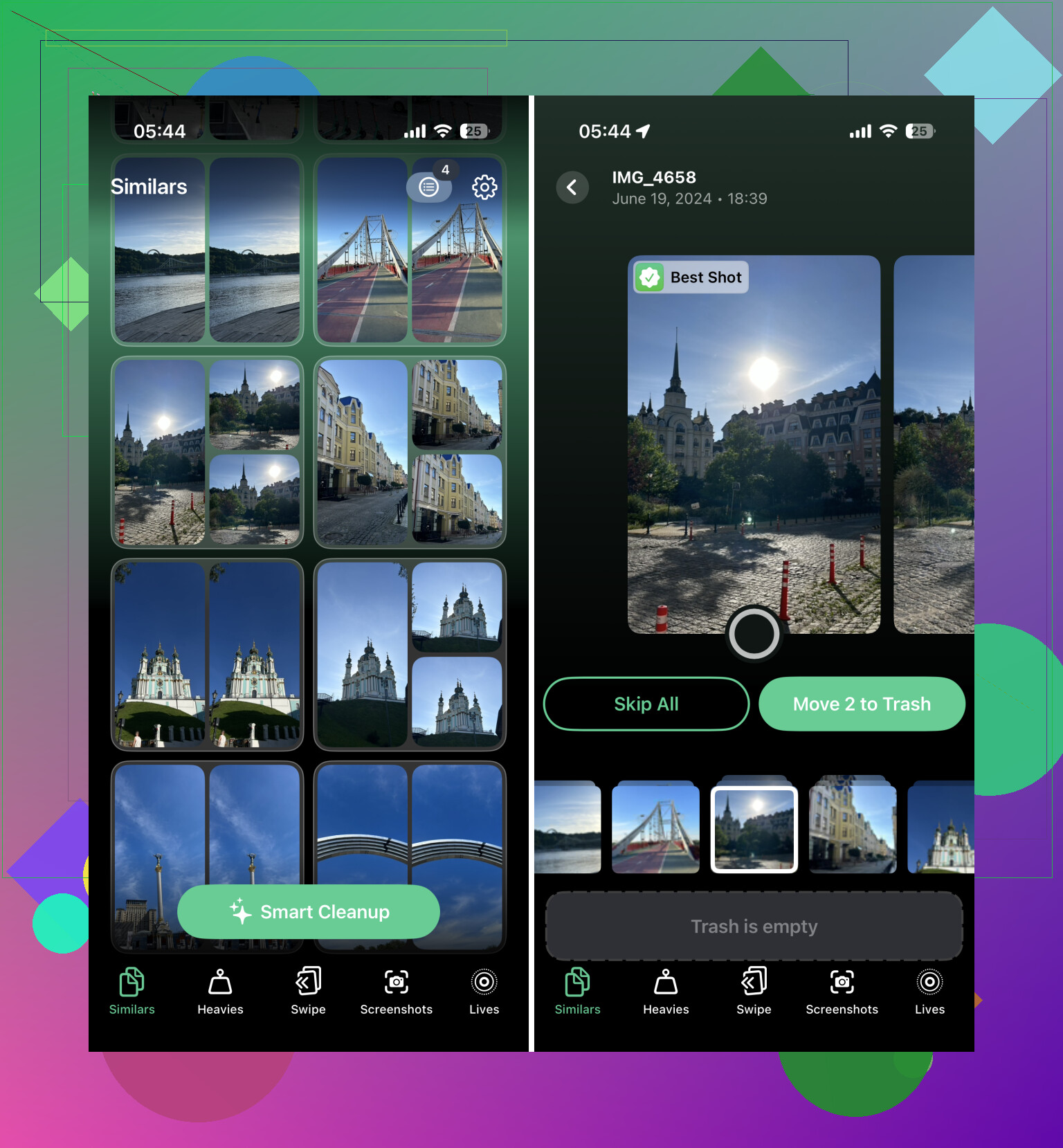
That’s why I’d start there. A cleanup app can make the photo library part much less painful. One option worth looking at is Clever Cleaner. The main reason it stands out is that it’s actually free right now, with no ads, instead of doing the usual “free download, subscription required to clean anything useful” thing.
Its Similars feature is probably the most useful part. It doesn’t only look for exact duplicates. It groups photos that look alike, picks what it thinks is the best one, and lets you delete the extras pretty quickly. That tends to find a lot more junk than Apple’s built-in Duplicates album.
The Heavies section is also worth checking. It sorts out your largest videos, which matters because a couple of old 4K clips can take up several gigs by themselves. Sometimes deleting just a few of those makes a bigger difference than cleaning hundreds of small photos.
Turn on Optimize iPhone Storage
After you clear out the obvious junk, go to Settings > Photos > Optimize iPhone Storage and turn it on if you use iCloud Photos. Your iPhone will keep smaller local versions on the device, while the full-resolution originals stay in iCloud. When you open one, iOS downloads the full version as needed.
This can save a lot of local space, but it depends on your iCloud storage. Apple only gives you 5 GB for free, so that may not be enough if your photo library is large. If you don’t want to pay for more iCloud, moving older photos and videos somewhere else, like Google Drive, can also help without permanently deleting them.
Use external storage if you shoot a lot of video
If you record long videos often, especially 4K or ProRes, an external drive can make sense. Lightning and USB-C flash drives can be used to move finished files off the phone. Some camera apps also support recording straight to compatible external storage, which keeps huge video files from filling the iPhone in the first place.
Know when the storage size is just too small
If you’ve cleaned up photos, deleted apps you don’t use, turned on storage optimization, and still keep running out of room, then the phone’s capacity may simply be the issue.
A 64 GB or 128 GB iPhone can still be fine for lighter use. It gets tight fast if you shoot a lot of video, keep years of photos on the device, or install a bunch of large apps. You also need some free space for iOS updates and normal background stuff, so running it right up to the limit all the time is asking for problems.
Before replacing the phone, though, I’d still do a real cleanup first. Clearing similar photos and large videos with something like Clever Cleaner, plus some manual cleanup in apps and downloads, can sometimes recover tens of gigabytes. That may be enough to put off an upgrade for a while.
12 Likes
The catch with iCloud is that it can make storage feel better, but it is not the same as adding a bigger drive to the phone. I agree with checking iPhone Storage first, but don’t ignore the boring app data there: Messages attachments, downloaded music, podcasts, Netflix/YouTube downloads, Files downloads, and huge chat apps can sit there even after you delete photos. Offloading an app only removes the app itself, not always the saved data you actually need gone, so sometimes you have to open the app and clear downloads/cache from inside it, or delete and reinstall it if you’re sure nothing important is stored locally. And after deleting photos or videos, empty Recently Deleted, or the space may not come back right away. I’d do that cleanup before paying for iCloud, because if the warning is caused by app clutter, iCloud won’t fix much.
Deleting photos while iCloud Photos is on can remove them from every device, so don’t treat iCloud like a separate backup before you start mass-cleaning. I’d first plug the phone into a computer and copy off the full photo/video folder, or use an external drive if your iPhone supports it, then delete from the phone and empty Recently Deleted. That gives you actual storage back without committing to a monthly plan. After that, check Safari downloads, the Files app, and big message threads, because those are easy to miss and don’t always show up as “photos” or “apps” in the way people expect.
If the bar is full because of photos, the advice above makes sense; if it’s full because “System Data” is bloated, buying iCloud may barely move the needle. Try restarting, installing any pending iOS update, and deleting/reinstalling the worst offending apps, since caches can sit there long after you think you cleaned everything.