My iPhone storage is completely full, and the Photos app is barely working. I need to delete a large number of photos fast to free up space, but selecting them one by one is too slow. What’s the best way to mass delete iPhone photos when storage is full?
If your iPhone is yelling about storage and Photos is the main problem, don’t start tapping pictures one at a time. That gets old fast. I had the same issue and found out I had more than 18,000 photos sitting there, so I ended up using a few different cleanup methods depending on what I was trying to get rid of.
For smaller cleanups, the regular Photos app is fine. Open Photos, tap Select in the top-right, then drag your finger across rows of pictures instead of selecting each one separately. If the library is huge, pinch out to the Months view first so you can grab bigger chunks at once. Once you’ve got the photos selected, hit the trash icon.
That’s the best option when you still want control over exactly what gets deleted, like photos from a trip, a bad batch of pictures, or a few hundred random shots. It just gets pretty slow once you’re dealing with thousands.
If you mainly want to clear out stuff like screenshots, bursts, or screen recordings, use the albums Apple already creates for those. In Photos, go to the Collections tab, scroll to Media Types, then open something like Screenshots, Bursts, or Screen Recordings. From there, tap Select, use Select All, and delete them.
That Select All button is the key part. Apple doesn’t give you that everywhere in Photos, but it does in some of these media-type albums, so it saves a lot of time.
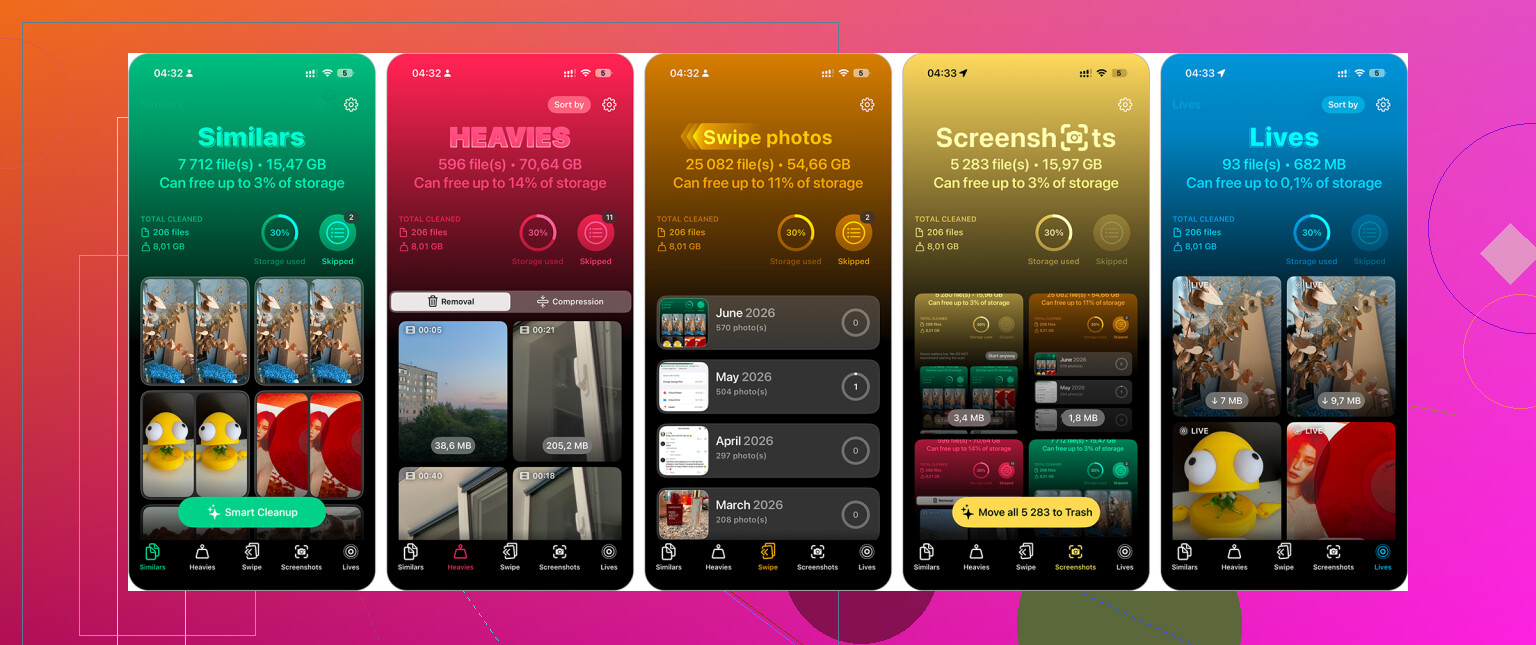
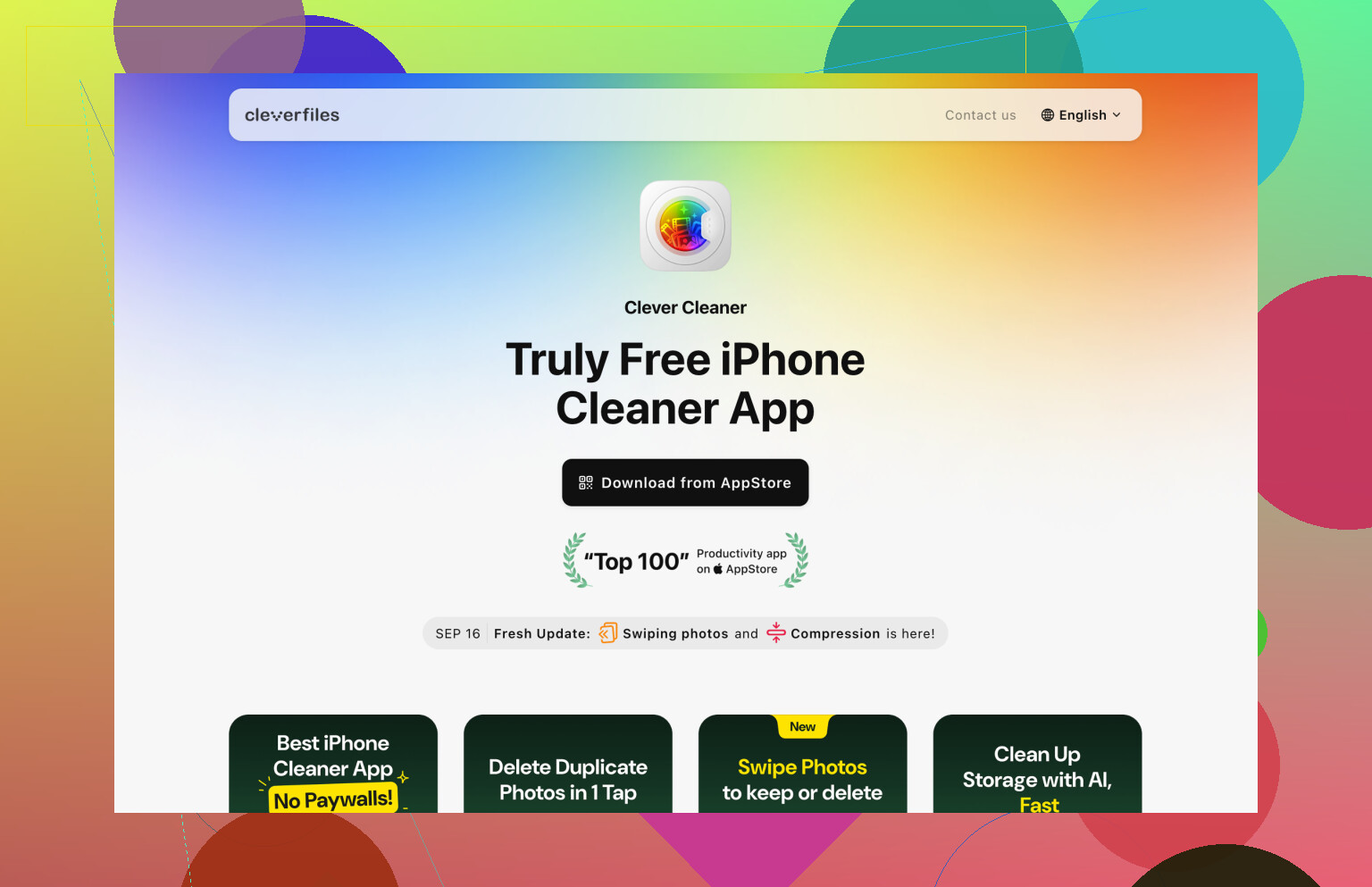
For a really large photo library, Clever Cleaner was the biggest shortcut for me. I’m usually skeptical of cleaner apps because a lot of them are basically ad traps or subscription nags, but this one is free and was actually useful.
After you install it, check the Similars section first. It groups photos that are almost the same and suggests the Best Shot to keep. You can swipe through and remove duplicates or near-duplicates without manually comparing everything. Then look at Screenshots for bulk deletion, Live Photos if you want to convert them into regular still images, and Heavies if you want to find the biggest videos. Large videos usually free up way more space than deleting a bunch of normal photos.
Another option is using a computer, especially if you’re deleting thousands of photos. If you use iCloud Photos, open iCloud.com on your computer, sign in, and use Shift-click to select big ranges of photos. Delete what you don’t need, then give it time to sync back to your iPhone.
A mouse and keyboard make this way less annoying than trying to drag-select a giant library on a phone screen.
The nuclear option is a factory reset. Only do this if you truly don’t need the photos or anything else on the phone, or if you’ve already backed up what matters.
- Go to Settings > General > Transfer or Reset iPhone.
- Tap Erase All Content and Settings.
- Follow the steps to wipe the phone.
That’s obviously not the right move if there are still important photos on the device. But if you’re selling it, handing it to someone else, or just want a clean start, it’s the fastest way to remove everything.
9 Likes
Deleting isn’t finished until you empty Recently Deleted. After mass-selecting anything, go to Photos > Albums > Recently Deleted and clear it there too, or your iPhone may still act full for up to 30 days.
If the phone is at zero free space, expect Photos to lag or even fail before it deletes anything. I’d first make a little breathing room somewhere else: offload one big app, delete downloaded Netflix/Spotify/Podcasts stuff, remove an old iOS update if Settings shows one, or delete a few large Messages attachments under Settings > General > iPhone Storage. Even 500 MB to 1 GB can make the Photos app behave less like it’s dying.
After that, the fastest built-in method is usually not individual tapping, it’s dragging in Select mode while zoomed out. Open Photos, go to Library or a date view, tap Select, then drag across a row and keep holding near the top or bottom edge so it scrolls. It is clumsy, but it can grab hundreds pretty quickly once the phone has enough space to respond.
Big warning if iCloud Photos is on: deleting from the iPhone means deleting from iCloud and your other Apple devices too. If your goal is only to free local storage but keep the photos, turn on Optimize iPhone Storage instead, or copy them to a computer/external drive first. If your goal is truly to get rid of them, then yes, delete in batches and immediately clear Recently Deleted like @andarilhonoturno said, because otherwise you may not see the storage come back right away.
Don’t assume iCloud Backup is protecting the photos you’re about to delete. If iCloud Photos is turned on, deleting from the phone usually means deleting from iCloud too, and an iPhone backup is not a separate photo archive. That mistake bites people.
If the Photos app is too frozen to select anything, I’d skip the phone screen and use a computer. Plug the iPhone in, unlock it, trust the computer, then use Image Capture on a Mac or the Photos app/File Explorer import tools on Windows to pull off what you want to keep first. After that, delete in larger chunks from the computer side if it lets you, or go back to the iPhone once it has a little room. It is less elegant than doing it in Photos, but a mouse and keyboard beat trying to long-drag through thousands of thumbnails on a choking phone.
The annoying catch is that if “Optimize iPhone Storage” is already on, some photos may only be small local copies, so a cable transfer might not grab everything in full quality. In that case, use iCloud.com or a Mac signed into the same Apple account to download the originals before deleting. Once you’re sure you don’t need them, delete, then empty Recently Deleted like @andarilhonoturno said. Until that folder is cleared, you haven’t really recovered the space.