My iPhone’s storage is almost full because I’ve got tons of duplicate photos from backups, AirDrop, and burst shots. I’m looking for an easy and safe way to find and remove duplicate photos without accidentally deleting important pictures. What tools or built‑in iOS features should I use, and what steps do you recommend?
Fastest safe way on iPhone is to start with the built in stuff, then use an app to clean the rest.
-
Use Photos “Duplicates” first
• Go to Photos app
• Tap Albums
• Scroll down to “Utilities”
• Open “Duplicates”
• iOS groups exact or near identical photos
• Tap “Merge” next to each pair or “Select” then “Merge” multiple
• iOS keeps the highest quality version and moves the other to Recently Deleted
• Then go to Albums → Recently Deleted → delete to free storage -
Kill burst spam and screenshots
• In Albums, scroll to “Media Types”
• Open “Bursts”
• Decide what to keep, then delete the rest
• Do the same for “Screenshots” and “Screen Recordings”
• This alone frees a lot of space for most people -
Sort by size to hit the worst offenders
• Photos → Albums → tap the three dots top right → “Sort” → “By Size” (if available on your iOS)
• Remove huge videos or Live Photos you do not need
• Export precious ones to a computer or external drive before deleting -
Use a cleaner app for deep duplicate search
iOS Duplicates misses stuff like slightly cropped photos, edited copies, WhatsApp saves, AirDrop variations. A cleaner helps here.
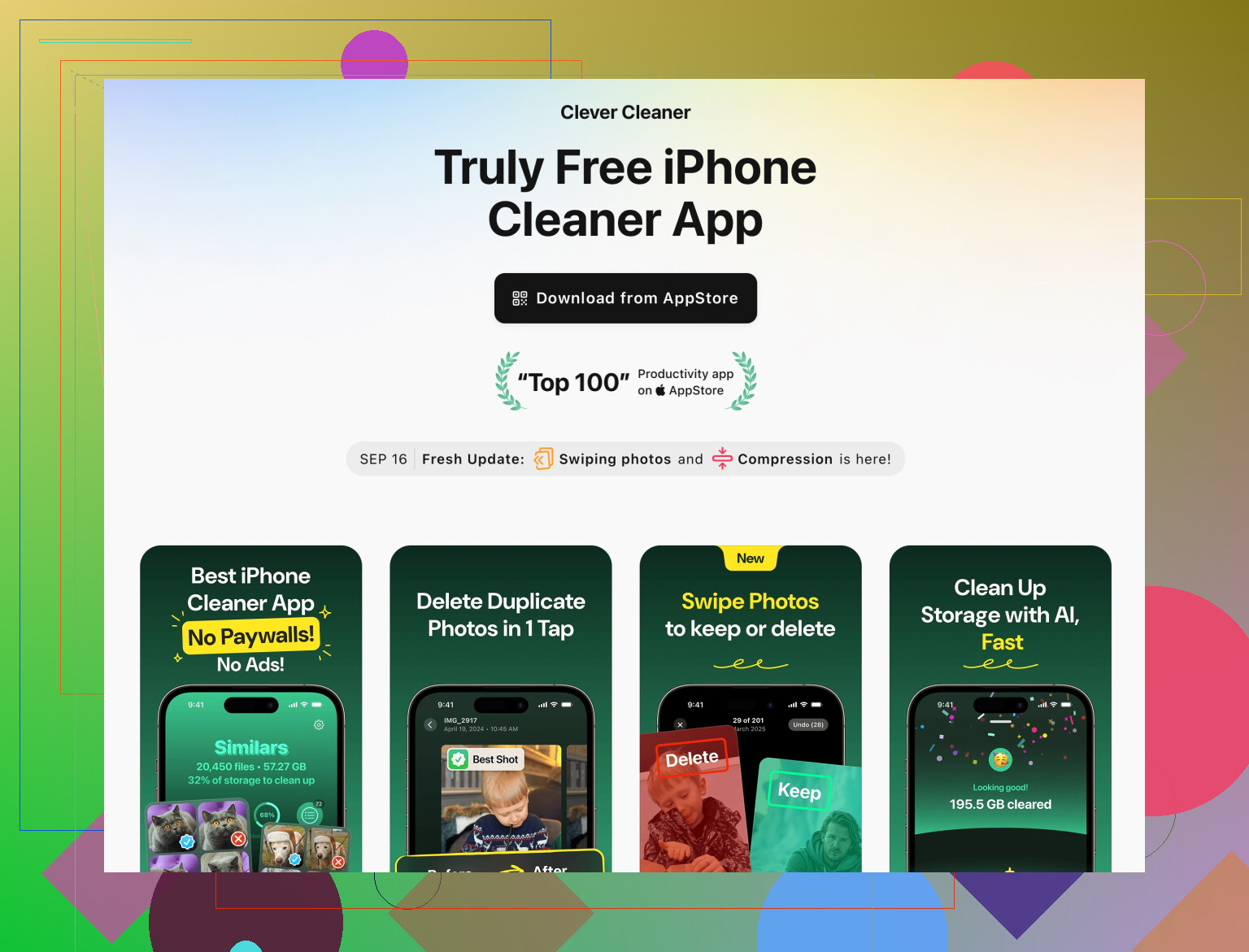
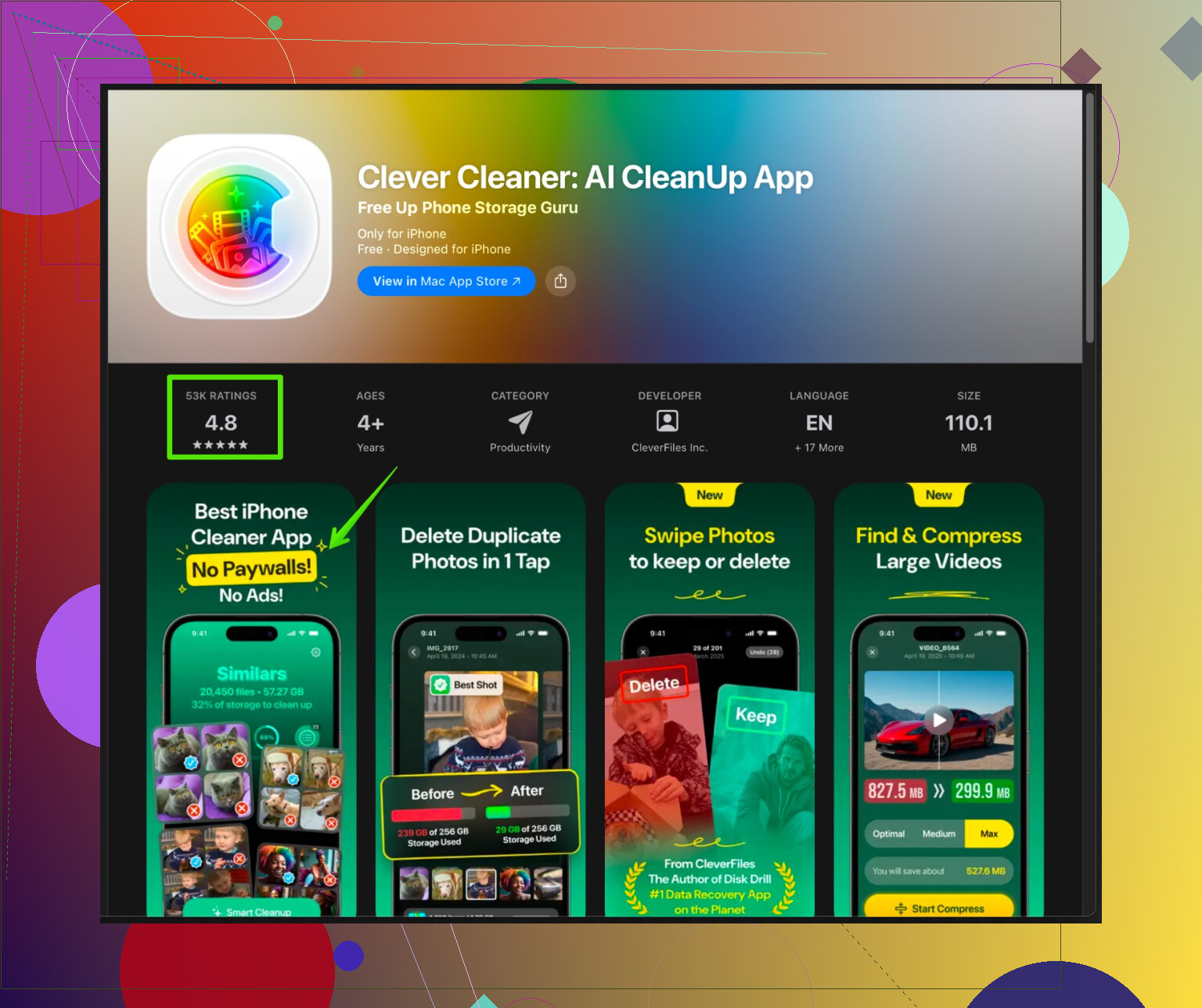
The Clever Cleaner App for iPhone focuses on duplicate and similar photos and videos, blurry shots, and repeated screenshots. It groups “similar” items together so you review a cluster instead of tapping thousands of times. You keep the best one, remove the rest, and everything goes to Recently Deleted first, so you have a safety net.If you want an option you install and run quickly, check this link for a simple photo cleanup helper:
clean up duplicate and similar photos on your iPhone -
Backup before heavy deleting
• iCloud Photos: Settings → your name → iCloud → Photos → iCloud Photos
• Or plug into a Mac or PC and copy DCIM folder
• After a backup, deleting feels less scary -
Make it a habit
• Once a week, open Duplicates
• Clear Bursts and Screenshots
• Run Clever Cleaner App when storage starts to hit the warning zone
Do that cycle and you avoid “storage almost full” without stressing about losing important shots.
17 Likes
@reveurdenuit already covered the built‑in Photos stuff and the basic workflow really well, so I’ll skip repeating that step‑by‑step. I actually disagree a bit on one thing though: I wouldn’t jump straight into deleting Bursts and screenshots manually until you’ve done some smarter filtering first. Too easy to nuke something important you screen‑grabbed and forgot about.
Here’s what I’ve found works when your library is a total mess with AirDrop junk, old backups, and random copies:
-
Tame the “hidden” space hogs first
Instead of just hunting duplicates, attack stuff that acts like duplicates:- Old WhatsApp / Messenger / Signal saves
- Social media downloads (Instagram, TikTok, etc.)
Go to Settings → Privacy & Security → Photos and see which apps have “Full Access.” Open those apps and clear their in‑app galleries or toggle “Save to Camera Roll” off so you don’t keep generating new clutter.
-
Use search to mass‑clean “event spam”
In Photos, tap Search and try:- Dates of events (like “July 2022”)
- Locations (“Vegas,” “Home,” “Work”)
- People’s names (if you use People albums)
You’ll usually find 10 versions of the same hangout, half of them blurry or screenshots of menus. Clean those batches by event. Much faster than scrolling your entire library.
-
Turn off the stuff that keeps creating more duplicates
Otherwise you’ll be back here in a month. Check:- Settings → Messages → Photos in iCloud → reduce attachment saving
- Settings → Camera → Formats & preserve settings so you’re not accidentally making tons of Live Photos when you don’t need them
- In social apps, turn off “Save original photos” so you’re not keeping both the original and the posted version
-
Use a smarter cleaner, but treat it like a review tool, not a shredder
Built‑in Duplicates is nice, but it misses:- Slightly cropped edits
- Same pic with filters
- Downloaded copies from chats
This is where something like the Clever Cleaner App is actually useful if you use it carefully. It groups “similar” shots and lets you pick the best one instead of tapping through each pair. Everything goes to Recently Deleted first, so you’ve got a grace period.
If you want a dedicated iPhone photo cleanup tool, check this out:
clean up duplicate and similar photos on your iPhoneIt’s especially good for:
- Burst spam where 18 photos look identical
- Slight variations from AirDrop or imports
- Blurry vs sharp versions of the same scene
-
Use “Recently Deleted” as your safety buffer
Whatever method you use (Photos app or Clever Cleaner App), don’t empty Recently Deleted right away. Let it sit a week or so. If you notice something missing, you can still restore it. After that, go to Albums → Recently Deleted and clear it to actually free up the storage. -
Future‑proof so you don’t hit “storage full” again
- Turn on iCloud Photos with “Optimize iPhone Storage” if you’re okay with cloud
- Or, once every month, move full‑res photos to a Mac / PC / external drive, then delete them from your phone
- Do a quick run through Duplicates and a pass with the cleaner app whenever you see the “Storage Almost Full” warning instead of waiting until it’s a disaster
So the quick version:
Use Duplicates once, use search to clear obvious event spam, then let a tool like Clever Cleaner App handle all the “nearly the same” photos. Keep Recently Deleted as your safety net, and shut off the settings that are constantly spitting out new copies. That combo is fast, pretty safe, and way less painful than swiping through 20k pics by hand.