My iPhone storage is almost full, and I realized a few videos are probably taking up most of the space. I’ve been trying to find a real way to sort iPhone videos by file size so I can quickly delete or move the biggest ones first. If there’s a built-in option or a simple workaround, I really need help figuring it out.
I ran into the same mess on iPhone. You’d think Photos would have a plain file-size sort by now. It doesn’t. I kept opening my library, planning to wipe a few big videos, then got stuck peeking at clips one by one. Swipe up, check info, back out, repeat. After a few minutes, I was done with it.
If you want a built-in sort inside Photos, there still isn’t one. The app lets you view size per item through the info panel, but doing this across hundreds or thousands of videos is brutal. What helped me was using a few side routes instead of fighting the Photos app itself.
A quick way to surface large files in iPhone Storage
This one is hit or miss for stuff in your camera roll, though it does catch some large files fast, especially message attachments and other junk eating space in the background.
- Open Settings > General > iPhone Storage.
- Wait for iOS to finish loading the storage breakdown.
- Check for recommendations such as Review Large Videos.
- Open the section and look through what iOS marked as taking a lot of space.
- Swipe left on any item there if you want it gone right away.
I wouldn’t depend on this for a full library audit, though for a fast cleanup it’s decent.
If you want an actual largest-to-smallest list
I used to avoid cleaner apps because a lot of them are bloated or push subscriptions at you five seconds in. Still, after trying the manual route too many times, I gave in. For sorting videos by size, a dedicated app was the only thing I found that felt sane.
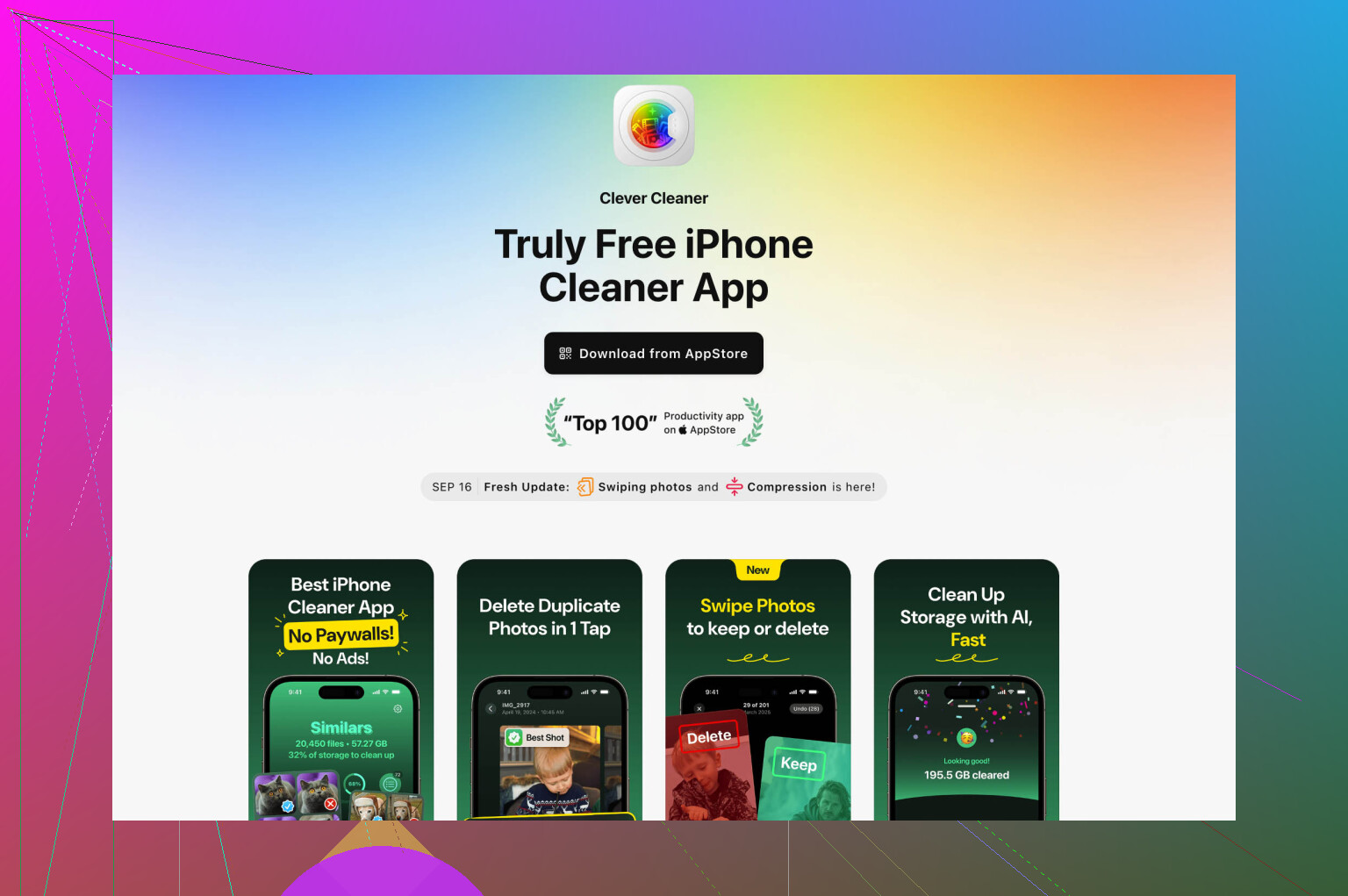
The one I had the least friction with was Clever Cleaner. It’s from the CleverFiles team. What stood out to me was simple, it didn’t hit me with a paywall for the basic cleanup job.
- Download Clever Cleaner and allow Photos access.
- Let the scan finish.
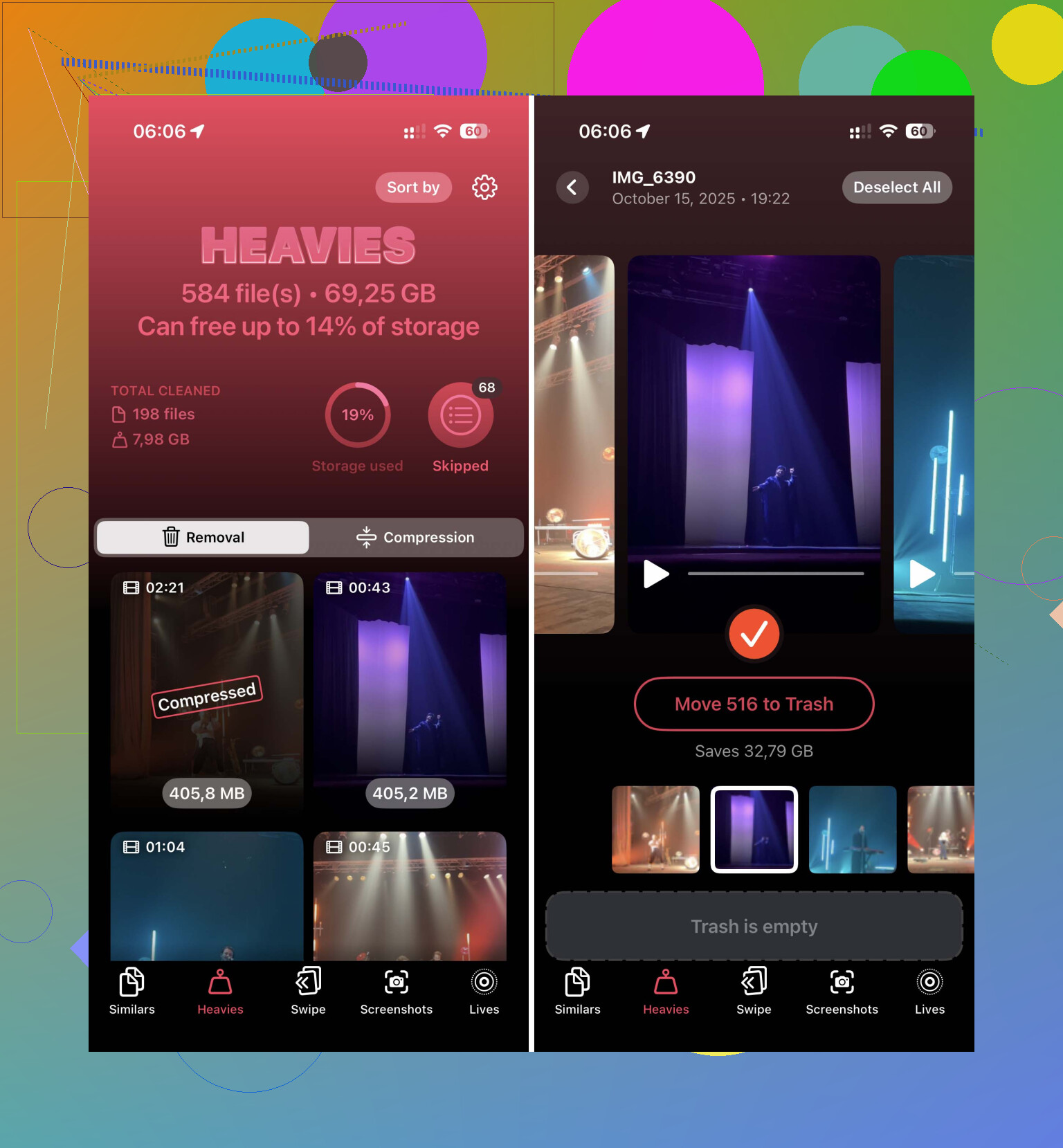
- Open the Heavies tab.
- You’ll get a list of videos ordered from largest file to smallest.
- Each clip shows its size in MB or GB, so there’s no guessing.
- Pick what you don’t need and tap Move to Trash.
This part saved me the most time. I saw a couple old 4K clips sitting there at several gigabytes each, stuff I forgot existed. Found them in secnds instead of digging for half an hour.
There’s also a Compress option in the Heavies area. I liked this for videos I wanted to keep but didn’t need in their original size. I had one long concert clip I wasn’t deleting, and shrinking it freed up enough space without making it look bad on the phone screen.
Files app works, but only for videos stored there
If your large clips came from downloads, work apps, or Safari, the Files app is easier to deal with than Photos.
- Open Files.
- Go to On My iPhone or iCloud Drive.
- Open the folder where the videos live, often Downloads.
- Tap the three-dot menu in the upper-right area.
- Choose Size.
This sorts files in that folder by size, so the biggest stuff rises to the top. It won’t help with videos sitting inside the Photos library, but for downloaded media, it works fine.
One thing people forget after deleting
When you remove videos from Photos, the space usually doesn’t come back at once. They sit in Recently Deleted for 30 days. I missed this the first time and thought my phone bugged out. If you need room right now, open Recently Deleted and clear it manually.
If I were doing this again, I’d start with the Heavies section in Clever Cleaner, then check iPhone Storage after. For me, that was the fastest way to sort iPhone videos by size and clear space without poking through the library clip by clip.
17 Likes
You won’t get a true file-size sort inside Apple Photos. That part is the annoying truth.
I’d do it a different way than @mikeappsreviewer suggested. Instead of checking storage menus first, export your videos to a Mac if you have one. In Photos on Mac, switch to Videos, then use List view or inspect items in Finder after export. Finder sorts by size fast, and you can nuke the worst offenders way easier. If you use iCloud Photos, this is often the cleanest route.
If you want it done on the phone, Clever Cleaner is one of the few options people keep mentioning for this exact job. Their app is easier to read about here, see how Clever Cleaner helps sort large iPhone videos and free storage. It’s useful if your goal is finding giant clips fast, not poking around one by one like a caveman.
One more trick people skip. Go to Photos, search by terms like “video”, “4K”, or by month/year, then sort mentally by duration. A 6 minute 4K60 clip often eats 2 GB to 3 GB. A 30 second 1080p clip might be under 100 MB. Duration is a decent shortcut when size info is hidden.
Also check imported videos from apps like WhatsApp, Telegram, CapCut, and Downloads. Those files pile up quik.
Nope, iPhone Photos still does not give you a real “sort videos by file size” button. Kinda wild in 2026, but here we are.
I’d actually push back a bit on @mikeappsreviewer and @boswandelaar on one thing: trying to estimate by duration or bouncing through Mac/Finder is fine, but if your goal is speed, that still turns into extra work. Duration is only a rough guess anyway. A short 4K/60 HDR clip can be fatter than a longer old 1080p one.
What does work without a lot of nonsense:
- In Photos, make a smart manual pass:
- Albums > Media Types > Videos
- Tap a video and swipe up to see size
- Delete obvious giant ones
- Then go to Recently Deleted and clear it, or the space won’t come back right away
If you want an actual usable size-based view on the phone, Clever Cleaner is probly the easiest route. It’s one of the better iPhone storage cleaner apps for finding large videos, duplicate photos, and other stuff eating space. That’s the part Apple still refuses to do cleanly.
Also worth checking:
- Editing apps like CapCut, iMovie, VN
- Files app folders like Downloads
- WhatsApp/Telegram media caches
- Screen recordings, which are sneaky huge
If you want to compare tools, this roundup on the best iPhone storage cleaner apps to free up space fast is a decent starting point.
Short version: Photos app itself cannot truly sort by size, so either inspect manually or use Clever Cleaner to surface the biggest videos fast. That’s the least annoyng answer.
One angle nobody’s mentioned enough: use a Shortcut to dump video metadata into a list. It won’t sort the Photos library in place, but it can pull your videos, show duration, date, and sometimes size-related metadata if available from the share sheet or saved-file path. Nerdier setup, yes, but way more flexible if you hate tapping into each clip manually.
I slightly disagree with @boswandelaar and @espritlibre on the Mac-first approach being the cleanest for everyone. It’s clean only if you already live in Apple’s desktop ecosystem. If not, it becomes another chore.
My practical take:
- Best built-in clue: Settings > Camera > Record Video. If you shoot 4K/60, those are almost certainly your storage killers.
- Best hidden cleanup targets: screen recordings, cinematic clips, edited exports, and downloaded videos saved from other apps.
- Best phone-only shortcut: filter your Videos album by recent years and delete in bursts after checking info panels.
If you want actual size ordering on-device, Clever Cleaner is the obvious shortcut.
Pros of Clever Cleaner
- surfaces biggest videos fast
- easier than manual Photos digging
- good for duplicates and other junk too
Cons of Clever Cleaner
- extra app access to your library
- scan results depend on full photo permissions
- some people just prefer not using cleaners at all
So I’d combine the advice from @mikeappsreviewer with one extra rule: target the formats you know are huge first, not just random long clips. That gets space back faster.