My iPhone won’t install the latest iOS update because it says there isn’t enough storage, even after I deleted some apps and photos. I need help with easy ways to free up space or update my iPhone without losing important data.
I ran into this on my own iPhone and it was more annoying than it should've been. Settings showed a few GB free, then the iOS update still refused to install. What tripped me up was this part: the update size on screen is not the full space it needs. The phone downloads the package, then needs extra room to unpack it and finish setup. For a bigger jump, like iOS 26, I’d want around 10GB to 15GB open if you’re updating on the phone itself. Less than that, and stuff starts failing in weird ways.
If you're done deleting random screenshots one by one, this is the order I'd use.
Use a computer first
This saved me the most time. Plug the iPhone into a Mac or Windows PC and update there instead of using the phone alone. On Mac, use Finder. On Windows, use iTunes.
The difference matters. Your computer downloads the update and handles the unpacking on its own drive, so the iPhone does not need as much free internal storage for the whole process. You still want some open space on the phone, but the requirement is lower. Before you press Update, make a full backup to the computer. I did this first because if the install goes sideways, you’ve got a clean fallback.
If things are already messy, there’s another route. Back up the iPhone, erase it, set it up again, then restore your backup after setup finishes. During setup, the phone should pull the newest iOS version available for your model. It works, though I’d treat it as the bigger hammer.
If you don’t want to go that far, then you need to clear space. Here’s where I’d look first.
Photos and videos
This is usually where the space went. Not always photos. A few forgotten videos tend to be the bigger problem. I’ve seen three long 4K clips eat more storage than hundreds of normal pictures.
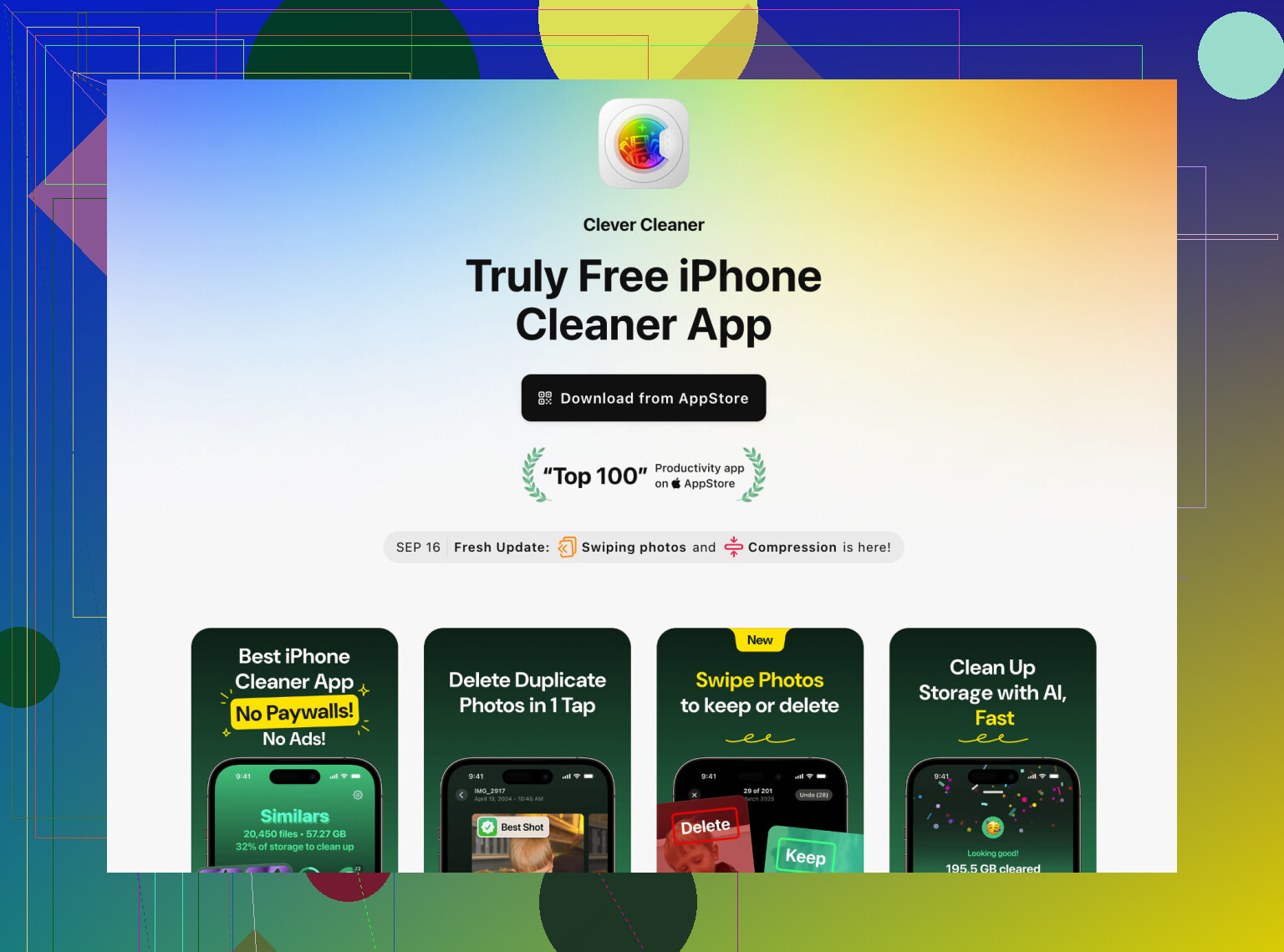
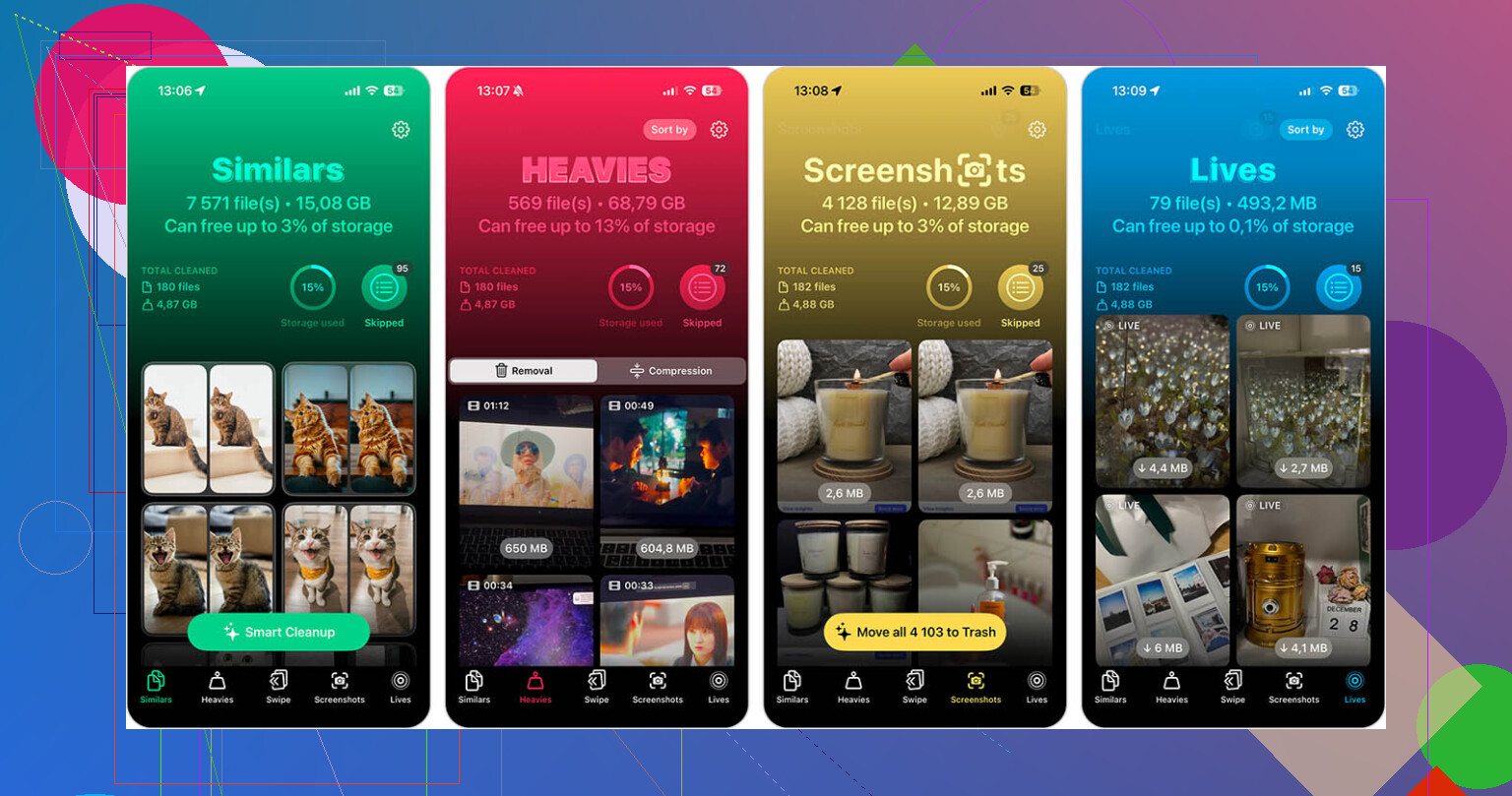
If you want the fast route, use Clever Cleaner. I tried it because manually sorting the Photos app was taking forever. The part I liked was the 'Heavies' view. It puts the largest videos up front, so you cut space fast instead of pecking around at tiny files.
It also groups similar shots. Good if your camera roll looks like mine did, ten near-identical pics, one usable, nine pointless. Trim those and the total starts moving.
One thing people miss, I missed it too the first time: deleting from Photos is not enough. Open the Recently Deleted album and remove everything there too. If you skip that step, iOS keeps holding the storage for up to 30 days.
Apps
I know iPhone likes to suggest Offload App. I stopped doing that when I was low on space. Offloading keeps the app's documents and data, and some apps pile up junk there for months. TikTok, YouTube, Instagram, those are usual suspects.
Delete the app fully if you haven’t used it today or this week. Reinstall it later after the update. I did this with a couple social apps and got back more space than I expected. After reinstalling, they were much smaller.
Stuff hiding in plain sight
Two places tend to hold garbage data people forget about.
Safari cache. Go to Settings > Apps > Safari, then tap Clear History and Website Data. On one phone I cleaned up, this freed close to 1GB.
Messages attachments. Go to Settings > General > iPhone Storage > Messages, then open Review Large Attachments. This is where old videos, image dumps, voice notes, and random files from group chats pile up. You delete the big files without wiping the conversation itself.
If I had to do it again, I’d go in this order: computer update first, then large videos, then fully delete unused apps, then clear Safari and Messages attachments. Usually that gets enough room without wiping the whole phone.
19 Likes
One thing I’d add to what @mikeappsreviewer said, check for a half-downloaded iOS file. iPhone sometimes keeps the failed update package and it eats storage for no reason.
Go to Settings, General, iPhone Storage. Look for an iOS update file in the list. If you see it, delete it. Restart the phone. Then try the update again. I’ve seen this free 3GB to 6GB.
Also, sync first, then remove local media. If you use iCloud Photos, turn on Optimize iPhone Storage. If you use Apple Music, Spotify, Netflix, YouTube, remove downloaded songs and videos. Those offline files are often the hidden hogs, lol.
I slightly disagree on deleting tons of apps first. Downloads are usually the faster win. One Netflix season or a few podcast downloads can free more space than 5 apps.
If your Photos app is a mess, Clever Cleaner helps sort large files and duplicates faster. This Reddit thread on a truly free iPhone cleaner with no ads gives a quick overview.
Last option, use Recovery Mode from a computer. Update, not Restore. This often works when OTA updats keep failing.
I’d try one thing people skip: remove the update pressure itself.
Go to Settings > General > Date & Time and make sure automatic time is on, then plug into power, connect to strong Wi-Fi, and leave the iPhone locked for a while. Sounds dumb, but iOS sometimes finishes cleanup jobs only when it’s idle and charging. I’ve had “not enough storage” magically change an hour later. Annoying, yes. But real.
Also check Settings > General > iPhone Storage and wait there for a minute. Seriously. That screen recalculates categories, and sometimes “System Data” shrinks after indexing finishes.
I kinda disagree with deleting tons of personal stuff first. @mikeappsreviewer and @yozora covered the big wins already, but before nuking photos, look at Mail and voice memos. The Apple Mail app can hoard large attachments if you’ve got multiple accounts, and Voice Memos gets forgotten all the time.
Another sneaky fix: if you use iCloud Photos, pause nothing. Let it finish syncing first. Half-synced libraries can block storage from clearing properly. Same idea with Files app downloads. Check On My iPhone and Downloads.
If your camera roll is chaos, Clever Cleaner is probly the fastest way to spot giant videos and duplicates without manually digging forever.
Also useful if you want more of an automated angle: set up a smarter iPhone storage cleanup workflow.
If all else fails, update through a computer, but I’d do these checks first becuase they’re less disruptive.