I’m trying to free up storage and fix some lag on my iPhone, but I’m confused about the right way to clear the cache for apps and Safari without accidentally deleting important data or settings. What are the safest, most effective steps to clear cache on an iPhone, and are there any hidden spots where cached files build up that I should know about?
Here is what works safely on iPhone if you want more storage and less lag without nuking your data.
-
Check what eats your storage
- Open Settings
- Tap General
- Tap iPhone Storage
- Wait a bit for it to load
You see a list of apps and how much space they use. Tap any app for details. Focus on large ones.
-
Clear Safari cache without losing passwords
- Settings
- Safari
- Tap Clear History and Website Data
This wipes browsing history, cookies, site data. Your saved passwords stay safe because they sit in iCloud Keychain, not in the Safari cache.
If you want to keep history but free some space, scroll in Safari settings and disable stuff like automatic downloads, then delete Reading List items you finished.
-
Offload apps instead of deleting them
This keeps your data and documents, removes the app itself.- Settings
- General
- iPhone Storage
- Tap an app
- Tap Offload App
When you reinstall, your documents and settings return. This works well for games or big social apps you use less.
-
Target “Documents & Data” safely
Big “Documents & Data” often means cache. You can clean it without touching critical stuff like chat history if you do it from inside the app. Examples:
• Instagram, TikTok, etc.
Open the app, go to Settings inside the app, look for “Clear cache” or “Storage” options.
• Spotify, Netflix, YouTube
Inside each app, delete downloads you finished. Media takes way more space than pure cache.
Avoid deleting the app if you are not sure your account is backed up or you forgot your login. -
Clean Messages and attachments
Messages build up a lot. Old videos are huge.- Settings
- General
- iPhone Storage
- Tap Messages
- Go into “Photos”, “Videos”, “GIFs and Stickers”
Manually delete old junk. Your active conversations stay.
If you want auto cleanup:
- Settings
- Messages
- Message History
- Set Keep Messages to 1 Year or 30 Days
Do this only if you are fine losing old threads.
-
Clear system junk with a tool
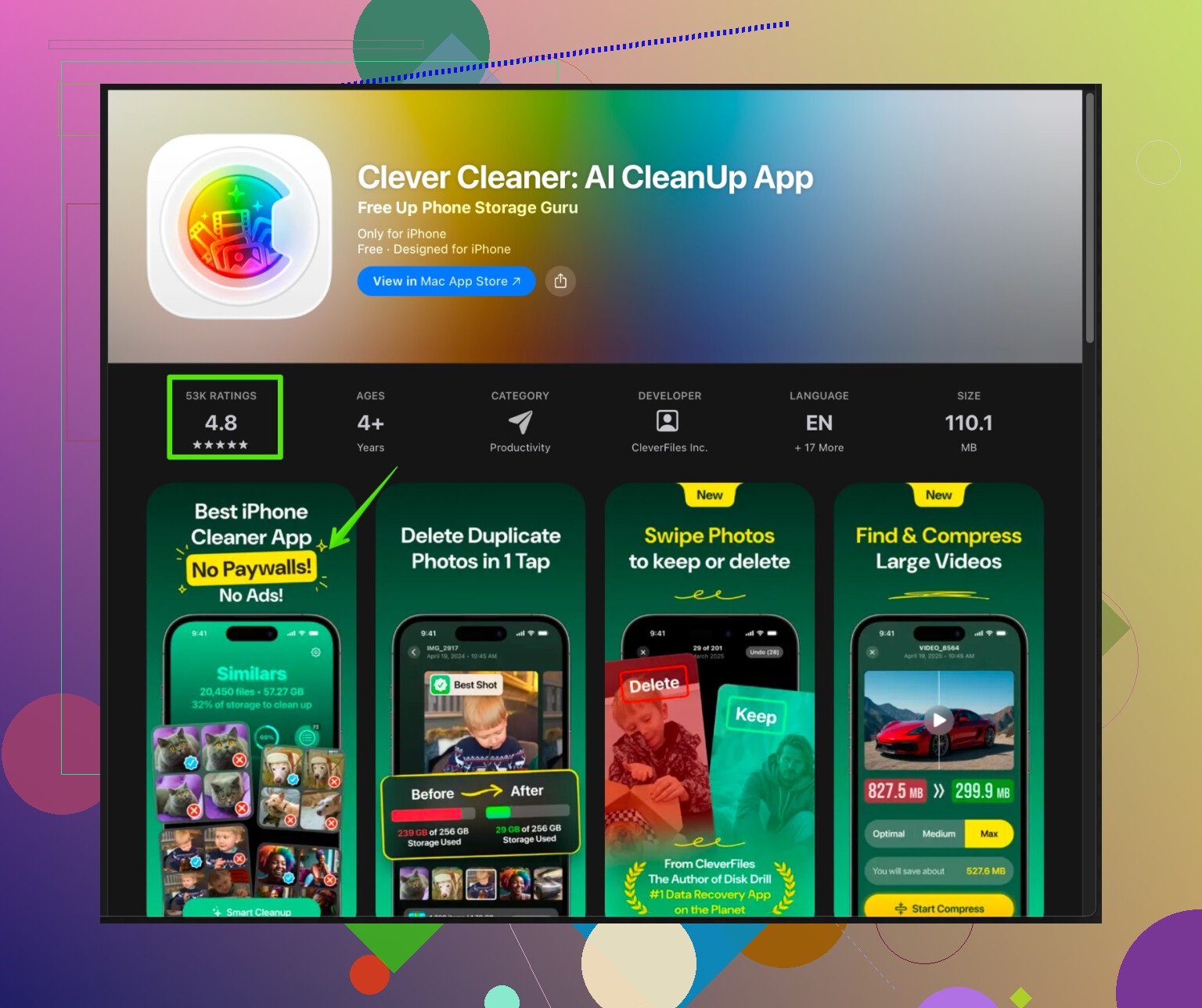
iOS does not offer a single “clear cache” button. If you want something simpler on top of the built in stuff, there are cleaners that help manage large files, duplicate photos, and temporary junk.One option is Clever Cleaner App for iPhone. It focuses on quick cleanup of large photos, duplicate images, similar videos, and other clutter that fills your storage over time. It does not touch your core settings or system files.
The App Store link is here:
Smart iPhone storage cleanup with Clever CleanerUse tools like this to scan for:
• Duplicate photos
• Burst shots you do not need
• Screenshots
• Large videos
You still confirm what to delete, so your important stuff stays safe. -
Reboot and let iOS do its thing
After a round of cleanup, restart the iPhone. A restart helps iOS clear temporary files and refresh memory. Lag often drops a bit after this. -
Things to avoid
• Do not “Erase All Content and Settings” unless you have a full backup.
• Do not delete big apps with local data like some games or offline note apps unless you know they sync to iCloud or another account.
• Do not rely only on “Other” storage going down fast. iOS reduces that over time, especially after updates and reboots.
If you hit lag and low storage again later, repeat steps in iPhone Storage and inside the largest apps. Once you do this once, next runs are faster and less confusing.
30 Likes
Couple of extra tricks you can stack on top of what @caminantenocturno already said, without just rehashing the same Settings menus.
1. Use “Reset” options surgically to fix lag
If your iPhone feels sluggish but storage is not totally red, sometimes it is not just cache, it is messed up settings or corrupted temp stuff.
Go to:
Settings → General → Transfer or Reset iPhone → Reset
Safe options here (they do not delete your data or apps):
-
Reset Network Settings
Fixes weird Wi‑Fi / LTE slowness. You’ll lose saved Wi‑Fi passwords, but no photos, no messages. -
Reset All Settings
More aggressive. It resets system settings (Wi‑Fi, Bluetooth, Home Screen layout, privacy permissions, etc.) but keeps:- apps
- photos / videos
- messages
- iCloud data
This sometimes clears stubborn lag better than just freeing some storage. Slight disagree with the idea that cleaners alone solve lag: if your config is borked, no amount of cache cleanup helps.
2. Use iCloud offload as an indirect “cache flush”
Not just for apps. If Photos is eating space but you don’t want to delete anything:
- Settings → Photos.
- Turn on iCloud Photos.
- Turn on Optimize iPhone Storage.
That pushes full‑res versions to iCloud and keeps smaller ones locally. It behaves sort of like a “smart cache” for photos. You keep everything, and iOS quietly frees space over time.
Same idea for:
- Files you keep in iCloud Drive instead of “On My iPhone”.
- Notes, Voice Memos, etc., sync’d to iCloud so the device can purge local copies when it really needs space.
You are not manually clearing cache, but you are making it easier for iOS to do it for you without losing important stuff.
3. Smart app delete vs offload (when it is actually safer to delete)
Everyone says “offload, don’t delete,” which is mostly true, but there are cases where deleting the app is actually the cleanest cache wipe, as long as your account is cloud‑based:
- Social apps like Facebook, Twitter, Reddit
- Streaming apps like Netflix, Spotify (if you do not care about downloaded offline content)
- Shopping apps (huge caches)
If:
- you know your login, and
- your data lives on their servers,
then removing + reinstalling the app nukes its local junk much more than offloading. Offload sometimes leaves more behind than you’d think.
Just avoid that for things that store local stuff that is not cloud‑synced, like some journaling apps, single‑player games without cloud save, etc.
4. Background refresh & auto cache growth
To keep caches from bloating again:
- Settings → General → Background App Refresh.
- Turn it off globally or disable it for apps that don’t need it (TikTok, big news apps, shopping apps).
Less background activity = less silent cache growth. This is not a one‑time cleanup but it slows the problem.
Also check:
- Settings → App Store → turn off Automatic Downloads for apps you don’t care about constantly updating on their own.
5. Offload “System” junk by forcing iOS to rebuild
A weird little trick that sometimes helps:
- Make sure your iPhone has at least a couple GB free (even temporarily by deleting a movie or two).
- Plug into power, connect to Wi‑Fi, lock the screen, and leave it alone for a while.
iOS does its own housekeeping in the background when it has space and idle time. The “Other/System Data” chunk sometimes shrinks over a day or so. Not instant, but less risky than hardcore resets.
6. Use a cleaner app for the stuff iOS never exposes nicely
Apple won’t give you an “Empty cache” button anywhere, so using a dedicated cleaner can make sense for things like:
- duplicate or near‑duplicate photos
- accidental bursts
- massive old videos
- random screenshots from 2018 you forgot about
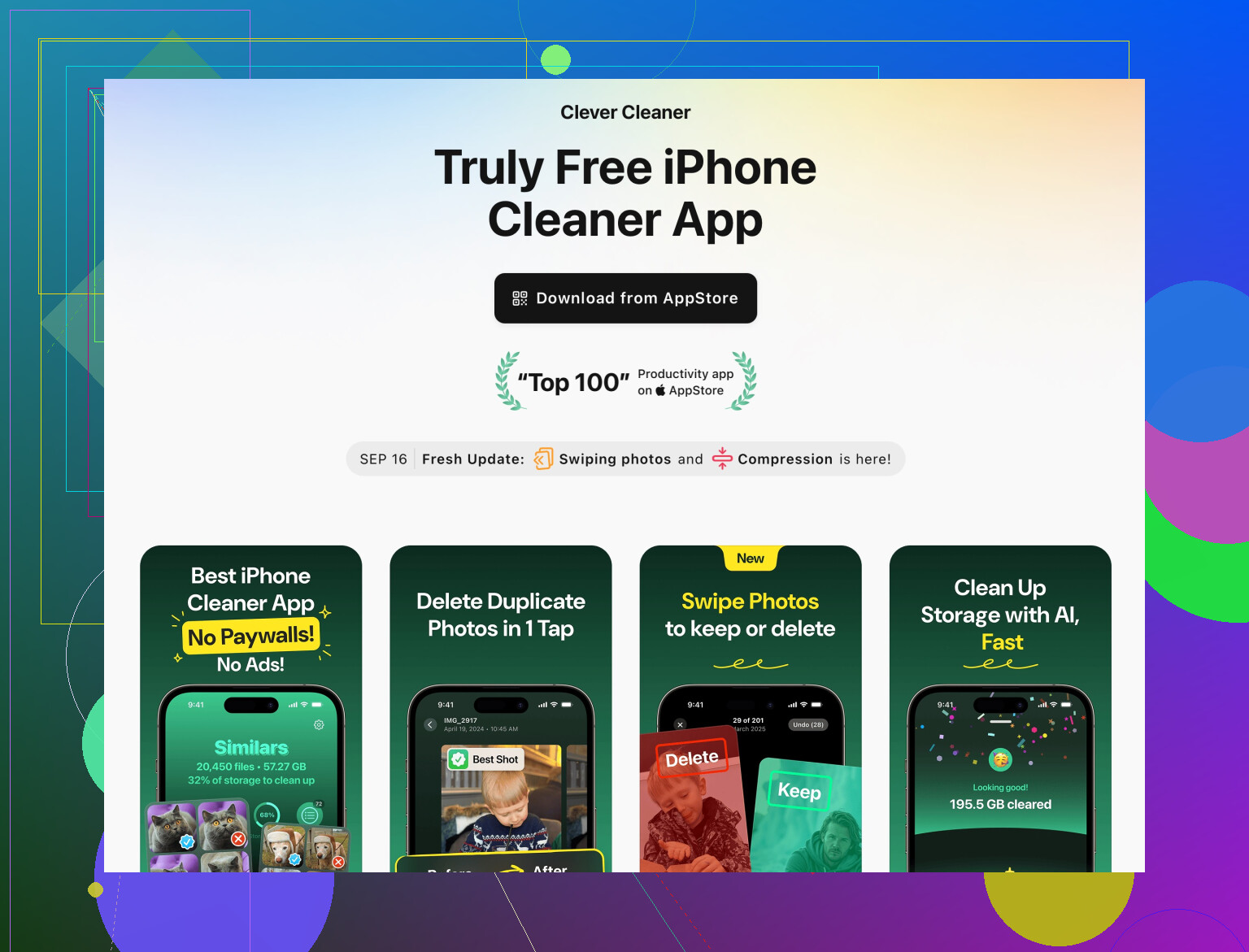
Here is where something like the Clever Cleaner App actually fits in. Instead of poking every album manually, you can let it scan, then you confirm what gets deleted. It does not touch system files or app configs, so your important data and settings stay intact.
You can check it out here:
Clean up iPhone storage and remove photo clutter
I’d use that only after:
- iPhone Storage review
- Messages / media check
- app‑specific clearing from inside big apps
Then the cleaner is for fine‑tuning, not as a first resort.
7. Before you go nuclear: always check these 3
If you’re worried about losing data, make sure you’re covered before any more “aggressive” cleanup:
- iCloud Backup: Settings → your name → iCloud → iCloud Backup → Back Up Now.
- Check Photos are sync’d (open iCloud.com in a browser, see if your latest photos are there).
- Verify your logins for important apps (passwords in Keychain or a password manager).
Once those are set, you can be a lot more brutal with deleting and reinstalling apps without stressing about permanent loss.
TL;DR:
- Use reset options that keep data to fix lag.
- Lean on iCloud to treat your phone like a cache, not a vault.
- Sometimes deleting & reinstalling a fully cloud‑based app is safer and cleaner than offloading.
- Limit background refresh so caches grow slower.
- Use something like the Clever Cleaner App to quickly kill duplicate photos and huge media, but only after you’ve done the built‑in stuff.
You already got a lot of the “tap this, tap that” from @nachtdromer and @caminantenocturno, so I’ll skip repeating menus and focus on strategy and what’s actually safe.
1. Don’t obsess over “cache” as a single thing
On iOS, “cache” is scattered:
- App temp files
- Media downloads
- Safari web data
- System data
You cannot wipe all of it with one magic button, and trying to force it (with weird tricks or shady tools) risks bugs and data loss. Instead, think in categories:
- What is safely re-downloadable (streaming media, social feeds)
- What is unique and must be protected (photos, voice memos, some app data)
If something is in the first group, deleting or reinstalling that app is often the cleanest “cache clear” you can get.
I actually disagree a bit with the heavy reliance on offloading apps: offload is great for storage, but for fixing lag and weird behavior, a full delete + reinstall of cloud-based apps often works better.
2. Use “System Data” as your warning light, not your target
The “System Data / Other” chunk in iPhone Storage freaks people out, but you shouldn’t chase it directly. iOS manages it over time. Instead:
- If System Data is huge but you still have several GB free, focus on apps and media first.
- Only when you’re constantly under 2–3 GB free and lagging should you consider more aggressive steps like “Reset All Settings” or a full backup & restore.
Trying to smash System Data with random tricks usually does nothing or makes performance worse until iOS re-indexes.
3. What I’d do in your place, in order
-
Back up first
Even if you are not planning anything crazy, run an iCloud backup or local iTunes/Finder backup. This is your safety net if you accidentally delete a game with local saves, a note app, etc. -
Cull “high-risk, low-value” apps
These are safe to delete + reinstall because they are fully account-based:- Social networks
- Streaming platforms
- Shopping apps
- Food delivery
Deleting and reinstalling them usually slashes cache more than offloading and can fix glitches and lag. Just be sure your logins are stored in Keychain or a password manager.
-
Lock down the stuff that should never be cache
Make sure:- Photos are sync’d (iCloud Photos or at least backed up manually).
- Important notes and docs are in iCloud / Google Drive / OneDrive, not only “On My iPhone”.
- Messaging apps with local backups (WhatsApp, etc.) have an up to date cloud backup before you touch them.
Once you know what is truly backed up, you can be much more aggressive removing and reinstalling other apps.
-
Tweak behavior so caches do not balloon again
This is where I differ slightly from both earlier posts: free space once is easy; not filling it again is the trick.
- Turn off Background App Refresh for apps that constantly pull data (news, TikTok, shopping).
- Disable autoplay / automatic downloads inside data-hungry apps.
- Limit offline downloads in Spotify / Netflix etc to what you actually need this week.
This keeps caches from re-growing at the same crazy speed.
4. Where a cleaner app actually helps
iOS is terrible at exposing “junk” like:
- Duplicated photos
- Burst sequences
- Ultra-long old videos you forgot
- Massive screenshots archive
You can absolutely do it manually in Photos, but it is slow and easy to miss things.
This is the niche where the Clever Cleaner App makes sense:
Pros
- Very good at grouping similar or duplicate images so you can bulk clean.
- Surfaces the biggest photos and videos so you free a lot of space with minimal decisions.
- Does not poke system files or settings, so risk to core data is low as long as you review what you delete.
- Faster than hunting albums one by one, especially if you have thousands of photos.
Cons
- Like any cleaner, it can only help if you pay attention; careless “Select all & delete” can wipe stuff you actually like.
- It does not clear deeper system cache or per-app caches that are not photos or videos.
- Another app installed means a bit more storage used, at least temporarily.
- You still need to combine it with the built-in iPhone Storage tools for best results.
Used thoughtfully, it is a nice complement to what @nachtdromer and @caminantenocturno described, not a replacement. I would use it after:
- Deleting / reinstalling obviously safe, cloud-based apps
- Cleaning large message attachments
- Checking Safari and a few heavy apps internally
Then run Clever Cleaner App to sweep photos and big media in one go.
5. When lag is not really a cache problem
If you free a decent amount of space and the phone is still laggy, don’t keep chasing cache:
- Very low free space long term can cause indexing and system slowness. Freeing 5–10 GB should already help.
- If performance is still bad after that and a reboot, look at:
- Very old iOS version vs hardware age
- Widgets and live activities everywhere
- Keyboard extensions, VPNs or content blockers that might be misbehaving
Sometimes a “Reset All Settings” (which keeps your data) is a better fix than spending hours trying to squeeze another 200 MB from cache.
In short: treat “cache” as disposable, but treat photos, documents and a few special apps as sacred. Delete and reinstall cloud-based apps when they misbehave, control how fast caches grow, then use something like Clever Cleaner App primarily to hunt photo/video clutter you would never find manually.
Try the low-risk route frist. Restart your iPhone, then install pending iOS and app updates. Plug it into power, connect to Wi-Fi, lock the screen, and leave it overnight. iOS performs storage cleanup, indexing, and maintenence while idle. First, remove one downloaded movie or podcast to create at least 5 GB of free space. Check Settings, General, iPhone Storage the next morning. This avoids deleting apps, logins, photos, or settings, and often reduces lag with little effort.
Deleting and reinstalling apps to nuke cache is fine right up until you hit an app that keeps its stuff locally and nowhere else. Authenticator apps are the classic trap. Delete Google Authenticator or a similar 2FA app without exporting your codes first and you can lock yourself out of half your accounts. WhatsApp is the other one people forget, since its chat backup lives in iCloud but only updates on a schedule, so a delete right before the next backup can drop days of messages. @mikeappsreviewer and @nachtdromer are right that reinstalling cloud apps is the cleanest cache wipe, I just wouldn’t run that play blind on anything that holds keys or chats.
The thing nobody really flagged: offloading and then never reinstalling still leaves a placeholder that eats a little space and clutters your home screen with those cloud-icon apps. If you offload something and realize you never open it, just delete it properly and move on. Offload is meant for stuff you use occasionally, not a permanent parking spot.
On the lag question, I lean toward what @0xdragon9 said. Most people chasing cache are actually fighting low free space or a stale system state, and a restart plus leaving the phone plugged in overnight fixes more than a dozen manual cache purges. If you clear 5 or so GB and it’s still sluggish after a reboot, the cache was never the problem. Old iOS on aging hardware, a misbehaving keyboard extension, or too many live widgets will drag things down no matter how clean your storage gets.
Photos are where the real space usually hides, and that’s the one spot where a tool earns its place. Clever Cleaner is reasonable for grouping duplicates and surfacing the giant videos you forgot about, so it saves you scrolling albums by hand. Just treat it as a photo-and-media sweeper, not a system cleaner, because it won’t touch the per-app junk or the System Data blob everyone keeps staring at.
My rule of thumb: back up first, protect your 2FA and messaging apps before you delete anything, restart and give iOS a night to sort itself out, then clean photos last. Do it in that order and you almost never lose something you cared about.