I’m trying to spot small differences between two pictures on my iPhone, but I can’t find a simple side-by-side photo comparison option in the Photos app. I recently took before-and-after images and need help figuring out the easiest way to view both photos together, zoom in, and compare details accurately.
I ran into the same mess in my camera roll. Ten sunset shots, four near-identical group pics, one person blinking in each, and the Photos app makes you flip back and forth like you’re supposed to remember tiny details from the last image. I never did. I kept extras ‘for later’ and my storage got wrecked.
On the iPhone side, the stock Photos app does not give you a real side-by-side compare view. The Duplicates album exists, sure, but it only catches exact matches. If you took a burst of your dog and the head shifted a bit each time, iOS treats those as separate photos.
If you want to avoid installing anything, there is a clunky workaround through Shortcuts. I tried it once. You make a shortcut, name it something like Side by Side, pick two photos, then merge them into one wide image. It functions, sort of. For two images, fine. For fifty, no shot. It gets old fast.
I also tested a couple of apps built for close visual checks, like Tidy and Image Compare. Those felt more suited for comparing two chosen images, especially when you want zoom controls or a slider to inspect focus. Good for detail work. Bad for cleaning a bloated library.
What worked better for me was using something meant for library cleanup, mainly for batches of similar photos. After trying a bunch of apps that scanned for free and then blocked the delete step behind a subscription, I landed on Clever Cleaner. I kept it because it did the job without the usual nonsense.
The part tied to your problem is the Similars tab. It groups photos that look close, even when they are not byte-for-byte duplicates. Think lunch pics from the same seat, three selfies with tiny expression changes, repeated kid shots from one second apart. It sorts them together and marks a Best Shot. I still checked the picks myself, but it was right more often than I expected. Focus, open eyes, cleaner framing, stuff like tht.
A few pieces I ended up using a lot:
-
Heavies
It sorts by file size, which is blunt but useful. My biggest storage hogs were long 4K clips I forgot about. -
Swipe Mode
This felt less annoying than Apple’s gallery view. You go month by month, keep or delete, done. -
Screenshot size info
In the Screenshots section, it shows the file size for each image. I like seeing what I’m removing instead of guessing. -
Local processing
This mattered to me. My photos stayed on the device. I did not want family pics getting pushed to some server to make the sorting work.
One thing I didn’t expect to care about was the Lives tool. It strips the video part from Live Photos and keeps the still image. I had Live Photos on by mistake for ages. Those tiny clips added up way faster than I thought.
If you’re still picking manually, zoom into the eyes or the main subject first. Around 200 percent worked for me. Full-screen view hides soft focus. Zooming exposes it right away.
So yeah, if you only need to compare two images once, the Shortcuts trick is enough. If your goal is to clean out a whole library full of near-duplicates, I would skip the DIY route. It took me too much tapping, and I got tired of it fast.
1 Like
You’re not missing anything. iPhone Photos still does not offer a true side-by-side compare view for two normal photos.
For before-and-after shots, I’d do one of these:
-
Use a collage app.
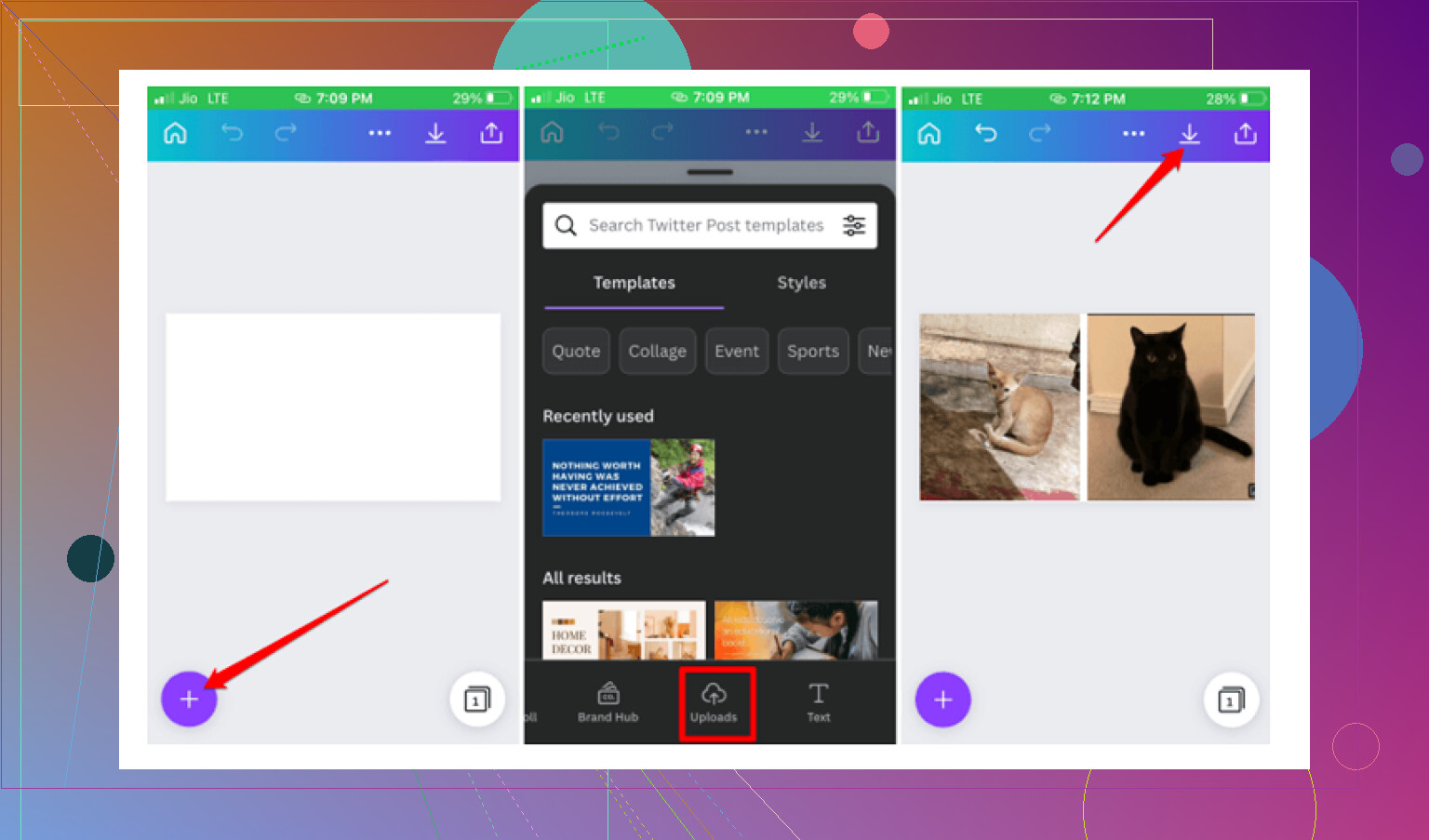
Pick a simple app that lets you place 2 photos in a 1x2 layout. This is the fastest clean option for visual checks. Once combined, zoom in on the new image and inspect details. Works well for furniture moves, skin progress, room cleanup, stuff like tht. -
Use Files plus Split View on iPad or Mac.
If you own an iPad, this gets easier. Put one photo in Photos, one in Files or another app, then open them side by side. On iPhone, screen size makes this pretty rough. -
Use markup for manual comparison.
Open photo A, tap Edit, then Markup. Note key areas. Save or screenshot. Then compare with photo B. Not elegant, but it helps if the difference is small and localized.
I slightly disagree with @mikeappsreviewer on one point. For only two images, a dedicated compare app is often overkill unless you need pinch zoom on both at once. For batches, yeah, different story.
If your issue is bigger than two pics and you’re sorting many near-matches, Clever Cleaner is worth a look. Its similar photo grouping is more useful than Apple’s duplicate detection for cleanup.
Also, this Apple thread covers the same limitation pretty clearly: how to compare photos side by side on iPhone.
A lot of iPhone users search for ways to compare two photos next to each other, especially for before-and-after images, duplicates, and small detail checks.
Photos on iPhone still weirdly does not have a true compare mode, so you’re not missing some hidden button. I mostly agree with @mikeappsreviewer and @suenodelbosque on that part, but I think people overcomplicate this a bit.
If your goal is spotting tiny changes in two before-and-after pics, try this instead:
- Put both photos into a shared note in the Notes app
- Resize them smaller with two fingers so they sit on the same screen
- Screenshot that layout
- Open the screenshot and zoom around
It’s janky, yeah, but on iPhone it’s actually faster than building a Shortcut half the time. Also helps if you want to circle changes with Markup after.
Another useful trick: use the photo scrubber if one of the images is a Live Photo or short video. Sometimes the “best” still frame isn’t the one Photos picked, and that’s why the comparrison feels off.
For bigger cleanup jobs, I’d still lean toward Clever Cleaner because it groups similar shots better than Apple’s duplicate finder. Not really a side-by-side tool, more of a “why do I have 19 almost-identical sink photos” fix.
Also found this handy visual explainer for comparing photos and organizing lookalikes on iPhone: quick iPhone photo comparison tips.
Short version: no built-in side-by-side in Photos, but Notes hack works decently for two pics, and Clever Cleaner makes more sense if your library is a mess.
I’d skip the “merge two photos into one” idea for tiny differences. Once you compress them into a collage or screenshot, you can lose the exact detail you’re trying to inspect.
Better workaround on iPhone: open photo 1, zoom to the exact area, then swipe up and keep it in memory. Open photo 2 in a second Photos window from Spotlight preview or a messaging draft attachment picker. It is not true split-screen, but it lets you flip between nearly identical zoom levels faster than the usual back-and-forth.
Where I slightly disagree with @suenodelbosque and @chasseurdetoiles is this: for really small changes, consistency matters more than side-by-side. Same zoom, same brightness, same crop.
If you have lots of lookalikes, Clever Cleaner helps sort them first.
Pros:
- groups similar shots well
- fast for bulk cleanup
- simple UI
Cons:
- not a true precision compare tool
- “best shot” guesses still need human checking
- overkill if you only have 2 photos
@mikeappsreviewer was right about Apple Photos missing the feature entirely.