I’m trying to free up storage on my iPhone, but some files I delete keep reappearing after a while. I’ve removed them more than once, checked Recently Deleted, and restarted my phone, but they still come back. I need help figuring out why deleted files return on iPhone and how to permanently remove them.
I ran into the same mess when I moved from PCs to iPhone. On Windows, you know where things live. On iPhone, storage feels split across drawers you do not see. I deleted stuff, checked storage, and saw almost no change. Thought I was losing it tbh.
The first thing I learned was this: deleting on iPhone often means ‘hide it for 30 days.’ In Files and Photos, removed items usually sit in Recently Deleted. They still use space until you wipe them from there too.
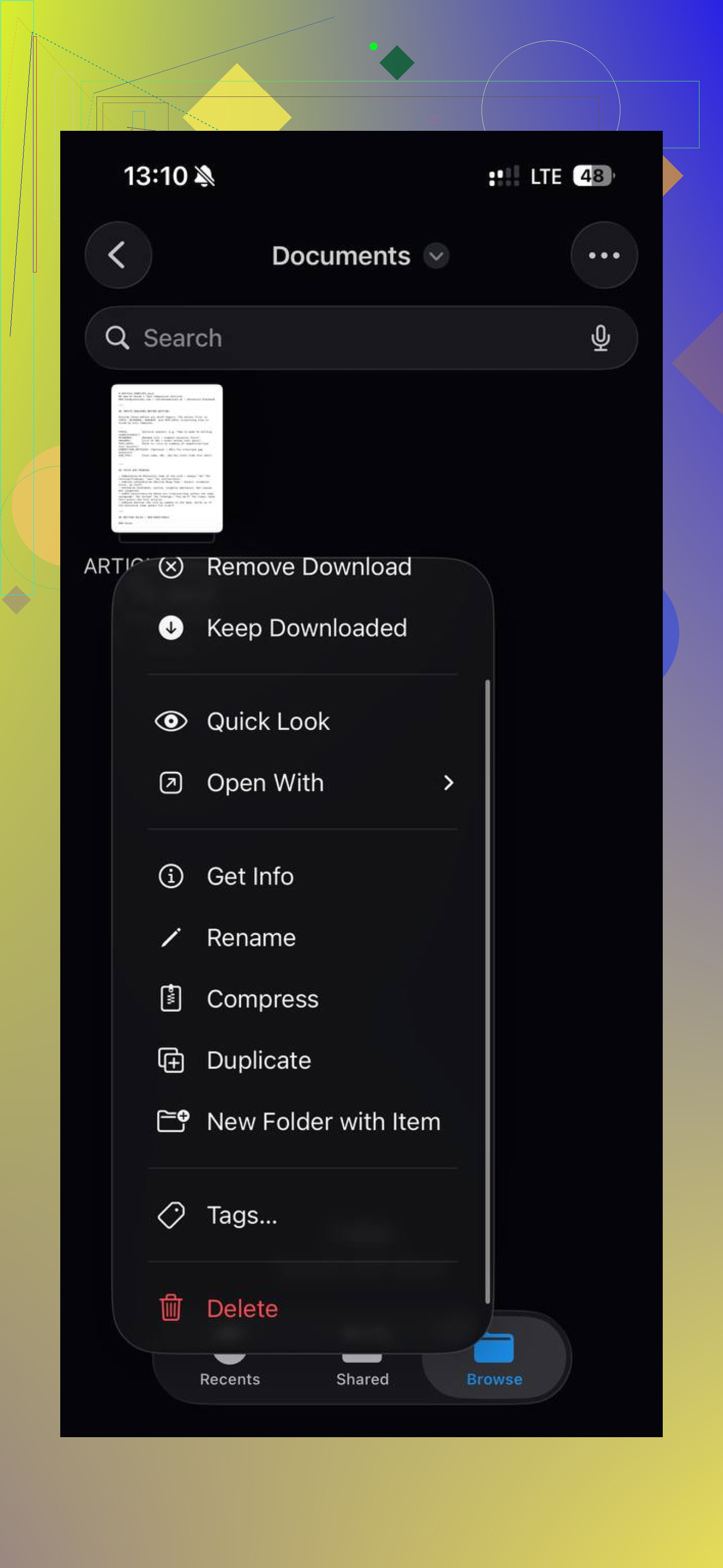
For files, open Files, go to Browse, find Recently Deleted under Locations, tap the three dots, then Delete All. If you skip this part, those files are still sitting there, same size as before.
If you are hunting for old junk, I would start in Settings, not Files. Go to Settings > General > iPhone Storage. Give it a few seconds. That page shows what is eating space for real. On mine, it was not random documents. It was old podcast downloads, bloated message attachments, and browser data I forgot existed. You also get useful options there like Offload App and Review Large Attachments.
Your Downloads folder is inside the Files app. Open Files, tap Browse, then look for Downloads. If it does not show up right away, tap On My iPhone first. To remove one item, press and hold it, then tap Delete. For a bigger cleanup, tap the three dots, choose Select, mark what you want gone, then hit the trash icon.
Where things got ugly for me was photos and videos. Not PDFs. Not downloads. Media. Thousands of shots, duplicate screenshots, clips I forgot I recorded. Going through it by hand was miserable and slow.
I ended up using a cleanup app after trying to do it manually for way too long. The one I used was called Clever Cleaner. The link I found for it was this YouTube video:
What helped me was how it grouped large media. There was a Heavies section showing files by size, so the giant videos surfaced fast. I found one concert clip taking a stupid amount of space. There was also a Similars section for near-duplicate photos, which saved me from comparing five almost identical pictures one by one.
The part I stuck with most was the swipe review. Month by month cleanup felt less brutal than staring at my full photo library. It also showed file sizes clearly, which is how I noticed screenshots were eating more storage than I guessed. Receipts, shipping confirmations, random memes, all of it adds up.
One thing to watch with iCloud. If your files or photos are synced, deleting them on the phone deletes them from iCloud too. If your goal is to keep the item in iCloud and only free local storage, use Remove Download instead of Delete. I missed this once and had to backtrack. Annoying.
So, short version.
Clear Recently Deleted.
Check Settings > General > iPhone Storage.
Clean Downloads in Files.
Look hard at photos and videos.
Be careful with iCloud sync.
After I did those, my storage numbers finally moved. Before that, it felt like deleting stuff into a black hole.
1 Like
If files keep coming back, I’d look at sync first. @mikeappsreviewer covered the common storage spots well, but I don’t fully agree that this is usualy a “hidden junk” issue. Reappearing files often mean one thing. Another service is putting them back.
Check these:
-
iCloud Drive sync.
Go to Settings, tap your Apple ID, then iCloud, then iCloud Drive. If the file lives in iCloud Drive and you delete it on one device, another device or a stalled sync state sometimes makes it look like it returned. Turn iCloud Drive off for a minute, restart, then check again. -
Third party apps.
Apps like Dropbox, Google Drive, OneDrive, WhatsApp, Telegram, and note apps re-sync files. Deleting inside Files does not always remove the source copy. You need to delete it inside the app too. This trips up alot of people. -
Mail attachments and message caches.
Some “files” are cached by Mail or Messages. You delete the visible item, iPhone keeps the local cache, then it rebuilds. Remove the original conversation, big attachments, or mail account cache. -
App documents.
A lot of apps store files inside their own sandbox. Deleting the file preview does nothing long term. Go to iPhone Storage, tap the app, check Documents & Data. If it stays huge, delete and reinstall the app.
If your issue is photo clutter, Clever Cleaner is worth a look for large videos and duplicates. Faster than manual sorting.
If you want a decent guide with clear steps, try best ways to delete files on iPhone and free up storage. It covers 4 easy ways to remove iPhone files and keep storage from filling back up.
Main point, if a file returns, find the app or cloud source feeding it back. That’s the part ppl miss.
If they keep coming back, I’d stop thinking “trash problem” and start thinking “indexing bug or app-owned data.”
@sonhadordobosque is probly right that sync is a huge cause, but I don’t totally agree that turning iCloud Drive off is always the first move. Sometimes iOS storage reporting is just laggy and makes it look like stuff returned when Spotlight or the Files index catches up later.
A couple things I’d check that weren’t really covered:
- Check the file provider source in Files. In Browse, see whether the item is under On My iPhone, iCloud Drive, Dropbox, Google Drive, etc. If you delete from a provider view, the source app may restore the listing.
- Remove the app, not just the file, if the file belongs to a downloader, scanner, PDF editor, VLC, Kindle, etc. Some apps rebuild their document library from internal data on launch.
- Toggle off Background App Refresh for the app that owns the files, then delete again. That can stop instant re-pulling.
- Search the filename in Files after deleting. If it appears in multiple locations, you may only be deleting one copy.
- Wait 5 to 10 mins after cleanup and re-check storage. iPhone storage calc can be weirdly delayed.
Also, Safari can be sneaky. Downloaded items, offline reading lists, and cached PDFs can make it seem like docs are “back.” Clearing Safari website data sometimes helps more than ppl expect.
If the issue is really media bloat, Clever Cleaner is actually useful for surfacing huge videos and duplicate photos faster than Apple’s own views. Not magic, but faster.
Also saw a solid Reddit thread on this exact cleanup mess here: how to delete stubborn files from the iPhone Files app
Big tell: if the same filename returns, it’s sync/app restore. If storage stays full but the file doesn’t return, it’s usually cache or delayed storage reporting. Two diff problems, same annoying sympton.
I’d add one angle the others only touched lightly: content restrictions and managed profiles.
If this iPhone is tied to a work/school MDM profile, family controls, or a “managed Apple ID,” some files and app data can be silently re-pushed after deletion. Check:
- Settings > General > VPN & Device Management
- Settings > Screen Time > Content & Privacy Restrictions
- Mail/account profiles under Settings > Mail > Accounts
I slightly disagree with the idea that it’s usually just storage lag. If the exact same file keeps returning in the same app, that’s often policy, sync, or an app database rebuilding itself.
Another overlooked culprit is Offline content:
- streaming apps with offline downloads
- map apps with offline maps
- docs apps with “available offline”
- reading apps storing local copies
Those can regenerate after login. Delete the offline pack from inside the app settings, not just from Files.
Also check whether the filename is being recreated by a Shortcut or automation:
- Shortcuts app > Automation
- any app with auto-export, auto-save, or auto-import enabled
For stubborn app data, try this order:
- Sign out of the app
- Delete the files in-app
- Force close app
- Delete app
- Restart iPhone
- Reinstall only if needed
That sequence matters more than people think.
If your issue turns out to be photo/video clutter instead of true “returning files,” Clever Cleaner is decent for surfacing big items fast.
Pros: simple, good at large videos/dupes, quicker than manual digging.
Cons: less useful for non-photo documents, you still need to review results, won’t fix sync-caused reappearing files.
So I’m with @sonhadordobosque, @boswandelaar, and @mikeappsreviewer on checking sync and app-owned data, but I’d also look for managed-device rules, offline libraries, and automations. Those are classic “why is this back again?” causes.