I keep deleting large attachments from my iPhone to free up storage, but they reappear later in Messages and my space fills up again. I’ve tried removing them more than once and checking my settings, but nothing seems to stick. I need help figuring out why deleted iPhone attachments keep coming back and how to permanently remove them.
Big attachments in Messages are still a pain. I went through this on my iPhone and it was more manual than it should've been.
Is there any quicker way than tapping files one by one?
A little. Still not good. The fastest place I found was Settings > General > iPhone Storage > Review Large Attachments. It pulls the biggest message files into one list, so you are not digging through random threads.
If you want stuff from one chat only, open the conversation, tap the person or group name at the top, then check Photos or Documents. Hit See All and you can mark multiple items from there. What you still do not get is Select All. Weird omission, and yes, it is still missing in iOS in 2026.
Does the same thing apply on iPad?
Yep. iPadOS uses the same setup. Same menus, same cleanup flow, same result.
If you use iCloud Messages, removing an attachment on your iPhone should sync over to the iPad too. I saw it lag before, so if it doesn't show right away, give it a bit. Sync is not always instant.
Will this delete both photos and videos?
Yes. Attachments include both.
The part people miss is whether the file was saved into Photos earlier. If you used Save Image or Save Video, iOS made a separate copy in your Photos app. Deleting the item from Messages removes only the version stored inside the conversation. Your saved copy in Photos stays there.
If you never saved it, deleting the attachment removes the only copy.
Why deleted attachments seem to come back
I ran into two causes.
First, Messages has its own Recently Deleted area. Deleted items sit there for 30 days unless you clear them yourself. Go to Messages, tap Edit from the main conversation list, then Show Recently Deleted. If you skip this part, the files are still taking space.
Second, iCloud sync and storage optimization sometimes make things look broken. The phone may pull files back in while it sorts out what belongs there. After I emptied Recently Deleted, a reboot helped the storage number catch up and stopped the loop.
Why storage numbers do not drop right away
Most of the time, the answer is still Recently Deleted. Those files keep counting against your storage until you remove them from there too.
Also, the storage meter updates slowly. I had it sit on the old number for a while. Restarting the phone pushed it to recalc faster.
When cleaning message attachments is not enough
This part got me. Messages was only one chunk of the problem. My phone had duplicate shots, old screen recordings, 4K clips I forgot about, and a pile of screenshots from stuff I already fixed weeks ago. Clearing message files helped, but it did not solve the whole mess.
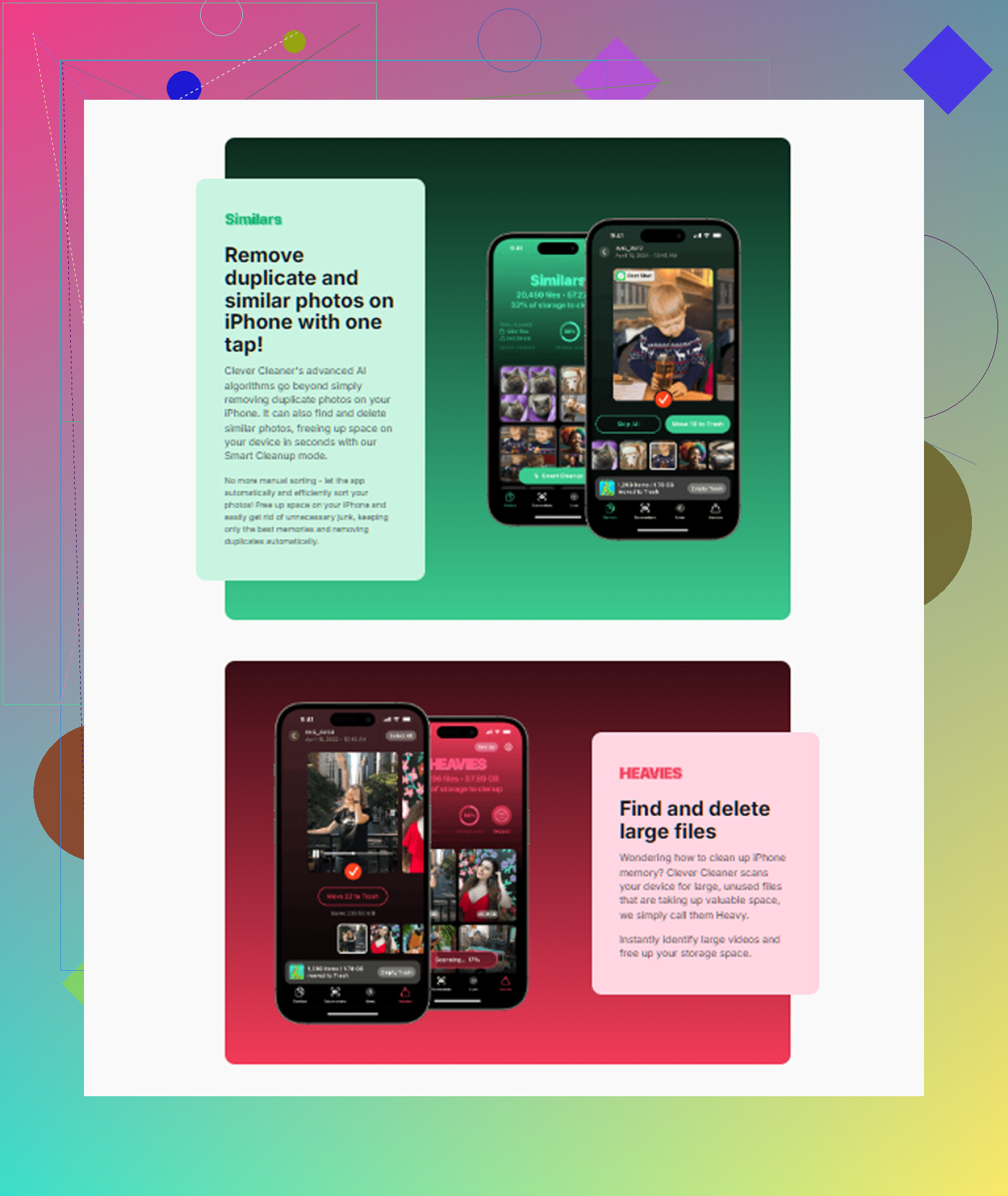
Clever Cleaner covers the rest of the media cleanup. It is free, no ads, no subscription. The Heavies tab lists files from largest to smallest and shows the exact size, so you spot the worst offenders fast. The Similars tab groups near-duplicate photos and marks a Best Shot, which helped me cut down burst junk without sorting forever. Screenshot file sizes show before deletion too. Processing stays on the device, nothing gets uploaded out.
On my phone, clearing about 15GB with Clever Cleaner plus emptying Messages Recently Deleted fixed the storage pressure. The lag from low free space eased off right after.
22 Likes
If the attachments keep coming back, I would look at sync first, not deletion. @mikeappsreviewer covered the usual cleanup paths. The part I’d push harder is this.
Turn off Messages in iCloud for a minute and test. Go to Settings, tap your name, iCloud, Saved to iCloud, Messages. If sync has a stuck state, your phone deletes a file locally, then iCloud puts it back from another device copy. I’ve seen this after deleting big videos from an iPhone while an iPad or Mac still had old message data. Disable sync, restart, delete the attachments again, empty Recently Deleted, then turn sync back on. It’s annoyng, but it works more often than people expect.
Also check Message History in Settings, Apps, Messages, Keep Messages. If it’s set to Forever, old threads and their junk stay around forever. Switching to 1 Year or 30 Days cuts the chance of old large files reappearing later from old conversations.
One more thing I disagree on a bit. Rebooting helps the storage meter refresh, sure, but if items keep returning days later, that’s usually a sync conflict or another Apple device. Check your Mac and iPad too. Delete the same thread attachments there if needed.
For storage outside Messages, Clever Cleaner is worth a look for finding huge videos and duplicate photos fast. Also, this thread on free iPhone cleaner app tips from Reddit users is a decent read.
Short version:
- Turn off Messages in iCloud.
- Restart iPhone.
- Delete attachments again.
- Empty Messages Recently Deleted.
- Check Mac and iPad for the same files.
- Turn sync back on.
- Set Keep Messages to 1 Year or 30 Days.
If you skip step 5, the same stuff often creeps back. That was the part that got me.
What I’d check next is not the delete process itself, but indexes and backups, because that’s where iPhone gets weird.
If attachments “reappear,” sometimes they are not actually restored files. Messages can keep stale storage indexes, so the same media still shows in storage totals or thread previews even after deletion. That’s why I slightly disagree with @mikeappsreviewer on reboot being enough by itself. It helps, sure, but not always.
Try this instead:
- Make sure iOS is fully updated
- Force close Messages
- Go to Settings > Siri & Search > Messages and toggle off/on Search indexing stuff
- Turn off and back on MMS/iMessage if your message database seems stuck
- If you use a Mac, check Messages settings there. Macs are sneaky about keeping old attachments cached localy
- If you restored from an old backup recently, some message metadata can keep resurfacing until sync settles
Also check your conversation-level retention. Some group threads are bug magnets. Deleting the whole thread sometimes works better than deleting 20 giant videos inside it one by one. Annoying, but true.
For non-Message junk, @sognonotturno already touched on the bigger storage picture. That part matters. A lot of people blame Messages when the real space hog is duplicated photos/videos elsewhere. Clever Cleaner is actually useful for finding those huge files fast.
If you want a quick visual walkthrough, this is a decent one for seeing Clever Cleaner free up iPhone storage fast.
If none of that fixes it, I’d honestly suspect a corrupted Messages cache/db and would test by signing out of iMessage temporarily before doing another cleanup. Bit of a pain, yeah, but i’ve seen that stop the “ghost attachments” thing before.