My hard drive suddenly stopped showing some important files on my Windows PC, and I need them back as soon as possible for work. I’m looking for the safest way to recover lost files from a hard drive on Windows without making things worse. If anyone knows the best data recovery steps or tools to use right away, I’d really appreciate the help.
I’ve been through this once, and the worst mistake I made was poking the drive over and over to “see if it still worked.” If your files are disappearing or the HDD started making odd noises, stop using it now. No copying, no installs, no opening folders out of habit. If this is your boot drive, shut the machine down and hook the disk up to another computer as a secondary drive if you have the option.
The next step depends on what failed. A deleted folder, a formatted partition, and a dying mechanical drive are three different messes. I’d check the drive health first with a S.M.A.R.T. tool. On Windows, CrystalDiskInfo is the common pick. On Mac, DriveDx does the same job. Look for bad sectors, reallocated sectors, read errors, and anything marked caution or worse.
What made me back off fast were signs like these:
- Repeated clicking or ticking
- Grinding or scraping sounds when the disk spins up
- The drive vanishing from the system while you’re using it
- The whole PC locking up when you open the drive
- The disk spinning, but never showing up at all
If you’re hearing or seeing any of that, don’t hammer it with scan after scan. I did this once on an old 2 TB Seagate and the second pass was worse than the first. A failing mechanical drive can get chewed up by repeated reads. If the data matters, this is where a lab like DriveSavers or Ontrack starts making sense, even if the price hurts.
If the drive sounds normal and still mounts, do the boring checks first. People skip them, then feel dumb later. Look in Recycle Bin or Trash. Check File History and Previous Versions on Windows. On Mac, check Time Machine. Windows sometimes keeps shadow copies even when you didn’t set things up cleanly, so right click the folder and look for “Restore previous versions.” Then check deleted items in OneDrive, Google Drive, Dropbox, and iCloud. Most of them keep removed files for around 30 days, sometimes longer. I also found missing docs once by searching old email attachments. Dumb place to find them, but there they were.
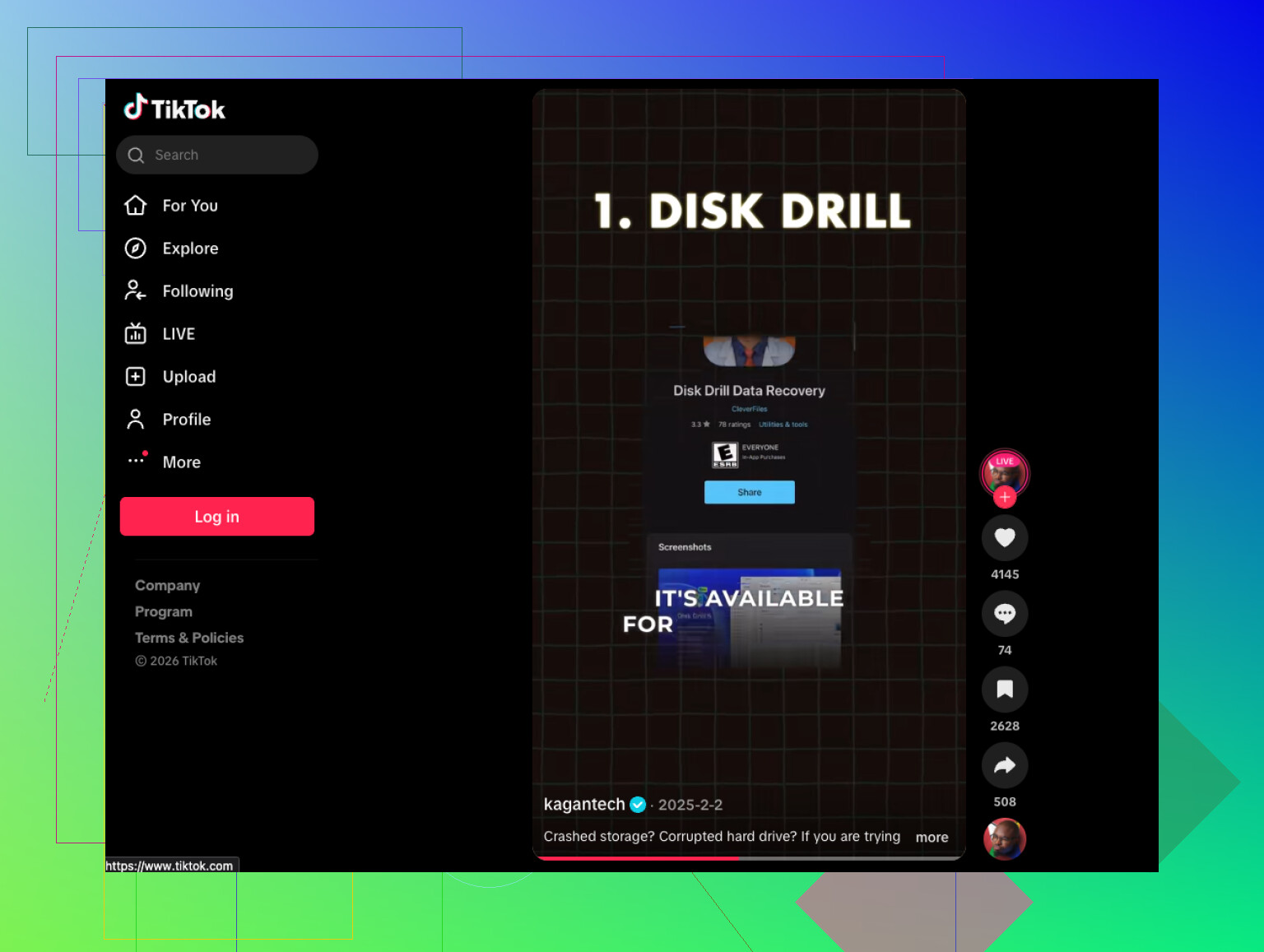
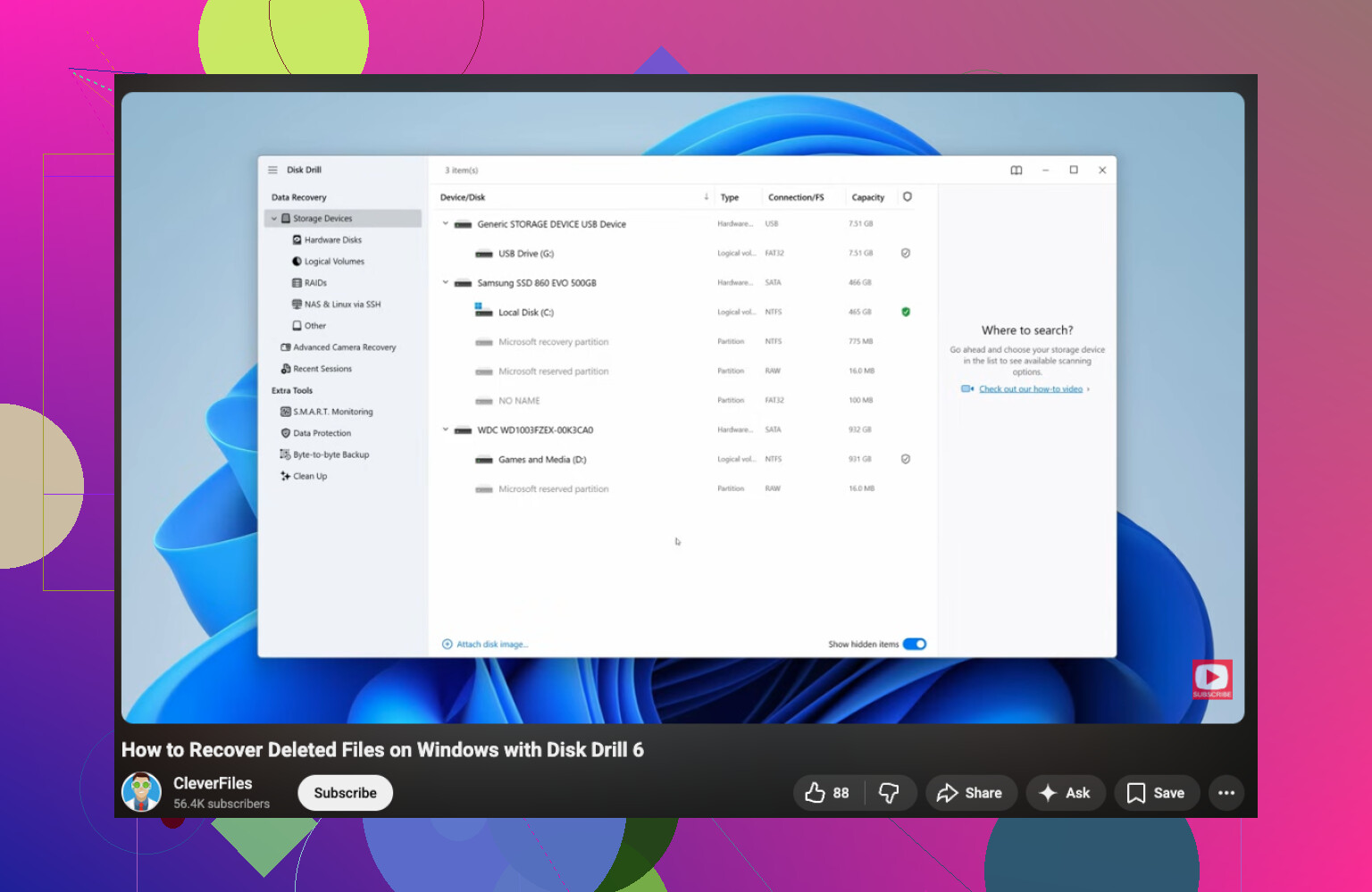
If none of those turn up anything, move to recovery software. I’d start with Disk Drill. It handles deleted files, damaged partitions, formatted drives, and RAW volumes without making the process feel like homework. The file preview part matters. If you can preview the file and it opens, your odds are better.
The order matters here:
- Put the recovery app on a different drive.
- Attach the bad HDD as a secondary disk if you can.
- Run a quick scan first.
- Only use deep scan if the quick one misses your stuff.
- Preview files before recovery so you’re not pulling back junk.
- Restore everything to another disk, never to the same one.
- Open the recovered files and test them.
- Afterward, keep copies in at least two places. Learned this the hard way, lol.
If the drive has bad sectors, I’d image it first, sector by sector, before running heavy scans. Working from an image gives you another shot if the original disk gets worse halfway through. That step saved me once on a laptop drive where the read speed kept falling off a cliff after a few minutes.
If the drive is clicking hard, won’t spin up, or software sees the disk but finds nothing useful, stop there. A pro lab is the better move. The usual range is about $300 to $1500 or more, depending on what failed. Expensive, yep. Still cheaper than losing years of photos or work files if those matter to you.
Hope it turns out to be a file system problem and not a mechanical one. Start with the S.M.A.R.T. check and go from there.
15 Likes
If the files vanished but the drive still opens, I’d check for a file system mess before doing a full recovery pass. @mikeappsreviewer covered the hardware failure side well. I slightly disagree on going straight into deep scans unless you’ve ruled out hidden or corrupted directory entries first, because long scans add wear and waste time.
Do this on Windows.
-
Open Disk Management.
See if the partition shows the right size and file system. If it suddenly says RAW, stop poking around in File Explorer. -
Check if files were hidden.
Open Command Prompt as admin and run:
attrib -h -r -s /s /d X:*.*
Replace X with your drive letter.
I’ve seen malware and bad USB disconnects flip whole folders to hidden. Annoying, but fixable. -
Run chkdsk only if the drive seems stable.
Command:
chkdsk X: /f
This fixes logical errors. It is not my first pick on a shaky drive, because it changes the disk. If the drive freezes, skips, or drops offline, don’t do it. -
If the folder structure is broken, use recovery software next.
Disk Drill is solid on Windows for this. Install it on another drive, scan the problem disk, recover to a different disk. Focus on previewable docs first so you get your work files back fast. Time matters. -
If work files are urgent, sort by type and date.
DOCX, XLSX, PDF, PSD, DWG, whatever you need. Don’t recover your whole life first. Get the job stuff first, then do a wider pass later. -
If the drive is an external HDD, swap cable and port before all this.
I’ve had a bad USB cable make a drive show partial data. Stupid fix, but it happnes.
If you want a quick visual walkthrough, this video on HDD recovery software is decent:
best HDD recovery software video guide for Windows
Main rule, don’t save recovered files back onto the same hard drive. That’s how people turn recoverable files into gone for good.
First thing I’d do, before scans or repairs, is check whether Windows is showing you a different user profile or temp profile. That one gets missed a lot. If your Desktop/Documents suddenly look empty, hit:
C:\Users\
and see if your old account folder is still there with the files inside. I’ve seen Windows updates do weird stuff and make people think the drive ate everything.
Also, slight disagree with both @mikeappsreviewer and @kakeru on one point: I would not rush into chkdsk just because the disk still appears. If the missing files are job-critical, repair tools can “tidy up” a damaged file system in a way that removes traces recovery software could still find. Great when you want the disk fixed, not always great when you want the data first. Kinda backwards, but that’s Windows for ya.
My priority order would be:
- Stop writing to the drive
- Check if files are just in another user folder
- Check OneDrive sync history because Windows loves silently moving Desktop/Documents into it
- If the drive is readable, clone/image it first if possible
- Run recovery on the clone or from another PC
If you need the files back ASAP and the drive is still readable, Disk Drill for Windows hard drive recovery is a pretty practical option because you can target file types fast instead of spending forever digging through junk. I’d filter for your work stuff first, recover only that, then go back for everything else later. Faster and less stress.
One more sneaky thing: open Event Viewer and check for disk errors around the time files vanished. If you see lots of bad block or NTFS errors, stop messing with the original drive. That’s usually the point where “just one more try” turns into “welp, now it’s worse.”
If you want a step-by-step video, this is a decent Windows hard drive file recovery walkthrough.
Short version: don’t write to it, don’t “fix” it too early, recover the urgent work docs first, and if the drive starts acting janky or slow as hell, image it or hand it off.
My slight disagreement with @kakeru and @suenodelbosque: if this is a work emergency, I would check Volume Shadow Copies before touching repair tools or even committing to a full recovery run. Sometimes the files are not “gone”, just rolled back, moved, or orphaned.
Try this fast triage:
- In File Explorer, right-click the parent folder
- Properties → Previous Versions
- If anything is listed, copy it out to another drive immediately
Also check:
C:\Users\YourOldProfile\Documents- OneDrive web recycle bin and version history
- Windows Search with filename:
kind:=document datemodified:this month
If that fails, then yes, use Disk Drill from another drive and recover to a different disk.
Disk Drill pros
- Fast filtering by file type
- Good previews
- Easy for urgent document-first recovery
Disk Drill cons
- Deep scans can take a while
- Results can get messy on badly damaged file systems
- Best features matter more when the drive is still at least readable
@mikeappsreviewer is right about backing off if the drive is noisy or dropping offline. At that point, every extra read is a gamble.