I downloaded media to my iPhone and tried to review it in the Cleaner app, but I keep getting blocked by a paywall before I can see everything. I need help figuring out if there’s a free way to check downloaded photos and videos, or if I should use a different iPhone app or built-in method instead.
That “Storage Almost Full” alert always seems to pop up when you need the phone most. I usually see it right as I’m trying to snap a photo, update an app, or save a video. Then I open iPhone Storage, spot a huge Media chunk, tap around, and get… nothing useful. No clear breakdown. No obvious path to clean it.
What “Media” usually means on iPhone
This part tripped me up at first. I assumed Media meant my photos. It doesn’t, at least not in the way most people think. Your camera roll sits under Photos. Media is the other pile, stuff with audio or video attached, outside your normal photo library.
From what I saw, this usually includes downloaded songs from Apple Music, cached Spotify tracks, movies saved for a trip and forgotten later, podcast episodes pulled down in the background, voice memos, ringtones, and audiobooks in Books. If you ever synced music or video from a Mac or PC through Finder or old iTunes, those files land under Synced Media. On iOS 17, Apple rolls more of this into one block, and the storage screen doesn’t show much detail.
Podcasts deserve their own callout. I had a bunch of shows set to auto-download, and it quietly stacked up gigabytes of old episodes I had already finished. I didn’t notice until storage got tight.
Why Apple’s built-in tools feel half-finished here
The stock tools are fine for browsing. Cleaning is another story.
You don’t get a clean size-based list of all media. So if one old screen recording is 3GB, or a saved video file from months ago is eating space, you’re left digging app by app. It’s slow. I did it once and gave up halfway through.
The Duplicates feature in Photos helps a little, but only for exact matches. If you took eight nearly identical shots trying to get one decent pic, those usually stay untouched. Same with clutter like screenshots, old recordings, or offline downloads from apps you forgot you installed.
A lot of the junk inside Media isn’t junk in the obvious sense. It’s old. It’s buried. You stopped thinking about it a year ago.
Why most cleanup apps annoyed me
I tried a bunch from the App Store. Same routine almost every time. They scan your library for free, flash a big number at you, then block deletion unless you pay weekly. The scan is bait. The cleanup is the product.
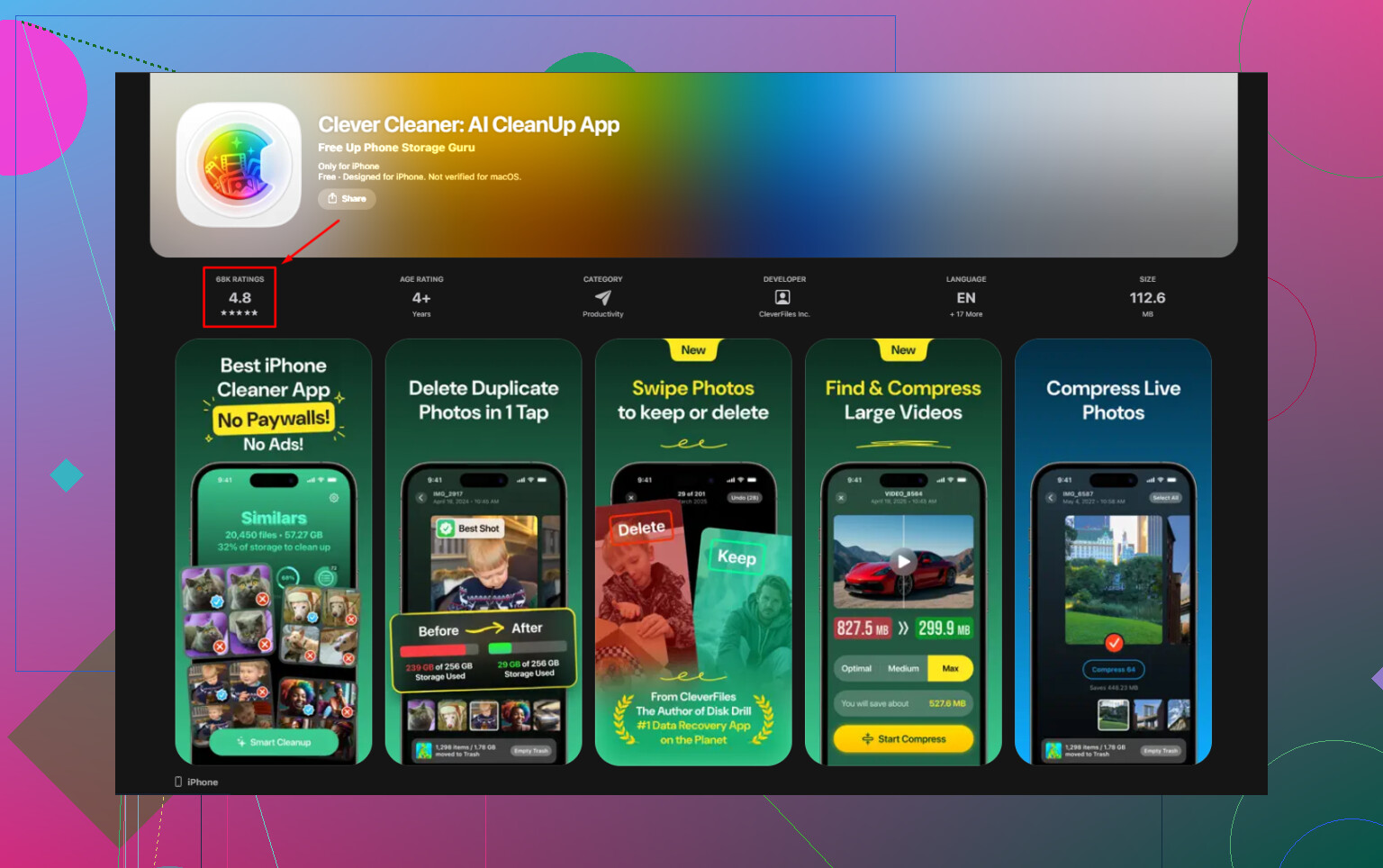
Clever Cleaner felt different when I tested it. No ads. No subscription screen shoved in my face. No paywall after the scan. I was half-expecting one to appear later, but nope, I didn’t hit one.
What I did to clear the Media category
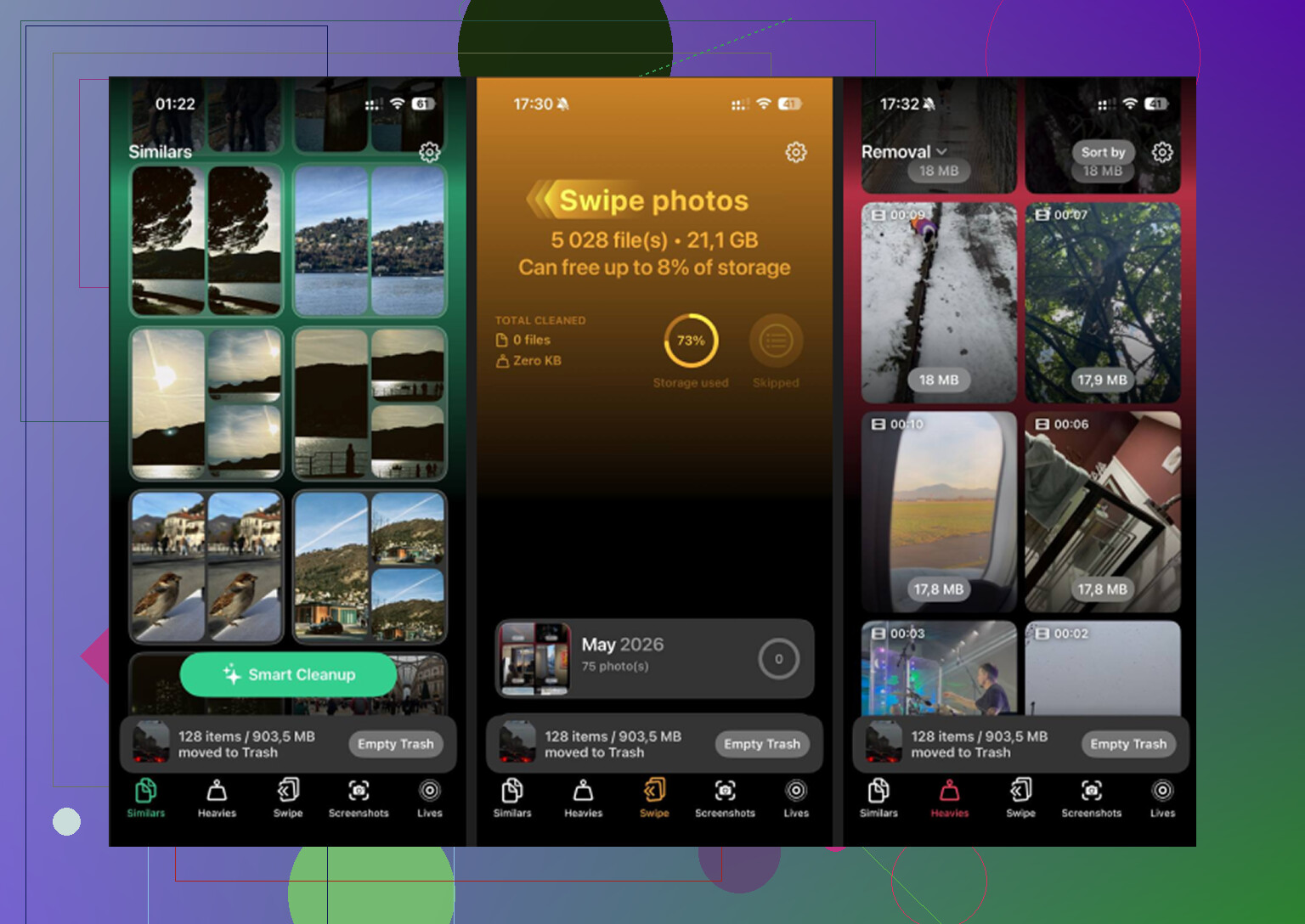
First thing, I opened the Heavies tab. This was the most useful part for me. It lists media from biggest file to smallest and shows the size right there. My worst offenders were old 4K videos and one long screen recording I forgot existed. Those huge files float to the top, so you don’t spend twenty minutes poking around blind.
Next, I checked Similars. This is more useful than Apple’s duplicate finder because it groups near-matches too. I had whole clusters of photos from the same moment, same angle, same lighting, tiny differences. I kept the best one and dumped the rest.
Then Screenshots. This one was uglier than I expected. I had random payment confirmations, Wi-Fi passwords, shipping updates, and meme screenshots from months ago. File sizes show on the thumbnails, which made it easier to cut the big ones first.
One thing I liked, all the processing stays on the device. For me, that mattered. My library has private stuff in it, message screenshots, personal videos, some boring finance screenshots. I don’t want any of that sent off somewhere.
A few manual fixes worth doing
Turn off auto-downloads in Podcasts. If you don’t, episodes keep piling up in the background.
Go to Settings > Messages > Keep Messages, then switch it to 30 Days or 1 Year. Old video attachments in messages stack up more than people think.
Open Netflix, YouTube, and any streaming app you use offline. Remove old downloads. I found stuff from trips I took ages ago.
The part people miss after cleaning
This one got me once. You delete a bunch of files, check storage, and the number barely moves. Feels broken.
Go to Photos, then Albums, then Recently Deleted under Utilities. Hit Delete All. Until you empty that folder, the files still count against storage for 30 days. If you skip this, the cleanup doesn’t fully show up.
That step is what made the bar finally drop for me.
17 Likes
If Cleaner is stopping you with a paywall, skip it. You do not need a paid cleaner app to review downloaded media on iPhone.
Best free way:
- Open Photos, then Albums.
- Check Videos, Screenshots, Screen Recordings, Live Photos, and Recently Saved.
- Open Files, then Browse, then On My iPhone and iCloud Drive. A lot of downloaded stuff sits there, not in Photos.
- Check app-specific downloads. TV, Netflix, Spotify, VLC, Podcasts, Books, YouTube.
I disagree a bit with @mikeappsreviewer on one point. Cleaner apps are not the best place to review files first. iPhone already splits your stuff across Photos, Files, and app downloads, so one app often misses part of it or puts the useful view behind paywalls.
If you want a free cleaner app, Clever Cleaner is one of the few worth trying. It is better for photo library cleanup than for checking every downloaded file on the phone. So use it for duplicates and large photos, not as your only media browser.
Also, use Settings > General > iPhone Storage. Tap apps one by one. Many show “Documents and Data” or downloaded content size. It is slower, but free and acurate.
For a step-by-step video, this helps:
how to review and clean downloaded media on iPhone
The short version, Photos for saved media, Files for downloads, app settings for offline content. Cleaner paywall solved by not using Cleaner for review in the first place.
Skip the Cleaner app for the “review” part. That’s where I slightly disagree with @mikeappsreviewer. Cleaner apps are decent at cleanup, but kinda bad as a full media browser unless you pay.
Free way that actually works:
- Photos app: check Albums, then Videos, Screen Recordings, Live Photos, Screenshots, Downloads
- Files app: tap Browse, then On My iPhone and Downloads
- Messages: old photo/video attachments hide there
- App-specific downloads: Spotify, Netflix, YouTube, Podcasts, Books, VLC, etc.
- Settings > General > iPhone Storage: shows which app is hoarding stuff
Also, some “downloaded media” is not in Photos at all, which is why these cleaner apps feel incomplete. @viajeroceleste was right about that part.
If you still want a free helper, Clever Cleaner is probly one of the better options for photo/video cleanup specifically, not for viewing every downloaded file on the phone. More like duplicate finder, large video checker, screenshot trash remover.
One more thing people forget: Recently Deleted in Photos. If you deleted stuff and storage didn’t change, that’s why. iPhone loves pretending it cleaned things when it really didn’t lol.
If you want more detail, this Clever Cleaner app review for iPhone storage cleanup breaks down what it does without the usual App Store fluff.
I’d handle it a different way than @viajeroceleste, @viajantedoceu, and @mikeappsreviewer. Their advice is solid for finding stuff, but if your main goal is just to preview downloaded media without paying, the key question is where that media came from.
If it was:
- saved from Safari/AirDrop/Telegram/etc. → preview it in the Files app with Quick Look
- saved to camera roll → preview it in Photos
- inside an app’s offline section → you usually must review it inside that app
That’s why Cleaner hits a wall. It is trying to be a browser for media Apple already splits up.
One thing I slightly disagree on: checking storage stats is useful, but it does not help much for actually reviewing files. It tells you who is fat, not which file is guilty.
If you want a free workaround:
- In Files, switch to List View
- Tap the sort icon
- Sort by Size or Date
- Tap files to preview full screen
That often gets you what Cleaner is charging to show.
About Clever Cleaner:
- Pros: decent for duplicate photos, similar shots, screenshots, large library cleanup
- Cons: not a true all-files browser, won’t replace app-specific download managers, less helpful for media hidden in streaming apps
So yeah, free review is possible. Just not centrally in Cleaner. On iPhone, “downloaded media” is scattered by design, which is honestly the annoying part.