I’m trying to connect to an FTP server using Windows File Explorer, but I can’t get it to work or see the files. I need access for file transfers but not sure what steps I’m missing or if settings need to be changed. Any help on setting this up would be appreciated.
Using FTP via File Explorer with CloudMounter: An Illustrated Guide
So, I was messing around with different ways to handle FTP connections without dealing with those clunky dedicated FTP client interfaces, and let me tell you: plugging FTP right into your usual file explorer is incredibly satisfying. After a bit of tinkering, I landed on CloudMounter as the go-to tool for the job, and here’s how the whole thing shakes out.
1. The Launch Pad
You ever just want to skip bouncing between six different apps and get your FTP folders right there in Finder? Yeah, me too. First up, install CloudMounter if you haven’t already. It’s on the Mac App Store, so it probably won’t steal your data… probably.
2. The Setup Hustle
Pop open the app. You’re going to see this parade of cloud service icons—all very eager to steal your attention. Go ahead and pick the FTP(S) option among them. Feels a bit like picking the least weird flavor at an artisan gelato shop.
Now, punch in your FTP credentials:
- Server address
- Username
- Password
- Pick the port (21 is the “vanilla” choice; go wild if yours is custom)
If your server expects SFTP instead, there’s an option for that too. Honestly, it’s just one checkbox away.
3. Mapping Like a Pro
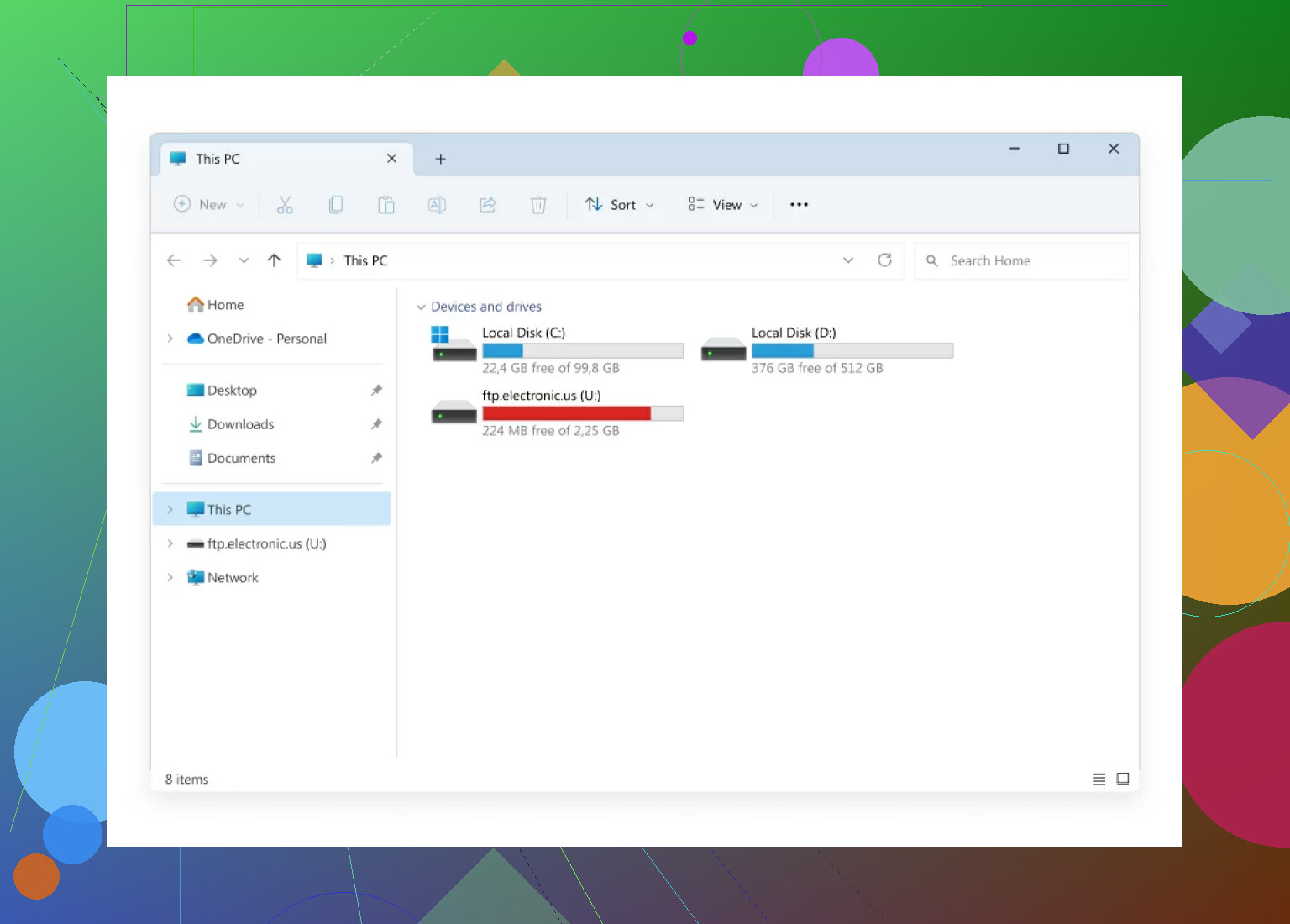
Here’s the sweet part: after you connect, your FTP storage shows up right in Finder—like any other drive. Drag, drop, copy, rename. It acts like it belongs there and, honestly, it kinda does now. No more ‘where did I save that file?’ spirals when jumping between windows.
4. File Transfers, sans Drama
Moving files? You literally use Finder the way you always do. It’s so straightforward that you’ll almost forget you’re actually shuttling data across the internet and not just mucking around with local folders. It’s transparent enough that sometimes, I get spooked and double-check to make sure I genuinely transferred stuff between devices.
5. Gotchas and Advice: Learn From My Fails
- If you get weird connection errors, check your credentials—type them out instead of copy-pasting for once. Trust me.
- The free version of CloudMounter is stingier than a dragon hoarding gold, so be ready to weigh if premium perks are worth your cash.
- SFTP is safer than FTP, especially in coffee shops. (Don’t look at my public WiFi choices.)
6. Wrap-Up
Cloud storage meets local convenience, all fresh in Finder. CloudMounter handles the heavy lifting so you don’t have to sweat the protocol stuff. Just treat your FTP files like you would anything else in file explorer. If only every app played this nice with remote stuff…
If anyone else has tips (or horror stories) about mixing FTP with Mac’s finder, let’s hear ‘em below. Always hunting for smoother workflows!
14 Likes
So, here’s my epic (read: slightly tragic) FTP tale through Windows File Explorer: in theory, it should work—like, type ftp://yourserveraddress into the Explorer address bar, right? But reality is a bit messier. Unlike what @mikeappsreviewer describes with Mac ease (Finder plus add-ons like CloudMounter), Windows is weirdly temperamental sharing FTP through its native File Explorer. Sometimes you’ll see files, sometimes you won’t, sometimes you get “Windows cannot access this folder,” and, well, a sinking feeling in your stomach.
Let’s cut through it:
- Did you enable passive mode? Windows File Explorer FTP is notorious for choking if the server needs passive mode and it’s off by default. Go to Internet Options (in Control Panel > Network and Internet > Internet Options), hit the Advanced tab and scroll down to make sure “Use Passive FTP (for firewall and DSL modem compatibility)” is checked. Restart Explorer after toggling that and try again.
- Address matters. Use
ftp://user:password@hostnamein the address bar of Explorer. If the server wants anonymous connections, omitting user/pass sometimes works. For secure connections, just forget it; File Explorer only handles vanilla FTP, not SFTP or FTPS. (Here’s where CloudMounter, which mikeappsreviewer hyped, actually saves your skin if you need encryption.) - Firewall funkiness. Double check Windows Defender Firewall’s settings. FTP needs port 21 open, and data ports as dictated by passive mode.
- Mapping as network drive? Right-click “This PC” > Map network drive > pick letter > “Connect to a Web site that you can use to store your documents and pictures” > Next > input FTP details. Caveat: still only basic FTP, and can be a pain.
- Windows version shenanigans. Features/reliability can (weirdly) vary between W10/W11/Home/Pro versions.
Honestly, if your server demands SFTP or FTPS (and it really should, because insecure FTP is…well, insecure), look into free dedicated clients (WinSCP, FileZilla), or, yeah, something like CloudMounter if you want that “local drive” feel. CloudMounter does with FTP/SFTP on Windows what it does on Mac: shows remote stuff like local. Not free, but avoids Explorer’s fussiness.
TL;DR: When Windows Explorer FTP works, it’s barely passable—when it doesn’t, save headache with proper clients or mount apps. And double triple check passive mode. If all else fails, don’t blame yourself… blame Microsoft’s half-baked implementation.
Let me just say: using FTP through Windows File Explorer is like using a flip phone in the age of smartphones—yeah, it technically works (sometimes), but only if you squint and hold your breath and maybe chant something to the tech gods. I see @mikeappsreviewer went the Mac/Finder route with CloudMounter and @boswandelaar gave a pretty honest rundown of the usual Explorer pain. And let’s be real: Explorer’s FTP “support” is Windows at its laziest.
Here’s my two cents: Windows File Explorer FTP will randomly fail to show files, hang, or lock folders—ESPECIALLY with larger directories or anything involving UTF-8 characters in filenames. Even if you toggle passive mode in Internet Options (and yes, you have to go on a scavenger hunt for that setting), it’s still fragile. Also, for any secure connection (SFTP/FTPS), Explorer straight up doesn’t speak that language. It’s stuck in 1997.
But, and this is the key: even if you get Explorer to connect, good luck making file transfers reliable, especially if you need to upload more than a couple files at once. I’ve had transfers randomly abort with zero explanation. Debugging it is a dark art.
So here’s what’s up: If you want it “just like a mounted drive,” Explorer should be able to do it, but rarely does it well. You can Map Network Drive > Connect to a website > FTP URL, and cross your fingers. Sometimes it’ll “connect,” and sometimes it’ll just puke cryptic error codes. If you’re working in any sort of mildly secure/enterprise context, you’re better off skipping Explorer entirely. The other folks here are right: if your FTP needs aren’t vanilla, Explorer is a dead end.
This is honestly where CloudMounter shines (and I’m not paid to say this, promise)—it actually makes your FTP/SFTP storage show up as a native drive, sidestepping all that Windows weirdness. It’s not free, but after fighting with Explorer for years, honestly worth it if you value your sanity. If you’re dead set against 3rd-party stuff, fine, but expect rough waters.
tl;dr: Explorer FTP is barely passable even when it works. Spend 5 mins with CloudMounter or a real client like WinSCP, save yourself hours of pain. Don’t let nostalgia for Windows 7 Explorer shape your workflow—modern problems need actual solutions.
Alright, since opinions are flying—I’ll just admit straight out: Windows File Explorer and FTP is the relationship equivalent of ‘it’s complicated.’ Some people swear by mapping FTP as a network location, but I’ve lost more hours to inexplicable failures, vanished files, and permissions errors than I want to count. As pointed out above, if you’re just poking around with tiny files and a super-basic server, sometimes it’ll let you get away with it. But heaven help you if your FTP needs are even a centimeter outside “1990s simple.”
If you actually want something that stays mounted, shows your files, and doesn’t crash mid-transfer, @mikeappsreviewer’s take on CloudMounter is honestly on point. Pros? Drags and drops like native storage, SFTP/FTPS support (unlike hobbling Explorer), multiple cloud integrations, and you won’t have to dig through years-old Microsoft support posts to fix broken permissions. The drag-and-drop aspect in Explorer isn’t even in the same league. Cons? Not free—after the trial, you’ll have to fork out for premium, and it can feel like overkill if you’re just moving a file once a month. Resource hog? A little, but nothing compared to dealing with crash loops in Explorer.
Other folks like @boswandelaar and @voyageurdubois bring up good points about workarounds and that “haunted house” feel of using File Explorer for FTP—so true. If you want alternatives besides CloudMounter, stuff like WinSCP and FileZilla has raw power (and are free), but they’re not integrated into Explorer and are their own apps. So, not as smooth but definitely reliable.
Here’s what I’d do if I were you:
- Skip trying to “fix” Explorer unless you like frustration (and even then, good luck with SFTP or FTPS).
- Use CloudMounter for native integration and a real “just a drive” feel, especially if you want that workflow.
- If it’s a temporary thing or you can deal with an external client, WinSCP or FileZilla are solid, just less “integrated” vibe.
- If your budget’s zero and you don’t mind ugly interfaces, try the free ones first, but remember: you get what you pay for in convenience.
Bottom line: Explorer FTP is basically running shoes made of cardboard. CloudMounter is like getting actual sneakers—it’s just whether you’re willing to pay for comfort and durability.