I’m trying to figure out how to access my Google Drive files straight from File Explorer on my Windows computer instead of always going through the browser. I’ve seen it work for others but can’t seem to set it up myself. Is there a step-by-step way to get Google Drive to show up in File Explorer? Any guidance would really help because I need to manage and transfer files more easily.
How To Make Google Drive Show Up in File Explorer—My Deep Dive
Alright, so here’s the deal: if you’re tired of juggling browser tabs just to get at your Google Drive files, there are a couple of ways to make Drive pop up like any other folder right inside File Explorer. Trust me, I’ve wrangled with syncing cloud storage for years, and nothing beats the convenience of seeing your stuff right where “Documents” and “Downloads” live.
Getting Google Drive into File Explorer – The No-Nonsense Way
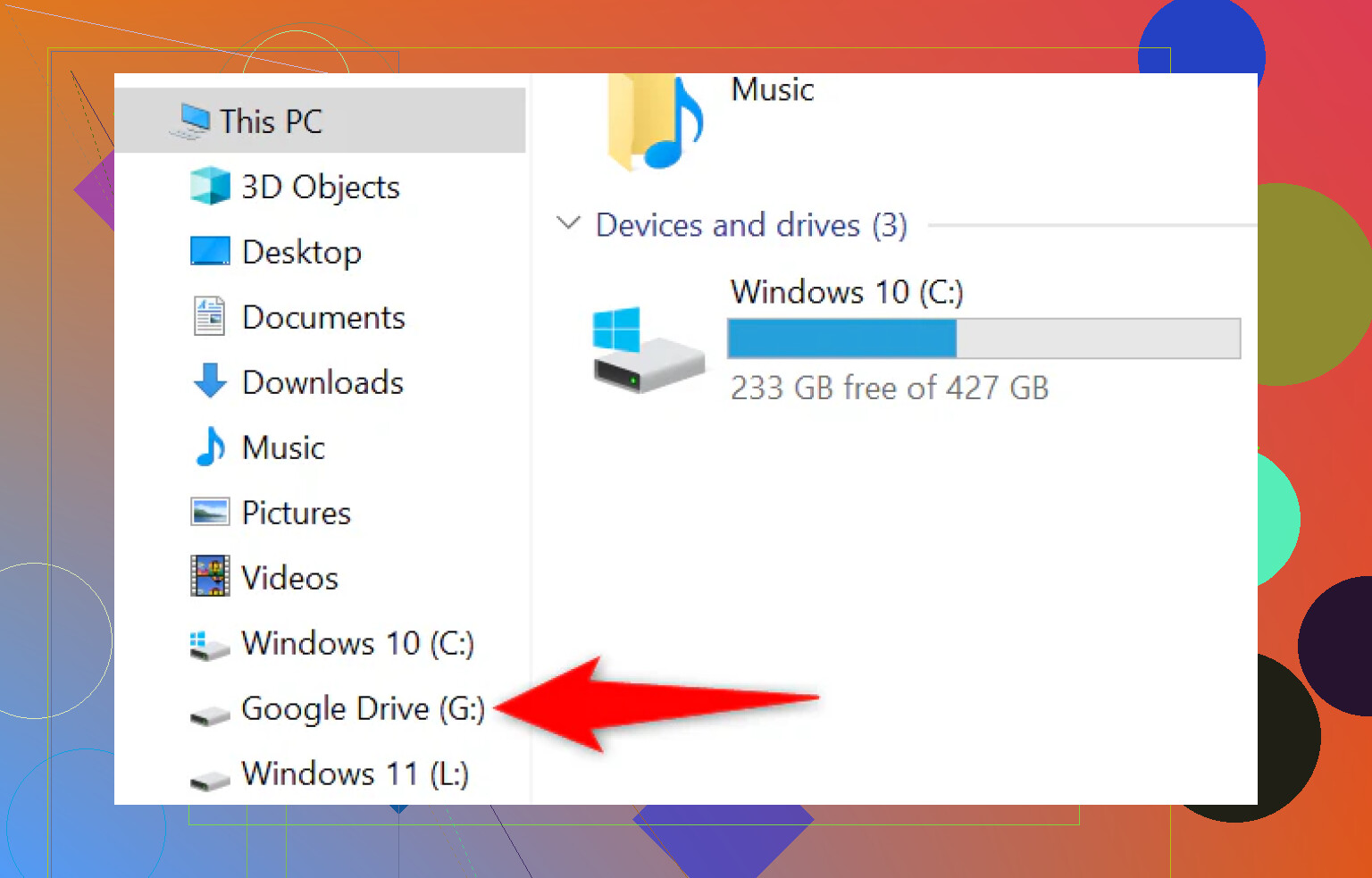
You want plug-and-play? Download Google Drive for desktop. This is Google’s own tool (used to be called Backup and Sync, RIP that old branding) and installing it is as basic as it gets. Once it’s on your PC, here’s what happens:
Boom, a new Drive pops up in File Explorer’s sidebar. It acts and quacks just like a regular folder. Double-click a file to open it, drag-and-drop to add new stuff, the whole shebang. Plus, you pick which folders to keep available offline (think road trip with spotty WiFi), and the app quietly syncs everything back to Google’s servers when you reconnect. No manual uploads, no “where’s my file?” panic.
Downsides? If you’re like me and have a swarm of Google accounts (don’t ask), the app’s a bit stingy: one user at a time, out of the box.
Juggling Multiple Clouds and Accounts? Here’s a Smarter Move
Now, say your digital life is way messier—personal Gmail, work account, maybe some Dropbox folders tossed in for flavor. Welcome to my circus. If this is you, “Google Drive for desktop” feels a bit… vanilla.
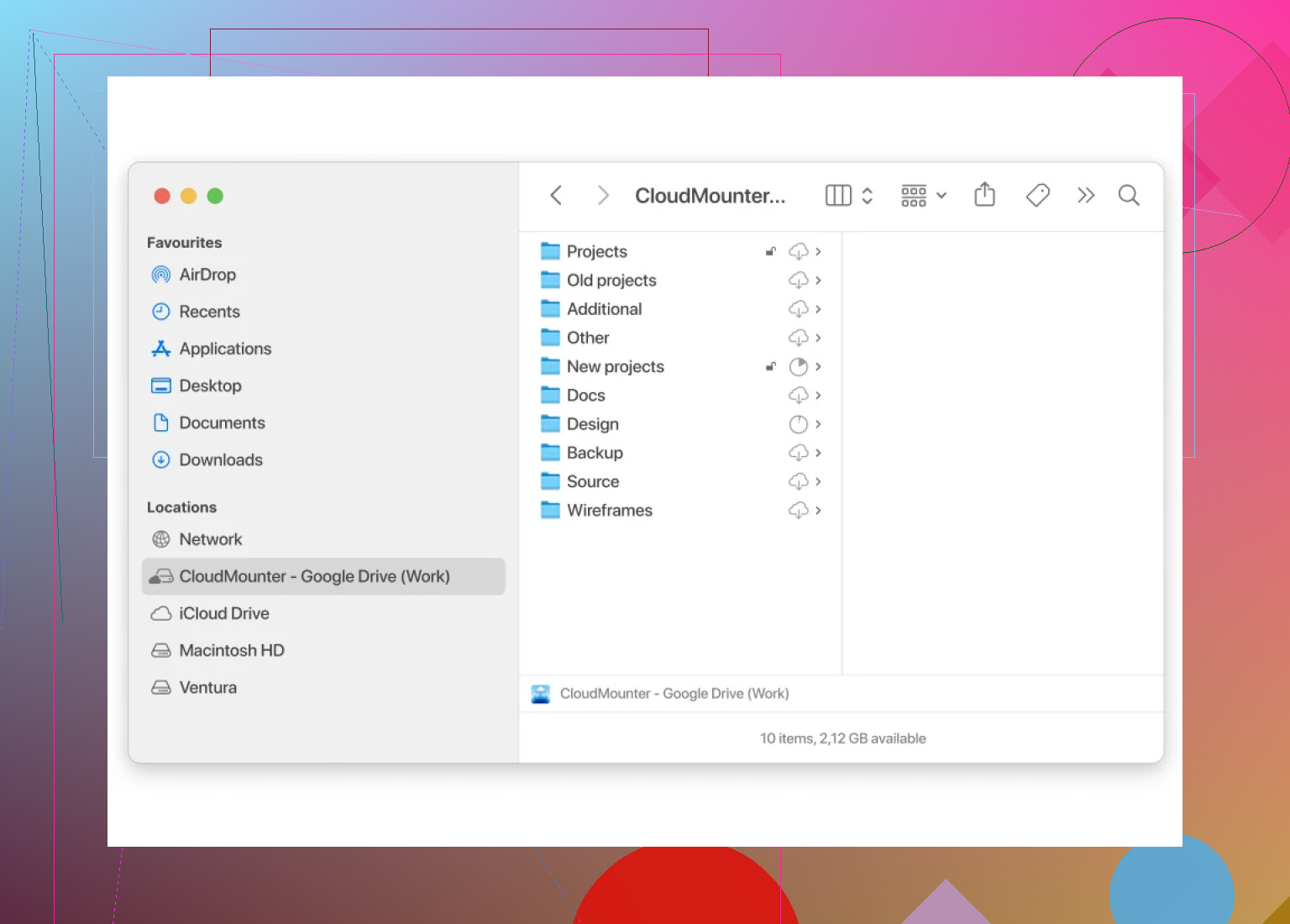
This is where CloudMounter shines. Head over to CloudMounter and check it out. Instead of gobbling up GBs of precious local space and cluttering your drive, it lets you mount your cloud stuff virtually. What does that mean? You’ll see your Google Drive (and Dropbox, OneDrive, even Amazon S3 if you’re wild like that) in File Explorer, but those files stay in the cloud unless you open them. No more “why is C: full again?” drama.
Connect all your accounts—personal, work, secret donut recipes—under one virtual roof. Manage files right inside File Explorer, no browser required, zero fuss.
So… Which Route Should You Pick?
Here’s my brutally honest rundown:
- Want fast, free, simple? Google Drive for desktop gets it done. Perfect for the “one account, one job” crowd.
- Need more? Multiple clouds, no local storage hog, swapping between identities for work/play—CloudMounter is the upgrade. Just know it’s not a freebie.
That’s it. There’s a tool for every workflow, and both have saved my bacon more than once.
Got questions? Drop them below—I’ve probably broken or fixed this setup a dozen times now.
8 Likes
Yup, you can get Google Drive to show up right inside File Explorer, and @mikeappsreviewer already nailed most of the basics. But let me throw a wrench in here: sometimes those official tools aren’t all sunshine and rainbows. I mean, Google Drive for desktop works… when it works. Ever had it just randomly stop syncing? Or weird duplicate folders popping up everywhere? I stopped trusting it after one too many “sync pending” messages that never went away (super reassuring during a deadline, thanks Google).
Personally, I tried a bunch of alternatives. One option that gets overlooked is using third-party sync programs like Cyberduck or RaiDrive—pretty solid if you don’t want to go the full CloudMounter route (yeah, that one’s got a paywall, but it is slick with multiple clouds). The cool thing with tools like CloudMounter is you DON’T burn local storage unless you actually open/edit a file. Feels a bit safer if you’re working on a laptop with a tiny SSD and like to keep your workspace clutter-free.
Weird thing: sometimes Explorer drags its heels showing the Google Drive folder after install. If you don’t see it, try a restart or log out/log in again. And for anyone obsessed with Notepad++, you can edit right off Drive this way (no more frantic copy-pastes across tabs). If you’re paranoid (like me) about accidental overwrites or mixups with work/personal files, look for options that let you mount with separate drive letters or mountpoints.
There’s also the old-school method—network drives mapped via rclone if you’re into CLI magic, but I’m guessing most folks here want plug-and-play, not wrestling with PowerShell.
Bottom line: direct access is possible, just depends on how much you want to tinker (and if you mind shelling out for “pro” versions like CloudMounter). Oh, and don’t let anyone tell you Drive is the ONLY way––OneDrive’s native integration in Explorer honestly puts Google’s solution to shame, but that’s opening another can of worms…
So, yeah, Google Drive right in File Explorer—it’s doable, but there’s always a catch (because of course there is). Like @mikeappsreviewer mentioned, “Google Drive for desktop” will basically slap a Drive folder in your Explorer and let you mess with files like a regular local folder. Fast, works, but if you ever get stuck in an endless “syncing…” spiral, you’re not alone. I chewed through that once and nearly rage-uninstalled my whole OS.
@voyageurdubois points out CloudMounter, and honestly, that’s a killer option if you juggle multiple clouds and want clean, virtual access. It doesn’t gobble your hard drive space unless you open a file, so no surprise “drive full” meltdown. Whole thing just kinda sits in the background. You’ll pay for it, but sanity ain’t free.
Here’s where I’ll disagree a bit: If you’re ONLY in the Google ecosystem (one account, rarely need offline access), I’d just use the Google Drive browser—less stuff installed, fewer sync gremlins to zap later. File Explorer integration feels like overkill unless you’re moving lots of files around or really need that drag-and-drop life.
You can technically get fancier with things like RaiDrive or even mapping drives using nerdy tools like rclone (not for the faint of heart). But for 99% of users? Either stick to Google Drive’s own app for basic stuff, or jump up to something like CloudMounter if your cloud setup is a circus.
TL;DR: Yes, totally possible. Official app = free but basic & sometimes moody. CloudMounter = slicker, multi-cloud, not free. If you want to try alternatives, brace for more setup pain. OneDrive does this way smoother, but that’s a different holy war.
If we’re slicing through the noise: mounting Google Drive in File Explorer seems straightforward, but there’s a surprising amount of nuance once you care about speed, cloud juggling, or system sanity. Everyone so far is spot-on—Drive for desktop is the default pit stop, but let’s not gloss over its quirks. It’s notorious for flipping from “magically working” to “sync purgatory,” often without warning, which is a headache if you depend on critical files syncing right now.
CloudMounter is compelling if you’re chasing that holy grail of unified cloud access. Here’s the crunchy part: it doesn’t sync files locally unless you specifically work with them. This is clutch if your C: drive is 80% screen captures, old game installs, or if you’ve got several massive Drives, OneDrives, or a rogue Dropbox. CloudMounter’s ace is letting you handle tons of accounts and clouds inside File Explorer, all without cramming gigabytes onto your SSD.
Pros:
- Multiple accounts/clouds managed in one spot
- No unnecessary local storage clog
- Easy swappable identities (work, personal, side gigs)
- Looks/feels native in Explorer
Cons:
- Paid, and the trial can feel a bit stingy if you jump clouds a lot
- Integration sometimes hiccups with files that rely on near-real-time syncing
- Doesn’t offer deep sync controls for “selective offline” like Drive for desktop
RaiDrive and rclone are out there for the tinker crowd (think half a dozen config files, command lines, etc.), but those options are like retrofitting a racecar to fetch groceries: powerful, yet needlessly complicated unless you’re managing a server farm.
Bottom line: CloudMounter is a force-multiplier for Explorer if you have multiple clouds or accounts, don’t want Drive’s local sync drama, and can justify the fee. Otherwise, if you’re laser-focused on Google Drive and want it dead simple, the official tool is fine (just keep backups when it gets moody). OneDrive pulls this off with fewer headaches if you’re already living the Microsoft life, but that’s a different rabbit hole.
Anyone else found a smarter/free-er way that isn’t a maintenance nightmare, or am I missing that unicorn app everyone’s whispering about?