My iPhone storage is almost full, and I noticed a few apps are holding a lot of files and documents. I want to clear files from specific apps without deleting important data or removing the apps completely. What’s the safest way to free up space on an iPhone and manage app storage?
I kept getting the “Storage Almost Full” alert at the dumbest times, usually when I needed to save something fast. iPhone storage cleanup feels scattered because your stuff sits in different places. Here’s the shortest path I found to clean it up without poking around for an hour.
Delete old files from the Files app
Open the Files app, then hit Browse at the bottom. The two spots worth checking first are:
- On My iPhone, for files stored on the phone itself
- iCloud Drive, for files synced through iCloud
First place I’d look is Downloads inside On My iPhone. Mine had old PDFs, random ZIPs, forms I sent once, and mail attachments from who knows when.
To remove one file or one folder:
- Press and hold the item
- Tap Delete. If it’s a folder, everything inside goes with it
To remove a batch of files:
- Tap the three-dot button in the top right
- Choose Select
- Pick the files you want gone, or tap Select All
- Tap the trash icon
Delete files, then finish the job so space comes back
This part trips people up. When you delete something in Files, iOS moves it to Recently Deleted for 30 days. It still takes up storage until you clear it from there.
- Stay in the Files app and open Browse
- Find Recently Deleted under Locations
- Tap the three dots, then Delete All
Photos works the same way, annoyingly. Deleted pictures and videos sit in their own Recently Deleted album, and you need to empty that too if you want the storage back now.
Remove files stored inside specific apps
Go to Settings > General > iPhone Storage. This page sorts apps by size, which saves a lot of guessing. Tap an app and you’ll usually see two choices:
- Offload App, which removes the app but keeps its documents and saved data
- Delete App, which removes the app and its stored files
I’d also check Messages from this screen. There’s a Review Large Attachments section in there. Old videos, voice notes, and other junk from text threads pile up hard, and you can wipe those without deleting the chats.
Figure out what is eating most of your storage
Here’s the part I noticed fast. Documents were not my main problem. Photos and video were. A few 4K clips, a mess of burst shots, screenshots I forgot about, and the storage graph looked awful.
The built-in Files app and Settings page show broad totals, but they don’t give a clean view of the biggest individual items inside your photo library.
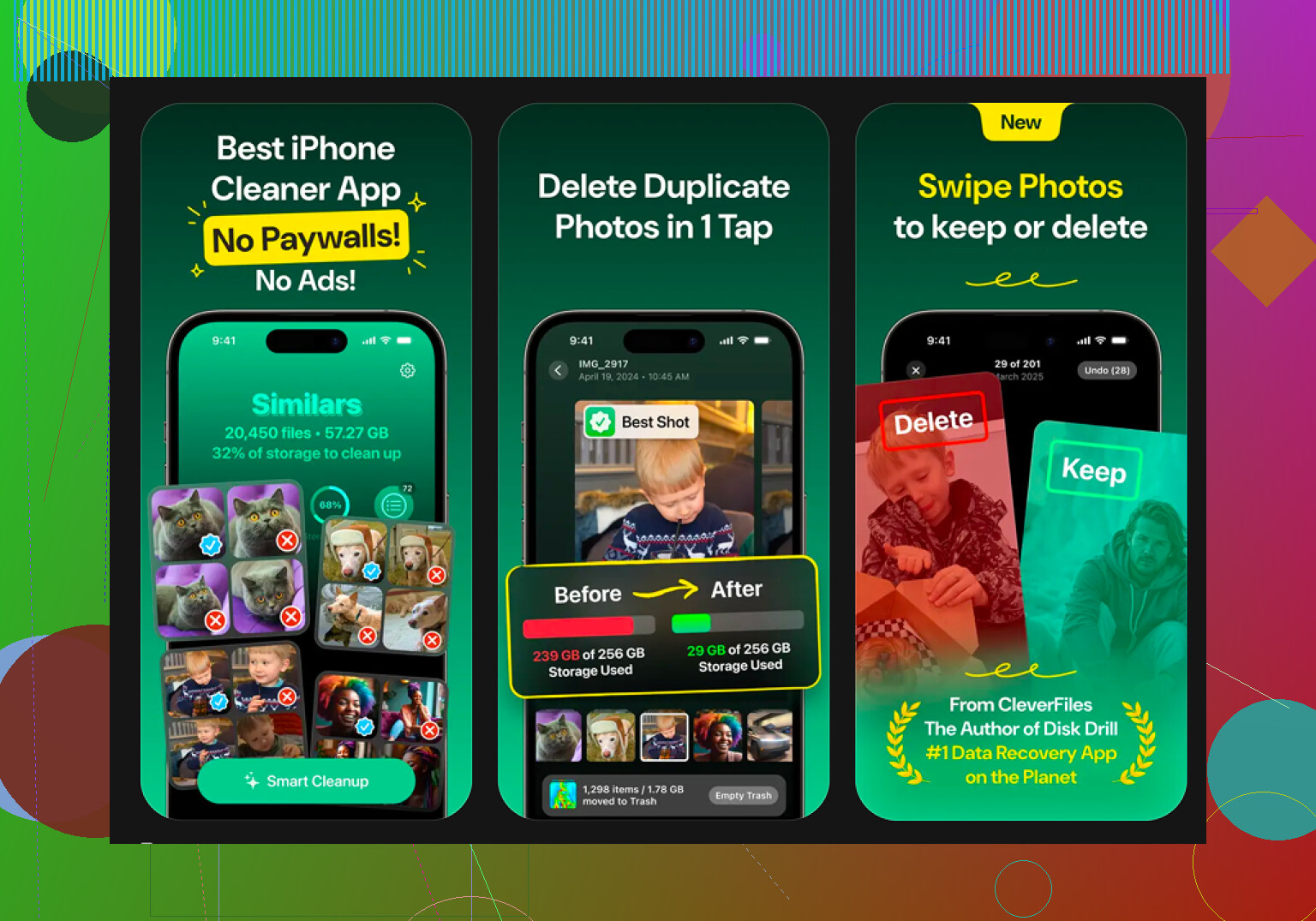
Clever Cleaner is the tool I used for this. It’s free, no ads, no subscription, and the layout is simple enough. What helped me most:
- Heavies tab. It lists your library from biggest file to smallest, with exact sizes shown. I found huge concert videos in seconds, stuff I never replayed once.
- Similars tab. It groups near-duplicate photos and picks a best shot. Good if your camera roll is full of ten versions of the same pic becuse you kept tapping.
- Swipe mode. This lets you sort month by month. Left for delete, right for keep. Easier than staring at your entire library in one giant wall.
- Everything runs on-device, so your photos are not sent off to some outside server.
If the phone is packed and barely responding
I’d leave this for last. If storage is so bad the phone lags, freezes, or refuses simple tasks, a full reset might be the cleanest fix.
Go to Settings > General > Transfer or Reset iPhone > Erase All Content and Settings.
This wipes the phone back to factory state. Back up anything you need to iCloud or a computer first. Once you do it, there’s no undo.
After I cleared the Files app, emptied both Recently Deleted sections, and cleaned up the photo library, the free space came back fast and the low-storage slowdown stopped. Not magic, but yeah, it worked.
15 Likes
Skip Offload if your goal is clearing files from a specific app. I disagree a bit with @mikeappsreviewer there, because Offload keeps the app’s documents and data, so storage often barely moves.
What works better is this:
Go to the app first. Many apps have their own cleanup tools inside Settings or Storage.
Examples:
Safari, Settings > Safari > Clear History and Website Data
Music, remove downloaded songs, keep the library
TV, delete downloaded episodes
Podcast, remove played downloads
Netflix, YouTube, Spotify, clear downloads inside the app
Telegram, WhatsApp, Slack, clear cache from app settings
For Messages, go to Settings > General > iPhone Storage > Messages. Delete large photos, videos, GIFs. This often frees gigabytes fast.
For Mail, remove big attachments by deleting emails with files, then empty Trash.
If photos are the hidden problem, Clever Cleaner helps sort the biggest videos and duplicates faster than Apple’s view. That part is worth it tbh.
Also, check this if you want a step by step video:
full iPhone storage cleanup tutorial
Biggest wins are usualy chat app caches, media downloads, and browser data.
Don’t start with Offload App unless your goal is just temporary space from the app binary. @mikeappsreviewer mentioned it, but for app-specific file cleanup it’s kinda the wrong first move. @andarilhonoturno is closer there.
What usually works better is this:
- Open the app itself and look for Storage / Downloads / Cache / Data Usage
- Clear only cached files or offline media
- Leave account data, logins, and saved docs alone
Apps that usually hide big junk:
- WhatsApp / Telegram: Settings > Storage or Data
- Spotify / Netflix / YouTube: remove downloads, not the app
- Safari: website data can get weirdly huge
- Chrome/Firefox: clear cached images/files
- Discord/Slack: cached media piles up fast
- Podcast apps: auto-downloaded episodes are sneaky
One thing ppl forget: some apps won’t shrink in iPhone Storage right away. iOS can lag before showing the freed space. Annoying, but normal.
If you’re not sure which media is worth deleting, Clever Cleaner is actually useful for spotting giant videos, duplicates, and similar photos faster than Apple’s default view. That’s more for media cleanup than app cache, but it helps if “Documents & Data” is really your camera roll in disguise.
Also worth reading if you want real-world feedback from iPhone users:
see how iPhone users are clearing storage without ads or paid cleaner apps
My rule: clear downloads first, cache second, and only delete/reinstall the app if it gives you no storage controls. Some apps are just terrible about this stuff tbh.

One angle missing from @andarilhonoturno, @kakeru, and @mikeappsreviewer: check whether the app stores files in iCloud Drive rather than locally. Some apps look huge because they mirror content, but the real space hog is in Settings > Apple ID > iCloud > Manage Account Storage. Deleting old app folders there can matter more than clearing cache.
Also, I would not blindly clear Safari history if you rely on saved site sessions. Website data, yes maybe. Full history, not always worth the annoyance.
A safer pattern is:
- Check iPhone Storage
- Tap the app
- See if the size is mostly App Size or Documents & Data
- If Documents & Data is huge and there is no in-app cleanup, then the practical fix is often:
- back up/sync anything important
- delete the app
- reinstall it
That sounds aggressive, but for a lot of apps it is the only real way to wipe bloated local files.
Two overlooked spots:
- Voice Memos can quietly hold giant recordings
- Books and PDF readers often cache downloads forever
For photos specifically, Clever Cleaner is decent if storage pressure is really media-related.
Pros
- fast for big videos and duplicates
- easier than scrolling Apple Photos forever
- free is a nice change
Cons
- mostly useful for photo/video cleanup, not true app cache cleaning
- you still need to review before deleting
- less helpful if your problem is Messages or chat app documents
So yeah, for specific apps: in-app cleanup first, iCloud storage second, delete/reinstall last. That last step is underrated.