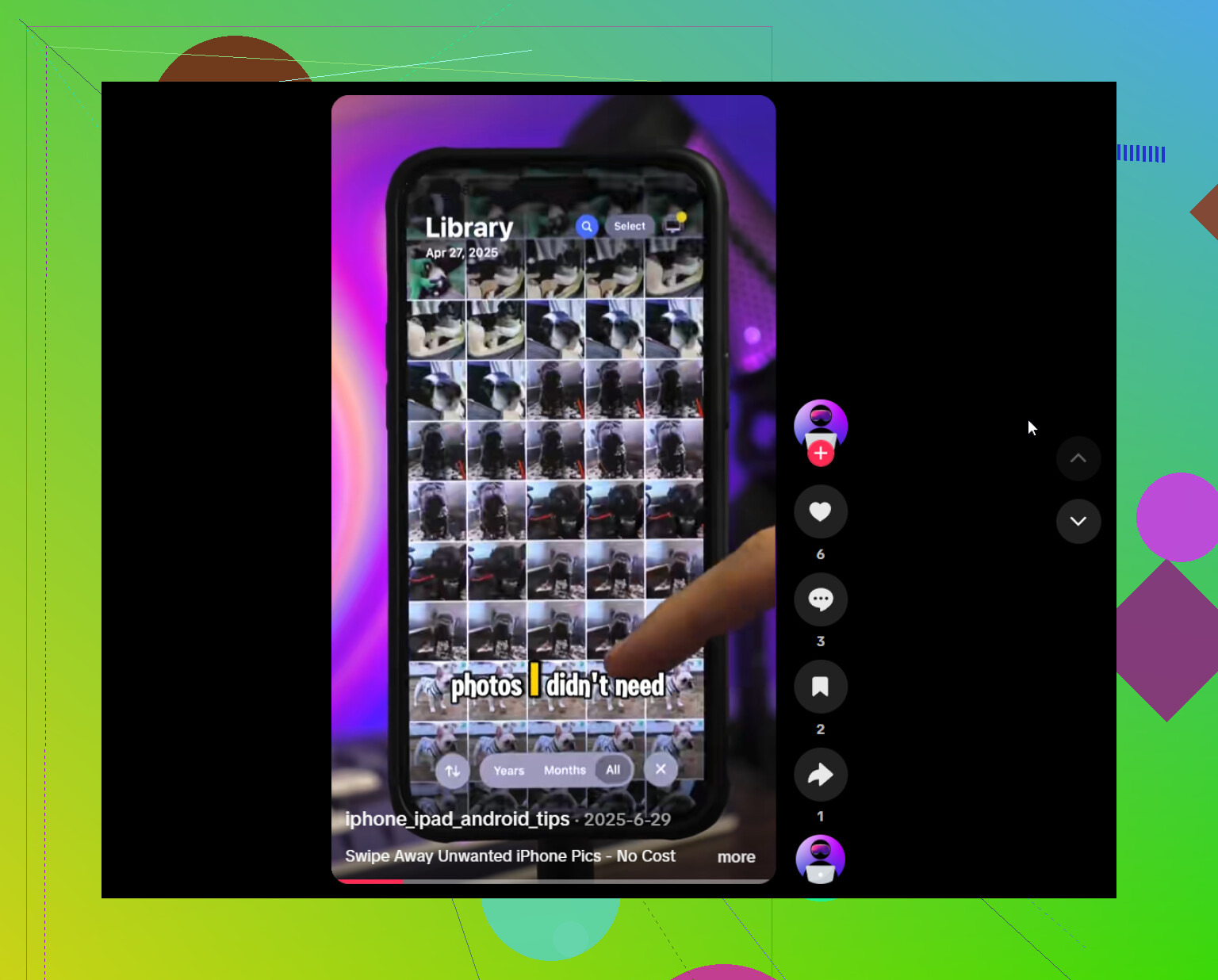
My iPhone storage is full, and photos are taking up most of the space. I’ve deleted some pictures, but the photo data is still using a lot of storage. How can I safely clear it without losing photos I want to keep?
Start with the obvious clutter before deleting photos you actually care about. When my Photos library went past 100 GB, most of the wasted space came from duplicate shots, near-identical photos, screenshots, Live Photos, and large videos.
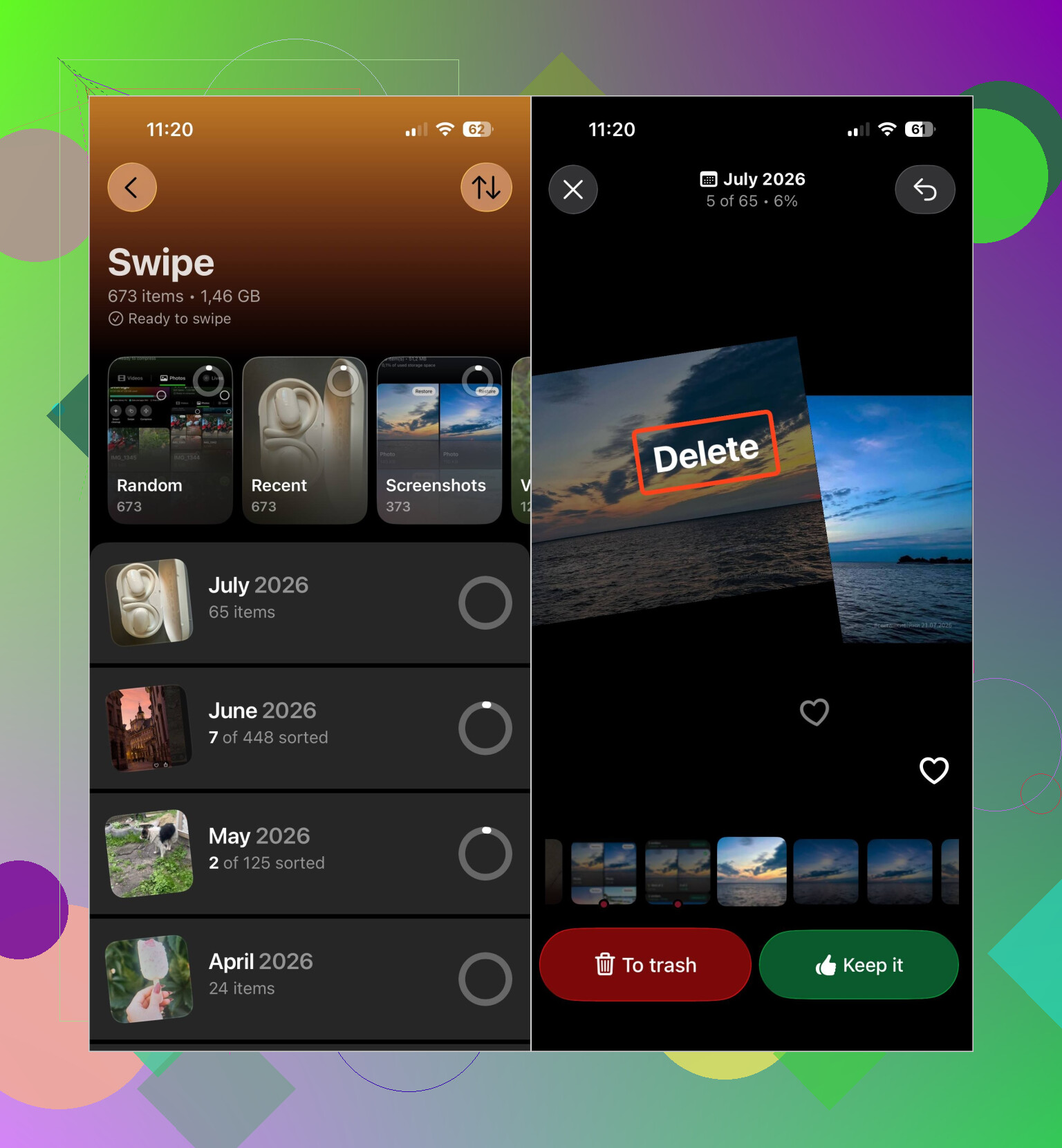
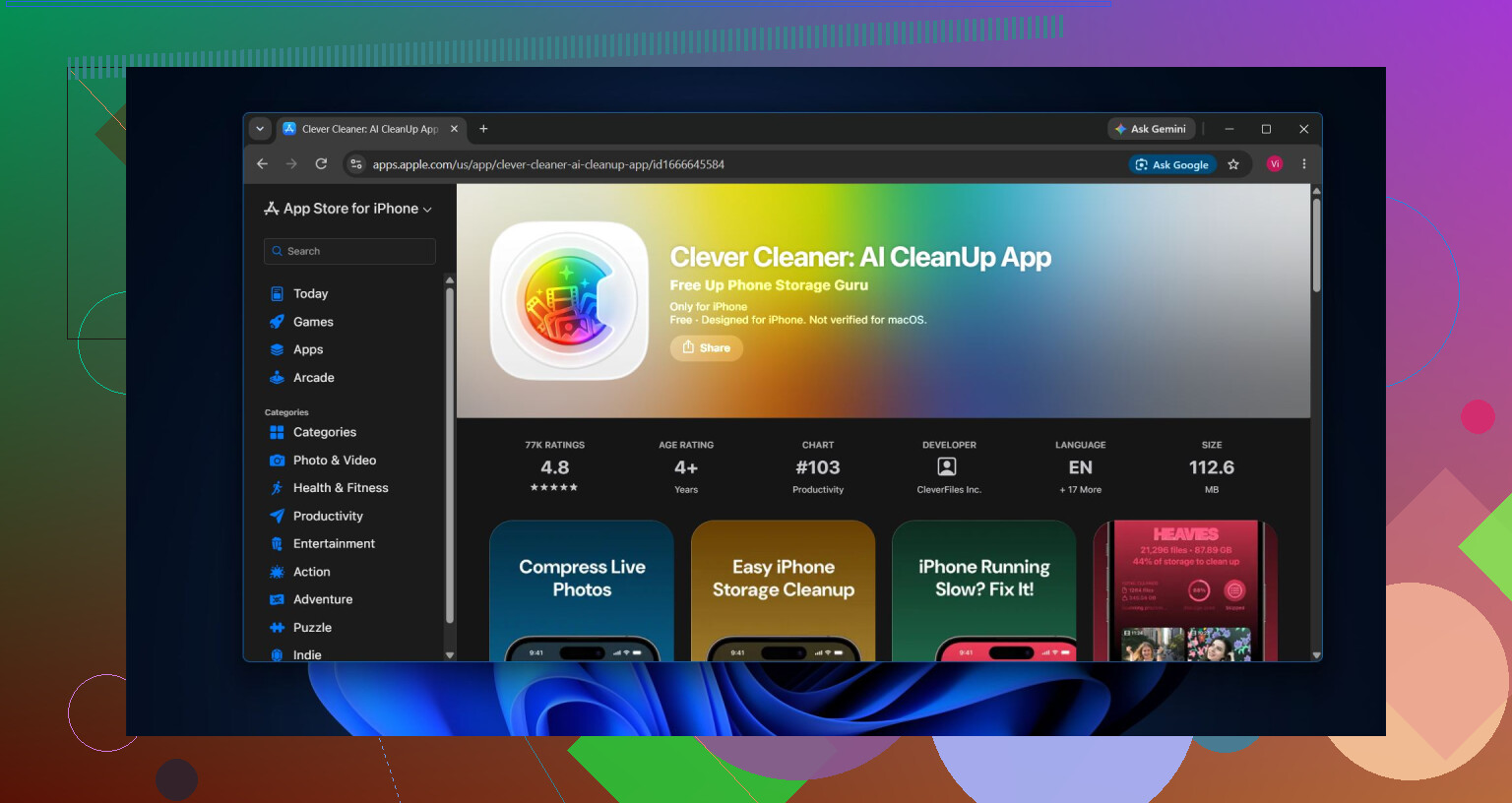
Sorting thousands of files manually wasn't practical, so I used Clever Cleaner. It separates duplicate and similar photos, duplicate videos, screenshots, Live Photos, and large media into categories. You can review files before removing them, shrink eligible photos with the Compress tool, or go through the library one item at a time in Swipe mode.
There's also Smart Cleanup, which handles similar photos and media compression across several categories in a few taps. The app is free, has no ads, and doesn't require a subscription to start using it. Some cleanup features have a fairly generous daily limit for new users.
This is the order I'd tackle everything:
- Clear out duplicates and similar photos.
- Check large videos and duplicate videos.
- Remove unwanted Live Photos, or compress them if you want to keep them.
- Delete screenshots you no longer need.
- Run Smart Cleanup if you want to deal with multiple categories together.
- Empty the Recently Deleted album. Otherwise, that storage may not become available for up to 30 days.
Messages can quietly take up a lot of space too. Deleting something from your Photos library doesn't necessarily remove the copy attached to a conversation. In Messages, open the conversation, tap the contact's name, then choose See All under Photos. From there, select and delete any attachments you don't need. Deleting an entire old conversation also removes its attachments.
If you use iCloud Photos, turn on Optimize iPhone Storage under Settings > Photos. That keeps smaller versions on the phone while storing the originals in iCloud.
It also helps to clean by event or album instead of scrolling through the full library. Going through 50 similar vacation pictures in one place is much quicker. After the initial cleanup, spending a minute or two each week removing new screenshots and duplicates can keep the problem from building up again.
There's usually no reason to wipe your whole photo library just to recover storage. Clearing duplicates, similar shots, oversized videos, unnecessary Live Photos, screenshots, and old Messages attachments can free up plenty of room without sacrificing important memories.
1 Like
You can’t clear “photo data” as a separate cache without affecting the library. If iCloud Photos is enabled, deleting a picture on the iPhone deletes it from iCloud and other synced devices too. Export the keepers to a computer or another backup service first, confirm they open there, then delete unwanted items and empty Recently Deleted. If you want everything to remain in iCloud, use Optimize iPhone Storage instead of manually deleting synced photos.
Don’t keep deleting photos just because the storage number hasn’t changed yet. iOS can take a while to recalculate after you empty Recently Deleted, especially if the library is syncing with iCloud. Leave the phone on Wi-Fi and power, restart it, then check Settings > General > iPhone Storage later. Optimize iPhone Storage helps, but it may free space gradually rather than immediately, and only if your iCloud account has enough room for the originals.