I’m trying to free up storage on my iPhone, but I’m worried about deleting downloads and accidentally losing files I already saved to the Files app or another folder. Some items were downloaded from Safari and apps, and now I can’t tell what’s safe to remove. I need help figuring out how to clear iPhone downloads without deleting important saved files.
I ran into this mess more than once, and iPhone storage still feels patched together with tape. Stuff gets deleted in one place, kept in another, and the phone keeps acting full anyway. If your iPhone is lagging, hanging on the keyboard, or flashing the storage warning, low free space is often part of it.
Streaming app downloads are usually stuck inside each app. You will not clear most of them from the main iPhone storage screen. Netflix, Spotify, YouTube, Disney+, same pattern. Open the app itself, find Downloads or Offline, then remove the files there.
One exception worth knowing is Apple Music. If you want to wipe downloaded songs fast, go here:
Settings > Music > Downloaded Music
Tap Edit, then remove individual artists or hit All Songs.
The bigger gotcha is ‘Recently Deleted.’ A lot of people clean out files, check storage again, and see almost no change. This is why. On iPhone, delete often means delayed delete.
If you removed PDFs, ZIPs, or documents from the Files app, they usually sit in Recently Deleted for 30 days. To clear them for real:
Files > Browse > Recently Deleted
Then delete them again.
Photos works the same way. Deleted photos and videos stay in the Recently Deleted album for about a month. If you need space now, go into Photos, open Recently Deleted under Utilities, and remove them there too.
There’s one useful move if you want a file off the phone but not gone forever. In the Files app, if the item lives in iCloud Drive, press and hold it and choose Remove Download. I use this a lot. It removes the local copy from the phone, keeps the file in iCloud, and leaves the little cloud icon so you can pull it back later.
Also check hidden app folders in Files. Browsers like Chrome and Firefox tend to stash downloads in their own folders. Open Files, then look in On My iPhone. I found old PDFs, ZIP archives, and random junk in there I forgot about for months.
If storage still looks wrong after cleanup, two usual reasons showed up for me:
- Recently Deleted folders still have stuff in them
- iOS has not refreshed the storage count yet
A restart sometimes fixes the second one. Not elegant, but I saw the storage bar update after rebooting.
When mine got bad, the phone was slow enough I mistyped every other sentence. The main offenders were duplicate photos, burst shots I never cleaned up, and a pile of large videos saved from Safari. Manual cleanup worked, but it was slow and annoying.
I ended up using a cleanup app called Clever Cleaner. Most apps in this category felt shady to me, stuffed with ads or locked behind subscriptions. This one was different from the ones I tried.
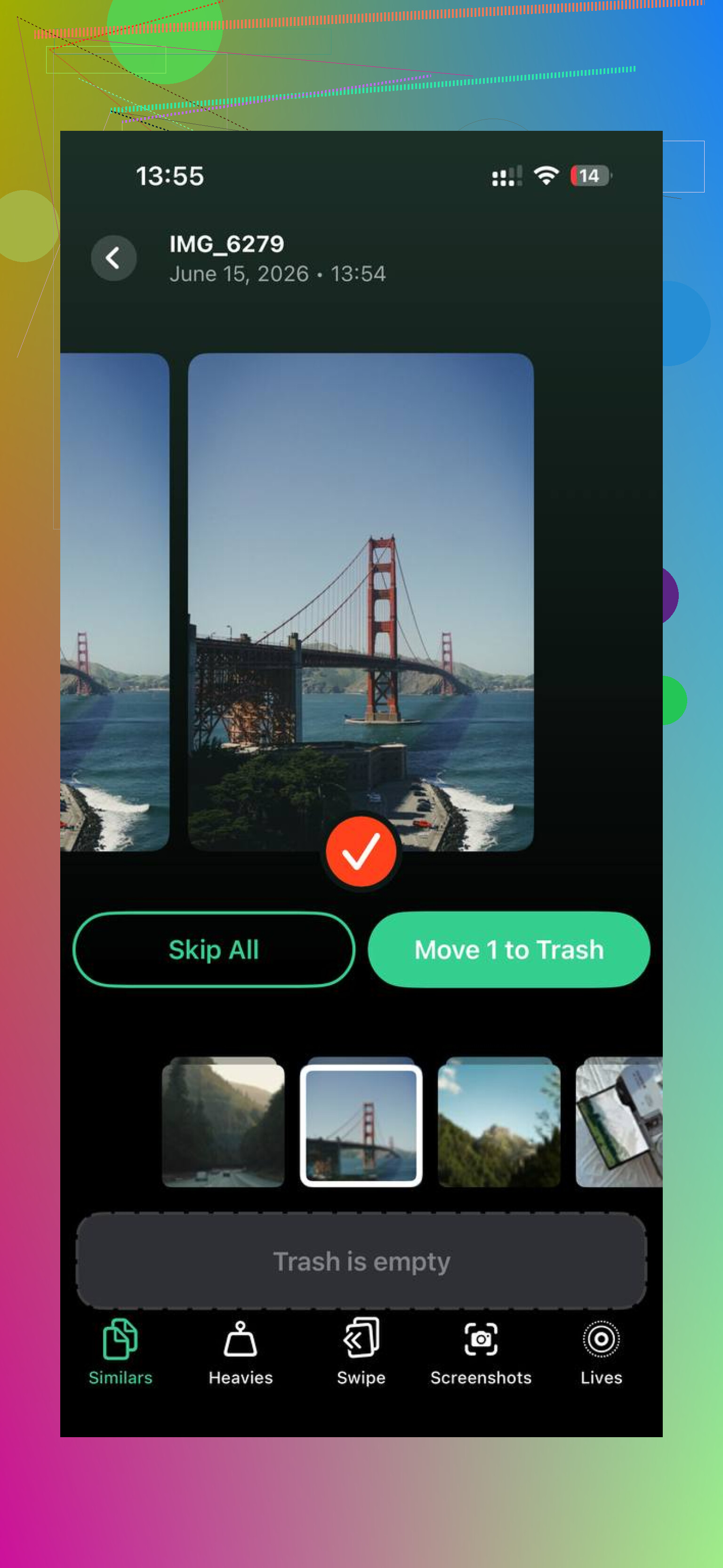
The part I found useful was the Heavies section. It sorts photos and videos by file size, so the biggest space hogs show up first. If one 2 GB video is wrecking your free space, you see it right away.
The similar-photo tool helped too. It grouped near-duplicates, like six shots of the same thing, and made cleanup quicker. I still checked its picks myself, because I do not trust any app to choose family photos for me.
What sold me was local processing. My photos stayed on the device. After clearing around 30 GB, my phone stopped dragging.
So if you want the short version:
Check streaming downloads inside each app.
Empty Recently Deleted in Files.
Empty Recently Deleted in Photos.
Use Remove Download for iCloud files you still want saved.
Look in Files > On My iPhone for browser download folders.
Restart after cleanup if storage numbers look stuck.
That last step matters more than people think. A lot of the time, you did free the space, iOS is the part still catching up.
14 Likes
The safe rule is this. Delete the source, not the saved copy.
If you downloaded a PDF in Safari, then moved it into Files, deleting it from Safari’s download list does not remove the file you already saved in Files. Safari’s list is more like a history pointer, not your master copy. Same idea for Mail attachments you saved to Files.
One place I differ a bit from @mikeappsreviewer. I would check where the file lives before deleting anything, not after. Open Files, press and hold the item, tap Info. Look at Location. If it says iCloud Drive, the file is stored in iCloud. If it says On My iPhone, it only lives on the phone. That matters a lot.
Best low-risk cleanup steps:
- In Safari, clear old downloads list entries you already saved elsewhere.
- In Files, sort by Size and review big ZIPs, videos, and PDFs first.
- In Settings > General > iPhone Storage, tap apps with “Documents & Data” bloated numbers. Some apps keep imported files inside the app, not in Files.
- For Podcasts, Maps, and Messages, remove downloaded or cached content inside those apps. People miss those a lot.
If your goal is space without losing files, move large stuff from On My iPhone to iCloud Drive first. Then remove the local copy. Takes an extra minute, saves headaches later.
If photos are the issue, Clever Cleaner is worth a look for finding big files and dupes faster. User feedback on Clever Cleaner and storage cleanup results is here, see Clever Cleaner app reviews from real users.
Main thing, check Location first. That one step avoids most oops moments.
One thing I’d add to what @mikeappsreviewer and @voyageurdubois said: don’t trust the word “download” on iPhone, because Apple uses it for like 3 different things and that’s where people get burned.
If you already used Share > Save to Files, or moved the file into a folder in Files, that saved copy is separate from Safari’s little downloads manager. Deleting the entry from Safari’s download list usually just removes the reference/history, not the file itself. Same with some app download queues.
What I wouldn’t do is mass-delete from iPhone Storage unless you’re sure the app isn’t the only place holding that file. Some apps cache stuff, others store the actual doc there. Annoying, yes.
Safer approach:
- open the file you care about in Files
- rename it or move it to a clearly named folder
- then delete the original download source
- finally test by reopening the saved copy
That “open it after cleanup” step matters. If it opens, you’re fine. If not, it was probly only a local temp file.
Also, for PDFs/videos/docs, you can use Files search and type the extension like .pdf or .zip to find the real saved copies before deleting anything. Super underrated trick.
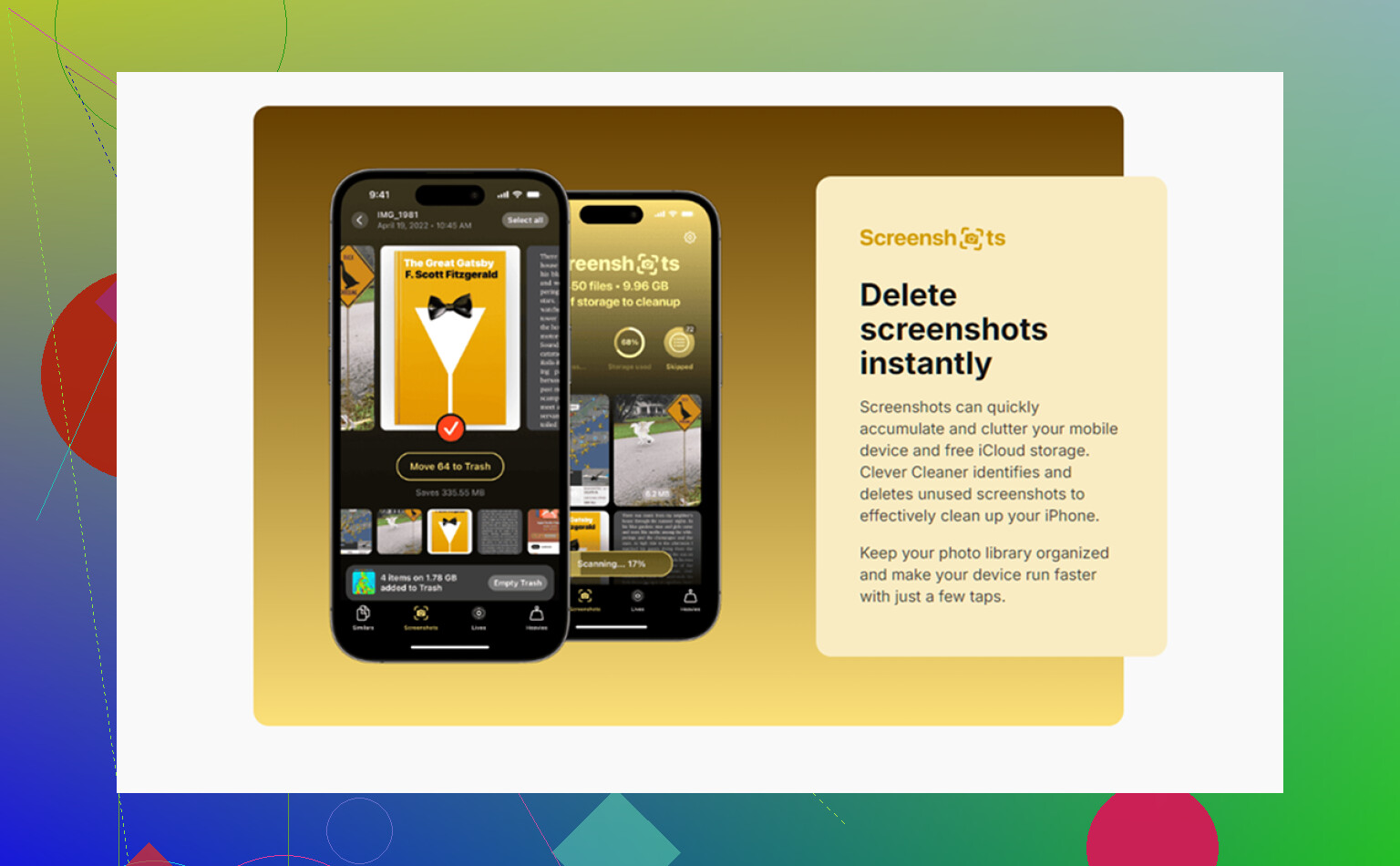
If your main issue is photo/video clutter eating storage, Clever Cleaner is honestly useful for spotting huge files and duplicates faster than doing it by hand. This Clever Cleaner video review for finding duplicate photos and large videos gives a decent walkthrough.
Short version: verify the saved copy in Files first, then kill the download source second. That order avoids most oops moments.
One extra angle the others only touched lightly: delete by app ownership, not just by file type.
Safari downloads, Files items, and in-app documents can look identical, but they are managed differently. I slightly disagree with doing too much from Settings > iPhone Storage first, because that screen is great for spotting space hogs, but not always great for telling you whether a document is safely duplicated somewhere else.
What I’d do instead:
- In Files, tap Browse
- Check On My iPhone and each app folder there
- If a file exists in both On My iPhone and iCloud Drive, delete the local one first
- If it only exists in one place, leave it alone until you confirm you can open it from the saved location
A useful test: turn on Airplane Mode and open the file.
- Opens fine: it’s local or fully downloaded
- Shows a cloud/error: it may only live in iCloud or need re-downloading
That helps avoid deleting the only accessible copy.
Also, some apps create duplicates when importing. Example: you save a PDF from Mail to Files, but Mail may still keep its own cached attachment. Deleting the Mail message or cache usually won’t erase the Files copy, but deleting inside Files absolutely can.
@voyageurdubois, @andarilhonoturno, and @mikeappsreviewer covered the big cleanup zones well. My addition is just: test-open the kept copy before removing anything else.
If photo/video clutter is the real storage killer, Clever Cleaner can help surface the giant files faster.
Pros:
- quick for duplicate and large media hunting
- easier than manual scrolling
- good for visual cleanup
Cons:
- mostly useful for photos/videos, not every document type
- you still need to review results carefully
- cleanup apps in general won’t fix every app’s private cache
For actual downloads, the safest rule is still: if you cannot open the saved copy independently, it is not “saved” enough yet.