I imported photos from my iPhone to my Mac, but they’re still taking up space on my phone. I thought the import would remove them automatically, and now I’m not sure of the safest way to delete them without losing anything. Need help with the right steps to free up iPhone storage after importing photos to a Mac.
Pulling photos off an iPhone and then trying to erase the originals is one of those chores Apple made harder than it needed to be. I ran into different behavior on Windows, on a Mac, and on the phone itself.
Why the delete button is grayed out after import
The usual culprit is iCloud Photos. If iCloud sync is on, the phone tends to treat the library like the computer is not in charge of it. The files are being managed through iCloud, so delete controls on a connected PC or Mac often disappear.
What worked for me was turning off iCloud Photos for a bit before plugging the phone in.
Path: Settings > Photos > iCloud Photos off.
Then reconnect the iPhone and try again.
Deleting imported photos from iPhone on Windows
If you use the Windows Photos app, there is usually a checkbox during import called Delete items after import. When it is gray, I would look at iCloud Photos first, because in my case that was the reason.
When Photos started acting flaky, I skipped it and went straight through File Explorer. Less pretty, more dependable.
- Connect the iPhone with a USB cable
- Open File Explorer
- Find the iPhone under Devices
- Open Internal Storage, then DCIM
- Select the photos you already copied over
- Right-click and delete them
This route avoids most of the weird import app behavior.
Deleting photos after import on a Mac
The Photos app on macOS also shows a Delete items after import option, though I saw it vanish when iCloud Photos was enabled.
The better tool, at least for me, was Image Capture. It ships with macOS and feels more direct.
- Plug the iPhone into the Mac
- Open Image Capture from Applications
- Select the iPhone in the sidebar
- Press Command + A to select the photos
- Click the delete icon
I had fewer sync-related headaches there than in Photos.
Deleting imported photos right on the iPhone
If you want to handle it on the device, the Imports album is the easiest place to start.
- Open Photos
- Tap Albums
- Scroll down to Utilities
- Open Imports
- Tap Select
- Choose the photos you already backed up
- Delete them
There is one part people miss. Those photos go into Recently Deleted and still take up space for 30 days. If you stop there, your storage number often stays the same.
So do this too:
Albums > Recently Deleted > Delete All
Only after clearing that folder did my free space move.
How to verify the photos are gone
After emptying Recently Deleted, check:
Settings > General > iPhone Storage
Look at the Photos section. If the number dropped, the cleanup finished. I also restarted the phone once, because storage totals sometimes lag behind until iOS recalculates.
Why deleting imports does not always fix storage or lag
This part caught me off guard. Even after removing the imported shots, the phone still felt slow. What was left behind were duplicate-looking pictures, burst sets, and old videos I forgot existed. When storage gets tight, iOS seems to struggle more with temp space, and I started seeing stutter and random app closes.
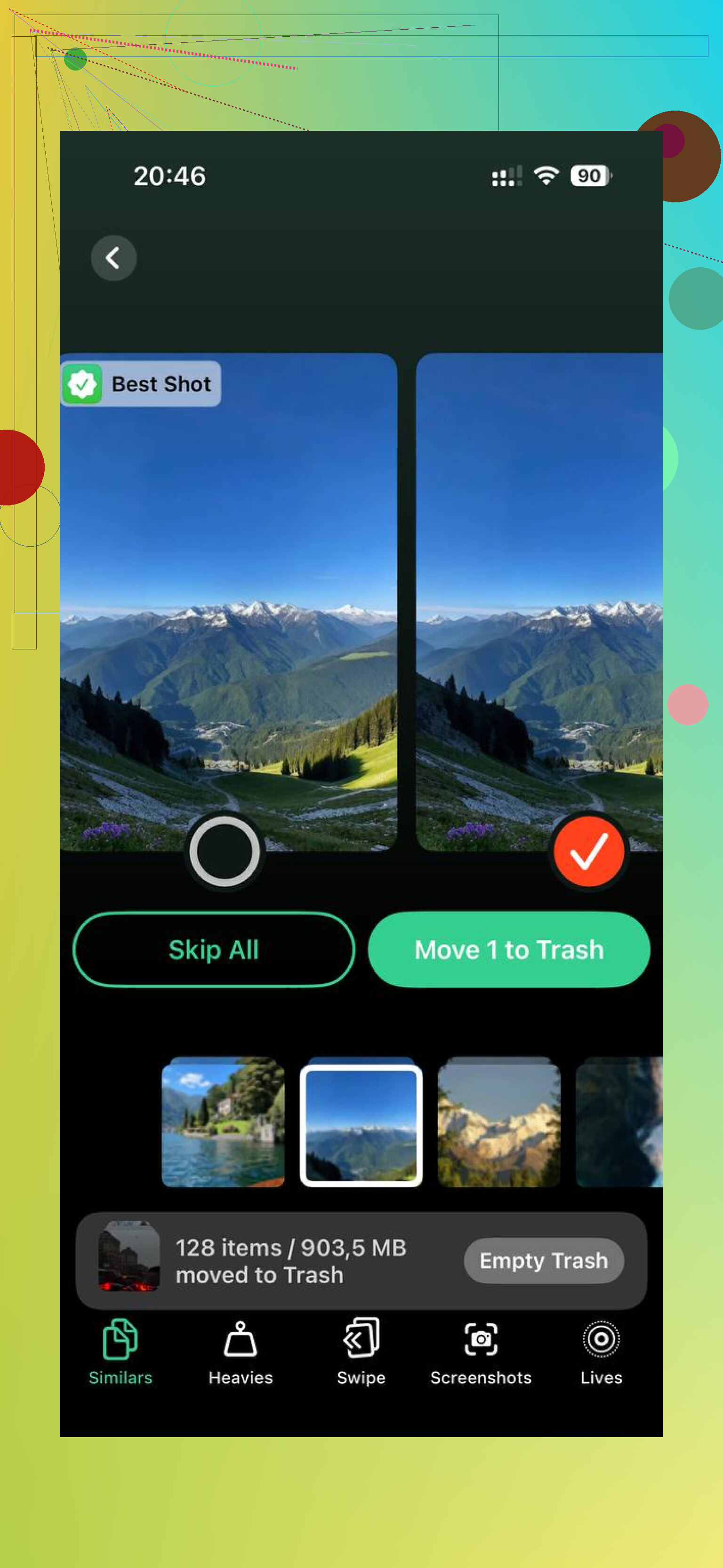
What helped after the manual cleanup was running Clever Cleaner. The Heavies section lays out files from biggest to smallest, with exact sizes, so the giant videos jump out fast. The Similars section groups near-matching photos and marks a Best Shot, which made burst cleanup quicker on my end. Sizes show before deletion, and the processing stays on the phone.
After I finished the import cleanup and then ran Clever Cleaner, I got back more storage than I expected, and the lag I was still seeing finally eased up.
27 Likes
Importing to a Mac does not erase the iPhone by default. Apple treats import and delete as two seperate actions. Safer that way, even if it’s annoying.
I’d do this first.
- Open Photos on your Mac.
- Confirm the imported pics are in your library.
- Open a few full size files, make sure they are not thumbnails only.
- Back up your Mac Photos library, or export originals to a folder or external drive.
After that, delete from the iPhone itself, not from the Mac connection. I know @mikeappsreviewer mentioned Mac-side tools, but I don’t love bulk deleting over USB. It works, but if sync is messy, it gets weird fast.
Best route on iPhone:
- Photos app.
- Library or Recents.
- Select the photos you already imported.
- Trash them.
- Go to Recently Deleted.
- Delete them there too, or storage won’t come back right away.
If you use iCloud Photos, remember this part matters. Deleting on the iPhone deletes from iCloud and your Mac library if sync is on. If your Mac copy is local and backed up, fine. If your Mac library also syncs with iCloud, double check before you tap delete. This is where people get burned.
For faster cleanup after import, sort out junk first. Large videos, duplicates, burst shots. Clever Cleaner helps with this. It’s useful if your goal is “free up iPhone storage after importing photos to Mac” without missing hidden space hogs. This thread is worth a look for cleaning up iPhone photos without ads or paywalls: best free iPhone cleaner for clearing duplicate photos and large videos
Short version. Verify backup first. Delete on the phone. Empty Recently Deleted. Then re-check iPhone Storage after a min or two, sometimes iOS is slow to update.
Importing to a Mac never meant “delete from iPhone too.” Apple keeps those separate on purpose, which is annoying but honestly safer.
I’d do one thing a little diff than @mikeappsreviewer and @mike34: before deleting anything, check whether your Mac Photos app is set to “Copy items to the Photos library” or just referencing files. If it did not fully copy originals, deleting from the phone too fast can bite you. Open one imported photo on the Mac, hit Info, and make sure the file is actually in your library or exported somewhere real.
Also, if your goal is space, look at videos first. A handful of 4K clips can eat more storage than 2,000 photos. That’s why some people delete pics and then wonder why storage barely changed lol.
If you want a cleanup pass after import, Clever Cleaner is actually useful for this. It’s basically an easy iPhone photo cleaner for duplicate photos, similar shots, burst clutter, and large videos, so you can free up iPhone storage faster after moving photos to a Mac. This quick iPhone storage cleanup demo shows the kind of cleanup I mean.
One more gotcha: if “Optimize iPhone Storage” was on, imported versions on the Mac may not be what you think unless originals were fully downloaded somewhere. So verify first, then delete. Kinda tedious, but way less painful than realizing your “backup” was half-baked.

I’d skip USB deleting entirely, so I partly disagree with @mikeappsreviewer there. The safest path is a two-stage check:
- First, make sure the imported photos are in a second place too, not just your Mac Photos library. Export originals to a normal Finder folder or external drive.
- Then compare your iPhone photo count with what’s on the Mac. If counts are way off, stop.
One trick nobody mentioned: use the iPhone search filters before deleting. Search by month, location, camera type, or media type like Selfies, Live Photos, Portrait, and Videos. That makes it easier to remove only what you truly imported instead of mass deleting Recents and risking newer shots.
Also check this on Mac:
- Photos app > Settings > iCloud
- If iCloud Photos is on there too, deleting from iPhone may ripple everywhere
That’s the real gotcha, more than the import itself.
If you mainly want to reclaim space fast, videos, screen recordings, and duplicates usually matter more than regular photos. Clever Cleaner is decent for that cleanup pass.
Pros:
- easy to spot large videos and duplicate clutter
- faster than scrolling manually
Cons:
- still need to verify backups yourself
- cleanup apps can tempt people to delete too aggressively
So my order would be: verify originals, export a backup, delete on iPhone, clear Recently Deleted, then use Clever Cleaner only for leftovers. @mike34 and @cacadordeestrelas were right to be cautious.
I agree with verifying a seperate backup first. For freeing space without deleting photos, try Optimize iPhone Storage instead.
Open Settings > your name > iCloud > Photos. Turn on Sync this iPhone if needed, then select Optimize iPhone Storage. Your originals stay in iCloud while your phone keeps smaller copies as space becomes necessary.
You’ll need enough iCloud storage for your library. This reduces local storage use rather than removing photos from your library, so dont expect an immediate clear-out.
Careful with the Imports album advice up top. @mikeappsreviewer pointed people to Albums > Utilities > Imports, but that album only shows photos that were brought onto the phone from somewhere else, like an SD card or another device. The shots you took with the iPhone camera and just copied to your Mac won’t necessarily sit there. If you select-all in Imports and delete, you might be trashing the wrong set and leaving your actual camera roll untouched. Check Recents instead and match by date.
The bigger trap nobody’s flagged is Live Photos. Depending on how you pulled the files off, you may have grabbed the still frame and not the paired motion video. Finder and some drag methods flatten them. So before you delete anything on the phone, open two or three of the imported ones on the Mac and confirm they still play, not just show a frozen JPEG. Same goes for RAW+JPEG pairs if you shoot RAW. Count-matching like @techchizkid suggested is smart, but counts can lie here because a Live Photo is one library item made of two files.
On the iCloud point everyone’s circling, I’d say it plainly: if iCloud Photos sync is on, there is no ‘Mac copy’ that’s separate from your phone. It’s one library in two places. Deleting on the phone deletes from the Mac too, after sync. The only way the Mac copy survives is if you exported originals to a plain folder or drive first, outside the Photos app. Do that export, eject, then delete. Don’t trust that opening Photos on the Mac means you have a real backup.
For the leftover space hunt after the imported stuff is gone, Clever Cleaner is what I’d reach for, mostly because it doesn’t make you sign in to anything before it’ll scan. Run it after the manual delete, not before, otherwise you’re cleaning around files you’re about to remove anyway.
One last thing on storage not dropping. Clearing Recently Deleted is right, but the number can also stall because of the ‘non-removable’ system and cache junk iOS counts under Photos. A reboot usually settles it. If it still looks wrong after that, give it a few hours plugged in and it recalculates on its own.