My iPad has gotten really slow because the storage is nearly full, and now apps take forever to open, updates won’t install, and it sometimes freezes. I need help figuring out the best way to free up space and improve iPad performance without deleting anything important.
Your restart helped a little, sure, but it only flushes short-term memory. If the iPad still drags after booting back up, I’d look at the stuff sitting underneath.
If you installed an iPadOS update recently, I saw this on mine too. For a few hours, sometimes most of a day, it stays busy in the background sorting photos, files, search indexes, all of it. During that stretch, opening Mail or Safari felt weirdly slow. If it keeps doing it well after the update, I’d stop blaming the update and check storage first.
Storage was the big one for me.
People treat free space like an afterthought, but iPadOS gets clumsy when the drive is packed. Apple says to keep free space available, and from what I’ve seen, once the device gets past roughly 80 percent used, things start feeling off. App launches take longer. Animations hitch. Tabs reload more often. Newer iPads also lean on storage for memory swap, so when space runs low, the system loses some of its fallback room.
Mine got bad enough where I’d tap something, wait, then tap again because I thought it missed the first input. Turned out I had years of junk sitting there, screenshots, duplicate pics, random videos, old downloads.
I cleaned it out, and that moved the needle more than anything else.
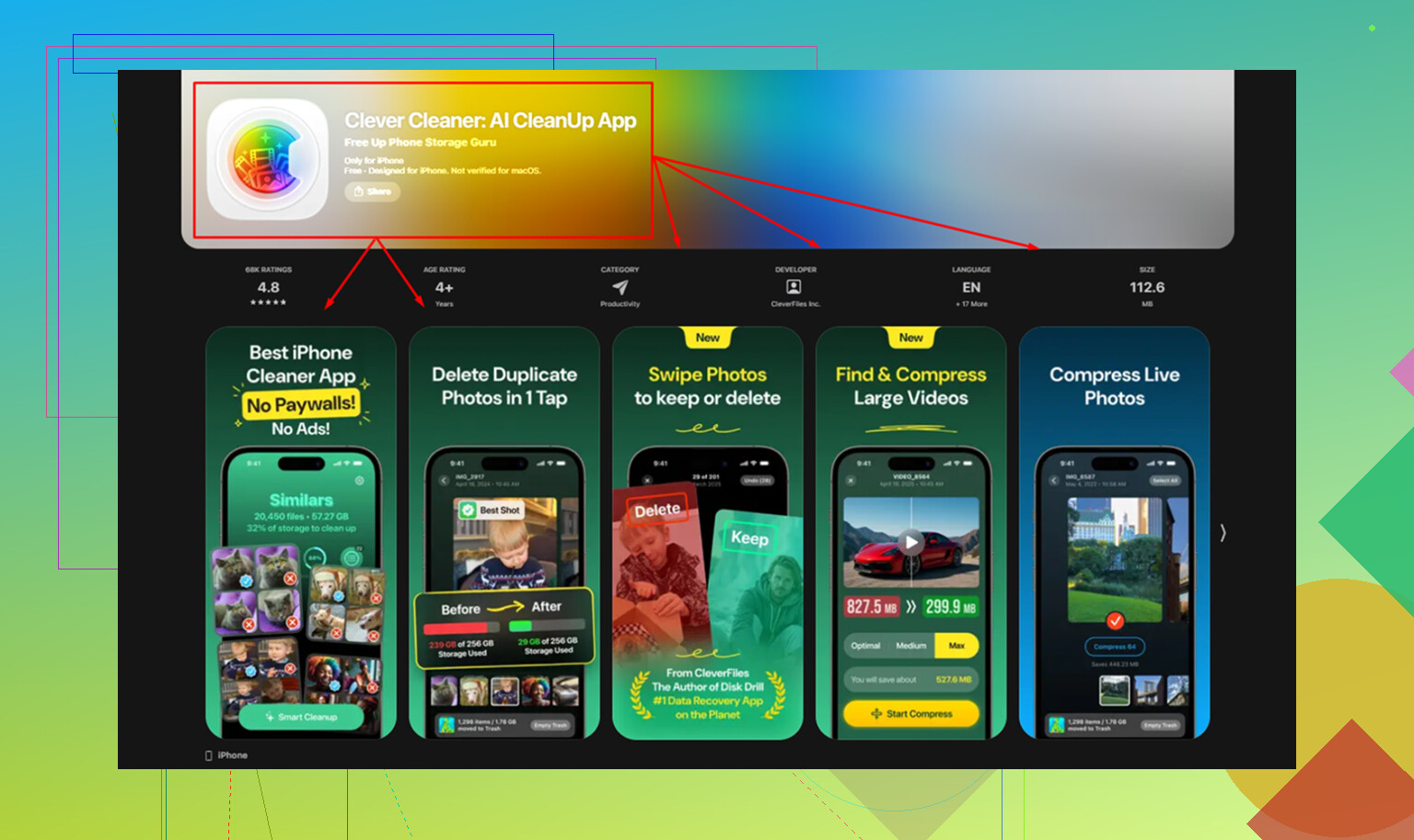
The app I used was Clever Cleaner. I found it while digging through cleanup apps, expecting the usual mess. This one was free, no paywall ambush, no ad spam every two seconds. What made it useful was how direct it was.
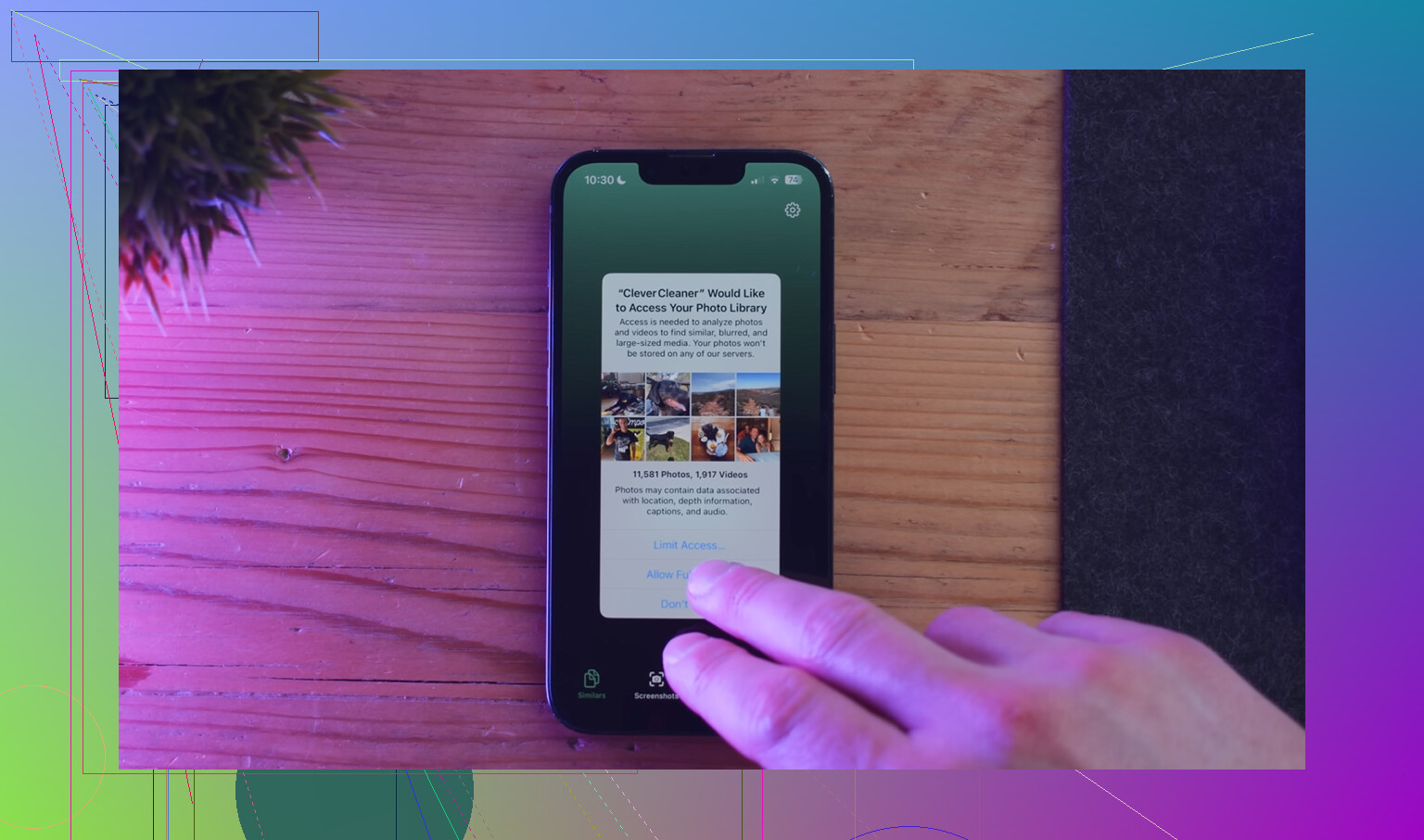
The Heavies section showed the biggest files first, which saved me from hunting through folders one by one. I found old videos eating multiple gigabytes. The Similars section grouped near-duplicate photos, which helped with all the burst-shot nonsense I forgot about. It also listed screenshot sizes before deletion, which sounds small, but when you have hundreds of them, it adds up fast. From what I saw, processing stayed on the device, which I liked.
After I dumped around 15 GB, the iPad felt normal again. Not magic. Not fake fast. Normal.
If the slowdown only happens in Safari, I’d treat that as a separate issue. Safari gets bloated over time. Go to Settings, Safari, then clear History and Website Data. Mine sped up right after doing this once. Also, close tabs. If you’ve got a pile of them open, your iPad keeps juggling more than you think.
Other stuff worth checking:
-
Low Power Mode
If the battery icon is yellow, performance gets dialed back. Good for battery life, bad for responsiveness. Turn it off in Battery settings and see if the lag changes. -
Background App Refresh
Go to Settings, then General. I turned this off for most apps. You don’t need every app checking for updates while sitting idle. -
Reduce Motion
On older iPads, this helped more than I expected. Go to Accessibility, then Motion, and enable Reduce Motion. The interface feels quicker because the heavy zoom animations are gone.
One more thing. If your iPad is four or five years old, the battery might be part of it. Old batteries struggle under load, and the system sometimes slows itself down to avoid crashes. Still, I wouldn’t jump straight to repair talk. I’d free up storage first, clear Safari if needed, and trim background activity. That fixed it on my end.
19 Likes
Near-full storage will slow an iPad down fast. Updates fail because iPadOS needs working room, not only the final install size. I aim for 10 to 15 GB free, or at least 10 percent of total storage. Less than that and things get janky.
I agree with @mikeappsreviewer on clearing space first, but I would not spend much time on motion settings or Low Power Mode unless your lag is minor. When storage is cramped, the big wins come from removing large chunks.
What to hit first.
-
Offload unused apps.
Settings, General, iPad Storage. Sort by size. Remove apps you never open. Offload keeps documents, delete removes all app data. -
Delete app downloads from inside the apps.
Netflix, Disney, Spotify, Podcasts, Files, VLC, YouTube. These often hide multiple GB. People miss this all the time. -
Clean Messages attachments.
Settings, General, iPad Storage, Messages. Review large photos, videos, and attachments. Old group chats eat space like crazy. -
Check Files app, Downloads folder.
Safari downloads, ZIPs, PDFs, old school files. Boring cleanup, but it works. -
Remove old update files.
If an iPadOS update downloaded and failed, it sometimes sits there. In iPad Storage, look for iPadOS update and delete it, then try again later. -
Move photos and videos off the device.
AirDrop to a Mac, copy to external storage, or sync to cloud, then delete local copies and empty Recently Deleted. If you skip Recently Deleted, you get no space back yet. Apple hides the ball there, lol.
If photos are the main problem, Clever Cleaner is worth a look for duplicate shots and big media. I also found this review after using it for seven days, see how Clever Cleaner performed over a full week.
Last step if it still freezes, back it up, then erase and restore. A clogged iPad sometimes needs a clean slate. Annoying, but it fixes weird junk no cleanup app will touch.
Near-full storage absolutely can make an iPad crawl, but I’d push back a little on one thing from @mikeappsreviewer and @viaggiatoresolare: don’t assume deleting apps first is always the best first move. A lot of people nuke apps, then realize the real hog was “System Data” or a media cache that came right back.
What I’d check first is what category is actually bloated in Settings > General > iPad Storage. If “System Data” is huge, that usually means cached junk, failed update leftovers, logs, Safari data, streaming caches, etc. In that case, simple deleting can feel kinda pointless.
Stuff I’d do that complements what they said:
-
Force the App Store update queue to stop hanging
Sometimes pending app updates stall when storage is tight. Open App Store and cancel the stuck ones first. Then free space. Then retry. -
Delete and reinstall one or two problem apps
Not all of them. Just the worst offenders like Instagram, TikTok, or giant note-taking/media apps. Some apps build absurd caches and offloading doesn’t always clear that out. -
Mail app cleanup
If you use Mail with big attachments, remove and re-add the account after deleting downloaded mail if it’s gotten bloated. This one gets overlooked a lot. -
Turn off shared photo libraries syncing temporarily
iCloud Photos syncing can hammer performance when storage is low and the iPad is trying to reconcile everything. -
Check browser alternatives
If Safari is still acting dumb after clearing data, test another browser for a day. Not as a forever fix, just to see if the lag is system-wide or browser-specific.
For photo cleanup, yeah, Clever Cleaner is one of the more useful options because it helps spot duplicates/similar shots fast instead of manually doom-scrolling your camera roll for 2 hours like a caveman. If you want a more detailed outside take, this article on Clever Cleaner review for free AI-powered iPhone cleanup is an easy read.
My honest cutoff is this: if you get the iPad back to at least 10 to 20 GB free and it still freezes, stop tinkering and do a backup + full restore. That sounds annoying becuase it is, but it fixes a lot of weird storage corruption stuff that piecemeal cleanup won’t touch. If your iPad is old-old, the hardware may just be tapping out too.
I’d actually check RAM pressure symptoms before chasing every storage tip. If the iPad slows down mostly when switching apps, reloading tabs, or split-screening, low free space is hurting virtual memory, not just install space. That means freeing 2 to 3 GB may not be enough. I’d push for a bigger buffer, then test after a full shutdown, not just app-closing.
One thing I slightly disagree on with @viaggiatoresolare, @yozora, and @mikeappsreviewer: deleting lots of apps first can be inefficient if the real problem is giant caches inside a few apps you still use daily. I’d identify your top 3 storage hogs, then decide between offload, delete, or in-app cleanup.
Also check these less-mentioned spots:
- Notes with scanned PDFs
- GarageBand, iMovie, Procreate, CapCut project files
- Books and PDF libraries
- Voice Memos
- Offline maps
If performance is bad while charging, overheating may be part of it too. Remove the case and test again.
Clever Cleaner can help if your photo library is the main offender.
Pros: quick duplicate/similar photo finding, easy large-media review, simple UI.
Cons: less useful if your storage problem is app caches or System Data, and you still need to review deletions carefully.
My rule: if you free 10 to 15 GB and the iPad is still freezing after a reboot, do an encrypted backup and full restore. That usually beats endless micro-cleaning.