I’m trying to recover lost image files from a CompactFlash card after photos suddenly disappeared during a transfer. The card has important pictures I need for work, and I’m hoping someone can recommend the best CF card data recovery steps or software that actually works.
I shoot events for a living, and yeah, few things feel worse than sliding a CompactFlash card into a reader and seeing nothing, or some ugly corruption message. I’ve had it happen after long gigs, after weddings, after jobs where there was no second chance. The good news is the files are often still sitting there. You need to stop poking at the card and recover them the right way.
If you want the fastest route with the least mess, I’d start with dedicated recovery software instead of bouncing between random free tools. I’ve had the best results with Disk Drill. What sold me was how it handled big RAW sets like CR2, NEF, and ARW, plus chopped up video clips from higher bitrate shoots. PhotoRec did pull data for me once, but it dumped everything into a giant pile with renamed files, which was brutal to sort through. Recuva was fine for basic stuff, then fell apart on pro camera formats. Disk Drill felt less messy, and the preview option saved me time because I could check files before restoring them.
What I’d do first
- Install the recovery app on your main computer drive. Put it on your internal drive or another healthy disk. Do not install anything onto the CF card.
- Make a full image of the card. If the card is flaky, slow, or throwing read errors, create a byte-for-byte backup first. Scan the image, not the card. I learned this one late, and it matters.
- Run the scan. Choose the CF card, or the image file you made, then let the scan finish. Don’t interrupt it because you’re getting impatient.
- Preview what it finds. Open photos and videos inside the results and check what’s intact before you restore anything.
- Recover to a different drive. Save the rescued files to your SSD, hard drive, or external storage. Never write them back to the same CF card.
While the scan is running, here’s the part people mess up. Corruption often means the file system map is damaged, not the image data itself. So your job is to avoid overwriting anything and keep the card stable long enough to pull data off it.
Rules I would not break
- Stop using the card. No test shots. No deleting. No trying one more burst to see if it still works. Every write puts old files at risk.
- Do not format it when your computer asks. Use a card reader, not the camera USB cable. If Windows or macOS pops up with a format prompt, hit no. I know the prompt looks like it’s helping. It isn’t.
- Check whether the system still sees the card. On Windows, open Disk Management. On Mac, open Disk Utility. If the card appears with the expected size, recovery software still has a good shot. If the computer doesn’t detect it at all, or the card took physical damage, you’re getting into lab territory, and a service like CleverFiles data recovery starts making more sense.
- Expect some recovered videos to be weird. Photos often come back cleaner than video. If a clip won’t open, try VLC Media Player and set it to always repair damaged AVI files. For broken headers, Untrunc helped me once on a mangled file set from a recorder. It’s ugly, but worth trying.
- Fix the card only after the files are safe. Once everything is copied off and checked, then deal with the card. CHKDSK on Windows or First Aid on Mac might clear file system errors. Most of the time, I format the card in-camera before using it again. If the card keeps acting up, I retire it. Not worth the risk.
So yeah, don’t panic, but don’t freestyle this either. Pull the card, scan it properly, recover to another drive, and check the files before you do anything else. I’ve dragged shoots back from dead-looking CF cards before. Slow and careful wins here.
14 Likes
If the photos vanished during transfer, I’d look at the reader and transfer path too, not only the card. I’ve seen cheap USB readers cause partial directory damage while the image data stayed fine. So yes, recover first, but swap readers before you do anything else.
@mikeappsreviewer covered the main recovery flow. I differ on one point. I would test 2 tools, not stick to one from the start. Disk Drill is a solid first pick because it handles RAW photo formats well and its preview saves time. If it misses folder structure, run PhotoRec after it as a second pass for signature-based recovery. Messier output, better coverage. That combo has saved more than one CF card dump for me.
What I’d do:
- Put the CF card in a known-good reader.
- Check SMART is not relevant here, so focus on read stability and whether capacity shows right.
- If the card mounts, copy nothing from it yet.
- Scan with Disk Drill and sort results by file type and date.
- Restore to another drive.
- Compare recovered file count with what the shoot should have had.
For SEO and plain wording, use this:
Recover files from a formatted CF card, step-by-step photo recovery guide
Also, if you want a quick visual explainer, this is decent:
watch a quick CF card photo recovery walkthrough
One more thing. If thumbnails show up but full images fail, your odds are lower for complete recovery. Still worth scanning asap. Time matters, and dont reformat yet.
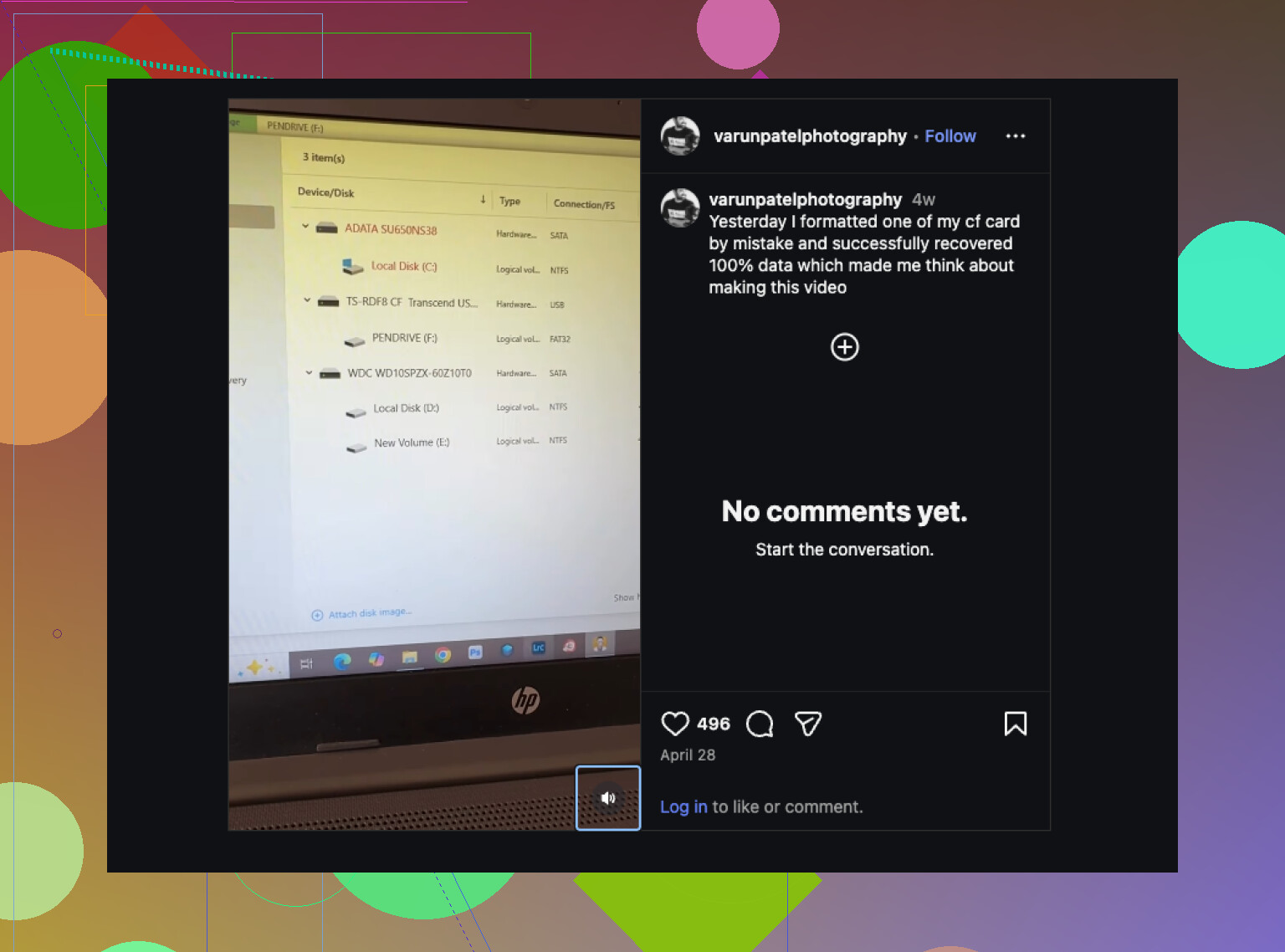
I’d add one thing @mikeappsreviewer and @viajantedoceu only touched on lightly: if these are work photos, make an image of the CF card first even if it seems readable. Not just for “safety”, but because some CF cards start degrading fast once they begin erroring out. A second full scan later can actually return fewer files. Learned that the annoyng way.
My take is a little different on software order too. I would not jump straight into a bunch of tools one after another unless the first pass is weak. Every extra read on a shaky card is still stress. Start with one solid pass, ideally on a card image, then only do a second tool if needed. For that, Disk Drill makes sense because it’s pretty good with photo recovery from CompactFlash cards and lets you preview recoverable files before dumping them somewhere else.
A couple practical checks people skip:
- Try a different reader and a different USB port
- Disable any auto-import/photo apps before reconnecting the card
- On Windows, check Event Viewer for disk/read errors
- On Mac, look in Console if the card keeps disconnecting
- If the card gets unusually hot, stop messng with it
Also, if the files “disappeared during transfer,” don’t ignore the destination drive either. Sometimes the card is fine and the import app/database is what got confused. Search by file extension on the computer first: CR2, CR3, NEF, ARW, JPG, DNG, whatever your camera uses.
If you need more reading, this is relevant:
CompactFlash card photo recovery tips and real user fixes
Short version: stop using the CF card, clone it if possible, scan the clone with Disk Drill, recover to another drive, then decide whether the card is trash. If the computer cannot consistently detect the card, skip DIY and go to a pro before it gets worse.

I’d check one thing first that the others only hinted at: whether the “missing” photos are actually on the computer already but the import app hid them. I’ve seen Lightroom, Photos, and vendor import tools choke mid-transfer, then leave files in a temp or dated folder while showing an incomplete import. Before touching the CF card more, search the destination drive by extension and by file size, not just filename.
If the files are really gone from the card view, I mostly agree with @viajantedoceu, @mike34, and @mikeappsreviewer, but I would skip CHKDSK or First Aid until recovery is finished and verified. Those tools can make a recoverable mess look cleaner while quietly sacrificing file references.
My order would be:
- Different reader, different cable/port.
- Check if the card reports the correct capacity.
- If stable, create an image of the CF card.
- Scan that image with Disk Drill first.
- Only if results are incomplete, use a signature-based tool after.
Disk Drill pros:
- good RAW photo support
- previews help filter junk
- cleaner recovery structure than many free tools
Disk Drill cons:
- not the cheapest option
- deep scans can be slow
- sometimes finds lots of duplicates/RAW fragments
One disagreement with the “try many tools fast” mindset: on a flaky CF card, too much rereading is not free. If the card disconnects, slows to a crawl, or throws I/O errors, stop DIY and send it to a lab. That is the line.