My pen drive suddenly stopped opening and now shows errors when I plug it in. It has important work documents and personal photos that I never backed up, and I’m trying to recover files from a corrupted USB drive without losing data. I need safe steps or software recommendations that won’t make the problem worse.
I’ve run into this more than once, and the first screen Windows throws at you usually looks worse than the situation is. I’ve had USB sticks show up as RAW, ask for formatting, or refuse to open, and I still pulled most of the files off them.
First thing, don’t hit Format. Don’t run repair stuff yet either. I know it’s tempting when Windows keeps pushing it. If the files matter, get the data off first. Fix the drive later. Doing it in the other order has burned people, me included.
What caused the mess matters. If this started after yanking the drive too fast, a transfer getting cut off, file system damage, malware, or some random software glitch, I’d still try recovery myself. If the USB plug is bent, the stick gets hot, drops connection every few seconds, never shows up at all, or the files are irreplaceable, I’d stop there and use a pro recovery shop. At that point, poking at it yourself is a gamble.
If the drive is still detected and you want the route I’d take, I’d start with Disk Drill.
The part I liked when dealing with corrupted USB media is simple. It doesn’t need Windows to read the file system cleanly first. Even when the drive looked broken from Explorer, Disk Drill still scanned the device and pulled data from underneath the damaged structure. In my tests, it did a better job than a few other tools at keeping folder names and layout intact. The preview option helped too, since I didn’t want to recover 40 GB of junk only to find half the files were dead.
The feature I’d use first is Byte-to-Byte Backup. This matters more than people think. A flaky USB drive often gets worse while you’re trying to save it. I’ve seen one work for an hour, then vanish on the next reconnect. If you make an image early, you work from the copy instead of hammering the original stick over and over.
This is the order I’d follow:
- Install Disk Drill on your computer. Don’t put it on the damaged USB.
- Plug in the corrupted USB drive.
- Open Disk Drill and go to Byte-to-Byte Backup.
- Select the USB drive and make a full image of it.
- After the image is done, mount or attach the image in Disk Drill.
- Scan the image for recoverable files.
- Preview what it finds, check if your files still open.
- Recover everything to a different drive.
Working from the image is the safer move here. Once the backup exists, the recovery job no longer depends on whether the original flash drive decides to behave for another ten minutes.
After the files are safe, then I’d mess with the USB itself:
- Run Windows Error Checking or CHKDSK.
- Give it a new drive letter if Windows is showing it wrong.
- Reinstall the USB drivers if detection is hit or miss.
- Format it, then copy over a few throwaway files and test it.
If corruption comes back after formatting, files vanish again, writes start failing, or the stick keeps acting weird in normal use, I’d retire it. Flash drives do wear out. Once one starts showing repeat failure signs, I stop trusting it. Learned tht one the annoying way.
18 Likes
If the pen drive still shows up in Disk Management, I’d try a safer first pass before repair tools. I agree with @mikeappsreviewer on one big point, do not format it first. I disagree a bit on CHKDSK as an early move though. On bad flash media, CHKDSK sometimes “fixes” the file system by removing entries you wanted to recover. Great for the drive, bad for your photos.
What I’d do:
- Test it on another USB port and another PC.
- Check Disk Management. If it shows a size close to normal, recovery odds are better.
- Use a read-only recovery tool first. Disk Drill is a solid pick here because it often reads corrupted USB drives even when Explorer throws errors.
- Recover files to your internal drive, never back to the pen drive.
- After recovery, wipe and reformat the USB. If errors return, bin it. No joke, flash drives fail quitely and then all at once.
If the drive connects, disconnects, shows 0 bytes, or gets hot, stop messing with it. That points more to hardware failure.
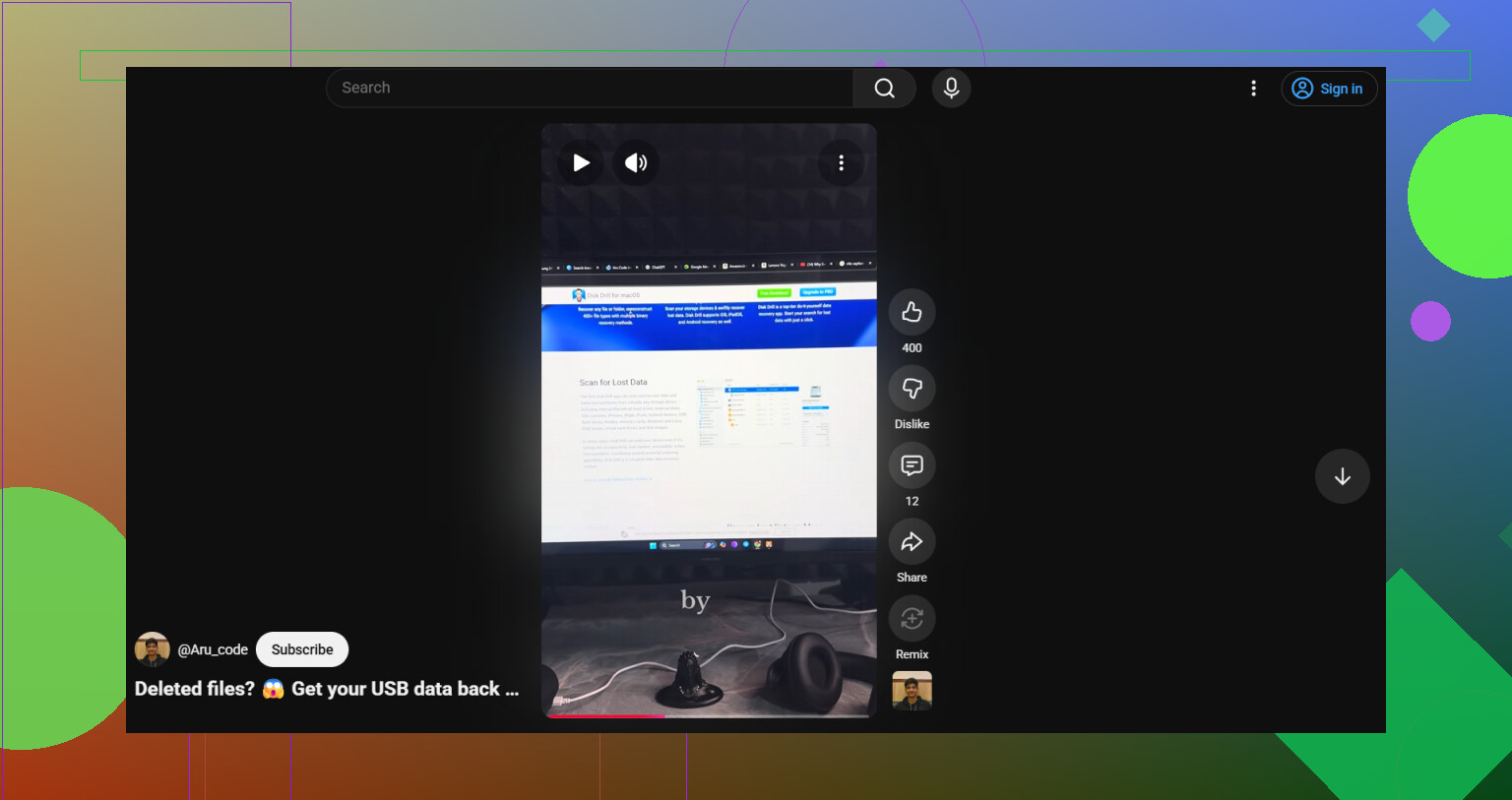
Also, this helps if you want a quick visual walkthrough:
USB pen drive data recovery video tutorial
One more thing people miss. If the stick appears as RAW, exFAT corruption is common after unsafe removal. Recovery still works often, but every extra write lowers your odds a bit.
I’d add one thing neither @mikeappsreviewer nor @reveurdenuit really leaned on enough: check whether the problem is actually the USB enclosure logic or just the partition info. A lot of people jump straight into scans, but if Windows sees the device with the wrong size, weird unallocated space, or no partition table at all, that tells you a lot before you spend hours clicking around.
What I’d do differently:
- Open Disk Management and look at:
- does it show the correct capacity?
- does it say RAW, Unallocated, or No Media?
- If it says No Media, software recovery probably won’t do much. That’s controller-level failure territory.
- If it shows the right size but broken partition info, chances are way better.
Also, I’m slightly against running too many reconnect tests. People always say “try it 10 times on 3 laptops” and yeah, sometimes that helps, but with a dying flash drive every mount can be the one that finishes it off. Two quick checks max, then move to recovery.
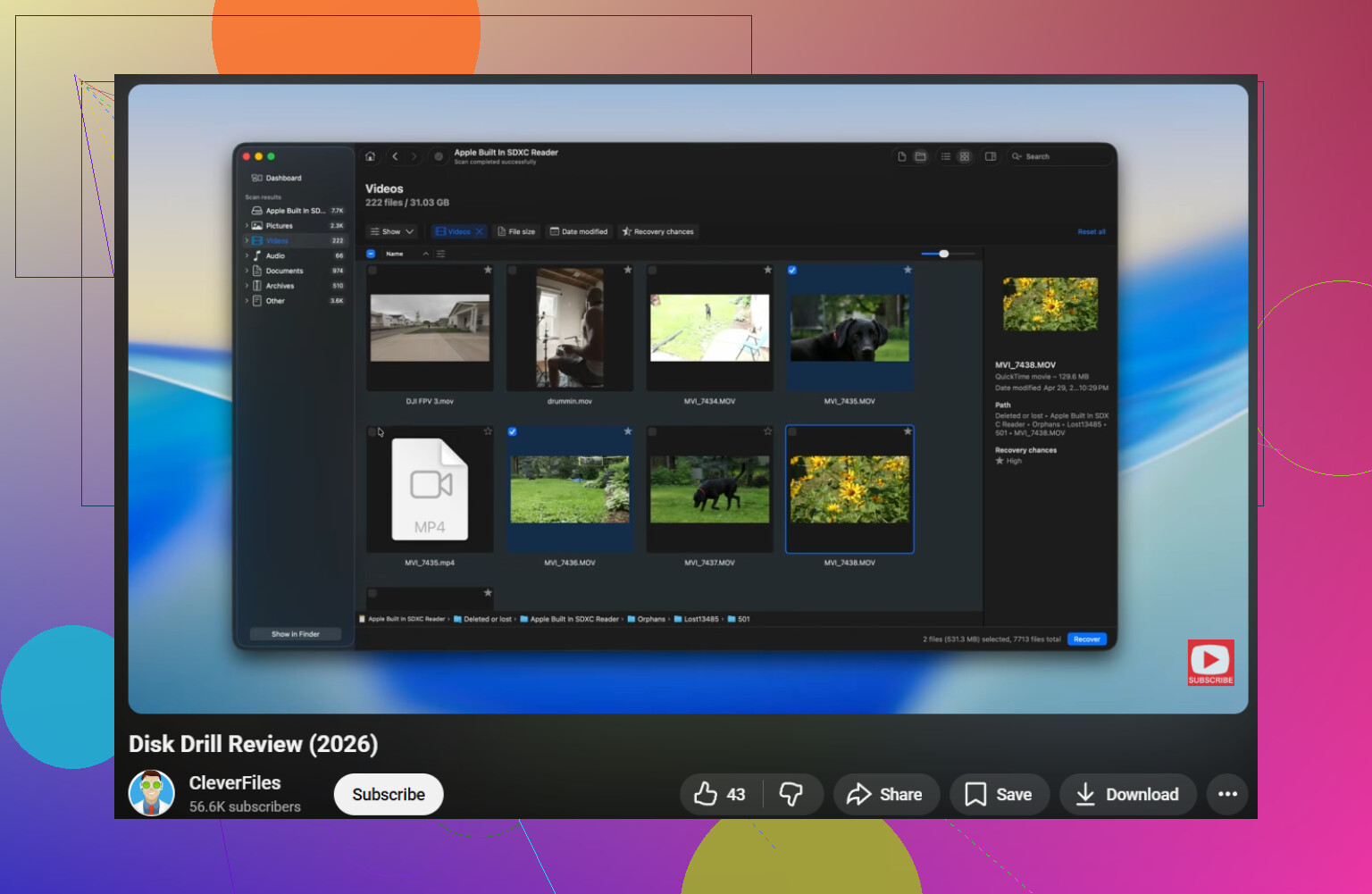
If the stick is readable enough to be detected, I’d use Disk Drill for the actual file recovery because it handles damaged USB file systems pretty well and lets you preview what’s salvageable before dumping piles of useless files onto your PC. If you want a cleaner overview of how it works, this Disk Drill data recovery walkthrough for corrupted USB drives is worth watching.
One more thing people forget: disable anything that might auto-write to the drive. Antivirus, indexing, even Windows “fixing” prompts. Tiny writes can matter on a failing pen drive.
If your files are truly irreplaceable, I’d honestly skip DIY the moment it starts clicking off, overheating, or showing 0 bytes. That’s where peopel turn a recoverable mess into a dead stick.
I’d split this into one key question that the others only touched lightly: is the corruption logical, or is the flash memory itself dying? @reveurdenuit, @kakeru, and @mikeappsreviewer are all right to avoid formatting first, but I’m a little less enthusiastic about doing too much testing before checking the drive’s behavior at a lower level.
A couple of things worth trying that are different from the usual scan-first advice:
- Check Event Viewer in Windows under System logs right after plugging it in. If you see repeated I/O or controller reset errors, that often means hardware instability, not just a messed up file system.
- On Linux, try
lsblkordmesgafter connecting it. Sometimes Linux mounts or at least identifies a USB stick that Windows refuses to open. - If the files are crucial, use a tool that can clone with retries and skip bad sectors intelligently before normal recovery. That can be safer than scanning the live stick directly.
If the drive still reports normal capacity and stays connected, then yes, Disk Drill is a reasonable choice for file recovery.
Pros of Disk Drill
- Good at pulling files from damaged or RAW USB drives
- Preview is useful so you can verify documents and photos before recovery
- Interface is easier than some forensic-style tools
- Can help preserve folder structure better than very basic recovery apps
Cons of Disk Drill
- Deep scans can return lots of renamed files with lost original paths
- Not magic if the controller is failing or the device shows 0 bytes
- Free recovery limits can be annoying depending on platform
- Heavy scans on a weak drive can still stress it if you skip imaging first
My slight disagreement with the general advice: if the pen drive disconnects randomly, I’d skip repeated consumer recovery attempts and go straight to creating an image or to a lab. At that stage, every extra read matters more than which app you use.