My iPhone storage is being eaten up by documents and data, but I don’t want to delete and reinstall all my apps because I could lose settings, downloads, or saved info. I’ve already cleared what I can and the storage still keeps growing. What’s the safest way to free up iPhone storage and reduce app documents and data without reinstalling apps?
I ran into the same mess on my iPhone. “Documents and Data” kept growing like junk in a drawer I had already cleaned. One week WhatsApp was sitting at a few GB, Photos still showed a huge footprint after I wiped my library, and the phone started dragging its feet on simple stuff.
Once storage gets too low, iPhones get weird fast. I saw apps hang on launch, the camera pause before taking a shot, and one older device even looped at startup for a bit. “Documents and Data” is a grab bag, not one clean category. It includes cache files, site data, app leftovers, saved media, login bits, and old downloads you forgot were there.
If your biggest storage hog is a messaging app, start there. WhatsApp is less annoying than most. Open WhatsApp, go to Settings, then Storage and Data, then Manage Storage. It lists large chats and big files so you can cut the worst stuff first. Messenger and Facebook are a pain on iPhone. iOS does not give you a proper cache wipe button for them. “Offload App” won’t fix the part you care about, because it keeps the data. What worked for me was deleting the app fully, then installing it again. Crude, yes. It dropped the storage use hard, from GB down to MB in one shot.
Photos is its own headache. I had one stretch where Photos still claimed around 10GB after I had already cleared the library and emptied Recently Deleted. A couple places are easy to miss. Check Shared Albums. Check My Photo Stream if your phone still shows it. Those items might not be obvious in the main library view, but they still eat space. I also found storage counts sometimes get stuck. A restart helped once. Another time I had to switch iCloud Photos off, wait, then turn it back on so iOS would rebuild the local cache. Not elegant, but it fixed the bad count.
For apps like YouTube, Netflix, and Apple TV, “Documents and Data” is often hidden download storage. I thought I had nothing saved offline, then found old downloads sitting inside the apps. You need to open each app and check its own downloads section. Also look at Settings, then iPhone Storage. Apple sorts apps by size there, which helps you stop guessing. Safari is one of the few places where iOS gives you a direct cleanup option. If you tap Safari, you can remove website data and sometimes get back a few hundred MB without much effort.
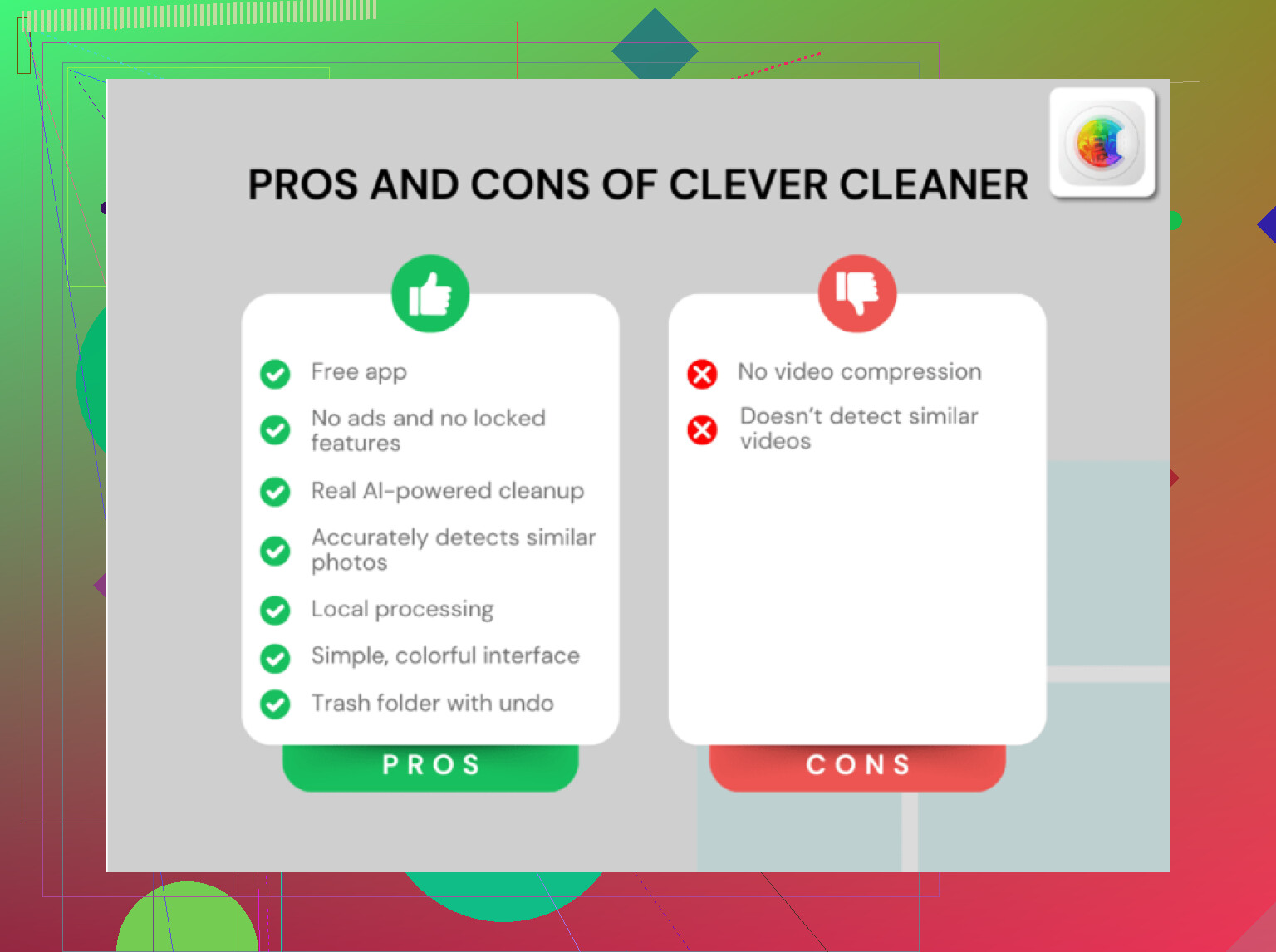
I spent way too long doing this by hand. Every month, same routine, same lag, same warning popups. At some point I tried a separate cleanup app because I was tired of digging through albums and app menus. The one I stuck with was Clever Cleaner.
What made it useful for me was how blunt it is. The Heavies section puts the biggest photos and videos in front of you first, so you’re not scrolling forever trying to find one giant 4K clip from six months ago. There’s also a Similars section, which groups near-duplicate shots. If your camera roll looks like mine did, ten versions of the same receipt, the same pet photo, the same plate of food, it saves a lot of time.
I also liked one specific detail. It processes stuff on the phone, not by sending your library off somewhere else. I’m picky about photo privacy, so I checked for that. It also shows file sizes more clearly than the stock Photos app did for me, which made deletions less blind and less risky.
After I cleared enough storage, the difference was obvious. Fewer freezes. No constant “Storage Almost Full” warnings. Video recording stopped failing at the worst time. If your phone feels slow and packed even after you’ve deleted things, I’d start with message apps, then Photos, then streaming downloads. If you use the cleaner, empty Recently Deleted again at the end or the freed space won’t fully come back. I missed that once. Annoying little step, but yeah, it matters.
8 Likes
Skip the reinstall route for now. A lot of “Documents and Data” bloat comes from sync caches, failed uploads, and old local files iOS keeps around.
Try this first.
-
Force a storage recalculation.
Restart the iPhone. Then check Settings, General, iPhone Storage after 5 to 10 minutes on Wi-Fi and power. iOS storage numbers get stuck more often than people admit. -
Turn off app Background App Refresh for the worst offenders.
Instagram, TikTok, Drive, Dropbox, podcast apps, mail apps. These keep building cache and temp files in the background. -
Change message history.
Settings, Apps, Messages, Keep Messages, set it to 1 Year or 30 Days if you’re okay with it. Old attachments are a huge hidden hog. -
Remove big attachments without deleting threads.
In iPhone Storage, open Messages, review Photos, Videos, GIFs, Stickers, Top Conversations. Delete by category. This saves way more than deleting random texts. -
Mail app is sneaky.
If Apple Mail storage is huge, remove and re-add the mail account. Not the whole app. This clears local mail cache while keeping the app and your setup. Kinda annoying, but it works. -
Files app.
Open Files, On My iPhone, Downloads, and app folders. Also empty Recently Deleted in Files. People miss this all the time. -
Voice Memos, Podcasts, GarageBand.
These store local media and project data outside the places most people check.
I slightly disagree with @mikeappsreviewer on offloading being useless. For some apps, offload plus reinstall from the App Store keeps your app data but replaces the binary, which sometimes trims junk. Not a magic fix, but worth trying before full deletion.
If photos are a big part of the mess, Clever Cleaner is one of the better options for finding large videos, duplicates, and similar shots fast. If you want a safety check first, this writeup on whether AI cleaner apps are safe and vetted by security researchers is a decent read.
Last thing, sync once. Plug into power, connect Wi-Fi, leave it locked for a bit. iOS does cleanup tasks in the background. Sounds dumb, but yup, sometiems it frees space on its own.

One thing I’d add to what @mikeappsreviewer and @viaggiatoresolare said: sometimes the problem is not the app cache itself, it’s iOS indexing junk after updates. Spotlight, Siri data, photo analysis, and log files can bloat storage reports and make “Documents & Data” look worse than it really is.
A few things to try that are diff than the usual delete/reinstall advice:
- Change the date/time setting to automatic if you ever turned it off. Sounds dumb, but stuck sync tasks can keep temp files around.
- Disable Siri for apps you barely use: Settings > Siri. Those app-specific learning files add up.
- Check downloaded voices: Settings > Accessibility > Spoken Content > Voices. Same for dictionaries and offline translation data.
- Remove old iOS update files if one is sitting there under iPhone Storage.
- If Safari is huge, also clear Reading List offline cache, not just website data.
- In Music, look for downloaded lossless tracks. Those are monsters.
I kinda disagree with the “just wait for iOS to fix itself” angle. Sometimes it does, sometimes it absolutely does not lol.
If your storage issue is mostly photos/videos, Clever Cleaner is actually useful because it targets the giant files and dupes fast without forcing you to nuke apps. If you want a better feel for how it works in real-world cleanup cases, check real Clever Cleaner app reviews from iPhone users.
Short version for SEO people and normal humans: iPhone Documents and Data storage usually grows from cached media, message attachments, offline downloads, sync leftovers, Safari data, and system indexing files. The fastest way to reduce Documents and Data on iPhone without reinstalling apps is to clear large attachments, remove offline content, delete duplicate photos and videos, and let iOS recalculate storage after cleanup.