I accidentally took several pictures on my iPhone with Live Photo turned on, and now I need to change them into regular photos before sharing and uploading them. I’m not sure how to remove the motion effect without losing image quality, so I need help with the easiest way to turn off Live Photo on existing pictures.
I hit the same mess a while back. I did not want to wipe my photo library. I only wanted the little motion clips gone from Live Photos. I looked around iOS first, thinking Apple had some obvious bulk switch for it. Nope. I never found one.
Figure out your end goal first
From what I saw, people usually mean one of two things when they say they want to remove Live Photos.
Option 1: Delete the Live Photos completely.
Option 2: Keep the image, ditch the motion part.
Those are different jobs, and the fix changes depending on which one you mean.
If you do not care about keeping the shots, the fast route is simple. Open the Live Photos album in Photos, select the ones you want gone, delete them, then empty Recently Deleted. If you skip the last part, your storage number will lag and it looks like nothing changed. I tripped over this once.
What I was trying to do
I wanted to keep every still image and lose the Live part.
I tried the manual route first. It works, sort of. You make still versions, then go back and clean out the original Live Photos. For a handful of pics, fine. For a few hundred, it's annoying fast. I got tired of it quick.
What ended up working for me
I switched to Clever Cleaner after I realized I had way too many Live Photos to handle one by one.
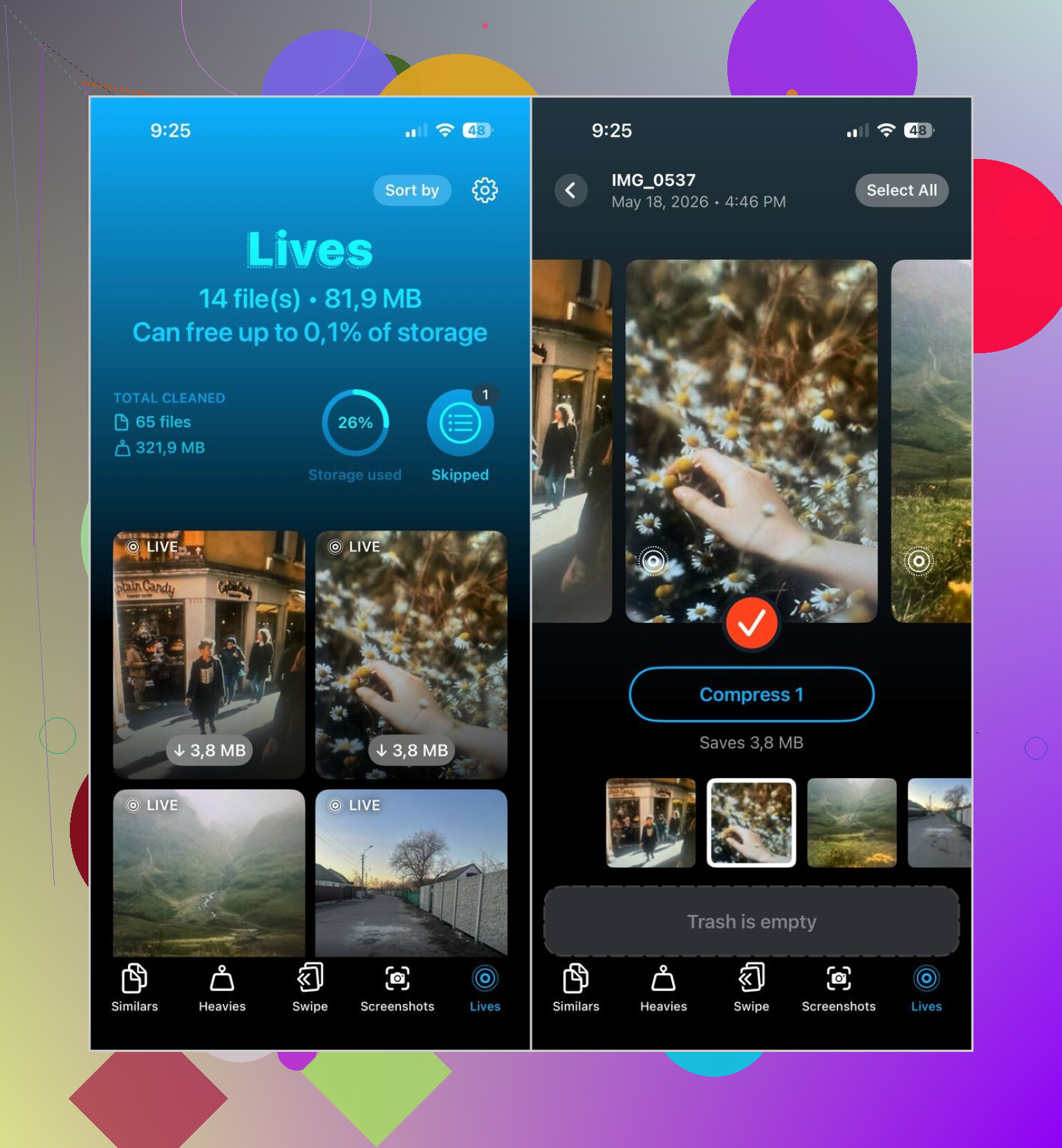
The part I liked was pretty plain. It separates Live Photos into their own group. I opened the app, tapped Lives, and there they all were. No scrolling through years of random camera roll junk, no guessing which photo had motion attached.
This was the flow I used:
- Open the Lives section
- Sort them by size or date
- Pick the ones you want to change
- Tap Compress
- Check the output
- Delete the original Live Photos if the still copies look right
The wording threw me off at first. The button says 'Compress,' but in practice it turned those Live Photos into regular still images, then let me decide whether to keep or remove the originals.
Stuff I did not plan to use, but did
I grabbed it for the Live Photo problem, then ended up cleaning other junk too.
Similars caught a pile of near-duplicate shots from trips, family dinners, and those accidental ten-photo bursts where every image looks the same unless you zoom in and squint.
Heavies was useful in a blunt way. It pushed the biggest videos to the top, and I found a few old recordings eating multiple gigabytes for no good reason.
Screenshots helped too. I cleared years of saved receipts, app bugs, shipping confirmations, and random junk I forgot I had. Took less time than I expected, tbh.
What I’d do in your spot
If you only have a small batch of Live Photos, I’d stay inside Apple’s Photos app and do it by hand.
If your library is packed with them and your goal is to keep the pictures while cutting the motion clips, I’d skip the manual grind. The Lives section in Clever Cleaner made the job way easier for me. Felt like a tool Photos should have had already.
18 Likes
You do not need to lose the photo.
Fastest built-in fix on iPhone:
- Open Photos.
- Tap the Live Photo.
- Tap Edit.
- Tap the LIVE icon at the top.
- Tap the LIVE icon again so it turns off.
- Tap Done.
That keeps the still image and removes the motion effect for that photo. It is the cleanest route if you only have a few.
If you need a copy for upload, there is another easy trick.
- Open the Live Photo.
- Tap Share.
- Choose Duplicate.
- Tap Duplicate as Still Photo.
This makes a regular photo copy and leaves the original Live Photo in place. I prefer this method more than the edit method, since you keep a backup if you change your mind later. Small thing, but it saves headaches.
I disagree a bit with @mikeappsreviewer on one point. For small batches, iOS is not bad at all. Apple hid the setting, but it works fine once you know where it is. The weak spot is bulk cleanup. Apple still makes that annoyng.
If you have tons of them, then Clever Cleaner makes more sense for sorting and cleaning your library faster. That fits better if your bigger goal is clearing iPhone storage and removing clutter. This short clip on how to clear iPhone storage effectively covers the cleanup angle pretty well.
Also, if you want to stop this from happening again, open Camera and tap the Live icon before shooting. If you want it off by default, go to Settings, Camera, Preserve Settings, then turn on Live Photo preservation. Then switch Live off in Camera once, and your phone should rember it.
One thing I’d add to what @mikeappsreviewer and @suenodelbosque said: if your problem is sharing or uploading, you do not always need to permanently convert anything in your library.
A lot of apps and sites strip the Live part automatically and only upload the still image anyway. So before you spend half an hour editing a bunch of pics, test-upload one. You might find the “problem” fixes itself. Apple makes this stuff weirdly inconsistant.
If a site/app keeps rejecting Live Photos, my lazy workaround is:
- open the photo
- tap Share
- save it to Files
- or send it to yourself in Mail/Messages
That usually generates a plain image version you can upload, without messing with the original in Photos. Kinda janky, but it works more often than it should.
I slightly disagree with @suenodelbosque on duplicating as still for every case. It’s safe, sure, but it can also create extra clutter fast if you already have a crowded library. If you’ve got a lot of these, duplicates become their own mini disaster.
That’s where something like Clever Cleaner is more practical, not just for deleting Live Photos with an app, but for turning Live Photos into regular pictures and cleaning up the extra junk after. If you want a decent overview, this article on how to turn Live Photos into regular photos and free up iPhone space explains the cleanup angle pretty well.
Short version:
- Few photos: use Photos app
- Lots of photos: use Clever Cleaner
- Just need to upload: test whether the app already converts them first
That last one saves a lotta time, honestly.