My iPhone suddenly said storage is almost full, and now a few apps are acting slow and my photos are not syncing correctly. I need help finding where to see how much storage I have left and what is using the most space so I can free up storage on my iPhone.
I kept running into the same “Storage Almost Full” alert, and after a while it started matching the phone’s behavior. Slow app launches. Random crashes. Even swiping between home screens felt off.
If you want the clearest view of what is eating space on your iPhone, start here:
Check storage on the iPhone itself
Open Settings, then General, then iPhone Storage.
This screen is the one I ended up using most. At the top, iOS shows a colored bar with categories like Apps, Photos, Media, and System Data. Under it, you’ll usually see a few suggestions, stuff like offloading unused apps or checking large attachments.
If you only want the short version, go to:
Settings > General > About
Scroll until you see Capacity and Available. That gives you the total size and what is left. If the Capacity number looks lower than what Apple sold you, don’t panic. iOS takes a chunk of storage for itself, often around 8GB to 10GB.
If the phone’s numbers look weird
I’ve seen the storage page lag behind real usage. Caches pile up, then iOS reports junk numbers for a bit.
Plug the phone into a computer if you want a steadier readout.
On Mac, use Finder.
On Windows, use the Apple Devices app or iTunes.
For me, this view was cleaner. Sometimes the sync step clears temp cache junk before the storage chart updates, so the result feels less messy.
Local storage and iCloud are not the same thing
This tripped up a lot of people I know.
Your iPhone storage is the physical space on the device. iCloud storage is separate. Having free iCloud space does not mean your phone has room left.
To check iCloud, open Settings, tap your name, then iCloud.
If photos are taking over your phone, look at your Photos settings and make sure Optimize iPhone Storage is turned on. When I enabled it, the phone kept smaller local versions while the full-resolution files stayed in iCloud. It helped more than I expected.
The usual storage hogs
Some of the worst space use comes from scattered junk, not one giant file.
System Data, which used to show up as Other, tends to swell. This includes caches, Siri voices, fonts, and leftover app data.
You should also inspect apps one by one:
Settings > General > iPhone Storage
Tap any app in the list. You’ll usually see App Size and Documents & Data broken out separately. I found this useful because the app itself was often small, while its stored junk was huge.
A few apps handle cleanup inside their own menus. Telegram and Netflix are the obvious ones. If you download media there, check those settings before deleting random stuff elsewhere.
Why a full iPhone feels slow
I ignored the warning longer than I should’ve. Bad move.
My phone got sluggish first. Then apps started falling over. At one point, even scrolling felt delayed. After clearing space, the difference was obvious.
Low free storage hits performance because iOS needs room for temporary files. Once that room shrinks too far, things get sticky fast.
What I used when manual cleanup got old
I tried the slow method first. Delete a few screenshots. Remove a couple videos. Repeat. It was miserable.
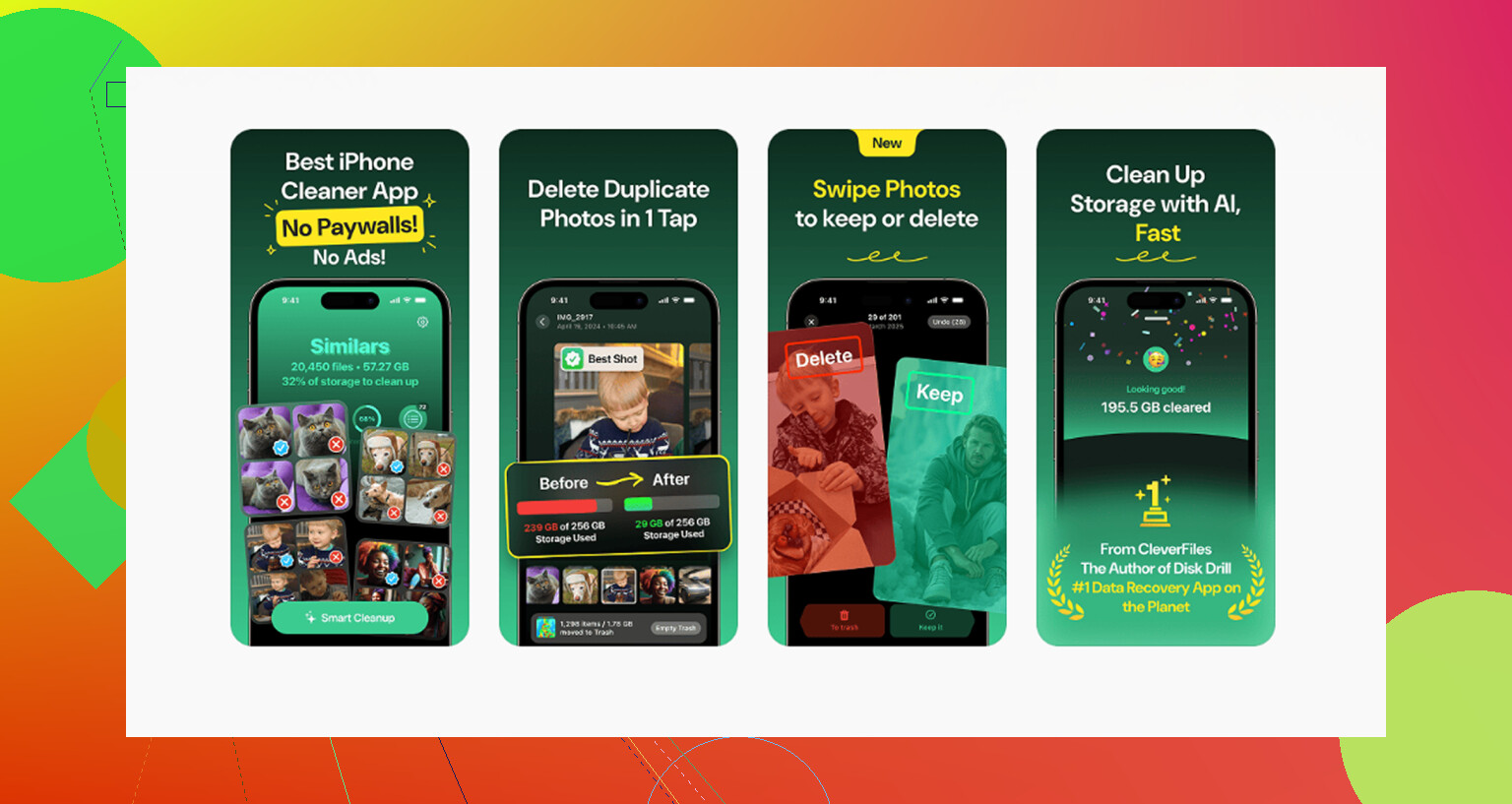
What worked better for me was Clever Cleaner.
I liked it for one simple reason. It didn’t waste my time with ads, trials, or hidden paywalls.
A few parts stood out:
Similar photo finder
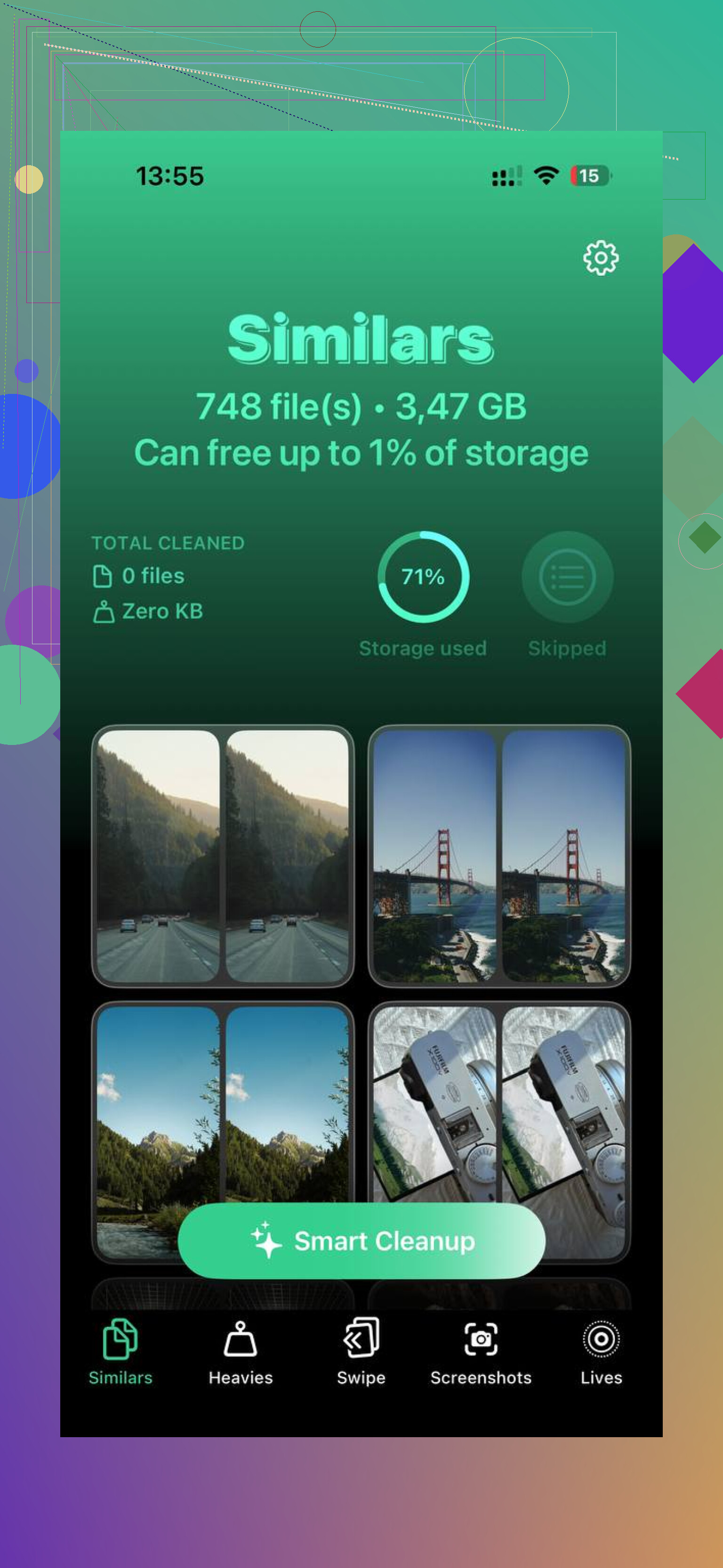
There’s a Similars tab which groups near-duplicate photos. I take too many repeat shots, same angle, same lighting, same bad decision. It caught a lot of those.
Large file sorting
The Heavies tab puts your biggest media near the top. That made it easy to spot giant videos I forgot were still sitting there.
Screenshot size visibility
It shows file sizes for screenshots too. Small thing, but useful. When you’ve got hundreds of old screenshots from receipts, maps, memes, and login codes, numbers help.
On-device processing
This mattered to me more than the cleanup itself. It processes on the phone, so your photos are not being pushed to some random server.
What I’d do first
If your iPhone keeps saying storage is almost full, I’d check these in order:
- Settings > General > iPhone Storage
- Look at Photos, Messages, and the biggest apps
- Check app-specific downloads in apps like Telegram or Netflix
- Confirm iCloud settings, especially Optimize iPhone Storage
- If the numbers look off, connect the phone to a Mac or PC for another view
After I cleared space, the lag dropped off fast. So if your phone feels older than it is, storage is one of the first things I’d look at. Not glamorous, no magic fix, but yeah, it worked for me.
7 Likes
Go to Settings, then Privacy & Security, then App Privacy Report. Kidding. Apple loves hiding the obvious.
Use these two spots:
Settings > General > iPhone Storage
This shows what is taking space. Wait 10 to 20 seconds. The list sorts itself after iOS finishes counting.
Settings > General > About
Look at Capacity and Available. That is your fast answer.
Small disagreement with @mikeappsreviewer. I would not bother with a computer first unless the storage page is frozen or blank. On the phone is faster and usualy enough.
What to check first:
- Photos
- Messages, large videos and attachments pile up fast
- Safari, website data grows
- Music, Podcasts, Netflix, Spotify downloads
- Files app, Downloads folder gets ignored a lot
Useful cleanup:
Settings > Safari > Clear History and Website Data
Messages > Edit or Filters > Recently Deleted
Photos > Albums > Duplicates
Files > Browse > On My iPhone > Downloads
If Photos is not syncing, free up at least 5GB to 10GB. iPhones get weird when storage is too low. Mine stopped saving screen recordings once, which was fun.
If you want an app for bulk cleanup, Clever Cleaner is worth a look. This review explains why many people rate it highly as a free iPhone cleaner app: see why Clever Cleaner stands out as a truly free iPhone cleaner app
Skip the panic button and check one thing Apple weirdly makes less obvious than it should be:
Settings > General > About > Available
That tells you how much space is left right now.
If you want to see what’s actually eating it, go here:
Settings > Apps > iPhone Storage
or on some iOS versions:
Settings > General > iPhone Storage
Tiny disagreement with @mikeappsreviewer and @nachtschatten: I don’t think clearing Safari data should be one of the first moves unless you’re really desperate. Usually the real culprits are videos, photo libraries, Messages attachments, and offline downloads.
Stuff I’d check that people forget:
- Voice Memos with long recordings
- GarageBand/iMovie project files
- WhatsApp/Signal media storage
- Books or PDF files saved offline
- Mail app with huge attachments
- Recently Deleted in Photos, Files, and Notes
Also, if Photos isn’t syncing, low storage can absolutely cause that. iPhone likes having breathing room. I’d try to keep at least 10GB free if possible, not just 1 or 2GB hanging on for dear life.
One more thing people miss: restart the phone after deleting a bunch of stuff. Sounds dumb, but iOS sometmes recalculates storage better after a reboot.
If you want faster cleanup instead of digging through 20 menus, Clever Cleaner is actually useful for finding duplicate pics, large videos, and junked-up photo libraries. If you want a solid outside look at it, this write-up is pretty easy to skim: see this Clever Cleaner iPhone storage cleanup review.
If the storage graph looks stuck or wildly wrong, then yeah, I’d do what @mikeappsreviewer mentioned and check again after a sync or a restart. Apple’s storage math is not always… inspiring confidence.