My old iPad has gotten really slow, and I just realized the storage is completely full. Apps take forever to open, updates will not install, and even basic browsing freezes up. I need help figuring out the best way to free up space and speed it up without losing important photos or apps.
I ran into this on an older iPad too. Mine got so slow I noticed lag from one home screen page to the next. Simple stuff, Safari tabs, YouTube, app switching, all of it felt off. Before replacing it, I tried the boring fixes first, and a few of them helped more than I expected.
About the restart thing, yes, I’d do it. I used to ignore that advice because it sounded like lazy support-script stuff. Turned out it helped. A full reboot clears temporary memory and shuts down stuck background tasks. If your iPad has been sleeping for days or weeks, a restart often makes the interface feel less sticky right away. I started doing it about once a month. Not magic, still worth doing.
The bigger issue, from what I saw, was usually storage. When an iPad gets packed close to full, performance drops. Home screen lag, slow app launches, browser hiccups, weird pauses, all of it gets worse. Apple says you should keep some free space available, but I noticed slowdown before hitting the absolute limit. If your storage is sitting around 90 to 95 percent used, I’d look there first.
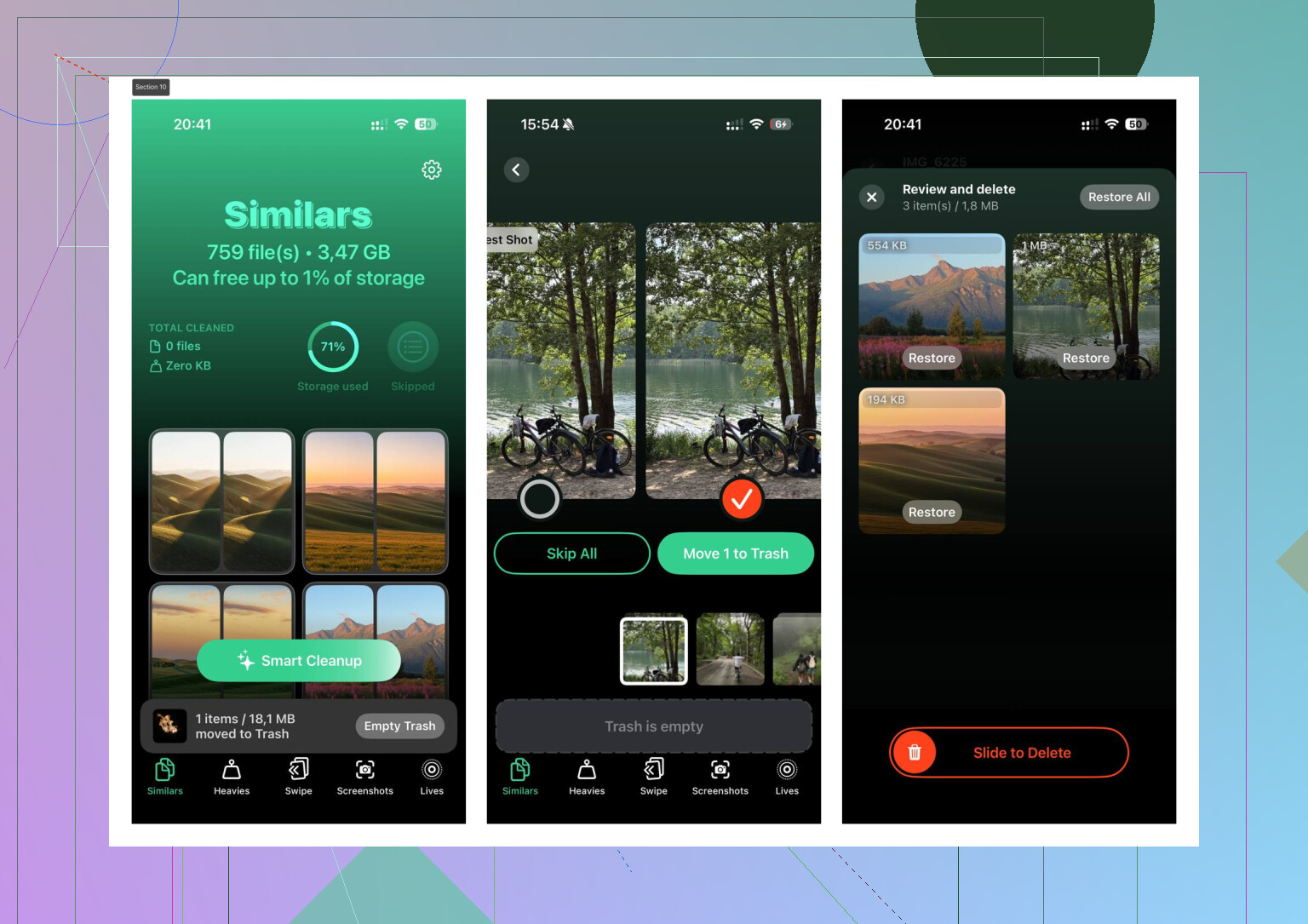
I got tired of deleting stuff by hand in Photos, so I used Clever Cleaner. What made me keep it was the simple part, it didn’t hit me with ads or a paywall two taps in. I mostly used the Heavies section to sort videos and photos by size. Deleting a few giant clips freed up gigabytes fast. The Similars section also helped me catch duplicate-looking shots and accidental bursts. It shows file sizes clearly, which matters when you’re trying to clear space without guessing. From what I saw, processing stayed on-device, so I felt better about using it with personal photos. After clearing around 10GB, my iPad felt less bogged down. Not brand new, but better. enough better to notice.
If freeing space doesn’t solve it, I’d go through a few settings next. No major iOS update needed.
- Reduce Motion
Open Settings > Accessibility > Motion, then switch on Reduce Motion. This cuts down the animated zoom effects and replaces them with simpler transitions. On older hardware, the whole UI often feels quicker after this. - Background App Refresh
Go to Settings > General > Background App Refresh and turn it off, or at least trim it down hard. A pile of apps checking for updates in the background eats resources for no good reason if you barely use them. - Safari cleanup
If browsing feels slow, open Settings > Safari, then tap Clear History and Website Data. Safari collects a lot of junk over time, and clearing it fixed random slowdowns for me more than once.
I’d also check Battery Health if your iPad supports showing it, or use Apple support diagnostics if it doesn’t. Once battery condition drops far enough, performance sometimes gets limited to keep the device stable. If the battery is worn out, software tweaks only go so far. I fought this for months on one device and the battery was the real problem.
Last step, if nothing else changes anything, is the Factory Reset. It’s the annoying option, but it works more often than people think. Back up your stuff first, wipe the iPad, set it up clean, and test it before reinstalling every app you had before. Years of leftover junk do add up. I wouldn’t write the tablet off until you’ve tried the cleanup route first.
6 Likes
Full storage is the main problem. iPadOS needs free working space for updates, cache, and temp files. When you hit 0 GB free, the whole thing slows down.
I agree with @mikeappsreviewer on clearing space first. I disagree a bit on factory reset being the next big move. On old iPads, I’d do a targeted cleanup before wiping everything.
Try this order:
-
Check what is eating storage.
Settings, General, iPad Storage.
Wait for the bar chart to load.
Look for the top 3 space hogs. -
Offload unused apps.
This removes the app, keeps its data.
Fast way to free 1 to 5 GB if you have old games or streaming apps. -
Delete downloaded media first.
Netflix downloads, YouTube offline files, Spotify, Podcasts.
These are high-impact deletions. -
Messages is often a hidden mess.
Settings, General, iPad Storage, Messages.
Review large attachments.
Old videos in message threads pile up fast. -
Photos cleanup.
If your library is the issue, Clever Cleaner is worth a look for sorting large files and duplicate shots faster than doing it by hand. I’d start with giant videos, screen recordings, and bursts. This kind of Clever Cleaner review for freeing up iPhone and iPad storage gives a decent quick look at how people use it. -
Stop apps from hoarding data.
Some apps, Reddit, TikTok, Instagram, Safari, keep large caches.
If an app shows huge size but small documents matter to you less, delete and reinstall it. This often cuts gigabytes. -
Leave free space after cleanup.
Aim for at least 5 GB free.
On a 32 GB iPad, I’d try to keep 15 to 20 percent open if possble.
If the iPad is still slow after you free 5 to 10 GB, then age is the issue too. Older chips and low RAM hit a wall. At tht point, wipe and restore is worth trying. But I would not start there.
0 GB free is basically iPadOS choking on itself. @mikeappsreviewer and @techchizkid covered the obvious cleanup path, but I’d add one thing people skip: stop treating the iPad like permanent storage.
What usually helps most on old iPads:
- Turn on Offload Unused Apps in Settings > App Store
- Set Messages to keep messages for 1 year or 30 days, not forever
- In Photos, enable Optimize iPad Storage if you use iCloud Photos
- Remove old mail accounts or set Mail to sync fewer messages
- Delete big PDF/video files sitting in Files app or Downloads folder
- Remove old widget stacks. Some older iPads get weirdly laggy with too many widgets
I kinda disagree with going straight to battery paranoia unless the iPad shuts down a lot. Full storage alone can make it feel absolutley awful.
Also, after deleting stuff, empty Recently Deleted in Photos and Files. People forget that and wonder why storage didn’t come back lol.
If photo clutter is the main issue, Clever Cleaner is a decent shortcut for sorting large videos, duplicates, and similar shots without digging forever. This Clever Cleaner review for smarter iPhone and iPad storage cleanup gives a quick idea of how it works.
My honest target: free up at least 5 to 8 GB, then test again before doing anything drastic. If it’s still crawling after that, the iPad may just be old enough that the hardware is the bottleneck.
I’m with @techchizkid and @boswandelaar on one thing: free space matters more than people think. But I’m a little less sold on tweaking lots of settings first. On really old iPads, extra features are usually not the main problem. Two things often are: indexing and failing flash storage.
What I’d do that hasn’t been stressed enough:
- Plug it in overnight on Wi‑Fi after cleanup. If the iPad has been full forever, Photos, Spotlight, and system housekeeping can stay behind. It may feel slow for hours even after you delete stuff.
- Check Analytics for repeated crashes: Settings > Privacy & Security > Analytics & Improvements > Analytics Data. If you see the same app or process spamming logs, that can drag performance down.
- Turn off low power workarounds like dozens of Safari tabs, split view habits, and picture-in-picture. Older iPads choke on multitasking more than people admit.
- If you use iCloud Drive, let Files finish syncing before judging speed.
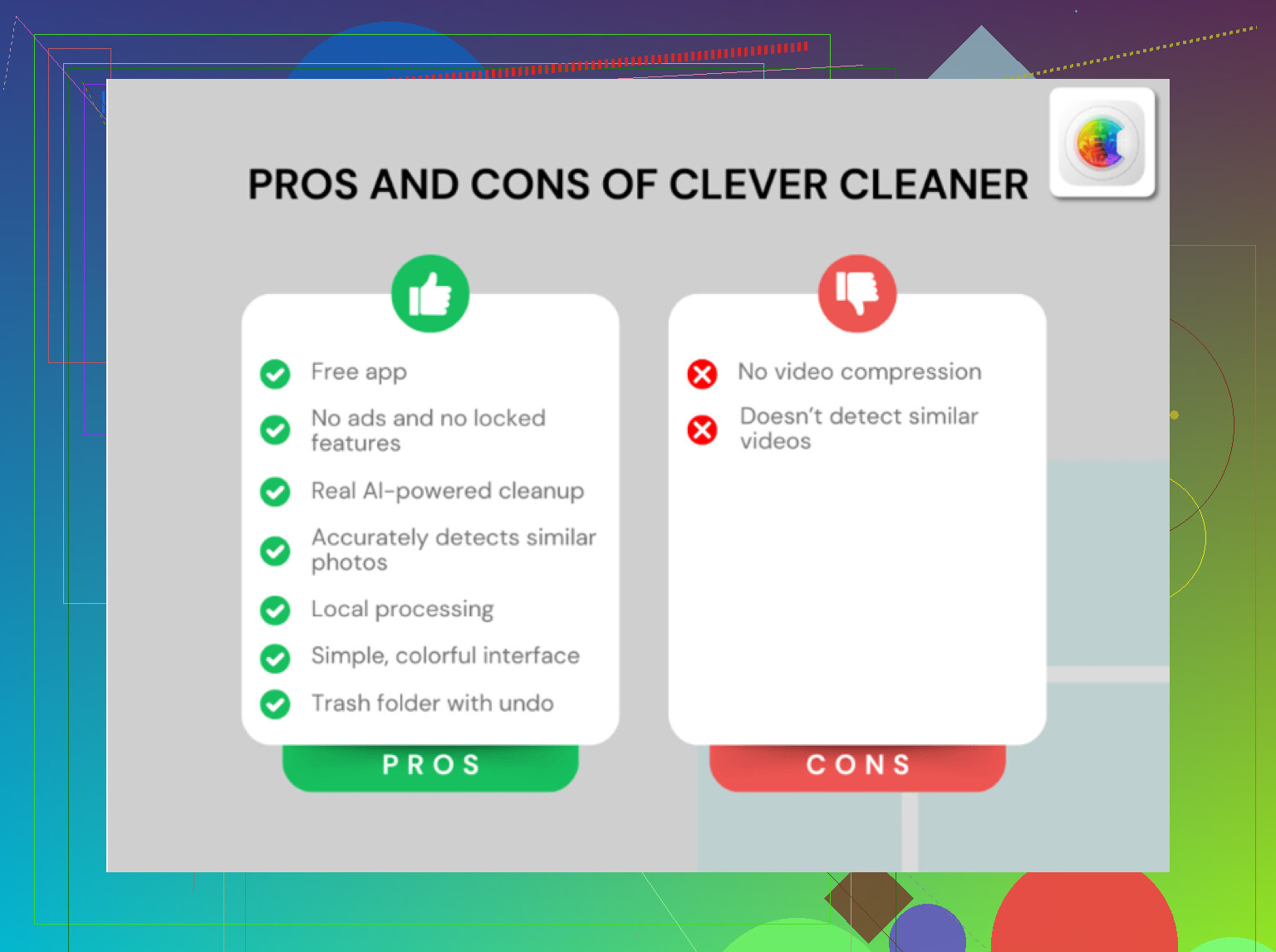
About Clever Cleaner: decent if Photos is the real storage hog.
Pros:
- quick way to find huge videos and duplicates
- easier than manual photo cleanup
- useful on cramped 32 GB and 64 GB devices
Cons:
- mostly helps if your clutter is photo/video based
- you still need to review before deleting
- won’t fix aging RAM or battery-related lag by itself
I’d still say the best test is this: get 8 to 10 GB free, reboot, leave it charging overnight, then try again the next day. If it’s still awful, @mikeappsreviewer is probably right that a clean restore is the next real step. If even that barely helps, the hardware is just at its limit.