My old iPhone has started freezing every few minutes, especially when opening apps or typing. I’ve tried restarting it, but it still runs slow and locks up. I need help figuring out the best ways to speed up an old iPhone without losing important data.
A lot of people jump straight to restarting the phone or wiping it, but that usually doesn’t fix the real reason an older iPhone feels slow. Start with the stuff that actually affects performance.
Check the battery first
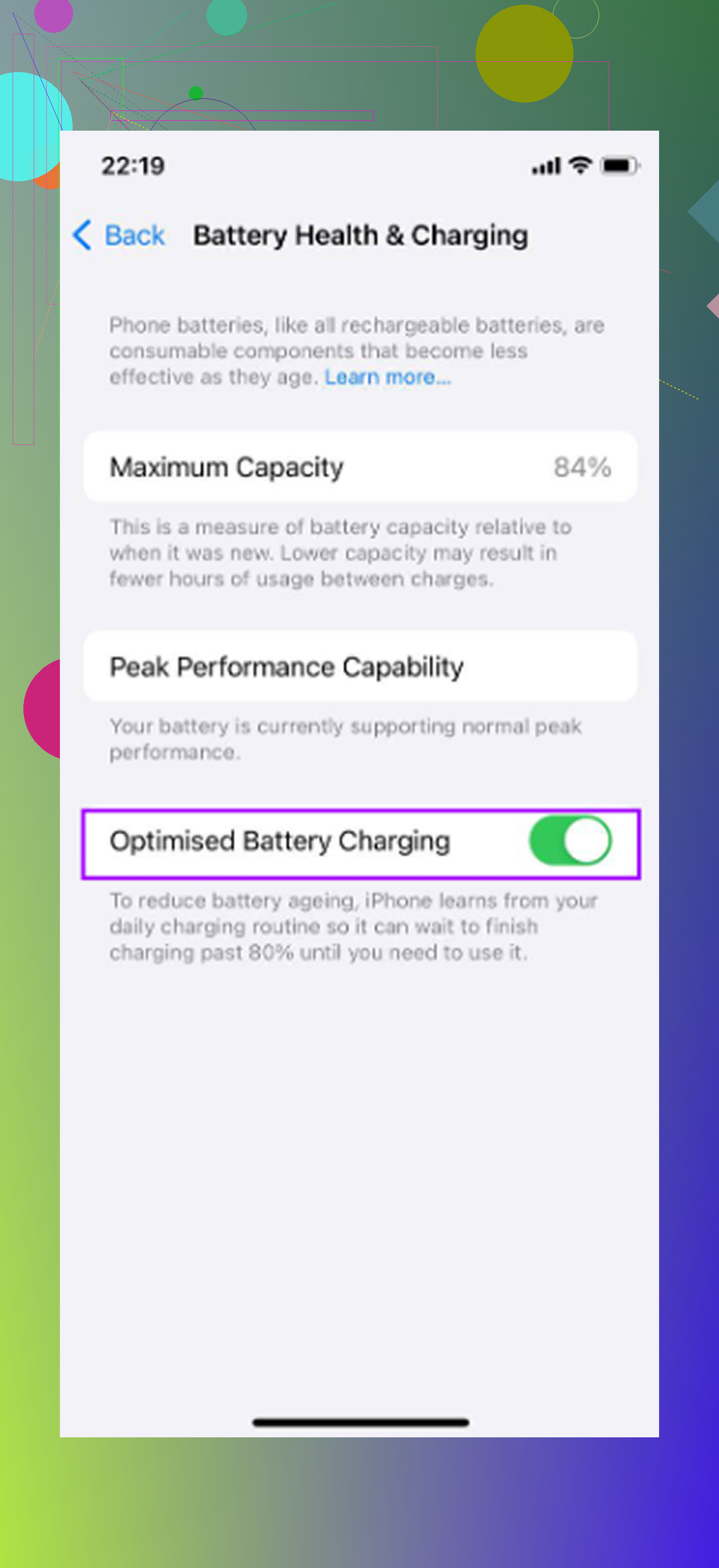
Before changing settings, go to Settings - Battery - Battery Health and Charging.
If Maximum Capacity is under 80 percent, that’s probably the main issue. iOS can slow the CPU on degraded batteries so the phone doesn’t randomly shut off. At that point, cleaning storage or turning off animations is secondary. Replacing the battery is usually way cheaper than buying a new phone, and it can make a bigger difference than any software tweak.
If the battery is still above 80 percent, then look at the rest.
Turn on Reduce Motion
Go to Settings - Accessibility - Motion, then enable Reduce Motion.
This gets rid of the zoom-style animations when apps open and close, replacing them with simpler fades. On older iPhones, those animations can make the whole phone feel heavier than it needs to. This is one of the quickest changes where the phone can feel snappier right away.
Disable Background App Refresh
Go to Settings - General - Background App Refresh and turn it off.
Apps with this enabled can keep checking for updates, loading new content, and using CPU in the background. Newer phones handle that pretty well. Older chips don’t have as much room to spare, so background activity can make the app you’re actually using feel slower.
Reduce Transparency, but don’t leave Low Power Mode on all the time
Go to Settings - Accessibility - Display and Text Size, then turn on Reduce Transparency.
The blurred glass effects in iOS still take graphics processing. Removing them lightens the load a bit, especially on older hardware.
Also, don’t run Low Power Mode permanently if speed matters more than battery life. It intentionally limits performance to save power.
Storage matters more than people think
This is the part that gets missed a lot. iOS needs free storage for caching, indexing, temporary files, and general system work. Once an older iPhone gets past roughly 85 percent full, it can run out of breathing room.
That’s when you start seeing stuff like slow app launches, laggy camera opening, delayed typing, and random sluggishness that seems to get worse over time. Accessibility settings can help, but if storage is almost full, the lag is going to come back.
The cleanup that actually frees space
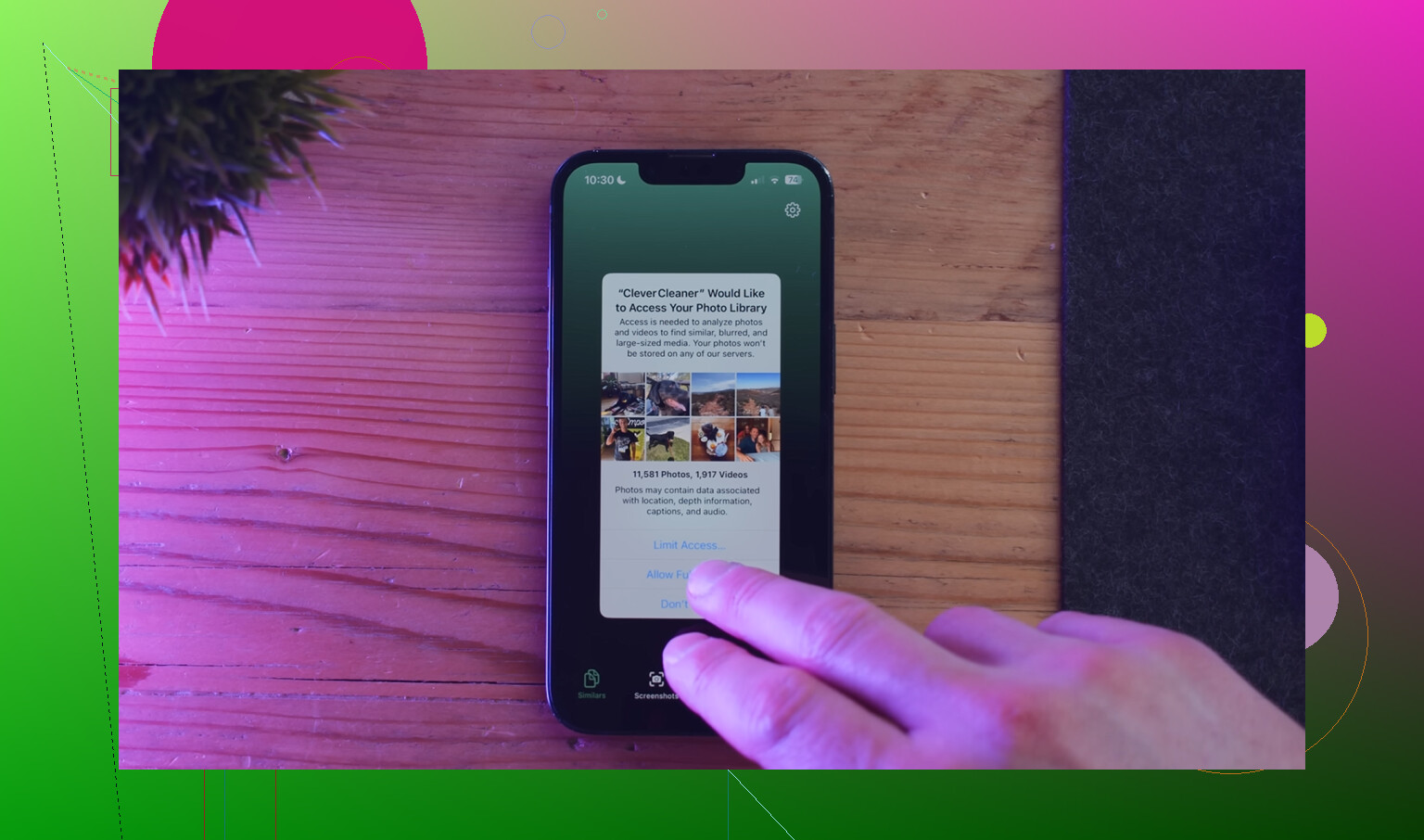
Manually digging through thousands of photos is miserable. Clever Cleaner makes the photo cleanup part a lot easier, and it’s free with no ads or subscription.
The parts that matter most:
-
Heavies tab
This sorts files from biggest to smallest and shows the exact size. Old screen recordings and 4K videos usually show up right away, and deleting just a few of those can free more space than deleting hundreds of normal photos. -
Similars tab
It finds near-duplicate photos and groups them together. Things like burst shots, repeated attempts, and slightly different angles are much easier to clear without checking every image one by one. -
Screenshots tab
It shows the size of each screenshot before deleting anything, which makes it easier to decide what’s worth removing. -
On-device processing
The cleanup runs on the phone, so the library isn’t being uploaded somewhere else.
The best order is simple: battery health first, performance settings second, storage cleanup third.
After deleting photos or videos, make sure to empty Recently Deleted in Photos too. Otherwise, the storage won’t actually show as freed.
Each step fixes a different bottleneck. Battery replacement deals with throttling. Settings changes reduce extra processing. Storage cleanup gives iOS room to work again. Put together, those changes can make an older iPhone feel much closer to how it used to without doing a factory reset.
9 Likes
Don’t wipe the phone until you’ve checked whether one app is causing the freezes. If it locks up mostly while typing or opening the same few apps, delete and reinstall those apps first, because a bloated cache or bad app update can make an old iPhone feel like the whole system is dying.
Stop treating freezes like normal slowness. If the phone is locking up every few minutes, make a fresh iCloud or computer backup before you start deleting a bunch of stuff, because that can be a sign of storage corruption, a dying battery, or the phone struggling with a newer iOS version. After the backup, try Settings > General > Transfer or Reset iPhone > Reset > Reset All Settings. That keeps your data but clears messed-up system preferences, network settings, keyboard lag weirdness, and other junk that can cause stutters. If it still freezes after that and you already checked battery/storage like the others said, I’d stop spending hours tweaking it and either do a full restore or price out a battery replacement versus replacing the phone.
Watch out for updating iOS on hardware that’s already struggling. Once you install a newer version on an old phone, Apple doesn’t let you roll back after they stop signing the old one, and a lot of ‘my phone freezes every few minutes’ complaints start right after a major update the chip wasn’t really built for. So before anyone tells you to update to fix it, check what model you have and whether the version you’re on is the problem, not the cure.
The freeze pattern you described actually tells you something. Locking up specifically while typing and opening apps usually points at the phone stalling on disk writes, which lines up with what @mikeappsreviewer said about storage headroom. When the drive is nearly full, iOS is constantly shuffling temp files around and the keyboard predictive stuff has nowhere to breathe. That’s why it feels worst in the exact moments you mentioned.
@ombrasilente is right that a fresh backup comes first, no argument there. But I’d be careful treating Reset All Settings as a real fix for freezing. It clears preferences and network junk, which is fine, but it doesn’t touch storage pressure or a worn battery, so if either of those is the cause you’ll do the reset, feel a placebo bump for a day, and land right back here.
On the cleanup part, the tool mentioned above is fine for the annoying job of finding big videos and duplicate photos fast, and free with no upload is a reasonable trade. Just don’t expect deleting photos to fix freezing on its own. If your storage is only 60 percent full, photo cleanup isn’t your problem and you’re wasting an afternoon.
Honestly, my rule for an old iPhone that locks up every few minutes: check battery health and free space first, and if battery is under 80 percent, stop tweaking settings and just price a battery swap. On a phone that old it’s the cheapest thing that actually changes how it feels, and everything else is a rounding error next to a throttled CPU.