I’m trying to clean up storage on my iPhone and keep only my favorited photos. I don’t see an easy way in the Apple Photos app to select or delete all non-favorite photos at once. Is there a built-in option or a safe workaround that won’t remove my favorites?
Yeah, this is one of those things that feels like it should have a simple Apple button, and somehow it doesn’t. The main thing to understand first: iCloud Photos is syncing, not a separate backup box. So if you delete something from the phone while iCloud Photos is on, it can disappear from iCloud too. Your favorites are safe only if you don’t delete them. Before doing anything big, make sure the heart icons are really filled in.
The cleanest way to do it inside Apple Photos is to temporarily hide the favorites, delete everything else, then unhide them again. It’s clunky, but it avoids needing another app.
- Open the Favorites album.
- Tap Select, then Select All.
- Use the three-dot menu or share menu, depending on your iOS version, and choose Hide.
- Now go back to Library or Recents. Your favorites should be gone from that view because they’re in the Hidden album.
- Tap Select, start with the last photo, then keep your finger down and drag/tap toward the top to select the rest faster.
- Delete the selected items.
- Go to Albums, find Hidden under Utilities, select everything there, and choose Unhide.
There’s also a more awkward backup method: duplicate all your favorites first. The duplicates should show up at the end of the camera roll, so you can delete everything before them. I’d only do that if the Hidden Album method makes you nervous, since it adds another chance to confuse yourself.
The bigger issue is storage pressure. When an iPhone is basically full, Photos can get weird fast. Batch deletes hang, the app crashes, and Settings may not update the storage number right away. If you’re sitting at something like 127.9GB used out of 128GB, the phone may not have enough room to process the cleanup smoothly.
That’s where the regular Photos app gets annoying. It doesn’t show you file sizes, so you might spend ten minutes deleting small images while one old 4K video is sitting there taking up way more space.
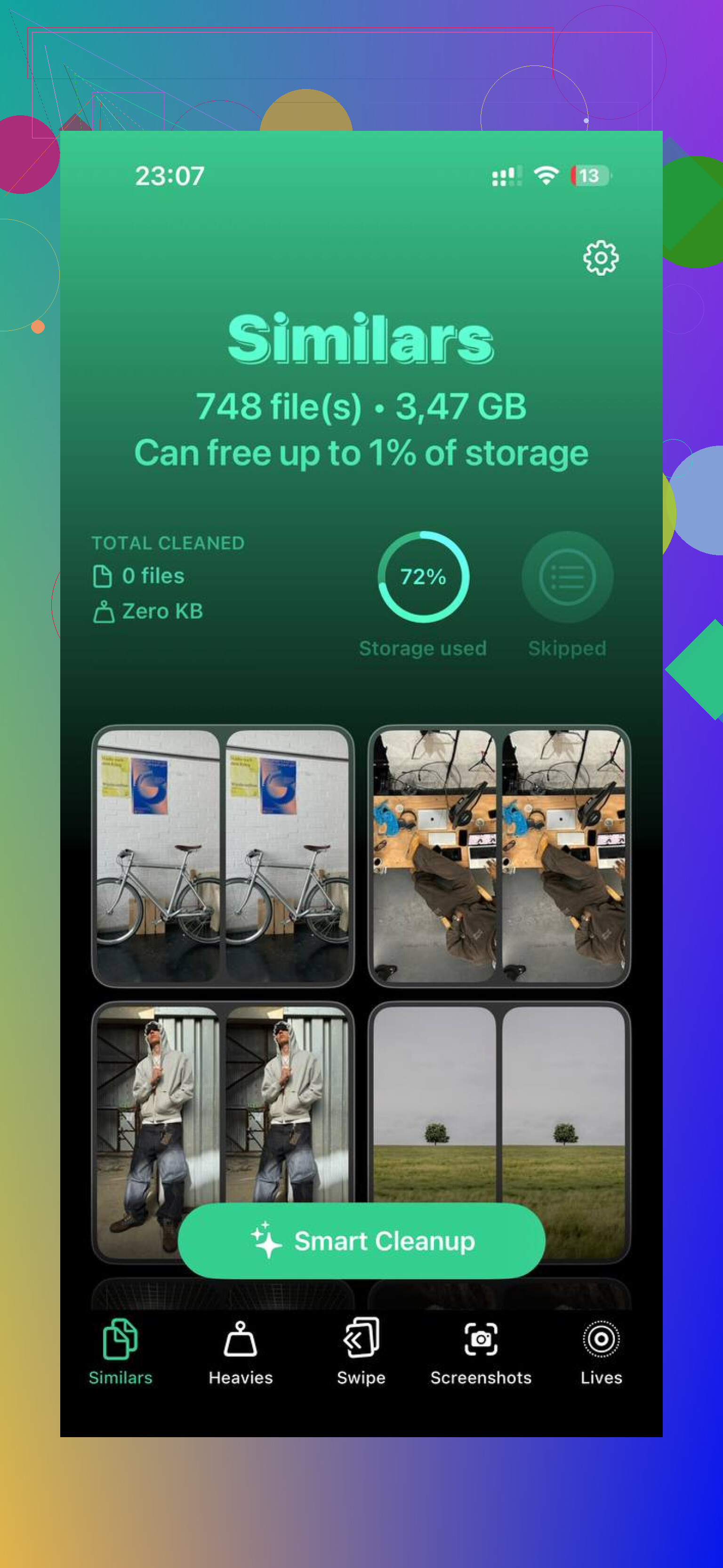
I ended up using Clever Cleaner for that part. I’m usually skeptical of cleaner apps because a lot of them are subscription traps, but this one was free, without paywalls or ads. The useful part was the Heavies section, which sorts the library by file size. That makes it much easier to delete a few huge screen recordings or video exports instead of trying to select thousands of random photos.
The Similars tab is also handy if you have a bunch of near-duplicate shots from taking the same photo several times. You can keep the best one and remove the extras. The Screenshots area shows file sizes right on the thumbnails too, which helps because you’re not guessing. It also runs on-device, so your photos aren’t being uploaded somewhere just to sort them.
Once you delete enough big stuff to give iOS some breathing room, the phone usually stops choking on every action. After that, the built-in Photos app becomes much less painful to use.
Don’t forget the last step: deleted photos still sit in Recently Deleted for 30 days. Go to Albums, scroll to Recently Deleted, and use Delete All if you want the space back now. If the storage number still doesn’t move, restart the phone. Sometimes iOS takes a reboot before it shows the freed-up space correctly.
13 Likes
Don’t try to “clean” this by deleting photos from random albums, because albums are just views, not separate storage containers.
@mikeappsreviewer’s hide-the-favorites trick is probably the closest you’ll get inside Apple Photos, since iOS still doesn’t have a simple “select all except Favorites” button. If you have a Mac, though, it’s less painful there because Photos lets you make a Smart Album for photos that are not favorites, then review/delete from a bigger screen.
Don’t empty Recently Deleted until you have checked the Favorites album again and maybe made a separate backup of those keepers somewhere outside Photos. The heart is just a label on the original item, not a protected copy, so one accidentally unfavorited photo gets swept up with the rest. Inside the iPhone Photos app there still isn’t a clean “delete everything except favorites” command, so the hide-favorites workaround is about as close as it gets without using a Mac or another app. I’d do it in smaller batches, especially if iCloud Photos is on, then verify on iCloud.com or another synced device before permanently deleting. The slow part is annoying, but it is safer than discovering later that your “favorites only” set was missing a few things.
No, filtering Favorites is not the same as protecting them from deletion. The iPhone Photos app can show Favorites, hide selected photos, and delete selected photos, but it still doesn’t give you a proper “select everything that is not favorited” command. So if you mean literally inside Photos with one safe built-in option, the answer is basically no.
I’d be a little less casual about the hide-favorites method than some people are. It can work, but remember that Hidden is its own locked collection and can be turned off from showing in Photos, so it’s easy to scare yourself into thinking the photos disappeared if you forget what you did. If you use that method, unhide the favorites before you start emptying Recently Deleted.
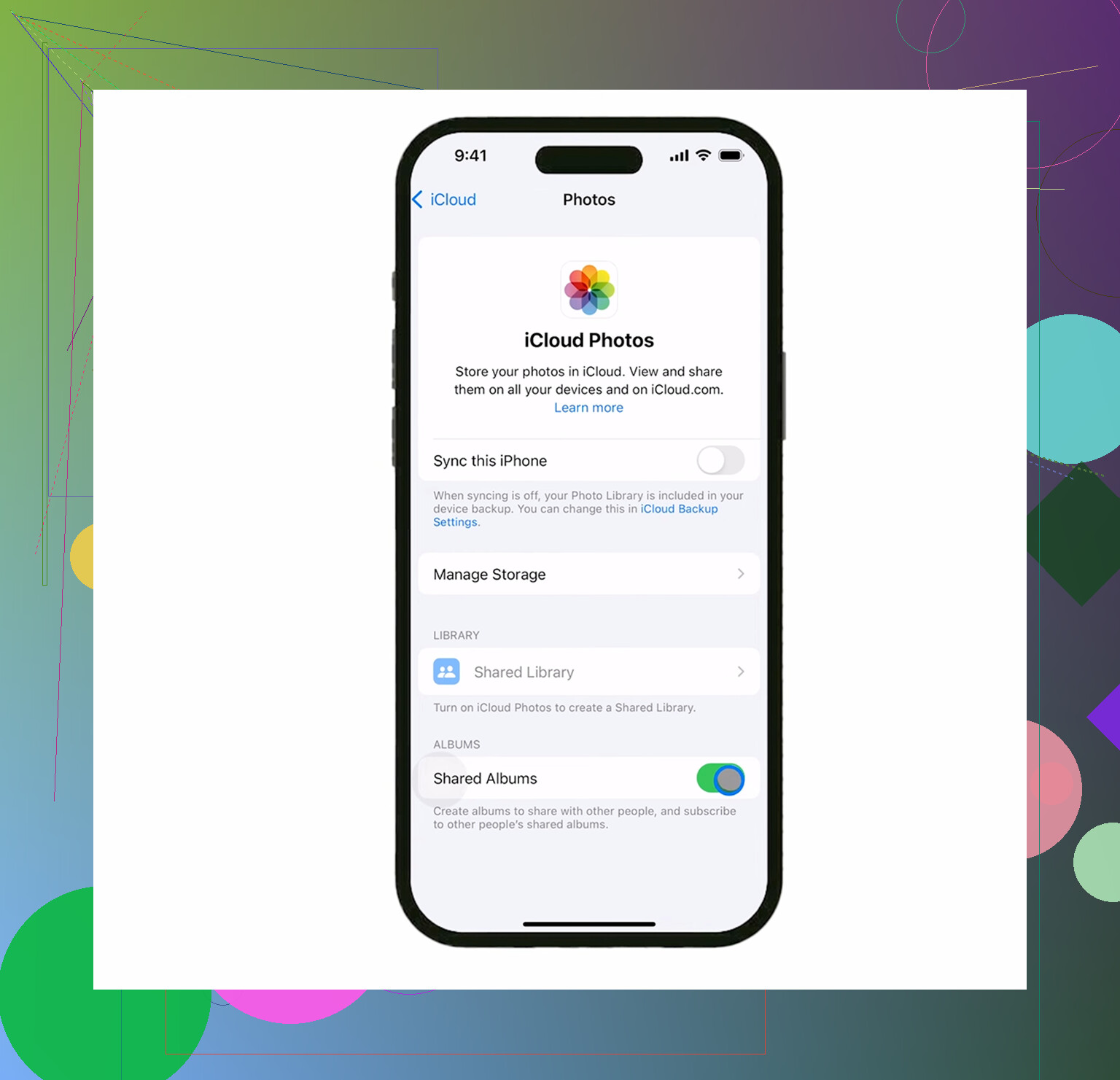
The storage angle matters too. If iCloud Photos has “Optimize iPhone Storage” turned on, some of those non-favorites may only be small local versions anyway. Deleting a pile of older photos might not free as much space as you expect, while one downloaded video or screen recording could free a lot more. That’s why checking large videos first is often faster than trying to wipe thousands of images just because they are not favorited.
A small gotcha people miss: if some photos were synced onto the phone from a computer, they may not delete normally from the iPhone Photos app. In that case, the fix is to change what syncs from the computer, not keep tapping around Photos wondering why the delete option is missing.
If you want to stay on the phone, I’d treat Favorites as a review list, not as a deletion shield. Back up or export the keepers first, then delete in chunks from Recents or by media type. A cleaner app like Clever Cleaner is only useful here for finding huge videos, screenshots, or duplicates faster. It won’t magically create Apple’s missing “delete all non-favorites” button, and I wouldn’t let any app make the keep/delete decision without checking the results yourself.