I deleted a bunch of photos to free up iPhone storage, but my storage still shows as almost full. I’m wondering if iCloud Photos, Recently Deleted, or syncing settings could be keeping space tied up. How can I actually clear storage without losing photos I want to keep?
Yeah, this is insanely annoying, especially when you just spent forever deleting a ton of photos and the iPhone storage number barely changes. Sometimes it even looks like it got worse. There are a few reasons that happens, and the first one is the one people miss the most.
Deleting photos in the Photos app does not immediately remove them from your phone. They go into Recently Deleted first, and they still take up storage while they’re sitting there. Open Photos, go to Albums, scroll down to Recently Deleted, and empty it with Delete All. Until that’s done, the space usually isn’t actually freed.
If you already cleared Recently Deleted, give iCloud Photos a minute. When iCloud Photos is on, your phone has to sync all those deletions with iCloud and your other devices. If your storage is almost maxed out or your connection is slow, that sync can drag on and the storage screen may not update right away.
Also check whether Optimize iPhone Storage is enabled. That setting can make the whole thing feel broken. If your full-resolution photos are mostly in iCloud and your phone is only keeping smaller local versions, deleting a bunch of photos may not free up as much phone storage as you expected. You might be clearing more iCloud space than actual space on the device.
One simple thing that’s worth doing after a big cleanup is a force restart. iOS doesn’t always recalculate storage instantly. On newer iPhones, press volume up, press volume down, then hold the side button until the Apple logo shows up. After the restart, the storage reading is often more accurate.
When my phone was packed full, it got painfully slow too. Apps lagged, the camera took forever, and it would randomly restart sometimes. A full iPhone really can start acting “old” because iOS doesn’t have much room left for cache, temp files, and background stuff.
If the Photos app still isn’t helping much, the real space hogs are often videos, burst shots, screenshots, and duplicate-looking photos. The annoying part is that Apple’s Photos app doesn’t let you sort everything by file size, which would solve half the problem.
I ended up using Clever Cleaner for that. I’m usually pretty suspicious of cleanup apps, but this one is actually free, with no ads, no trial nonsense, and no paywall. The Heavies tab was the useful part for me because it showed the biggest videos and media files right away, instead of making me guess.
The Similars section is useful too if you have a bunch of near-identical photos. It can group them and suggest the best one to keep. It also processes things on the device, so your photo library isn’t being uploaded somewhere else. Being able to see exact file sizes for screenshots and other media makes it a lot easier to decide what’s worth deleting.
Don’t ignore Messages either. Old group chats can quietly eat a ridiculous amount of space with videos, GIFs, memes, and random attachments. Go to Settings > General > iPhone Storage > Messages, then look through the large attachments.
If none of that moves the storage bar, it could be some weird storage database/cache issue. A few people have had luck changing the phone date a couple years forward, opening Photos, then changing it back, but I’d try the normal stuff first: empty Recently Deleted, remove the biggest videos/files, clear large Messages attachments, and restart the phone. That usually gets the storage number to finally catch up.
10 Likes
Don’t turn iCloud Photos off and start deleting things blindly. If it says “Download and Keep Originals,” the phone may be trying to pull full-size photos back down, so switch to “Optimize iPhone Storage,” leave it on Wi-Fi and power for a while, then check iPhone Storage again after a restart.
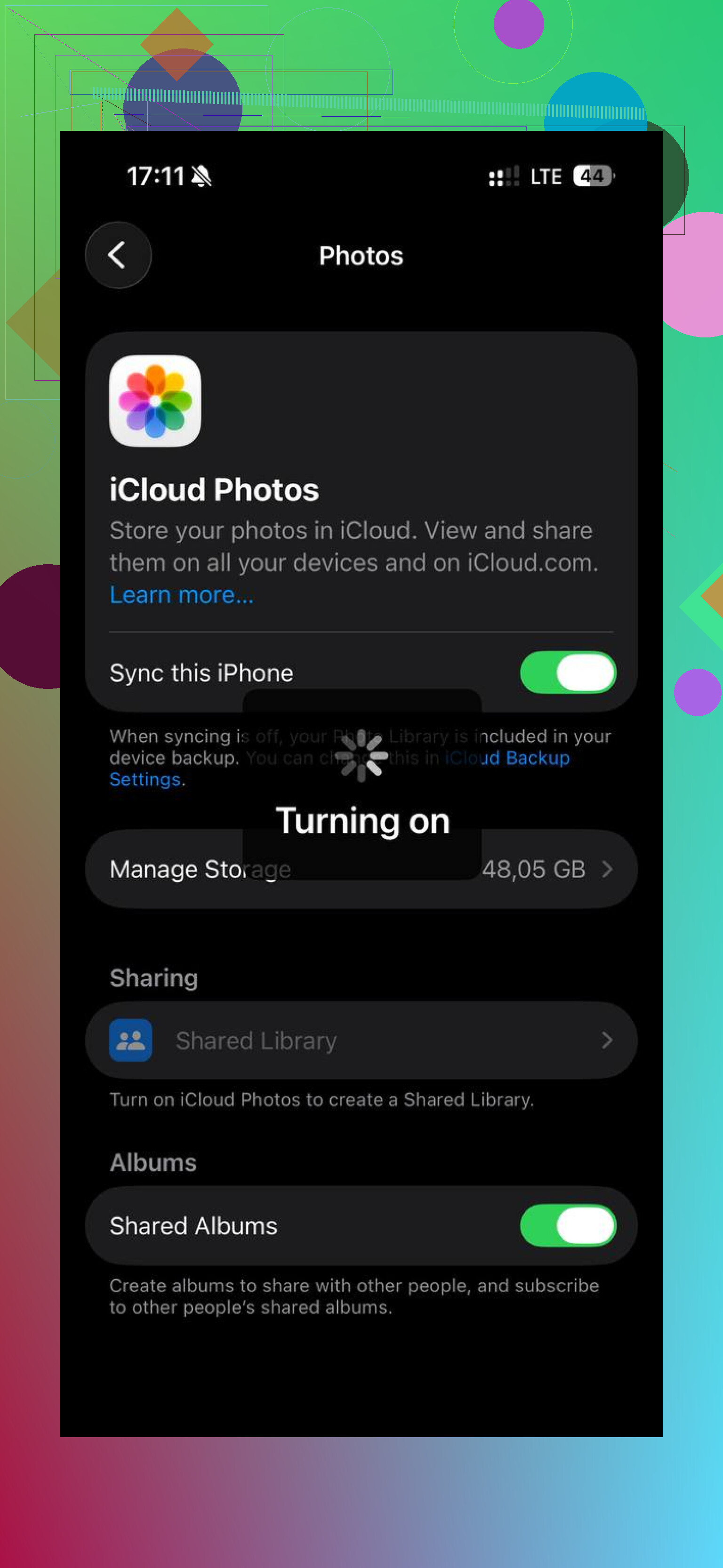
Be careful deleting from iCloud.com or another Apple device while iCloud Photos is on, because that is not a separate backup cleanup. It can delete the same photos everywhere once sync catches up.
The thing I’d check first is the actual category that is full. Go to Settings > General > iPhone Storage and see whether the big chunk is Photos, Messages, Apps, or System Data. If Photos is only taking, say, 8 GB and your phone is short 50 GB, deleting more pictures is going to feel useless because the real problem is somewhere else.
iCloud Photos causes confusion because people treat it like an external hard drive. It is more like a synced library. If you delete a photo, the deletion has to sync. If you keep a photo, the phone may still keep a local copy or thumbnail. If Optimize iPhone Storage is on, many photos were already reduced on the phone, so deleting them may not free as much local storage as expected. If Download and Keep Originals is on, then yes, Photos can eat the phone alive because it tries to keep full-size files locally.
The part that often gets missed is that an almost-full iPhone may not have enough working room to clean itself up quickly. iOS needs spare space for indexing, syncing, app caches, and temporary files. When it is down to a few hundred MB, the storage screen can lag behind reality or get stuck showing old numbers for a while.
I’d do this in a boring order:
- Empty Recently Deleted in Photos.
- Open Settings > your name > iCloud > Photos and confirm whether Optimize iPhone Storage is selected.
- Leave the phone on Wi-Fi, plugged in, with Low Power Mode off if possible.
- Restart it after the sync has had time to finish.
- Check iPhone Storage again, but look at the categories, not only the colored bar.
If you need space immediately, delete or offload a couple large apps first. That sounds backwards, but it gives iOS room to finish the photo cleanup. Games, offline maps, Netflix/YouTube downloads, Spotify downloads, and podcast downloads are usually faster wins than fighting Photos for an hour.
Messages is another sneaky one, but don’t only look inside the Messages app. In iPhone Storage > Messages, Apple usually breaks out large attachments, videos, photos, GIFs, and conversations. Removing a few old videos from group chats can free more space than deleting hundreds of regular photos.
For photo cleanup apps, I’d treat them as sorting tools, not magic storage repair tools. Something like Clever Cleaner can be useful for finding huge videos or near-duplicates faster than Apple Photos does, but I would still review before deleting anything. The real storage is freed only after the files are actually deleted from the library and Recently Deleted is emptied.
If the storage bar still refuses to move after all that, check whether the space is stuck under System Data. That is usually caches, logs, temporary files, failed updates, streaming app junk, and sometimes photo processing leftovers. You cannot directly manage most of it. The least annoying fix is to free a few GB, restart, update iOS if an update is available, and give it time. The more annoying fix is backing up the phone, erasing it, and restoring, but I would not jump to that unless System Data is absurdly large and nothing else changes.
So yes, iCloud can be involved, but it usually is not “keeping deleted photos on your phone” in a simple way. More often it is Recently Deleted, sync delay, optimized photos not being as large locally as expected, or the storage problem being in a totally different category.
Don’t expect a huge jump unless you deleted videos or full-resolution files that were actually on the phone. Check the bottom of the Photos Library screen too, because it may say syncing is paused, stuck, or waiting for Wi‑Fi/power. If that status isn’t moving, clearing Recently Deleted alone may not make the storage number settle yet.