My external hard drive is formatted as exFAT, and some important files disappeared after it was disconnected unexpectedly. I don’t have a backup and need advice on the safest way to recover files from an exFAT hard drive without making data loss worse.
If this is an exFAT external drive and the files were just deleted, don’t panic yet. Deleting something usually doesn’t wipe the actual file data right away. Most of the time, exFAT just marks that space as free, which means the files may still be recoverable as long as you don’t write anything new to the drive.
The big thing is this: stop using the drive immediately. That matters more than any recovery tool you pick.
Don’t copy anything to it, don’t format it if Windows asks, don’t run CHKDSK first, and don’t install recovery software onto that same drive. All of that can make things worse by overwriting the deleted data or changing the file system before you’ve had a chance to recover anything.
I’d unplug the drive until you’re ready to work on it, then connect it to a Windows PC. If it’s an external hard drive, also pay attention to the physical signs. Clicking, grinding, random disconnects, or not showing up consistently are bad signs.
Check the easy things first
Before assuming the files are gone, do a quick sanity check. Sometimes Windows just isn’t showing things correctly, or the files are hidden.
- Search for the missing folder or filenames in Windows Search.
- Turn on Show hidden files in File Explorer.
- If you’re comfortable using Command Prompt, you can try the
attribcommand to remove hidden attributes.
It sounds basic, but it’s worth doing before you start scanning the whole drive.
If the files really were deleted
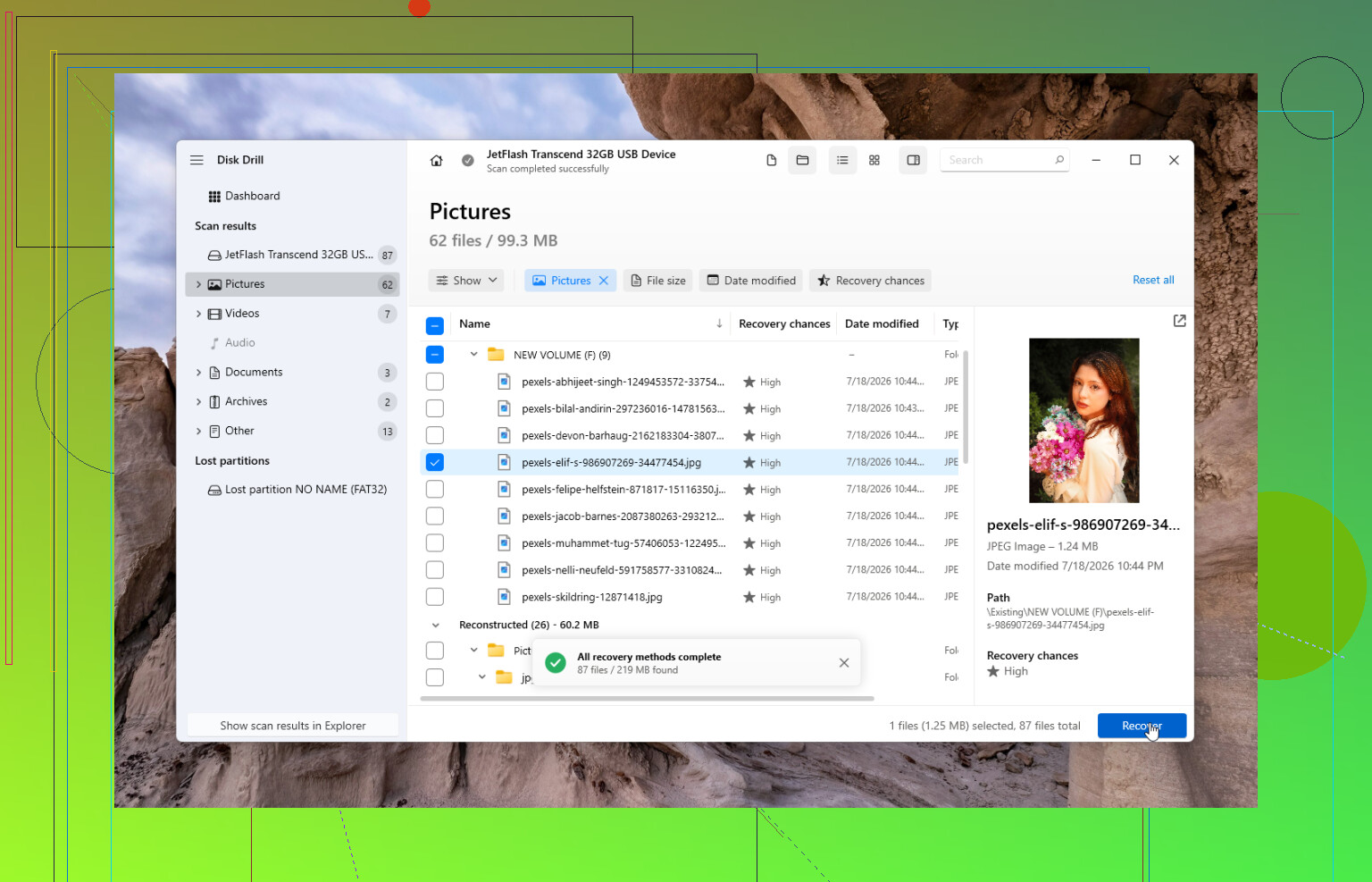
That’s when I’d use recovery software. I had good luck with Disk Drill on an exFAT external drive after deleting a folder I thought I had already copied somewhere else. It was simple enough to use, and it recovered almost everything I needed.
The way I’d handle it:
- Install Disk Drill on your computer’s main drive, not the affected exFAT drive.
- If the external drive seems flaky, make a disk image first and scan that instead of scanning the original drive over and over.
- Select the exFAT drive or the disk image.
- Run Universal Scan.
- Let the scan finish instead of stopping it early.
- Preview the files you care about.
- Recover them to a different drive, never back to the same one.
The Windows version also lets you recover up to 100 MB for free, so you can at least confirm whether it can find your files before paying for anything.
Other options
Disk Drill would be my first pick for a normal deleted-file situation, but it’s not the only tool worth mentioning.
If the issue is more like a broken or damaged partition, TestDisk can be a better fit. It’s free and has been around forever, but it’s not nearly as friendly if you’re not used to that kind of tool. Good option, just not the one I’d hand to a beginner without some caution.
And if you have a recent backup through File History, OneDrive, or some other backup tool, use that first. Restoring from backup is usually faster and safer than trying to recover deleted data.
If Windows says the drive needs to be formatted
If you see something like:
'You need to format the drive before you can use it.'
don’t format it yet.
If the drive still appears in Disk Management and shows the right capacity, there’s a decent chance the problem is file system corruption rather than physical failure. Recovery software can often read data from a drive even when Windows refuses to open it normally.
But I’d stop trying DIY recovery if the drive:
- clicks or grinds,
- disconnects during scans,
- shows the wrong capacity,
- doesn’t show up on multiple computers,
Those are more like hardware failure symptoms, and repeated attempts can make recovery harder.
When a recovery lab makes more sense
If the drive was dropped, got wet, won’t spin properly, or keeps disconnecting, software probably isn’t the safest route. At that point, a professional recovery service is usually the better call.
Most reputable labs will do a free evaluation and work on a “no data, no fee” basis. Cost can vary a lot, but it’s often somewhere from $300 to well over $1,000 depending on what’s wrong. That sounds painful, but for family photos, business files, or anything truly irreplaceable, it can be worth it.
Best case, this is just accidental deletion or exFAT corruption. Both are pretty recoverable if you stop using the drive right away. That’s what saved my files, and it’s still the first advice I’d give here.
2 Likes
A clean accidental delete is a very different problem from a drive that keeps dropping off USB mid-scan. If it’s the first case, software recovery has a decent shot, but if the disconnect was caused by a bad cable, enclosure, or failing drive, every long scan is another stress test. I’d try a different cable/USB port first, then if the drive stays visible, make an image of it and scan the image rather than the original. Disk Drill is fine for a normal user-facing scan, but don’t judge recovery by whether Windows can browse the drive. Recovery tools may still see files even when Explorer shows nothing. The big rule is still the boring one: recover to another disk, never back onto the exFAT drive.

A missing folder after an accidental unplug is one problem. A drive that keeps disappearing because the disk or USB enclosure is failing is a different and uglier problem.
For exFAT, “disappeared” can mean a few different things, and they don’t have the same odds. If the directory entry got damaged, the file contents might still be sitting there but the names and folder layout may be partly gone. If the files were deleted and nothing new was written, that is usually better. If Windows or some repair tool already “fixed” the drive, the cleanup may have changed the metadata, which can make neat recovery harder even if raw file data still exists.
I agree with the image-first advice, but I’d be stricter about it if the drive disconnected unexpectedly. A normal recovery scan can run for hours. If the drive is unstable, that is a long time to keep asking a questionable disk to behave. The safer order is:
- Stop using the exFAT drive.
- Do not let Windows format or repair it.
- Do not run CHKDSK before recovery.
- Copy or image the whole drive to another disk if it stays connected long enough.
- Run recovery tools against the copy/image.
- Save recovered files somewhere else.
The “somewhere else” part is not optional. People still recover files back onto the same drive because it looks convenient, then wonder why the second half of the recovery is garbage. That can overwrite the exact space you are trying to recover from.
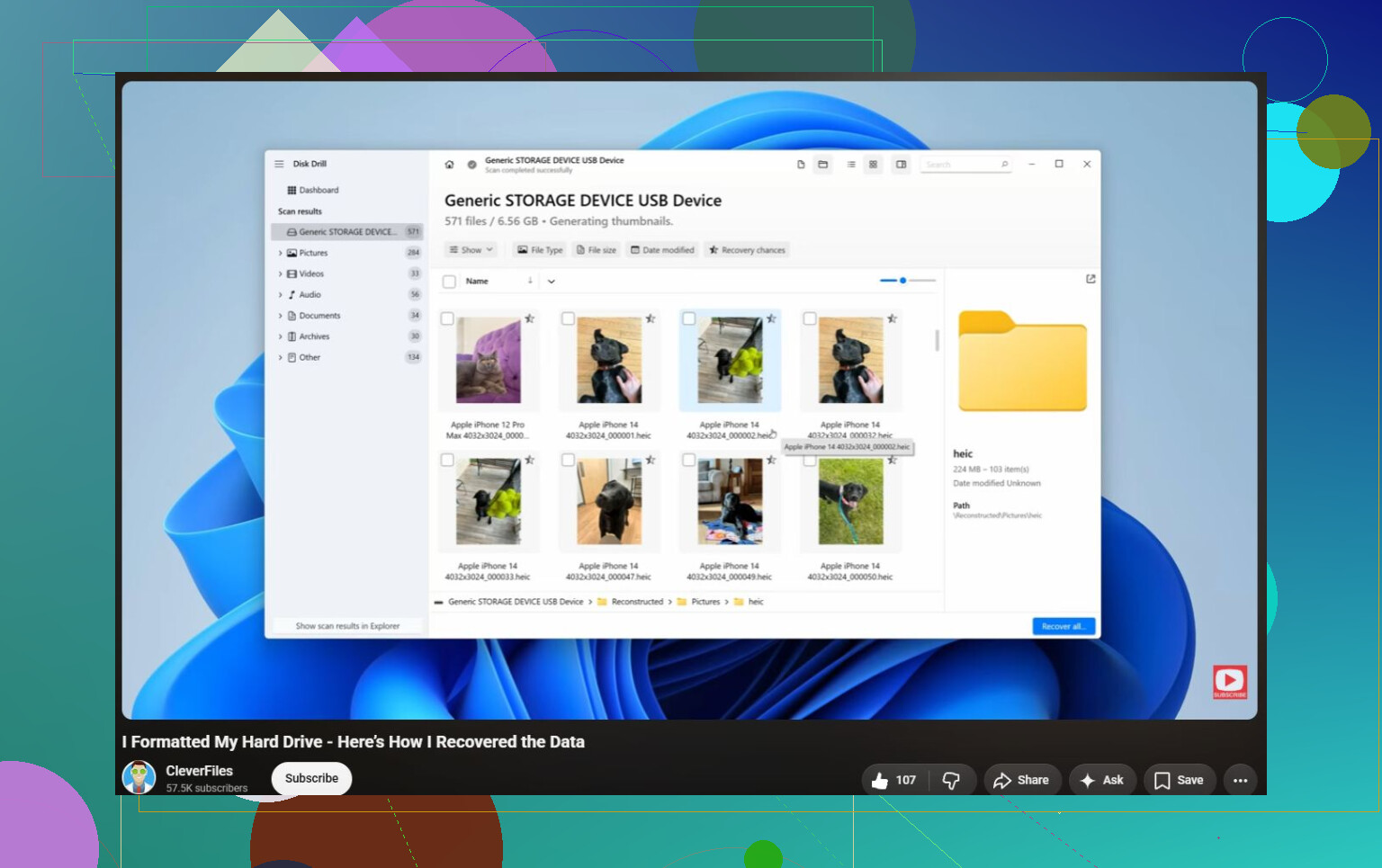
Disk Drill is fine if the drive is readable and you want a straightforward interface. It is especially reasonable for checking whether the lost files are visible before spending much effort. But I would not treat any recovery app as a magic repair button. If it finds the filenames and folder tree, great. If it only finds “reconstructed” files by type, expect messy results: random names, missing original folders, and some files that preview but do not fully open. That is normal with damaged exFAT metadata.
A caveat people forget: if this “external hard drive” is actually an external SSD or a flash drive formatted exFAT, deleted-file recovery can be much worse. TRIM or flash controller cleanup can remove the old data quickly. With a spinning USB hard drive, deleted data often hangs around until overwritten. With SSDs and some flash media, there may be nothing meaningful left even though a recovery program lists old entries.
Before doing anything complicated, I’d check only the non-writing stuff: try another cable, another USB port, and maybe another computer just to see if the drive shows the correct size. Do not click through any “scan and fix” prompt. If it shows the right capacity and stays connected, image it. If it shows the wrong capacity, clicks, spins up and down, or drops offline during copying, stop poking at it and decide whether the files are worth a lab.
The realistic answer is yes, files from an exFAT drive can often be recovered without a backup. The less pleasant answer is that the recovery quality depends on what actually happened after the disconnect. If it was only a dirty unplug and minor file system damage, you may get a lot back. If the drive is physically failing or the missing files were overwritten, no software is going to politely put everything back the way it was.
Do not run “repair,” “initialize,” or “format” just to make the drive look normal again. That is the trap with exFAT problems: the operating system may offer a quick fix before you have copied anything off, but that fix is allowed to rewrite file system structures. It can turn a recoverable folder tree into a pile of unnamed files.
Yes, recovery is possible without a backup, but I would treat the drive as evidence, not as a broken drive you are trying to make usable. The goal is not to get it mounting nicely. The goal is to extract the files before the situation changes. If the disk shows the correct size, I’d clone/image it first and then scan the clone. If you skip that because you only need “a few files,” at least do one careful scan and recover to another physical disk. Don’t keep trying five different tools against the original if it is disconnecting.
A small thing people miss: if your missing files were inside one big container file, like a Photos library, Outlook PST, VM image, ZIP, or database, recovery may be uglier than normal. Getting the file name back does not mean the inside of that file is intact. Preview matters. Disk Drill is reasonable for that because you can see whether it finds recognizable files before committing much time, but if the drive is clicking, dropping offline, or showing the wrong capacity, stop using software and think lab recovery instead. Software is for readable media. It is not a cure for a dying disk.