I accidentally deleted an important file and emptied the Recycle Bin before I realized it was gone. I only need to recover that one file, but I’m worried Recuva could affect other data or make recovery harder if I use it wrong. Has anyone used Recuva for a single deleted file recovery, and is it safe to try?
People ask this all the time, and I never answer with a clean yes or no. The short version is this. Recuva is safe enough to install if you get it from the official source. It is not malware, it does not wreck your PC on purpose, and it is not some hidden virus pretending to be a recovery app. Still, “safe” means more than “not infected.” You also need to think about privacy, and you need to think about whether your deleted files survive your recovery attempt.
I’ve tested a bunch of recovery tools over the past year, messed up a few restores myself, and watched other people make the same mistakes twice. So here’s the plain version of what using Recuva looks like in 2026.
About the old malware scare
A lot of the fear comes from the 2017 CCleaner mess. Same company family, same baggage. Piriform made Recuva and CCleaner, and CCleaner got hit in a supply chain attack. The official update ended up carrying malware. Huge problem. Millions got caught in it.
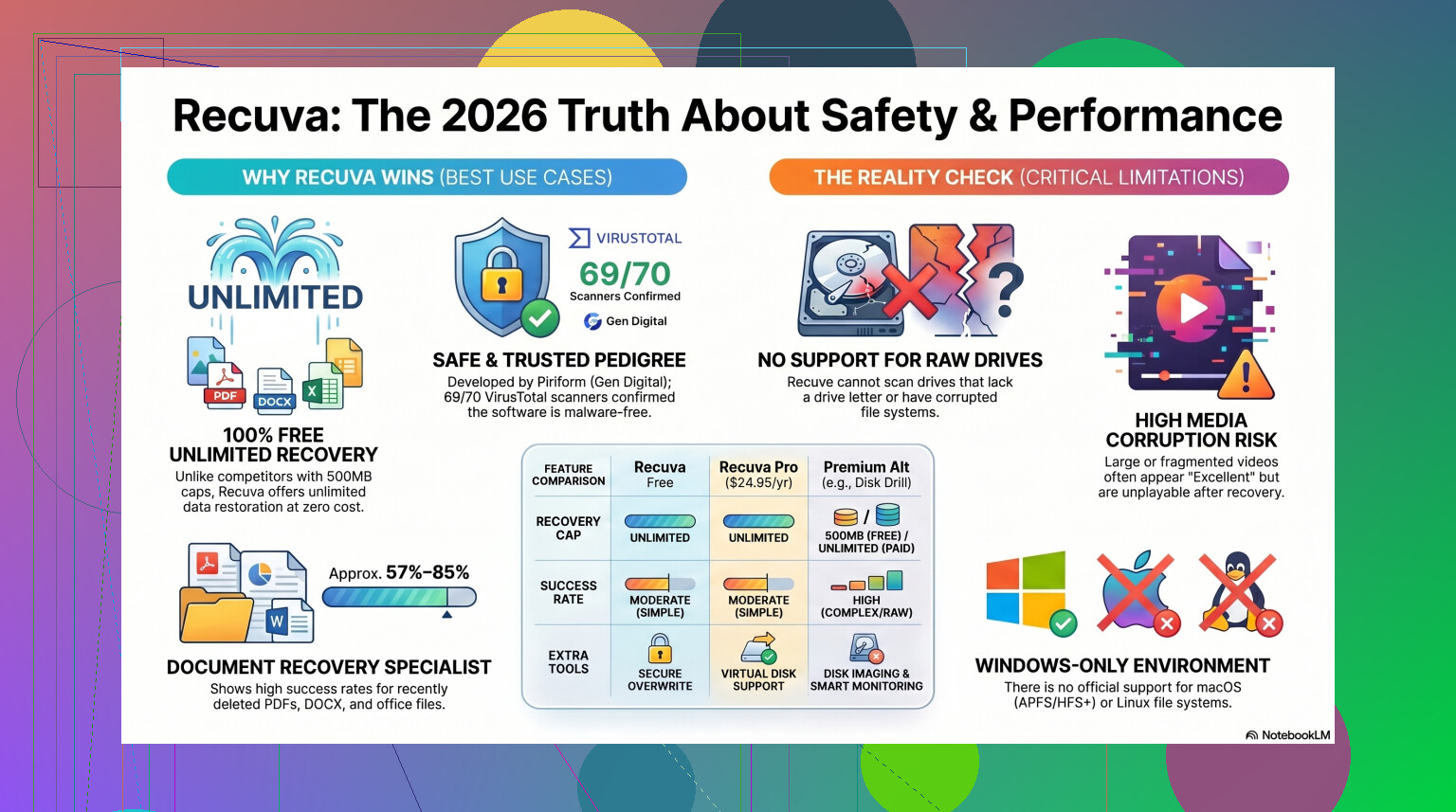
Still, it was years ago. Piriform changed hands, first to Avast, then under Gen Digital, which also owns Norton. I checked current Recuva installers through VirusTotal, and the results were mostly clean. Sometimes one small antivirus engine throws a warning, but I’ve seen this happen with recovery apps a lot because they poke around file systems in ways security tools don’t like. If you grab Recuva from the official CCleaner or Piriform page, the virus risk looks low.
Privacy is a separate issue
Here’s the part people skip. Safe install does not mean private install.
Under Gen Digital, the privacy policy is clearer than it used to be, but they still collect some device and network info. Think IP address, device ID, operating system details, and location data tied to licensing or fraud checks. Some people shrug at this. I didn’t love it.
If you install it, open Options, then Privacy, and turn off the usage sharing box right away. I do this before I scan anything. From what I saw, IP data can stay on record for up to 36 months before anonymizing. So yes, the free tool costs you some telemetry unless you trim the settings.
The part where people ruin their own recovery
This matters more than the installer itself. Recuva is usually not what destroys deleted data. The user does.
Do not install it onto the same drive you want to recover from.
When you delete a file in Windows, the file often stays there for a while. Windows removes the map entry and marks the storage space as reusable. If you download and install recovery software onto that same disk, you risk writing new data over the old file. I’ve seen people wipe out their own photos with the recovery tool they installed to save them. Brutal, but common.
The safer move is the portable version. Put it on a USB stick. Run it from there. Then save anything recovered onto a different drive, not the same one you scanned. If your files matter, this step is not optional.
How well it works now
Here’s where I got less generous.
Recuva still works fine for simple mistakes. Empty Recycle Bin by accident on a normal Windows drive, catch it early, run a quick scan, and you might be done in minutes. It is light, fast, and still free without weird file caps. That alone keeps it alive.
But once the job gets messy, Recuva starts showing its age. The software feels old because, well, it is old. The core design hasn’t moved much since around 2016. There were later fixes to keep it usable on Windows 11, sure, but it still behaves like an undelete tool from another era.
In my testing and from what I’ve seen others report, it struggles with anything beyond basic recovery:
- RAW drives. If Windows says the drive needs formatting, Recuva often fails before it starts.
- Formatted USB sticks. Results are mixed, with success rates often landing around 63 to 67 percent.
- Corrupted recoveries. It finds files, labels them healthy, then the file won’t open. I saw this with JPGs more than once.
- Folder structure loss. You end up with thousands of renamed files dumped into one folder. Sorting that out is its own punishment, lol.
So yes, it recovers files. Sometimes. And sometimes it hands you a pile of broken junk with “excellent” status. Tha'ts the part people leave out.
When I’d stop using it
If the files are replaceable, sure, try Recuva first. School notes, random downloads, some screenshots you forgot to back up. Fine.
If it’s your only copy of wedding photos, tax documents, work files, client footage, or anything tied to money, I would not spend too long hoping Recuva pulls off a miracle. Every extra scan puts more wear on a shaky drive. If the disk is failing, your best shot is usually the first smart attempt, not the fifth free one.
When Recuva misses, or when the drive shows up as RAW, or when the file system is damaged, I’d move to something stronger. In my own use, Disk Drill handled the harder jobs better.
It works on damaged partitions Recuva tends to ignore. Its recovery rates on formatted drives are often closer to 95 to 97 percent in published tests and user reports, which is a big jump. The feature I care about most is Byte-to-Byte Disk Imaging. You clone the failing drive first, then scan the clone. That cuts the risk a lot. If the original drive dies halfway through, your image still exists.
If you work with camera files or video, this gap gets worse. Recuva often falls apart on fragmented video and proprietary RAW photo formats from Nikon or Canon gear. Disk Drill did better there in my runs, and in a few cases it found clips Recuva never listed. The side-by-side test on YouTube shows that difference pretty well.
My take
If you need a free first try on a healthy Windows machine, Recuva is still a fair option. It’s simple. The wizard helps. It runs fast. You do need to use it carefully.
- Get it from the official site.
- Pick the portable build if you can.
- Turn off data sharing in settings.
- Do not expect it to solve every recovery job.
If the first scan fails, or your files come back damaged, stop writing to the drive. Don’t keep installing things, don’t copy random files onto it, don’t keep rescanning for hours hoping luck changes. Switch tools and keep the disk untouched.
Data recovery is mostly a numbers problem. Recuva is decent for easy mistakes and tight budgets. For harder cases, I wouldn’t lean on it too much. I learned tha one the annoying way.
16 Likes
Yes, Recuva is safe enough for a one-file recovery job, if you use it the right way. The bigger risk is not malware. The bigger risk is writing new data onto the same drive and overwriting the file you want back.
I agree with @mikeappsreviewer on one part, install source matters. Official source only. I disagree a bit on the privacy angle being the main concern here. For one lost file, your immedaite problem is recovery odds, not telemetry.
What I’d do:
- Stop using the drive.
- Do not install Recuva on the same drive where the file was deleted.
- Use the portable build from a USB stick if possible.
- Recover the file to a different drive.
If your deleted file was on your C: drive, every download, browser tab, and temp file lowers your odds. SSDs are worse because TRIM wipes deleted blocks fast. On many SSDs, once TRIM runs, free tools and paid tools both miss.
For one simple Windows delete, Recuva is fine as a first shot. It’s lightweight and fast. If it finds the file, great. If it does not, don’t keep poking at the disk for hours. Move to Disk Drill. It tends to do better when the file system info is messy, and it’s easier to preview whether the file is intact before you waste time.
If you want a cleaner list of data recovery apps for Windows, this guide is useful:
best data recovery software for deleted files and damaged drives
Short version. Recuva itself is not the thing likely to hurt your data. Installing or saving recovered files to the same drive is the part pepole mess up.
Yes, but only in the narrow sense that Recuva file recovery software for Windows is generally safe to run. I slightly disagree with @mikeappsreviewer and @mike34 on one thing though. For a single accidentally deleted file, you do not always need to jump tools right away if Recuva misses on the first pass. Sometimes a deep scan is worth one try, especially on an older HDD.
What matters more is the drive type. If the file was on an SSD, recovery odds can drop super fast because of TRIM. If it was on a regular hard drive, you may still have a decent shot. Recuva itself usually will not ‘damage’ other files just by scanning. The danger is recovery mistakes, not the app existing on your system.
My take:
- scanning is usually safe
- recovering back onto the same drive is not
- previewing the file before restoring is smart
- if the file is truly important, stop experimenting after 1 or 2 attempts
Also, if this is your system drive, even booting around in Windows keeps writing temp data. Tha’ts why people sometimes remove the drive and scan it from another PC.
If Recuva finds the file and the preview looks normal, fine, use it. If it shows weird size, bad filename, or no preview, I’d switch to Disk Drill before wasting more time. Disk Drill tends to be better when the deleted file record is half-broken or the file was part of a messy folder structure.
So, safe enough? Yes. Risk free? Nope. The first few mins after deletion matter more than the software brand, tbh.
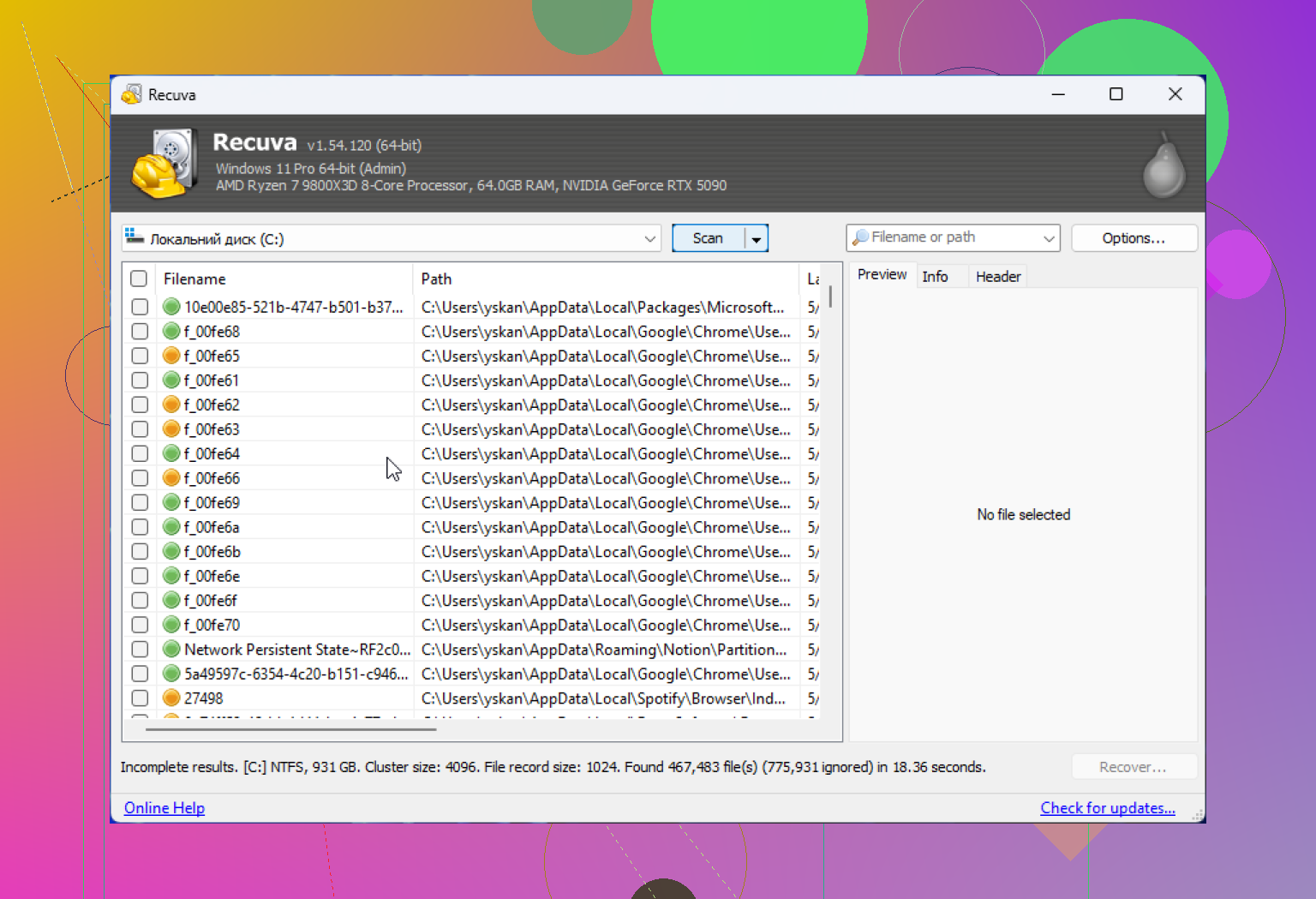
Recuva is usually safe for this, but I’ll push back a little on @mike34 and @voyageurdubois: people sometimes overfocus on the scan itself. A read-only scan is rarely the thing that ruins recovery. The bigger issue is Windows continuing to write little bits of data in the background, especially on the system drive.
So if this is just one deleted file, my rule is simple: use the tool that gives you the fastest yes or no with the least extra activity on that disk. Recuva fits that pretty well.
A few practical points not already hammered enough:
- If the file was tiny, recovery odds are often better than for a giant video.
- If it was deleted from Desktop, Downloads, or Documents on C:, your odds may already be slipping just from normal PC use.
- If the file matters a lot, making a drive image first is safer than scanning the live disk repeatedly.
That’s where Disk Drill can make more sense if you get nervous after the first attempt.
Disk Drill pros:
- cleaner preview system
- can image the drive first
- better at trickier recoveries
Disk Drill cons:
- not as lightweight
- free recovery limits can be annoying
- more features than you need for one simple undelete
So yes, Recuva is safe enough for a one-file recovery try. I agree with @mikeappsreviewer on that part. I just wouldn’t keep rerunning scans over and over. One careful attempt, then reassess.