I’m trying to decide whether to move all my personal and work files to OneDrive or Dropbox. I use Windows, Android, and sometimes a Mac for collaboration. I care about sync reliability, sharing with clients, version history, and price over time. If you’ve used both, which works better for cross‑platform use and why, and are there any hidden downsides I should know about before committing?
OneDrive vs Dropbox vs ‘Oh No I Have 6 Accounts’ (and What Finally Fixed It)
So I’ve bounced between OneDrive and Dropbox for years, mostly because jobs change, clients change, and apparently every new project comes with “here’s another shared folder, just use this email address.” At some point I realized I was juggling:
- Personal Dropbox
- Work Dropbox
- Old agency Dropbox I still needed access to
- Personal OneDrive (bundled with Office 365)
- Work OneDrive
- A random school OneDrive from way back that still has important docs
If that sounds familiar, you already know the real problem is not “which is better, OneDrive or Dropbox,” it’s “how do I not lose my mind logging in and out all day.”
Anyway, here is how the two stack up, and how I eventually stopped playing account musical chairs.
How OneDrive Feels After You Actually Use It For A While
On paper, OneDrive looks solid:
- Built into Windows
- Bundled with Microsoft 365
- Tight integration with Word, Excel, PowerPoint, Outlook
- It shows up in File Explorer like a regular folder
In practice, a few things stand out:
What it does well:
- Sync is decent now. It used to be rough, but recent versions are mostly reliable.
- If you live in Office apps all day, autosave to OneDrive is super convenient.
- Shared libraries and SharePoint stuff feel native if your whole company is on Microsoft 365.
- File On-Demand is nice: you see everything, but it only downloads when you open it.
What will annoy you eventually:
- Mixed personal / work / school logins get confusing very fast.
- Sometimes Windows decides to “help” and auto-signs you into the wrong account.
- Corporate policies can randomly block features across all accounts because IT said so.
- If you have multiple OneDrive accounts, you end up with this messy list of “OneDrive – CompanyName1,” “OneDrive – CompanyName2,” etc., and it’s not always clear what’s what.
If your life is 100% stuck inside Microsoft’s world and you only have one or two accounts, OneDrive is fine. If you’ve got more than that, the cracks start to show.
The Dropbox Situation, Especially With Multiple Accounts
Dropbox has this whole vibe of “we’ve been doing sync for a long time, let us handle it.”
What it does well:
- Their sync is still one of the fastest and most predictable in my experience.
- It behaves like a normal folder, and it’s usually less “corporate policy” heavy than OneDrive.
- File versioning and recovery are easy to use.
- Shared folders are pretty straightforward for non-technical people.
Where it gets ugly:
- Handling multiple accounts is a pain.
- You can link one personal plus one business, but if you have more than that, get ready for constant browser logouts and switching.
- If a client insists on their own Dropbox account, you now have yet another login to babysit.
- The desktop app is not designed for “I have 5 different Dropbox identities and need all of them.”
So Dropbox is great for “I have one main account and maybe one more,” but it falls apart when you’ve got a pile of logins like most freelancers / contractors do.
The Real Problem: Too Many Accounts, Not Enough Sanity
This is the bit no marketing page talks about.
The pain points look like this:
- Constantly signing out of one account to sign into another
- Trying to remember which email is tied to which shared folder
- Different companies using different platforms, so your stuff is split across OneDrive, Dropbox, and whatever else
- Having to open each service’s app or web page just to find a file
It’s like your files live in 6 different apartments and you’re sprinting between them every day because everyone insists on their own building.
That’s not a OneDrive problem or a Dropbox problem. It’s a “too many silos” problem.
The Thing That Finally Helped: Mounting Cloud Storage Like Drives
At some point I stopped trying to make OneDrive or Dropbox behave “better” and switched to a different approach: treat them all like remote drives I can mount and unmount as needed.
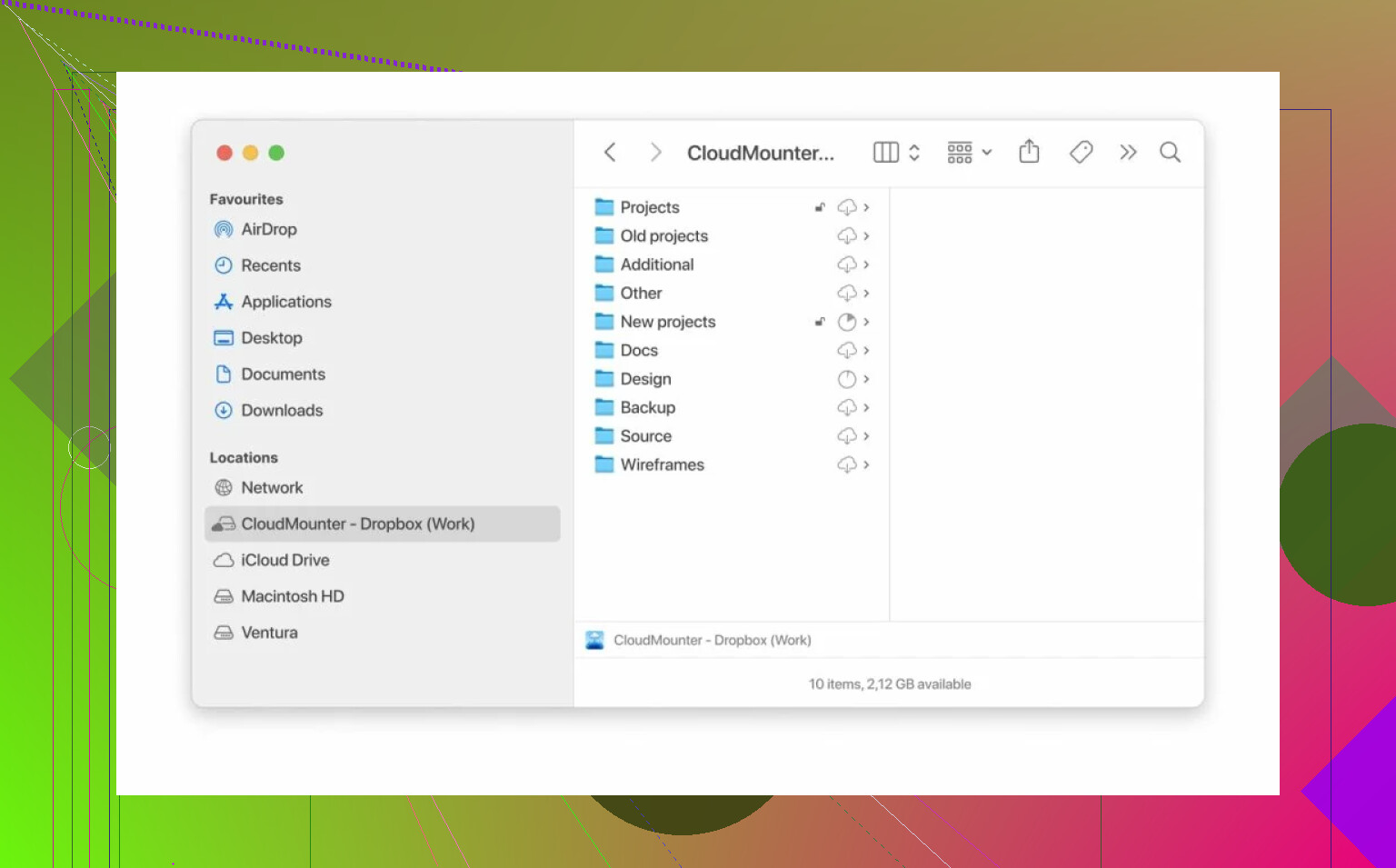
What I ended up using on my Mac was this app called CloudMounter:
What it does is pretty simple conceptually:
- You log in to your different cloud accounts (OneDrive, Dropbox, etc.) inside the app
- It exposes each one as a drive on your Mac
- You can have several Dropbox accounts and several OneDrive accounts connected at the same time
- Everything just shows up in Finder like external drives instead of separate ecosystems
So instead of:
- Dropbox app for Account A
- Web browser for Account B
- OneDrive app for Account C
- Company portal for Account D
You just have mounted drives like:
- /Volumes/Dropbox-Client1
- /Volumes/Dropbox-Client2
- /Volumes/OneDrive-Work
- /Volumes/OneDrive-Personal
Click, open, done.
No constant log in / log out. No hunting for which sync client is allowed at your current job. Everything in one place, but still separated enough that you know what belongs where.
Where It Beats Both OneDrive And Dropbox (For Multi-Account People)
To be clear: it doesn’t replace OneDrive or Dropbox as services. They still store your files.
What changes is how you access them.
For the “too many accounts” issue, this approach solves a lot:
- You can connect several Dropbox and several OneDrive accounts without hacks or weird browser sessions.
- You manage them from one interface, inside the OS, instead of juggling five different apps.
- You can choose what to mount only when you need it, so your Finder stays clean.
- You don’t have to commit to one ecosystem just to reduce friction.
If you only use one personal OneDrive account, this is overkill.
If you are that person with:
- Client Dropbox
- Old Dropbox
- Team OneDrive
- Work OneDrive
- Personal OneDrive
then a tool like CloudMounter is kind of the first thing that actually matches how people actually work now.
For me, it turned the whole OneDrive vs Dropbox argument into a non-issue. I just use whichever service my clients or employers want, connect them all in one place, and stop thinking about which account is signed in this week.
Again, the app I landed on for this is CloudMounter:
If your main headache is “too many Dropbox and OneDrive accounts,” that setup has been the least annoying solution I’ve tried so far.
13 Likes
I’d pick based on your center of gravity rather than some abstract “best”:
If you’re deep in Microsoft 365 already, default to OneDrive.
If not, Dropbox is usually the smoother daily driver.
Quick breakdown for your specific use case (Windows + Android + occasional Mac, sync reliability, client sharing, version history):
Sync reliability
Dropbox:
- Still the gold standard for “it just syncs” in my experiece.
- Faster to pick up file changes, fewer weird edge cases with partial syncs.
- Handles large nested folders and tons of small files a bit more gracefully.
OneDrive:
- Used to be flaky, but current versions on Windows are “good enough” for most people.
- Where it gets weird:
- You get random sync errors tied to SharePoint / Teams libraries.
- Corporate policies can silently disable stuff.
- Multiple accounts can create confusing folder structures.
If sync is literally mission‑critical and you’re not forced into Microsoft 365, I’d tilt Dropbox.
Sharing with clients
Dropbox:
- Simple mental model: “Here’s a folder, here’s a link.”
- Non‑technical clients usually understand it quickly.
- File requests are excellent: clients can upload files into a folder without seeing its contents.
- Granular link controls are clear: link passwords, expirations, etc. (on paid plans).
OneDrive:
- Very powerful, but UI is more confusing, especially if SharePoint / Teams is involved.
- Links sometimes behave differently depending on org-wide policies.
- Clients on non‑Microsoft stuff sometimes get tossed into weird sign‑in loops.
If you share with a lot of clients who all use different setups, Dropbox is the less frustrating option overall.
Version history & recovery
Dropbox:
- Very intuitive UI for previous versions and deleted files.
- Works well across all file types, not just Office docs.
- Paid plans give you generous recovery windows.
OneDrive:
- Versioning is excellent for Office documents specifically.
- Works, but the interface can feel more scattered between OneDrive, SharePoint, and the app itself.
If you live in Word/Excel/PowerPoint, OneDrive’s versioning + autosave is incredibly nice. If you have a lot of PDFs, design files, zips, etc., Dropbox feels cleaner.
Multi‑device & OS integration
You’re on Windows, Android, and sometimes Mac.
Windows:
- OneDrive is baked in. Shows in File Explorer, can auto‑backup Desktop/Documents/Pictures.
- This is very convenient but can also be intrusive if you don’t like everything going to the cloud.
- Dropbox is still good, but OneDrive has the “native app” feel.
Android:
- Both are solid.
- OneDrive integrates nicely with the Office and Outlook apps.
- Dropbox’s mobile app is fine, especially for scanning and quick sharing.
Mac:
- This is where @mikeappsreviewer’s CloudMounter suggestion is great if you have a ton of accounts.
- Personally I don’t love relying entirely on “mount only” solutions for constantly edited files. I like having at least my primary account using the native sync client so recent stuff is offline and fast, then using CloudMounter for the extra accounts I touch less often.
So if you’re a light Mac user, I’d:
- Use native sync for your main storage choice (OneDrive or Dropbox).
- Use CloudMounter only to attach secondary / client accounts as needed.
Multiple accounts & identity mess
This is where both platforms kind of suck.
- OneDrive: can show a zoo of “OneDrive – CompanyName” folders and IT rules can bleed over into your experience.
- Dropbox: lets you pair one personal + one business desktop account, but anything beyond that becomes browser juggling.
I’d slightly disagree with @mikeappsreviewer on one thing:
For a lot of users, you don’t need to mount every cloud as a drive all the time. That can get messy too. I’ve found a saner setup is:
-
Pick one primary ecosystem (OneDrive or Dropbox) for:
- Personal documents
- Your own business stuff
- Long‑term archive
-
For client‑specific platforms:
- Use their native sync client only if you constantly collaborate daily.
- Otherwise, keep them out of your always‑on sync and access via:
- Web when you only need it rarely, or
- CloudMounter when you need file‑system access but don’t want their sync client installed.
That way you’re not spreading your core files across 5 different silos.
Cost & ecosystem
If you already pay for Microsoft 365 Personal/Family:
- You get 1 TB of OneDrive storage bundled.
- In that case, I’d absolutely lean toward OneDrive as your primary, because you’re already paying for it.
If you don’t use Office much / prefer Google Docs / other tools:
- Paying for Dropbox may make more sense than paying for M365 just for storage.
- Dropbox’s cheaper tiers are nice if all you want is rock‑solid sync and sharing.
My blunt recommendation for your scenario
Given:
- Windows primary
- Android secondary
- Occasional Mac
- Need: reliable sync, easy client sharing, strong version history
I’d do one of these:
Option A: You use Office 365 a lot
- Make OneDrive your main home base for personal + work.
- Turn on Desktop/Documents sync on Windows if you like that centralized approach.
- Use OneDrive sharing for “proper” Office docs with regular collaborators.
- For clients that insist on Dropbox:
- Do not merge everything into that Dropbox.
- Use Dropbox just for their shared folders, possibly mounted via CloudMounter on the Mac so you don’t install a zillion Dropbox accounts.
Option B: You care more about frictionless sharing than Office integration
- Make Dropbox your main storage, because:
- Fewer weird permission issues with external clients.
- Better mental model and sync, especially cross‑platform.
- Keep a thin OneDrive usage just for Office autosave if needed, or even disable it if you don’t rely on it.
In both cases, CloudMounter is very handy on that Mac side to cleanly handle extra OneDrive / Dropbox accounts without installing multiple sync clients or constantly logging in/out.
TL;DR:
- Already paying for Microsoft 365 and mostly working with Office? → OneDrive as primary.
- Need the simplest, most reliable syncing and client sharing with mixed tech backgrounds? → Dropbox as primary.
Use CloudMounter only as a tool to tame extra accounts, not as the core of your setup.
Short version: pick one as “home base,” keep the other as a guest, and don’t let either one own your entire life.
You’ve already got solid breakdowns from @mikeappsreviewer and @cacadordeestrelas. I mostly agree with them, but I’d push a bit harder on one point they kind of glide past: vendor lock‑in.
Everyone talks about sync speed and sharing. The real “future you” issue is: which ecosystem traps more of your workflows over time?
1. OneDrive vs Dropbox for daily use
OneDrive wins if:
- You’re already on Microsoft 365 and use Word / Excel / PowerPoint a lot
- You want native Windows integration: Desktop / Documents backup, File Explorer hooks, etc.
- You don’t mind living in Microsoft’s world long term
Dropbox wins if:
- You mostly care about predictable sync and low-friction client sharing
- A lot of your files are PDFs, images, zips, code, random non‑Office stuff
- You want something that behaves like a “dumb but extremely reliable folder in the sky”
Sync reliability:
I agree with both of them that Dropbox is still slightly better, especially when lots of small files or big tree structures are involved. OneDrive has improved, but when things go weird, they go really weird, especially if SharePoint / Teams is in the mix.
Version history:
They’re both fine. If almost everything is Office docs, OneDrive is nicer because autosave + versioning feels seamless. If your files are mixed formats, Dropbox’s UI for previous versions and deleted files is more intuitive.
2. Client sharing in the real world
Where I slightly disagree with the others: OneDrive external sharing is not just “a bit confusing.” In some orgs it can be an absolute clown show, because IT can:
- Force logins just to view a simple file
- Block anonymous links
- Randomly change defaults so links stop working for clients
That might be fine inside a company, but you explicitly said clients. For that, Dropbox is still easier to explain in 1 sentence: “Here’s the link, click it, upload/download.”
If your work is client-heavy and those clients are all over the place (Mac, Windows, no Microsoft accounts), I would not trust OneDrive as my primary client sharing tool.
3. Multi‑account reality & your devices
You’re on Windows, Android, and sometimes Mac.
- On Windows, OneDrive is undeniably convenient. It just shows up and auto‑tethers itself to the system.
- On Android, both apps are fine. OneDrive has a slight edge if you use the Office apps a lot.
- On Mac, the cracks start: multiple accounts, half a dozen shared folders, weird logins, etc.
This is where I actually do agree with mentioning CloudMounter, but for a different reason than “mount everything and be happy.”
For Mac specifically, I’d treat CloudMounter as:
- A bridge for secondary accounts
- Not a replacement for your primary sync client
So for example:
- Let your main OneDrive or Dropbox use the official sync app so recent stuff is local and fast.
- Use CloudMounter to attach extra client accounts (extra OneDrives, extra Dropboxes) so they appear as drives when you need them, without installing 5 different sync clients or logging in/out constantly.
That keeps the Mac sane without turning your whole workflow into “remote-only” file access, which can be annoying for heavy daily work.
4. What I’d actually do in your shoes
Given your setup and priorities:
If you have or plan to have Microsoft 365:
-
Make OneDrive your core “home base” for:
- Personal files
- Long-term work archive
- Office docs with regular collaborators
-
Use Dropbox just for client projects that demand it.
-
On Mac, use:
- Native OneDrive sync for your main account
- CloudMounter to hook into client-specific extra accounts on either platform when needed
If you don’t care much about Office and care more about frictionless client work:
- Make Dropbox your primary home.
- Keep OneDrive minimal:
- Maybe just for the rare Office file autosave, or not at all.
- Same story on Mac: primary account via native Dropbox app, extra stuff via CloudMounter.
5. One last practical tip
Whichever you choose as “home,” create a very clear top-level structure like:
_PERSONAL_WORK_OWN_CLIENTSClientA_DropboxClientB_OneDrive
Even if the actual folders live in different clouds, mirror the naming so your brain doesn’t have to remember “was this client’s stuff in Dropbox or OneDrive or email or…” every day.
So, pick the ecosystem that matches your center of gravity:
- Office-centric, Windows-heavy life: OneDrive as main
- Client-sharing-centric, tool-agnostic life: Dropbox as main
Then use CloudMounter as a pressure valve for the “too many accounts” problem, especially on the Mac, instead of trying to crown OneDrive or Dropbox as some perfect one-size-fits-all solution.
Short version: you do not actually need to “pick a winner.” Make one service your default home, keep the other as a compatibility layer, and solve the real problem which is juggling accounts.
A few places I see it differently from @cacadordeestrelas, @himmelsjager and @mikeappsreviewer:
-
OneDrive vs Dropbox for your main vault
- If you are on Windows all day and use Office heavily, OneDrive as your primary store is very hard to beat. The Windows shell integration and Known Folder backup are not just “nice” features, they save you from ever thinking about where Desktop/Documents went.
- If most of your collaboration is with clients who are not on Microsoft 365, Dropbox is still more predictable for simple “here’s a link, upload or download” workflows. OneDrive’s sharing is powerful but too often sabotaged by tenant policies.
I would not completely centralize client sharing on OneDrive unless most of your clients are corporate Microsoft 365 users.
-
Multiple accounts problem
I agree with the others that multi account handling is where both services start to hurt, but I would not rely only on browser sessions and the official sync apps like some setups they hinted at. That is exactly how you end up with the “which profile is this again?” mess.This is where a tool like CloudMounter actually earns its keep, especially since you mentioned sometimes using a Mac for collaboration.
-
How CloudMounter fits in (pros and cons)
Pros:
- Lets you connect several OneDrive and Dropbox accounts at once without playing login roulette.
- Mounts each cloud as a drive, which makes it very natural in Finder on Mac and avoids running three different sync clients.
- Good when you need occasional access to big client archives without syncing hundreds of gigabytes locally.
- Helps keep a clean mental model: “this drive is Client A, this one is Work OneDrive, this is Personal Dropbox.”
Cons:
- Files are remote unless you copy them down, so very large or frequently edited files are slower than with a native sync folder.
- If your internet connection is spotty, native sync from OneDrive / Dropbox is more forgiving than a pure network mount.
- It adds another layer of abstraction, which can be confusing if you already struggle with basic file locations.
- Not ideal as the only access method for your everyday active project files.
-
A concrete setup that avoids overcomplication
For your mix of Windows, Android, occasional Mac:
-
Make OneDrive your default for:
- Personal archive
- Office docs you work on daily
- Anything tied to Windows backups (Desktop / Documents / Pictures)
-
Use Dropbox as your “client friendly” tool:
- Active client projects
- Large upload/download exchanges
- Simple shared folders where nobody should have to sign in with a Microsoft account
-
On Mac only:
- Install the native sync client for whichever you chose as “home base” (likely OneDrive if Office centric, otherwise Dropbox).
- Use CloudMounter to attach extra accounts: old work OneDrive, legacy Dropbox, client specific accounts. Mount them only when needed so they do not clutter Finder.
-
-
Version history and conflicts
Others already covered that both services have decent versioning, but I would lean slightly toward Dropbox for mixed file types and toward OneDrive for pure Office work. One thing I would add: if you regularly collaborate with multiple people in the same folder hierarchy, Dropbox tends to be more transparent about conflicted copies, whereas OneDrive plus SharePoint plus Teams can hide problems behind web interfaces.
If you do this, the “choice” becomes less dramatic: OneDrive or Dropbox is your steady home, the other is a tool, and CloudMounter is just the switchboard that lets you plug in all the legacy and client accounts without losing your mind.