My old universal remote just stopped working and I’m overwhelmed by all the options online. I need a reliable universal TV remote that’s easy to set up, works with multiple brands, and is good for everyday family use. What models are you using that you’d actually recommend and why?
Hi all,
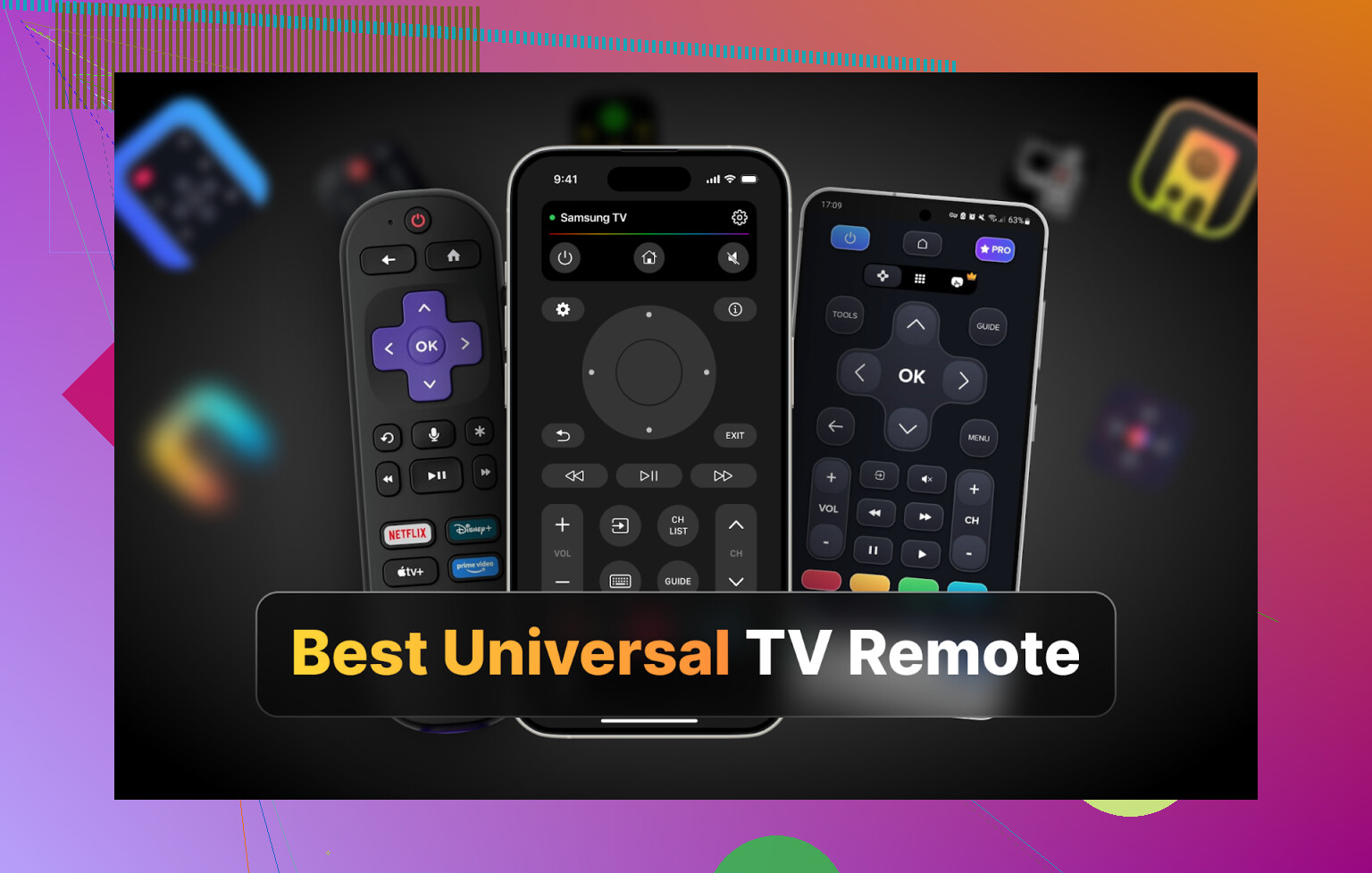
I got sick of hunting for TV remotes in couch cushions, so I spent a couple of evenings turning my phone and my Mac into “universal remotes” and stress testing a bunch of apps.
Setup at home: 2 TVs (Samsung in the living room, LG in the bedroom), one iPhone, one Android phone (my wife’s), and a MacBook. Two different physical remotes, both always in the wrong room.
Phone is always on me, laptop is often open, so it made sense to see if I could ditch the plastic remotes and go full app.
Below is how each app behaved in real life, not in store screenshots.
Part 1: iPhone TV remote apps I tried
I pulled four of the more popular iOS “universal” remotes from the App Store:
- TVRem Universal TV Remote
- TV Remote – Universal Control
- Universal Remote TV Smart
- TV Remote – Universal
They all claim to control multiple brands. Reality is mixed.
TVRem Universal TV Remote
(best overall for iPhone in my testing)
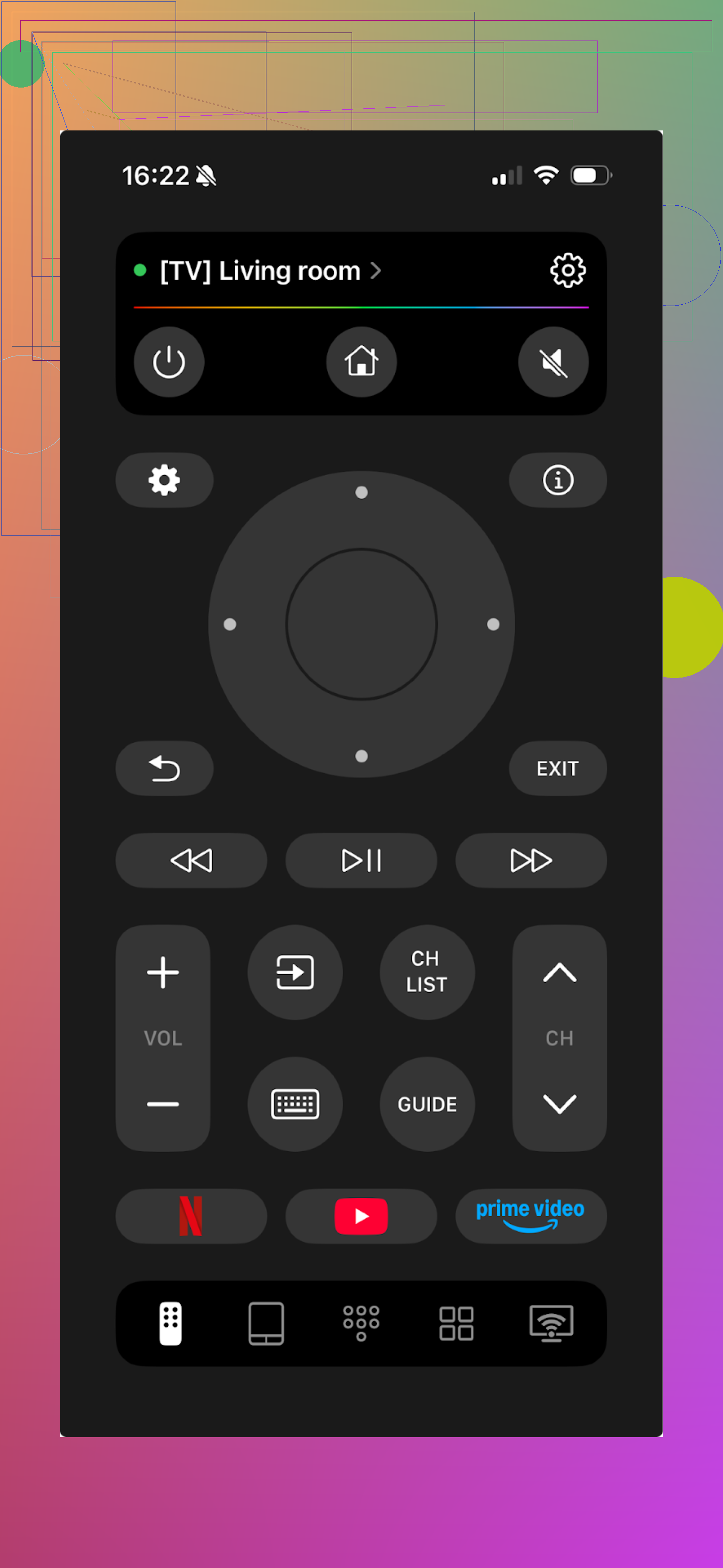
This one surprised me. I expected some hidden paywall somewhere. Did not hit one.
I tested it with:
- Samsung smart TV
- LG smart TV
It picked both up over Wi‑Fi with no drama. No pairing hoops, no “watch this ad to connect” nonsense.
What I used most:
- Touchpad for navigating apps on the TV
- Normal buttons for volume, channels, Home, etc
- On‑screen keyboard for search boxes
- Voice input on supported TVs
It supports a bunch of brands according to the description (LG, Samsung, Sony, Android TV, Roku and others). I only had Samsung and LG at home, but those worked fine.
Pros
- Interface is simple enough that you do not need to think
- Connection took a few seconds and stayed stable
- No subscription, no one‑time purchase, nothing
- Works with many TV brands and platforms
- Replaces the basic functions of a standard remote
Cons
- No Vizio support, so if your main TV is Vizio, this one is out
Price
Free
Link
There is also a Reddit thread where people argue about remote apps vs hardware remotes here:
https://www.reddit.com/r/DataRecoveryHelp/comments/1qqa2bh/best_universal_tv_remote/
Product page the developer links to:
Check this video:
My takeaway
For iPhone, this is the one I kept installed. Zero cost, no ads, and does what I need: move around apps, change inputs, type passwords, search YouTube, and control volume.
TV Remote – Universal Control
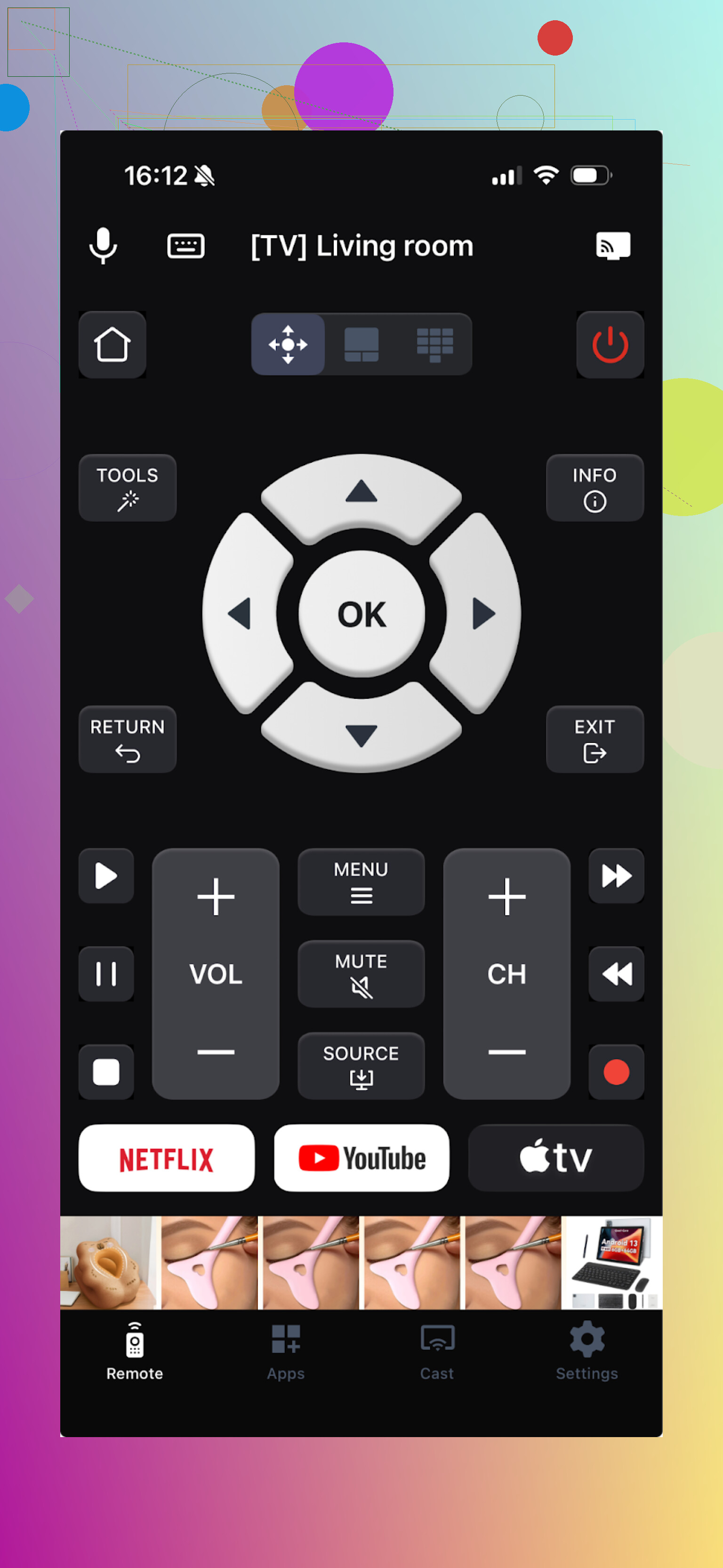
This one is clearly built around a subscription. I had to start a free trial to see anything useful.
Tech bits:
- Works over Wi‑Fi with a long list of brands
- Has touchpad, voice control, app launcher, keyboard
- Also includes casting features, which I personally barely touched, since all I wanted was a competent remote
The core controls worked once I got through the paywall trial thing. But the whole app feels like it is constantly trying to sell you something.
Pros
- It does include the controls you expect in a modern remote app
- Supports many TV brands and platforms
Cons
- Ads inside the app
- Most core things are locked until you pay or start a trial
- I hit a few crashes when opening the menu
Price
From 4.99 and up
Link
My takeaway
Functionally ok, but the upsell pressure is heavy. Every few taps, something pops up. I skipped buying it because I wanted something low friction and cheaper or free.
Universal Remote TV Smart
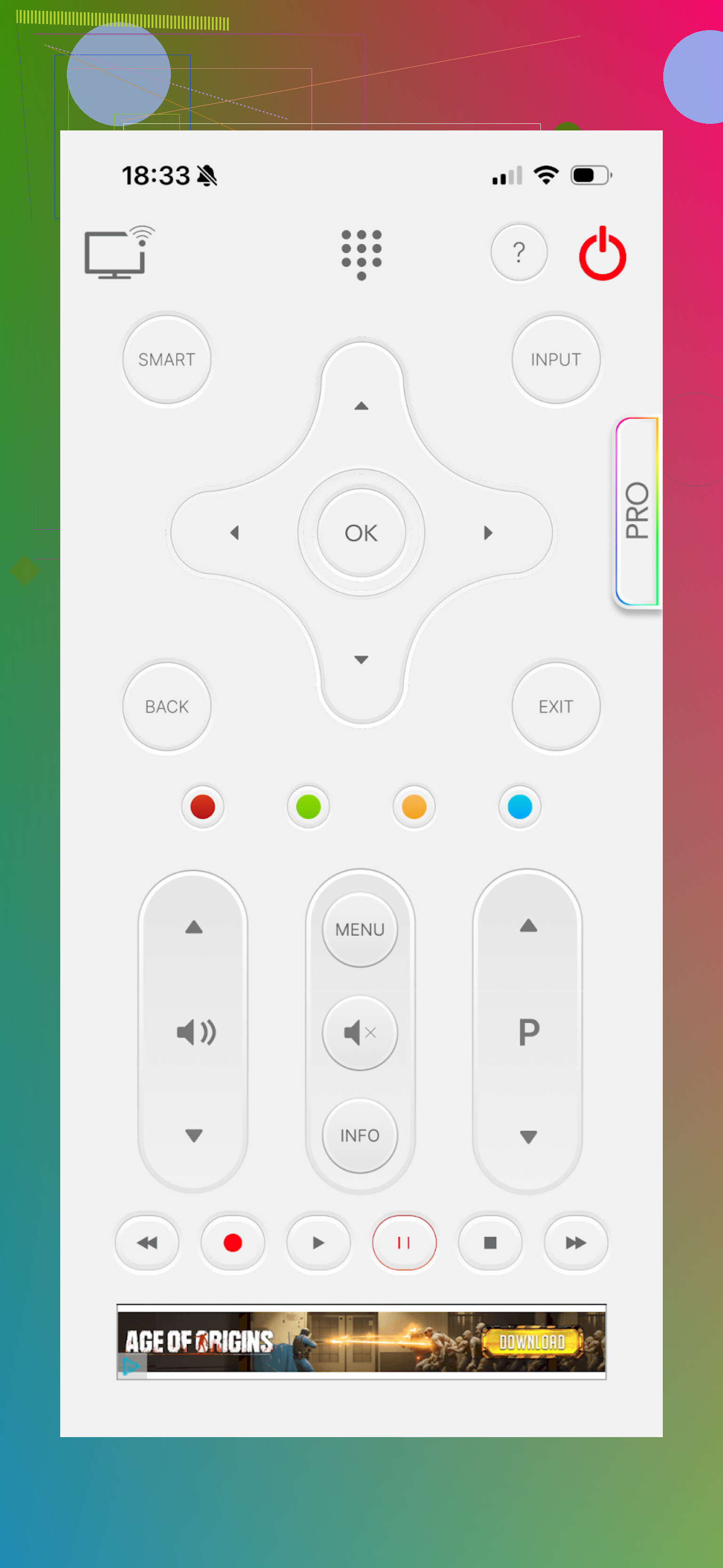
This one technically works, but the layout made me sigh out loud.
Things I noticed:
- Button placement feels random, not like a physical remote
- Visual design looks cluttered
- It does have volume, channels, navigation, and a keyboard
Pros
- Works with many brands
Cons
- The layout made it slower to use than the real remote
- No voice control
- Aggressive ads, including forced video ads
- Most buttons route you into paywalls, including something as simple as trying to open YouTube
Price
From 7.99 and up
Link
My takeaway
Of the iOS apps I tried, this one felt the weakest. Between layout issues, paywalls, and forced ads, it did not stay installed long.
TV Remote – Universal
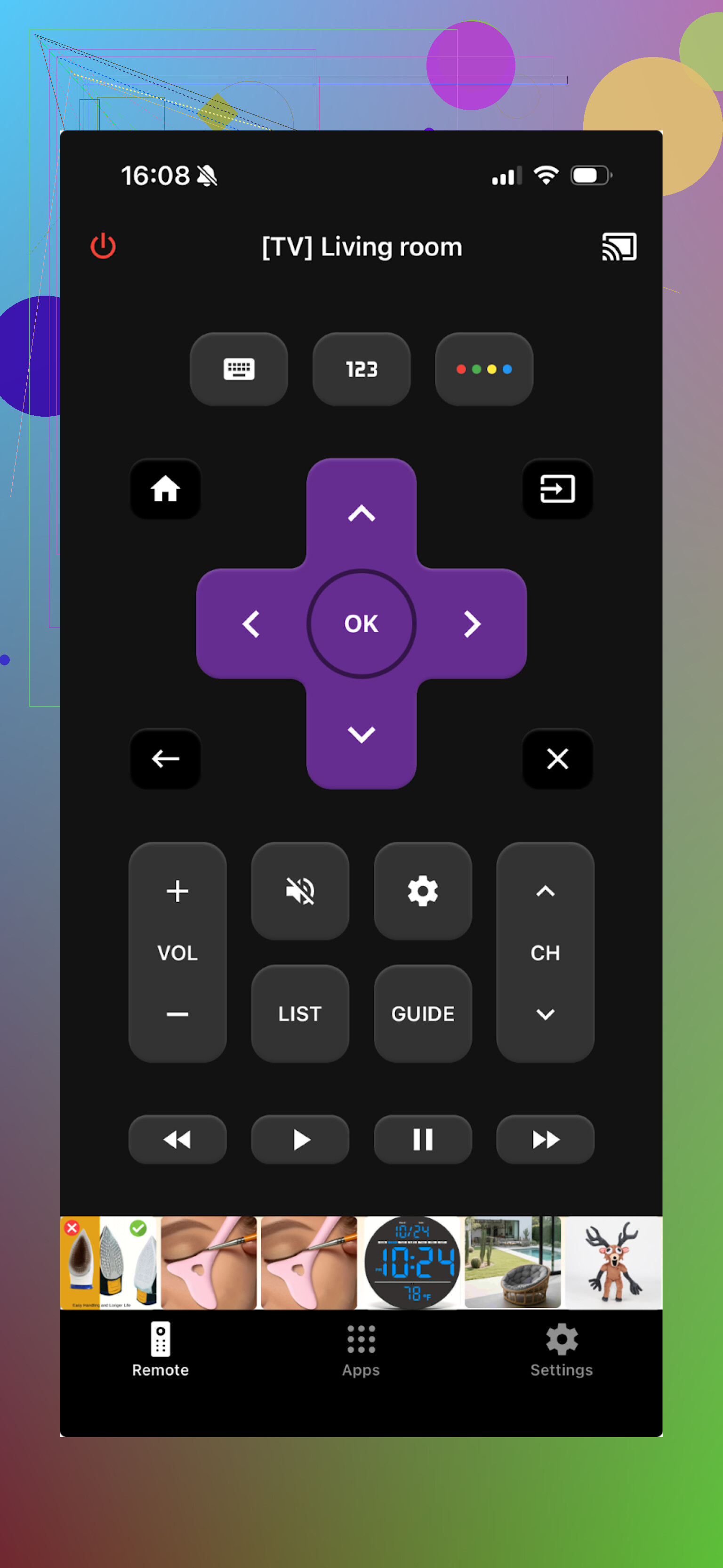
Used this one briefly right after TVRem to compare.
Supported brands listed:
- LG
- Samsung
- Sony
- Vizio
- Android TV
- Plus a few others
It connects over Wi‑Fi, so your phone and TV need to be on the same network.
The interface looks tidy, and the basics work:
- Channel switching
- App navigation
- Keyboard
- Simple playback controls like pause and rewind
Pros
1.TV detection and pairing were straightforward
2. Interface is clear
3. Basic actions are present
4. They offer a free trial for full features
Cons
- Ads inside the app unless you pay
- Advanced controls are locked, and many buttons lead into an upsell screen
Price
From 4.99 and up
Link
My takeaway
I ran the free trial and used all the features. Outside of a bit of lag on the main screen, it worked fine. If you do not mind paying and you like the layout more than TVRem, it is a workable option. I prefer not to keep a subscription for a remote.
Part 2: Android TV remote apps my wife and I tested
She uses Android, so we installed a few from Google Play and poked them on the same TVs.
Apps we tried:
- Universal TV Remote Control (Codematics)
- Remote Control For All TV | AI
- Universal TV Remote Control (Unimote, Sensustech)
- Universal TV Remote Control (Uzeegar)
Universal TV Remote Control
(Codematics)
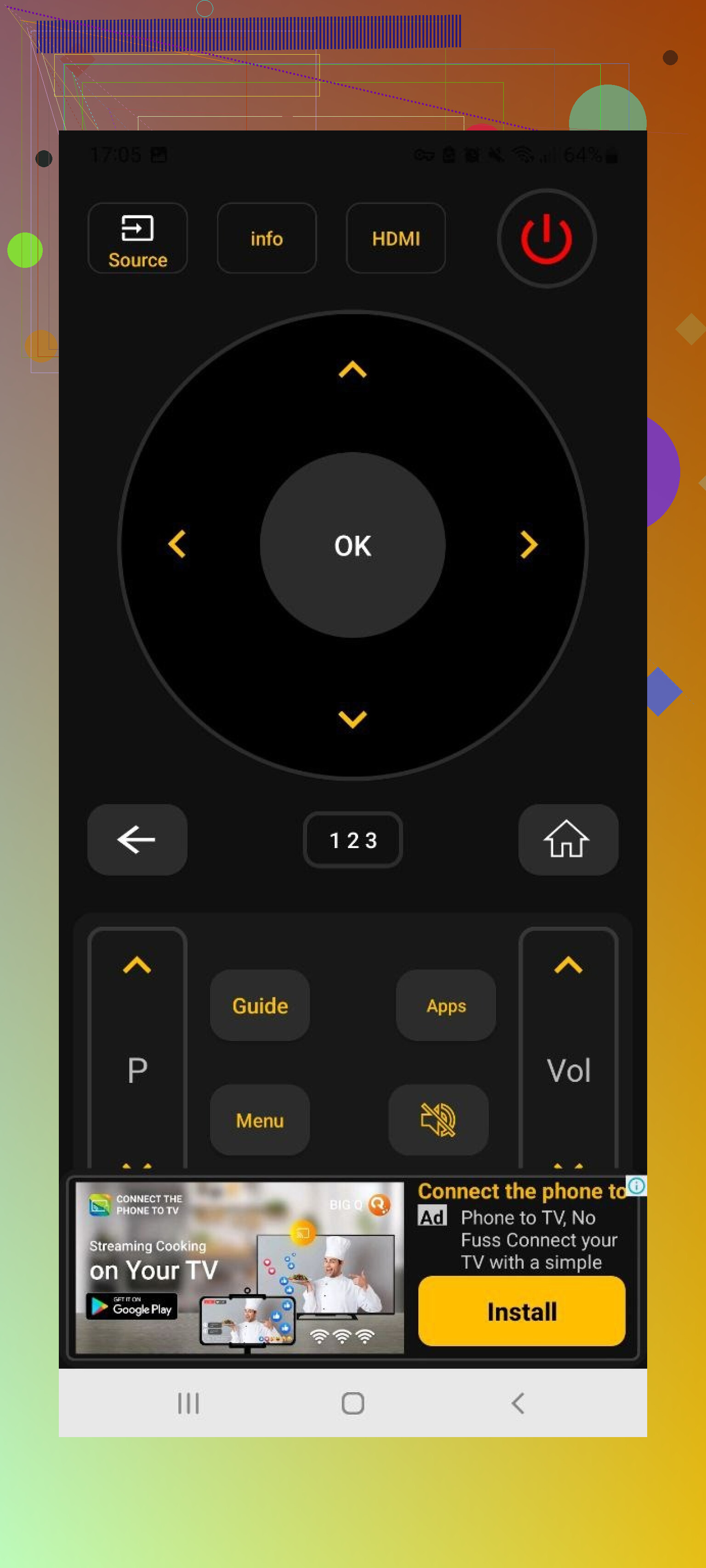
This one is big on Google Play, so we started with it.
Supported brands in the description include:
- Sony
- Samsung
- LG
- Philips
- TCL
- Hisense
- Panasonic
- Others
Two connection modes:
- Wi‑Fi for smart TVs
- IR blaster for older TVs, if your phone has IR hardware
Features I used:
- Trackpad for navigation
- Keyboard for input
- Voice search
- App control on smart TVs
Everything you need is technically free, but you pay with your sanity through ads.
Pros
- Works with many devices
- Handles both Wi‑Fi and IR, which is good if you have an older TV
- All basic functions are free
Cons
- The ad load is huge, including spots where you cannot find the close button
- The app crashed often enough that I had to reconnect to the TV several times
Price
Free
Link
My takeaway
On paper it is great. In real use it felt like an ad viewer with a remote feature bolted on. We uninstalled once the crashes and ad walls stacked up.
Remote Control For All TV | AI
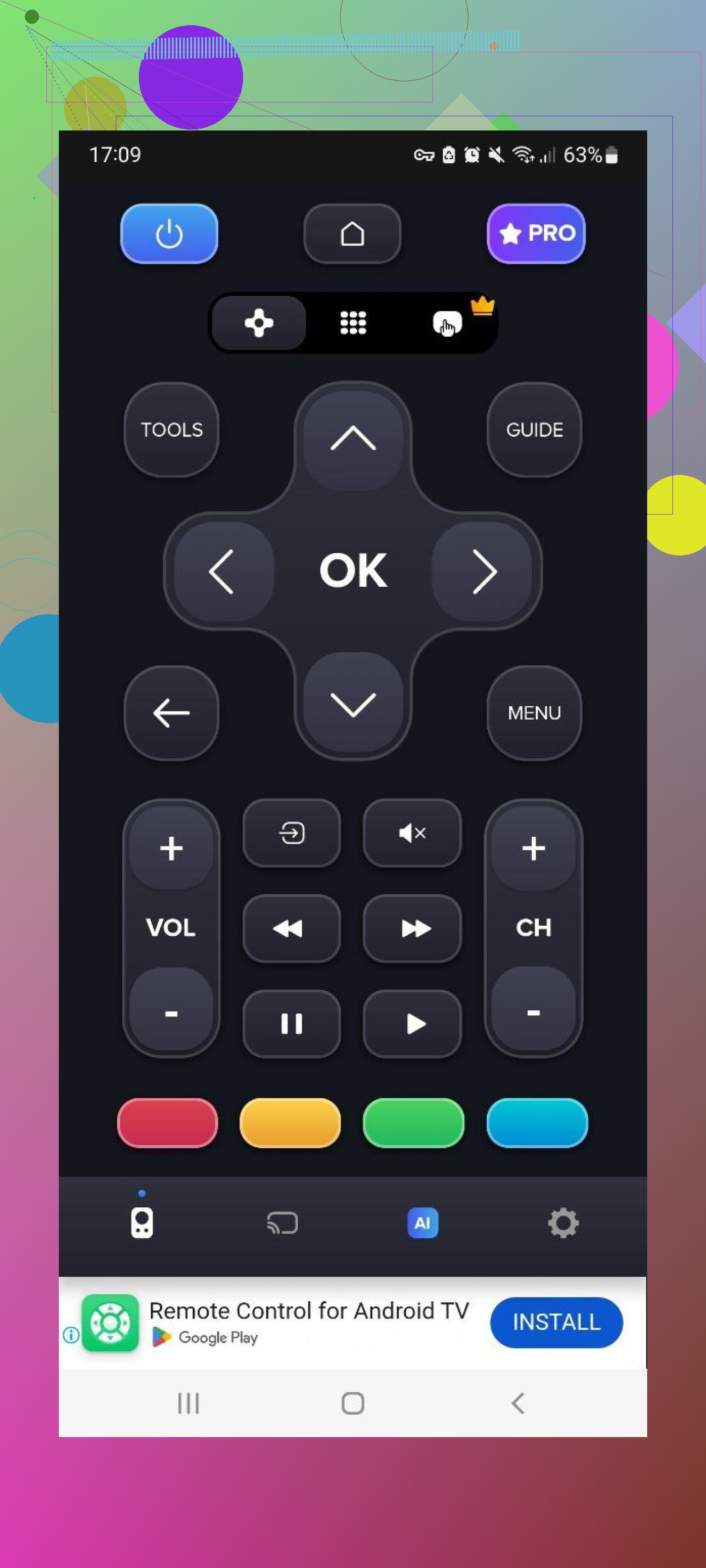
This one leans a lot on “AI” in the branding, but the part that matters is simple: will it replace your remote.
Free version gives:
- Basic directional pad
- Basic volume and channel controls
What annoyed me:
- It took a long time to find the TV
- Ads everywhere in the free mode
Locked into paid tier:
- Ad removal
- AI assistant
- Keyboard with voice input
- Screen mirroring
Pros
- Supports multiple TV brands
- Basic functions work in the free version
Cons
- Ads in the free version get in the way
- TV discovery feels slow
- The useful stuff is in the paid plan
Price
From 4.99 and up
Link
My takeaway
If you need only basic power and volume and you have patience for ads, it works. For all‑day use, the slow connection and locked features get old fast.
Universal TV Remote Control (Unimote, Sensustech)
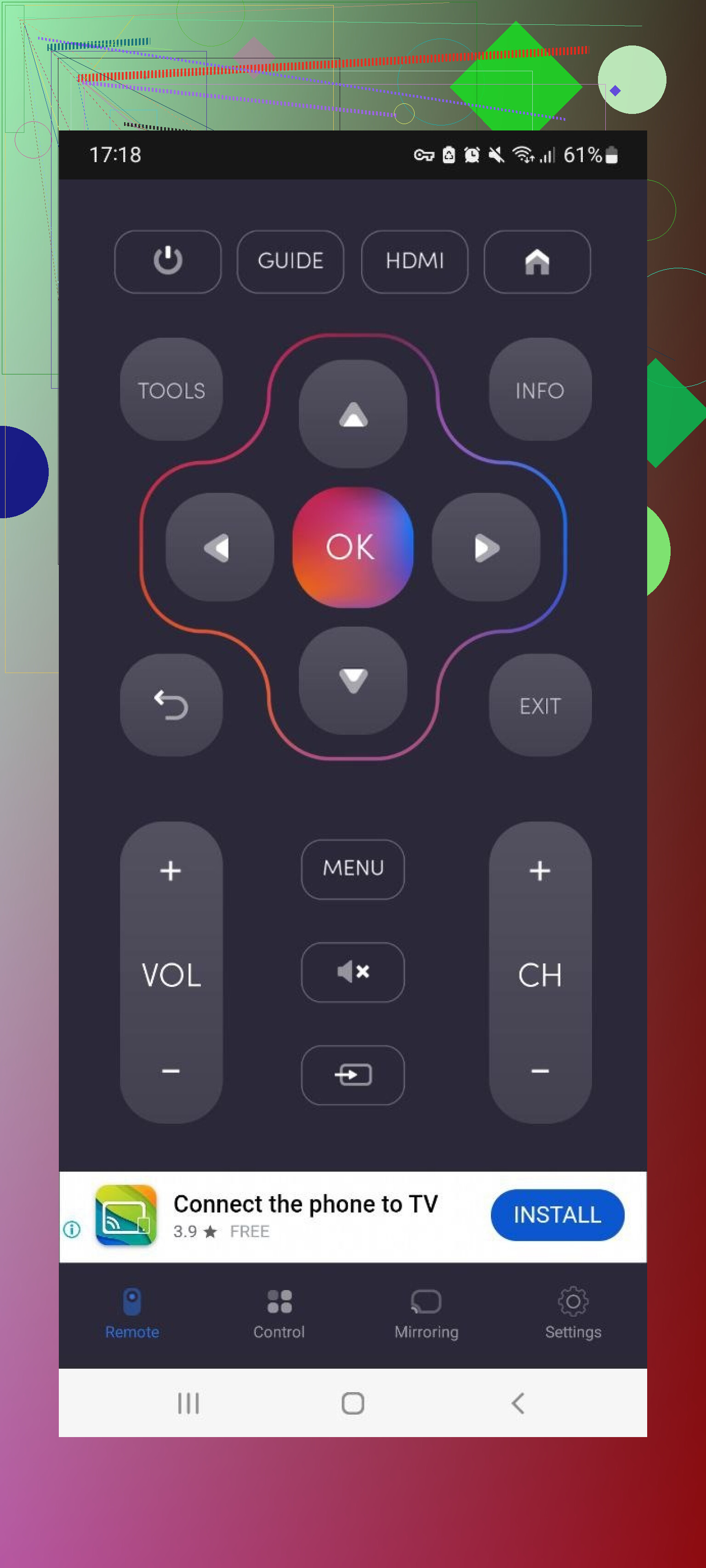
This one is from Sensustech too, but branded a bit differently.
It supports:
- Smart TVs over Wi‑Fi
- Non‑smart TVs if your phone has an IR blaster
App behavior:
- It found my Samsung TV quickly
- It often needed several tries to complete the connection
- Full‑screen video ads were constant while I tried to do basic actions
Pros
- Simple layout, not hard to figure out
- Works with both IR phones and Wi‑Fi TVs
Cons
- Heavy full‑screen ads during use
- Many options locked as in‑app purchases
- Connection to the TV felt unstable
Price
From 5.99 and up
Link
My takeaway
Good enough as a backup if your remote dies and you need something quick. For everyday viewing, the constant ads and dropouts make it annoying.
Universal TV Remote Control
(Uzeegar)
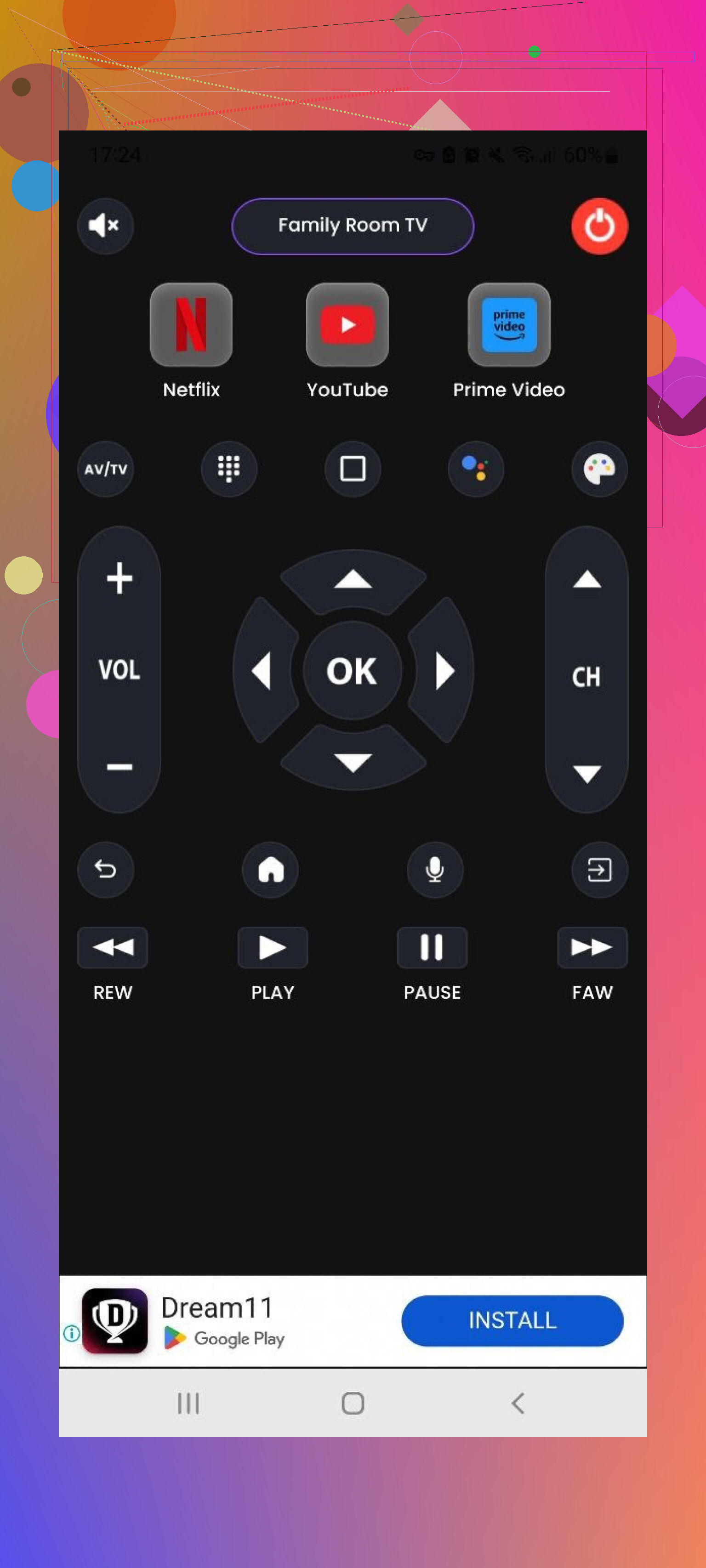
Last Android app we put through its paces.
Supported brands listed:
- LG
- Samsung
- Sony
- TCL
- Some others
Connection options:
- Wi‑Fi
- IR, if your phone has it
Main features:
- Power on / off
- Home / Menu navigation
- Play / Stop / Back / Forward
- One main “universal” control screen
Pros
- The basic remote functions are there
- Includes a free trial
Cons
- A lot of ads during use
- Most advanced options require payment
Price
From 3.99 and up
Link
My takeaway
Everything you want is technically available, but almost all of it is behind payment. The ad volume during testing pushed my patience. My wife kept it for a bit, then switched to a different one.
Part 3: Mac apps to control your TV
I wanted to see if I could control the TV from the MacBook too, so I grabbed a couple of Mac App Store remotes.
Apps tested:
- TVRem Universal TV Remote (Mac version)
- TV Remote, Universal Remote
TVRem Universal TV Remote (Mac)
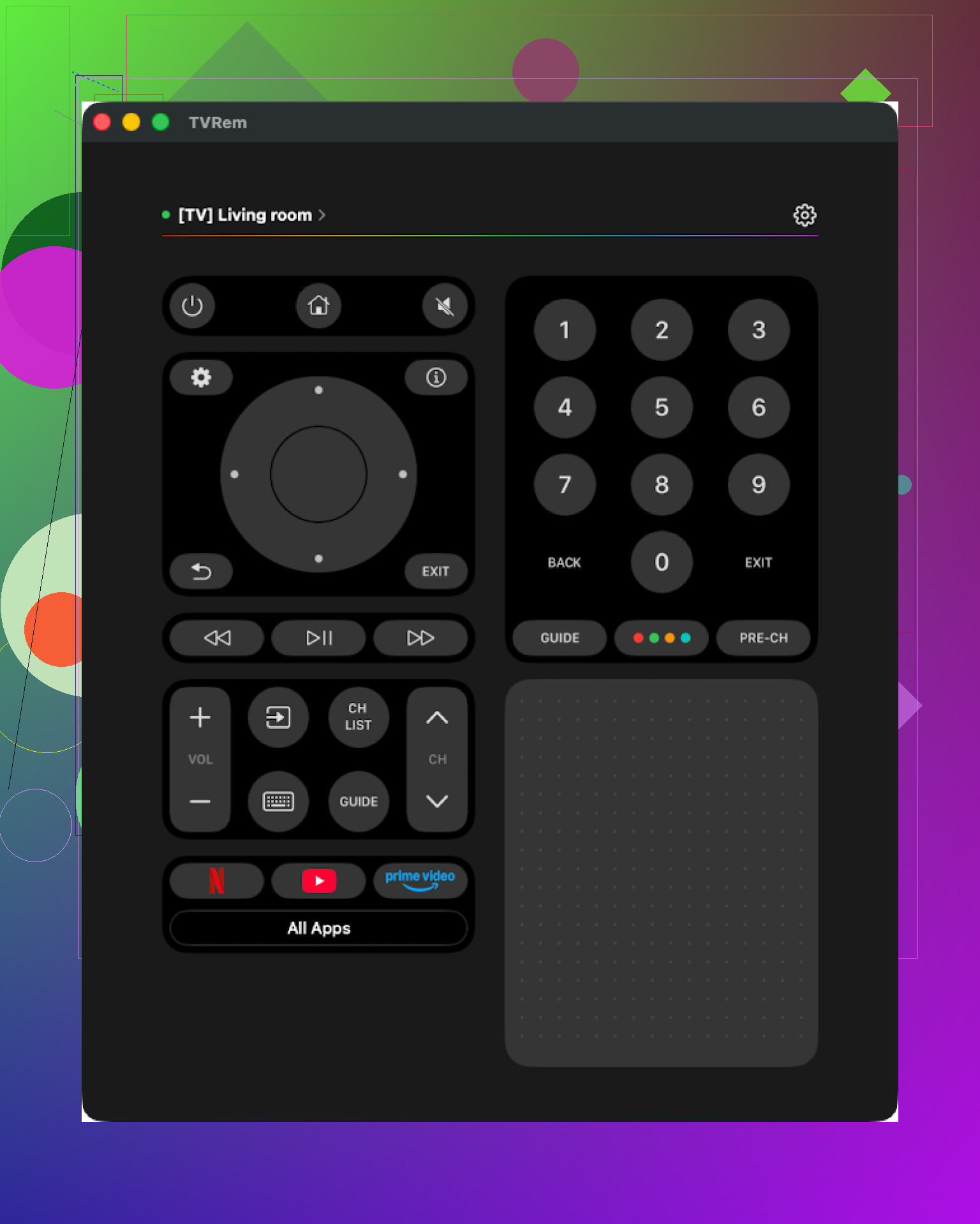
This is from the same developer as the iOS TVRem.
My test:
- Installed from Mac App Store
- Connected it to a Samsung TV on the same Wi‑Fi network
Connection was quick. The UI feels straightforward: no fancy effects, but everything is in the right spot.
Features I used:
- Touchpad area to move around TV menus
- Keyboard entry into search fields
- App launcher shortcuts
Pros
- Clean, simple interface
- No ads and no “upgrade now” screens
- Supports a range of TV brands
- Has all the day to day remote features
Cons
- No Vizio support
Price
Free
Link
My takeaway
If you sometimes sit with a Mac and want to control a TV without hunting for the remote, this one works well. I liked that it stayed free and quiet about money.
TV Remote, Universal Remote (Mac)
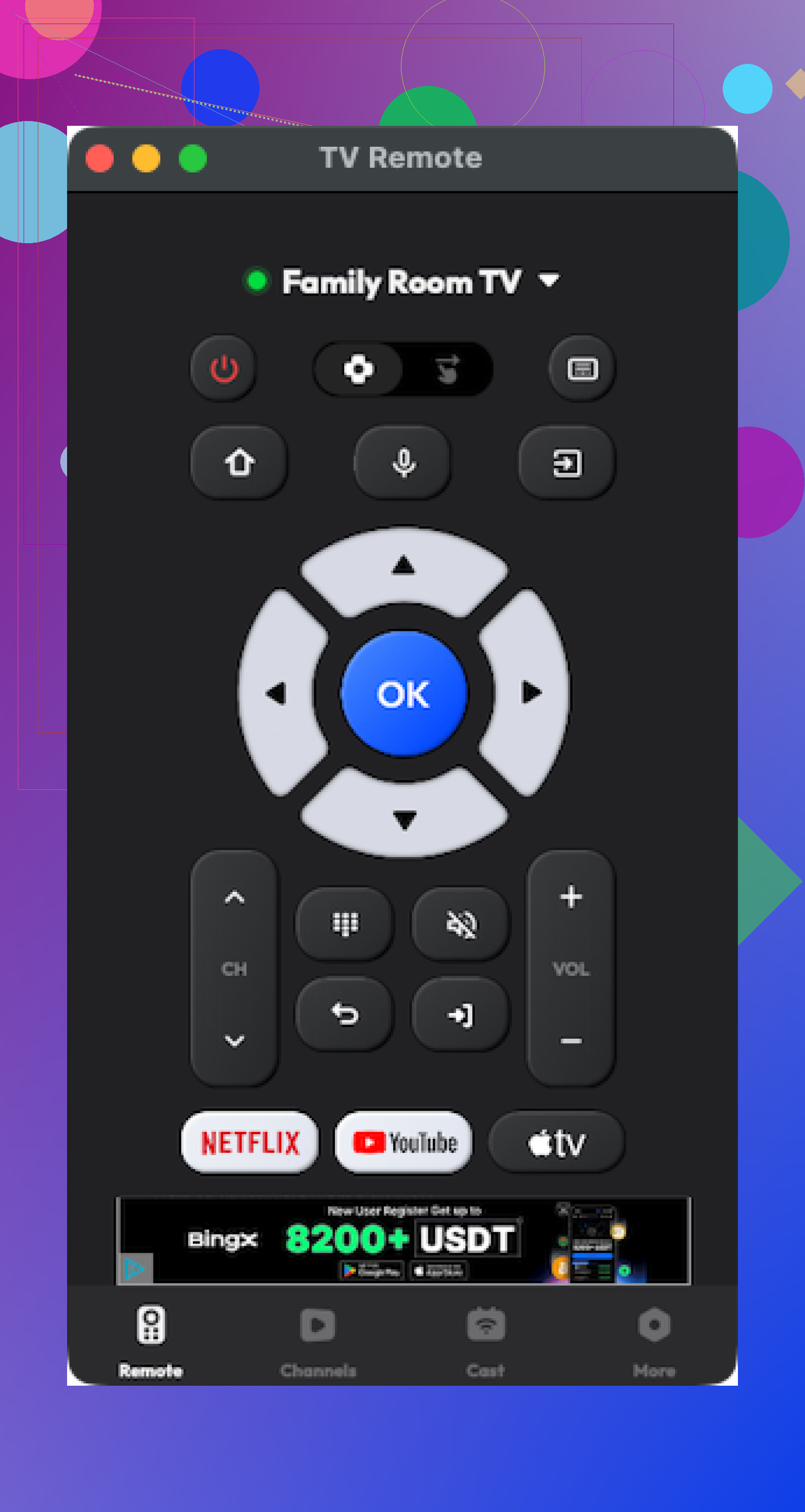
This one also lives in the Mac App Store and lists support for many big TV brands.
My experience:
- Connection to the Samsung TV worked
- The layout was fine
- It crashed a few times during use
Most of the nicer functions triggered a payment screen.
Pros
- Interface is okay to use
- Basic controls and multi‑brand support
Cons
- A lot of features are paid
- App crashed occasionally
Price
From 4.99 and up
Link
My takeaway
Usable if you are fine paying and do not mind the occasional crash. For me the free TVRem Mac app already did what I needed.
Part 4: Using a phone remote app vs a physical TV remote
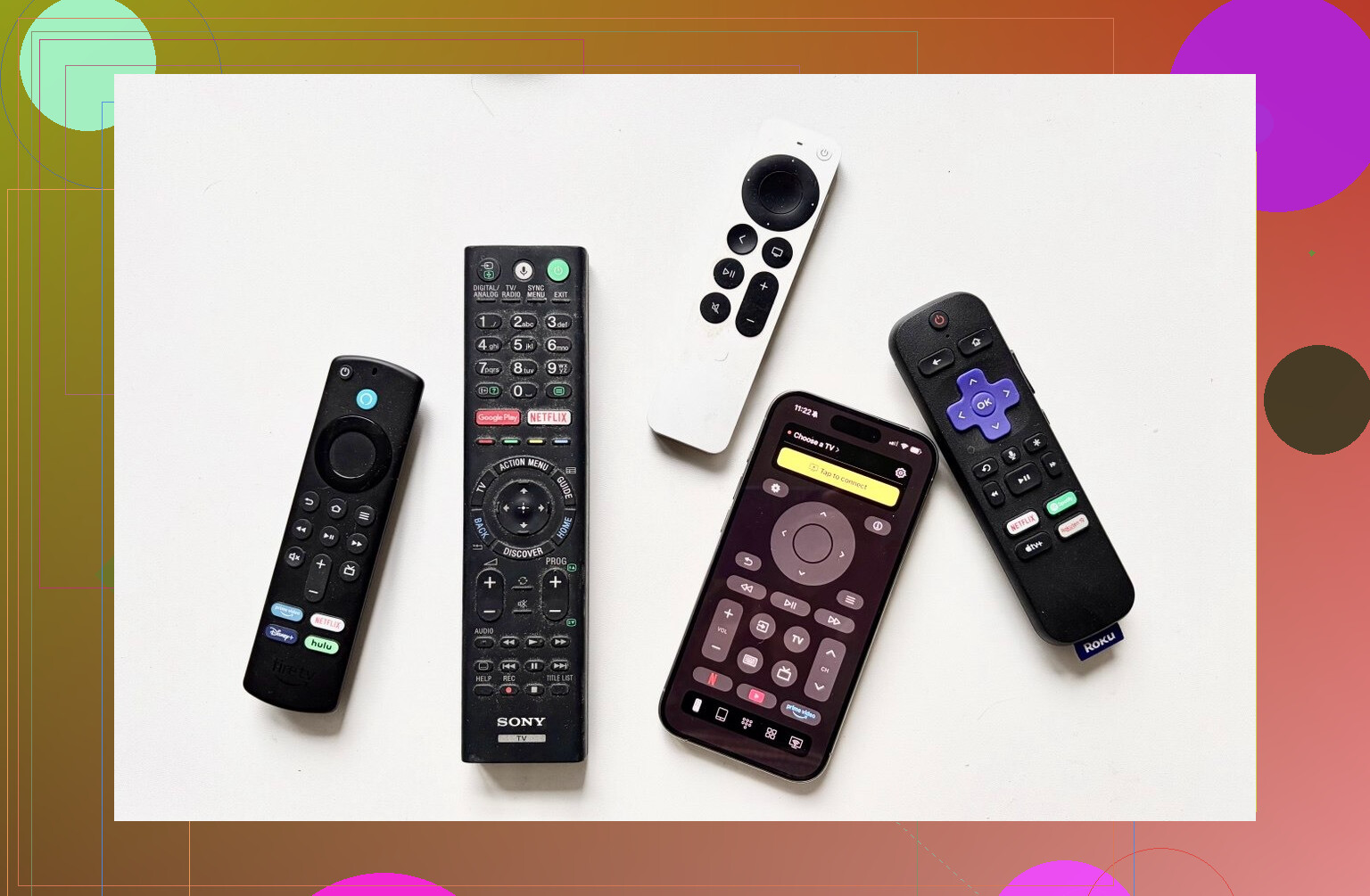
Definitions
Physical remote
The plastic remote that ships with your TV or that you buy as a replacement.
Remote app
Software that turns your phone, tablet, or computer into a remote over Wi‑Fi, Bluetooth, or IR.
Why a phone or Mac remote sometimes feels better
-
Harder to misplace
My phone is in my pocket or on the table near me. The TV remote drifts between rooms, falls behind pillows, or ends up in the kitchen for no reason. -
Text input does not suck
Typing an email and password with arrow keys on a TV is painful. Remote apps give you a normal keyboard, and some include voice input. That turns “type a long Netflix password” from a 1 minute task into a 5 second one. -
Cost difference
On Amazon, replacement remotes for:
- Samsung TVs from around 2019 to 2025 sit roughly in the 15 to 20 dollar range
- LG remotes are usually somewhere between 13 and 35 dollars
A lot of remote apps on iOS and Android are free or in the 4.99 to 7.99 price range. If you pick a free, ad‑free app like TVRem on iPhone or Mac, your extra cost is zero.
-
One app for several devices
If you have multiple TVs, you can switch between them in the same app, instead of juggling multiple remotes. -
More modern UI
Phone apps often have clearer icons, smoother scrolling, and faster menu changes than the stock TV remote interface, especially on older smart TVs.
Where remote apps fall short
-
Network dependency
Most apps need your phone and TV on the same Wi‑Fi, or Bluetooth to be awake. If Wi‑Fi drops, or if the TV is in a deep sleep state, the app might not wake it. You might still need the physical remote to power it on or change certain system settings. -
Phone friction
You need your phone unlocked and not on 1% battery. If you are used to throwing the remote to someone else on the couch, handing over your phone is not as simple. -
Limited support on some TVs
Older or cheaper models might expose only power, volume, and basic nav. Advanced stuff like input switching, settings menus, or app launching is not always supported.
What I ended up using
After a few evenings of testing across our house, this is where things landed.
On my iPhone
-
Main pick: TVRem Universal TV Remote
- Free
- No ads
- Worked reliably with Samsung and LG
- Touchpad and keyboard made everything easier
- Only gap is Vizio support, which I do not need right now
-
Runner up: TV Remote – Universal
- Requires payment for most things
- If you like how it looks and you are ok paying, it is a solid backup
On my wife’s Android phone
- She stuck with: Universal TV Remote Control (Codematics)
- I am not thrilled with how many ads it throws at you
- But for her usage pattern, it gets the job done and supports both Wi‑Fi and IR
- She accepts the ads, I mutter about them
On my Mac
- I kept: TVRem Universal TV Remote (Mac)
- Free and clean
- Works well when I am working on the laptop with the TV on in the background
If you are in the same boat, tired of two or three different plastic remotes scattered around the house, I would start with:
- TVRem on iPhone or Mac from
TVRem Universal TV Remote App App - App Store - Then test one or two Android options from Google Play if your household uses Android a lot
Install, connect over Wi‑Fi, try basic tasks:
- Turn TV on or off
- Change inputs
- Open Netflix or YouTube
- Type a long password
If the app can do all that without crashing or throwing up constant full‑screen ads, you are probably good to stick with it.
19 Likes
Short version. If you want a simple, reliable family remote and do not want to live in a phone app, get a solid hardware universal and use phone apps as backup.
Given what you wrote, here are the options that tend to work well in normal homes.
- Easiest traditional universal remote
Sofabaton U1
• Works with a lot of TV brands, soundbars, streaming boxes via IR and Bluetooth.
• Programming uses their phone app, then you sync to the remote. First setup takes 10–20 minutes.
• After that, the family uses the physical remote, not the app.
• Has a small screen to switch between devices, so one remote controls TV, soundbar, maybe a streamer.
Good for: mixed brands, simple one remote setup, people who hate digging in settings every week.
Downsides:
• No rechargeable dock. Uses batteries.
• Activity/macros are limited compared to top tier options.
- More advanced but still family friendly
Sofabaton X1
This is the closest current thing to the old Logitech Harmony style.
• Hub sits by the TV and blasts IR, so you do not need to point the handheld perfectly.
• Remote talks to the hub by RF, and you control multiple devices through activities, like “Watch TV” that turns on TV, sets input, powers soundbar.
• Supports many brands via cloud database.
• Setup uses a phone app and takes longer, but once you dial it in, the family hits 1 button for most stuff.
Good for: multiple boxes and sound systems, people who want one button routines.
Downsides:
• Higher price than simple remotes.
• Setup is more annoying on day one. If you hate tinkering, this might feel like work.
- Simple cheap option if you only need TV basics
GE 4‑Device Universal Remote (the plain IR ones)
• Controls up to 4 devices.
• Programming uses brand codes from the manual. Usually 2–5 minutes per device.
• Big labeled buttons, grandparents and kids handle it fine.
• Good if you only need TV, maybe cable box, and a soundbar, no fancy macros.
Downsides:
• No screen, no activities.
• Programming is old school and boring, but you do it once.
- Phone and computer remotes as backup
Here is where I disagree a bit with @mikeappsreviewer. Phone and Mac remotes are great as a backup or for typing passwords, but they are not what I would hand to kids or guests as the “main remote”.
Reasons:
• Wi‑Fi hiccups stop the app.
• You need your phone unlocked, screen on, sometimes in the same room.
• People tap notifications or get calls in the middle of trying to pause a show.
That said, they help a lot in two situations:
• Your physical remote dies or disappears.
• You need to type long logins on smart TV apps.
On iPhone or Mac, TVRem like they used is a solid free backup for compatible brands. For everyday channel surfing for the whole family, a physical remote still beats a phone.
What I would do in your case
-
List your devices
Example:
• TV brand and model.
• Soundbar or receiver.
• Streaming box (Roku, Fire TV, Apple TV, etc). -
If you have 2 or more devices at the TV
• Get Sofabaton U1 if you want cheaper and do not care about one button activities.
• Get Sofabaton X1 if you want one button “Watch TV” and you have multiple boxes. -
If you only use the TV speakers and one input
• A GE 4 device or similar basic universal remote is enough and cheaper. -
Install one phone remote app as backup
• Use it when the remote walks away or you need to type a long password.
• Do not rely on it as the only way to control the TV for everyone in the house.
If you post your TV brand and any soundbar or box you use, you will get more specific model picks.
Short version: if you just want something the whole family can grab and use without thinking, I’d go with a simple physical universal remote first, then use phone/Mac apps like the ones @mikeappsreviewer tested as a backup / “power user” option.
They focused a ton on apps, which is great, but you specifically said family use and “overwhelmed by options.” In a living room with kids / guests, a plastic remote still wins for quick, brain‑off usage.
Here’s how I’d approach it:
1. Pick the type first
- If you have mostly modern smart TVs & streamers (Samsung/LG/Sony, Roku, Fire TV, Apple TV):
→ Get a basic learning / multi‑device IR remote that supports at least 4 devices. - If you also have older / weird brands / soundbars / DVD players:
→ Prioritize a remote that supports code search + learning buttons.
I’d avoid super fancy “screen on the remote” stuff. Too much setup, more stuff to break.
2. Concrete recs that have actually held up for a lot of people
Not apps, actual remotes:
-
Sofabaton U1
- Controls up to 15 devices
- Supports TVs, soundbars, receivers, streaming boxes
- Has a scroll wheel to switch devices
- Setup is via app, but after that it works like a normal remote
- Good balance of “universal” without becoming a science project
- Family can just use it like a regular remote once you label things clearly
-
GE Backlit Universal Remote (4‑ or 6‑device models)
- Cheap, simple, backlit
- Program with codes or auto‑code search
- Works with basically every common TV brand plus soundbars
- Zero learning curve for non‑techy family members
- Only downside: no macros, no fancy activities, just good basic control
-
One For All URC‑7880 / URC‑7935 Starlink‑style remotes
- One For All remotes are usually very solid on compatibility
- Some models let you set “activities” like “Watch TV” that power on TV + soundbar
If you want “set it once and forget it,” the GE or One For All are probably enough. If you want something that can grow with more devices, go Sofabaton U1.
3. Where I actually disagree with leaning app‑only
@Mike did a great breakdown of apps on iPhone / Android / Mac, but for a main family remote, apps have some real annoyances:
- You can’t just toss your phone across the couch
- Someone gets a call or walks off with the “remote” in their pocket
- Kids unlocking your phone every 3 minutes is its own horror movie
- Wi‑Fi hiccups = no remote until things reconnect
They are fantastic as a second remote though, especially TVRem on iPhone/Mac like they mentioned, for stuff like:
- Typing long passwords
- Searching YouTube / Netflix
- Controlling TVs in different rooms from one device
4. Setup sanity tips so you don’t hate your new universal remote
Whichever physical remote you buy:
- Start with the main TV + soundbar only
Get those working perfectly before you add more devices. - Label inputs and modes
Many remotes have little device buttons (TV, Blu‑ray, AUX). Put a tiny sticker or just tell people “Always hit TV first, then volume.” - Test the “annoying” stuff first
- Power on/off
- Volume
- Input switch (HDMI 1, HDMI 2, etc.)
- Mute
If those 4 things are reliable, you’re 90 percent done.
- Hide or stash the old remotes once everything’s working
If they stay out, the family will keep bouncing between them and never fully adjust.
5. So what should you actually buy now
If I had to pick for a typical family setup, in order:
- On a budget & want simple:
- GE 4‑Device or 6‑Device Backlit Universal Remote
- Want one remote to rule everything & not mind a bit more setup:
- Sofabaton U1
- Already like using your phone a lot:
- Pair one of the above with TVRem or similar app as a backup and for typing
If you post your TV brand(s), soundbar / receiver (if any), and whether you use Roku / Fire TV / Apple TV, people here can probably narrow it down to a specific exact model so you don’t have to scroll through 300 Amazon listings again.
Short answer for a family living room: pair a dead-simple physical remote with one app, instead of trying to find a single “perfect” universal anything.
@reveurdenuit is right that a plastic remote wins in a room full of kids and guests, and @mikeappsreviewer did a nice job proving that app-only setups are very liveable. I just would not go only app the way they leaned; Wi‑Fi glitches and battery drama always show up at the worst time.
If I boil it down for you:
-
Get a basic universal hardware remote
Think GE or One For All style 4–6 device remote. They usually support most TV brands plus soundbars without turning setup into homework. You get:- Pros: Cheap, durable, brainless for visitors, works even if Wi‑Fi dies
- Cons: Typing passwords is miserable, and switching between multiple devices is not super elegant
-
Add one phone app as the “helper remote”
This is where something like a TVRem-style universal TV remote app is actually great:- Pros: Fast text entry, quick navigation, works for multiple TVs, free or low cost
- Cons: Needs same network, not ideal as the only remote, and you probably do not want your phone passed around all evening
-
How to split roles so the family does not get confused
- Physical remote: Power, volume, input, channel up/down
- App remote: First-time setup, logging into apps, searching YouTube / Netflix, occasional use when the physical remote vanishes
You already know the apps can do the job from @mikeappsreviewer’s testing. Where I slightly disagree with both earlier posts is that you do not need a fancy “smart” universal like Sofabaton unless you have a receiver, game consoles and a pile of HDMI toys. For one or two TVs and a soundbar, a plain universal plus one solid app covers 99 percent of family use with less to maintain.
Pros for going this hybrid route:
- Everyone can grab the plastic remote without instructions
- You get modern app convenience without trusting it as your only control
- Replacing either piece later is cheap and easy
Cons:
- You still own two “remotes” in practice
- You will have to teach people that the phone app is for typing/search, not for volume
If you list your TV brands and whether you use a soundbar or streaming stick, folks here can point you at a specific GE / One For All model that is known to work cleanly with your mix.