I’m trying to connect to my WordPress site with FTP so I can upload files and fix a plugin issue, but I can’t get logged in. I’m not sure if I’m using the right host, port, or FTP credentials from my web hosting account. I need help figuring out how to connect to WordPress via FTP and what settings I should use.
Connecting to your WordPress site via FTP (File Transfer Protocol) is a straightforward way to manage your website files directly from your computer. It allows you to upload themes, plugins, or edit the wp-config.php file without using the WordPress dashboard.
To get started, you need three things: your FTP credentials (usually found in your hosting account panel), an FTP client installed on your computer, and your website’s IP address or hostname.
How to Connect
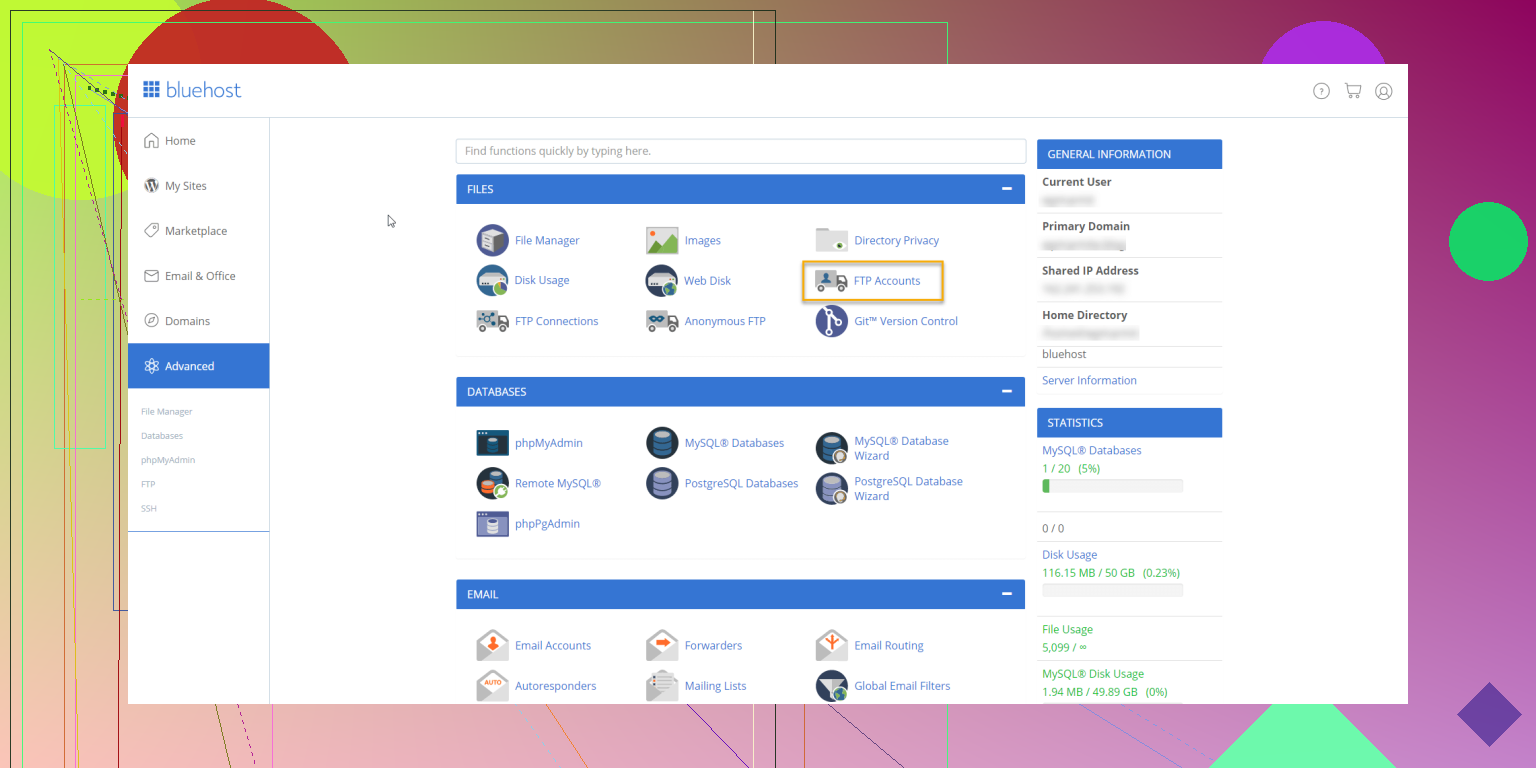
- Gather Credentials: Log in to your hosting provider and look for the FTP Accounts or Settings section. You will need a Host (usually your domain or IP), a Username, and a Password.
- Open Your Client: Launch your chosen software and look for the “Quickconnect” bar or a “Site Manager” option.
- Enter Details: Plug in your credentials. If your host uses SFTP (Secure FTP), make sure to change the port number, which is typically 22 instead of the standard 21.
- Manage Files: Once connected, your computer files appear on the left, and your WordPress server files appear on the right. You can drag and drop files between the two windows to transfer them.
Popular FTP Clients
Choosing the right tool depends on your operating system and how often you plan to move files. Here are four common options:
- FileZilla: This is a well-known and free program that works across Windows, Mac, and Linux. It is a solid entry point for most users, though it has limitations. When you are processing large files or a large number of them, FileZilla starts to perform poorly and slowly.
- Commander One: For Mac users, I recommend Commander One. This is a paid option because it offers advanced functionality with FTP/SFTP connections. It also supports archives for compressing files and transferring them to a server, which is especially useful if you are a developer.
- Cyberduck: This is a free, open-source FTP client that features a clean interface. While it is popular for its simplicity and cloud storage integrations, many users experience problems with basic file operations.
- CloudMounter: This software is suitable for both Windows and Mac. It is especially user-friendly for beginners because it allows you to access FTP servers directly from File Explorer or Finder. This makes transferring files feel just like moving folders on your own hard drive.
5 Likes
Skip plain FTP if your host offers SFTP. FTP sends creds in clear text. SFTP is the safer pick and many hosts disable normal FTP now. This is where I slightly differ from @mikeappsreviewer. I would check SFTP first, not FTP first.
Use this quick check list.
-
Host
Look in your hosting panel for “Server Hostname” or “Shared IP”.
If your domain fails, try:
yourdomain.com
ftp.yourdomain.com
server hostname from hosting panel
server IP -
Port
21 = FTP
22 = SFTP
990 = FTPS on some hosts -
Username
This trips people up a lot. Your cPanel login is often not your FTP login. Some hosts use:
full cPanel username
an FTP account you created
your SSH user for SFTP -
Path
After login, WordPress is often in:
public_html
htdocs
www
sometimes a subfolder if WP is not on the root -
Fix the plugin issue faster
If login works, don’t upload files first. Rename the plugin folder under wp-content/plugins. That disables it fast. Example:
bad-plugin
to
bad-plugin-off
If you’re on Mac, Commander One is solid for SFTP. Cleaner than older clients, less fiddly, and easier to check hidden files like .htaccess.
If connection still fails, post the exact error. “auth failed”, “timeout”, or “connection refused” point to diffirent problems. That part matters.
A couple things I’d check that @mikeappsreviewer and @stellacadente didn’t really lean on enough:
First, don’t assume the problem is your password right away. A lot of hosts now block plain FTP entirely or only allow it from certain IPs. So if you keep getting “connection refused” or it just spins forever, that’s often a protocol/firewall issue, not bad creds.
What I’d do:
- In your hosting panel, look for SSH/SFTP access specifically, not just FTP Accounts.
- If your host has a temporary server hostname, use that instead of your domain. If DNS is off,
yourdomain.comcan fail even when the server is fine. - Turn on passive mode if you’re trying regular FTP/FTPS. Weirdly common fix.
- If you use Cloudflare, that has nothing to do with FTP login. People mix that up alll the time.
- Check whether your account is jailed to a certain folder. You may log in fine but land outside the WordPress install and think something’s broken.
For the plugin issue, I actually wouldn’t upload stuff first either. Fastest move is usually:
wp-content/plugins/
then rename the problem plugin folder. WordPress disables it automatically.
If you’re on Mac, Commander One is worth using for WordPress FTP or SFTP access because it makes hidden files and folder navigation less annoying than older clients. FileZilla works, sure, but I don’t love it for troubleshooting.
Also, the exact error matters a lot:
- Authentication failed = wrong username/password or wrong account type
- Connection timed out = bad host, blocked port, firewall
- Connection refused = service disabled or wrong protocol/port
- Could not retrieve directory listing = passive mode / permissions issue
If you post the exact host you’re entering, protocol chosen, and the exact error text, people can narrow it down pretty fast.