I lost the original remote for my Skyworth TV and need a free iPhone app that actually works. I tried a couple of remote apps from the App Store, but they either would not connect or kept asking for paid upgrades. Looking for recommendations for a reliable free Skyworth TV remote app for iPhone so I can control my TV again.
If you want a free iPhone remote for a Skyworth TV, the first thing I’d check is the TV system. Skyworth doesn’t stick to one software base across every model. Some sets run Android TV or Google TV. Others use a different smart TV setup. So the app you pick depends on what your TV is running.
I ran into this with a Skyworth in a guest room. I assumed one official app would fix it. Nope. It turned into trial and error, because there isn’t one clean first-party app that fits every Skyworth set.
Most people end up with a universal remote app, and for good reason. It saves time.
The one I’d start with is TVRem – Universal TV Remote app
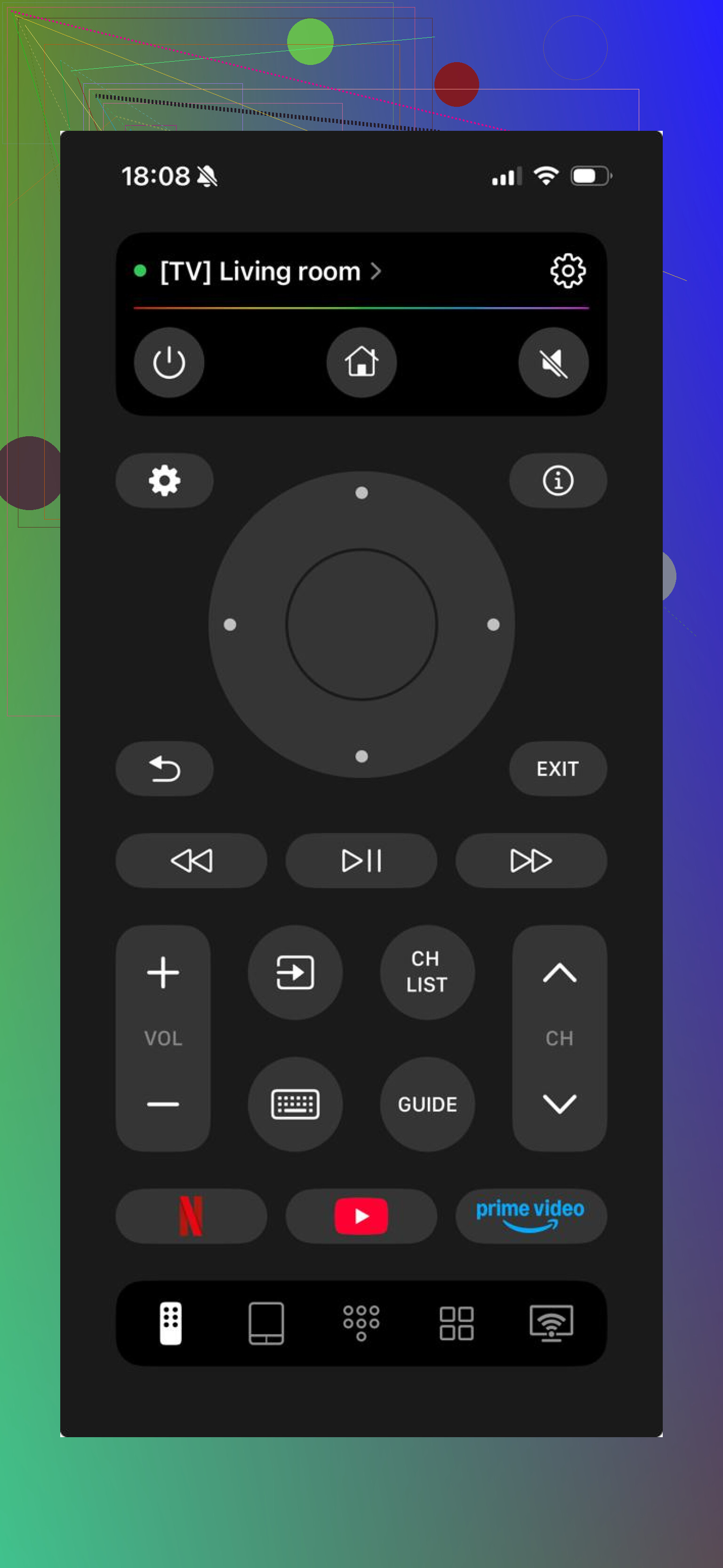
On Android TV and Google TV based Skyworth models, this one tends to work without much fuss. You put the iPhone and TV on the same Wi-Fi, open the app, and it usually finds the TV on its own. After pairing, you get the stuff most people need day to day: directional controls, volume, keyboard entry for searches, and shortcuts for apps.
What stood out to me was the free access to all controls. A lot of remote apps let you install them, pair them, tap around for thirty seconds, then throw a paywall in your face. This one doesn’t seem to do that.
Another one worth trying is TV Remote – Universal Remote.
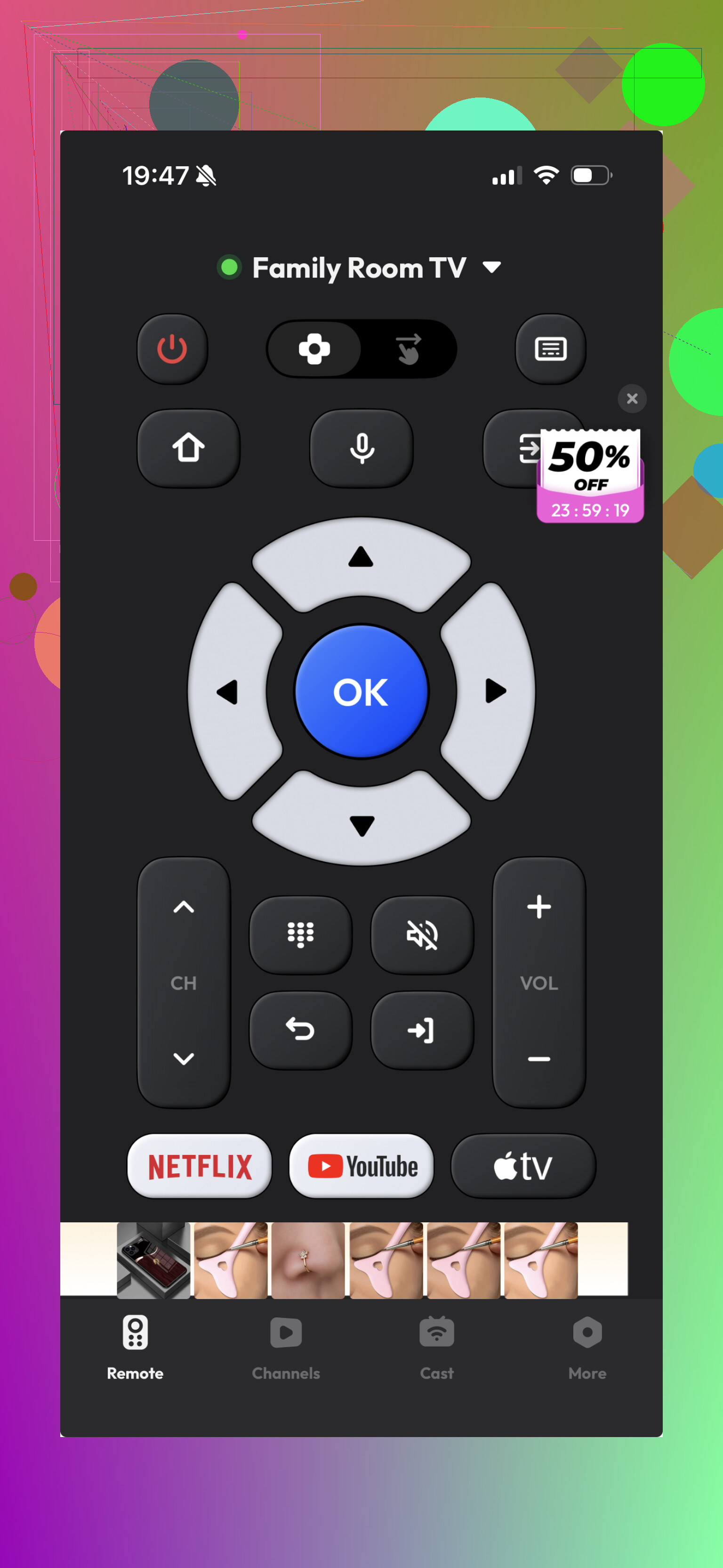
It works with Skyworth TVs often enough because it’s built as a broad universal option, not a brand-specific tool. I found it usable, though a bit clunky. The basics are there, but text input and smart TV menu movement felt slower and less polished. If you only need volume, navigation, and simple control, it might be enough. For regular use, I’d rank it lower.
There’s also the Google route, if your Skyworth model uses Android TV or Google TV.
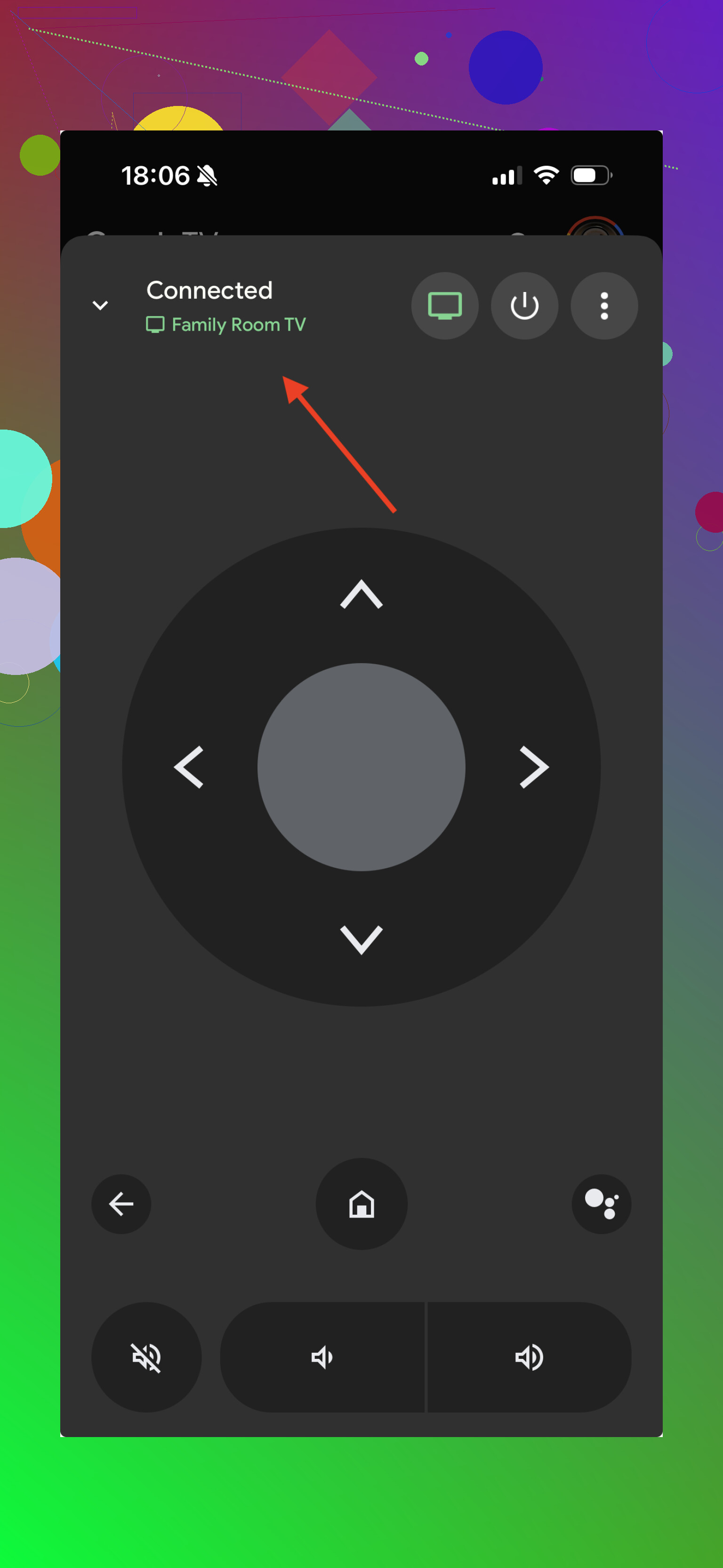
Some TVs let you use Google-based remote features through the system itself. This works fine on some models and gets annoying on others. Pairing depends on the TV version, your network setup, and whether the Google features are fully enabled. I’ve seen it work fast on one set and fail on another in the same house, so I wouldn’t treat it like the safest first try.
If you want the short version, all three options might work. The difference is how painless the setup feels and how complete the controls are after connection.
If your goal is simple, install one app, connect fast, use it free, and move on, then TVRem is the one I’d try first. It covers more than one TV platform, which matters with Skyworth, and it’s a better long-term pick if you switch TVs later or have more than one set at home.
9 Likes
I’d check one thing first. Does your Skyworth have Roku TV, Android TV, or Google TV on the home screen. That matters more than the brand.
I slightly disagree with @mikeappsreviewer on going straight to a universal app first. Universal apps work, but if your set is Roku-based, the free Roku app on iPhone is usually the least annoying option. It gives you full nav, volume on many models, keyboard input, and it stays free. Same idea if your Skyworth is Google TV or Android TV. Try the Google TV app on iPhone before burning time on third-party stuff.
What I’d do:
- Check TV OS from the home screen.
- If it says Roku, use the Roku app.
- If it says Google TV or Android TV, use Google TV.
- If it uses some weird Skyworth system, then try a universal app.
One catch. iPhone apps need your TV and phone on the same Wi-Fi. If your TV was on old Wi-Fi and you lost the remote, pairing gets annoyng fast. In that case, borrow any cheap USB mouse if the TV supports it. A lot of smart TVs do. Plug it in, get the TV back on your network, then use the app.
If your Skyworth is an older non-smart model, no iPhone app will help unless you have IR hardware, and iPhones don’t. That part trips people up alot.
I’d actually add one thing neither @mikeappsreviewer nor @caminantenocturno leaned on enough: check whether your Skyworth supports HDMI-CEC and use a different device remote to wake/control it first.
Seriously. If you’ve got a Fire Stick, Apple TV, Roku box, game console, or even some soundbars connected, their remotes can sometimes navigate the TV menus through CEC. That can get you to the network settings without needing the original remote, which is usually the real blocker. People keep chasing iPhone apps when the TV just isn’t on the right Wi-Fi, then every app looks broken.
Also, small disagree with the “just use the official app for the OS” route. In theory that’s cleaner. In practce, some TV builds are so half-baked that the official app sees the device but still acts weird with volume or power. So I’d judge by what connects reliably, not by what’s supposed to be most “correct.”
My shortlist would be:
- if TV is already on Wi-Fi: try a universal remote app first
- if it won’t pair: use HDMI-CEC from another device to get into settings
- if the TV has ethernet: plug it directly into the router temporarily, which sometimes makes app detection way easier
- if it’s old/non-smart: stop wasting time on iPhone apps, they won’t do anything
One more old-school fix that weirdly works: try a cheap universal physical remote from Walmart/Target for like 10 bucks. Not elegant, but way less annoying than testing 9 freemium apps that all want a subscription after 2 taps lol.