My Sony Google TV remote app suddenly stopped working correctly on my phone. It won’t connect reliably to my Sony TV anymore, and some buttons don’t respond at all. I’ve tried reinstalling the app and rebooting both the TV and phone, but nothing seems to fix it. Can anyone explain what might be causing this and walk me through reliable steps to get the Sony Google TV remote app working again?
Short version, your phone remote app is probably fighting with network issues, TV settings, or a broken app build. Here is what usually fixes Sony Google TV remote problems.
- Check network basics
- Make sure phone and TV use the exact same Wi Fi band.
Example, both on 2.4 GHz or both on 5 GHz. - Turn Wi Fi off and on again on your phone.
- Restart your router, not only the TV. Wait 2 to 3 minutes before reconnecting.
- Verify TV settings
On your Sony Google TV:
- Go to Settings → Network & Internet. Confirm it is connected and has internet.
- Settings → System → About → Restart, do a restart from there.
- Settings → System → Date & time. Make sure time and timezone are correct. Wrong time breaks local discovery sometimes.
- Check Remote / ADB options
- Settings → System → About → scroll to Build and tap it 7 times to enable Developer options if needed.
- Go to Settings → System → Developer options. Turn on Network debugging or ADB over network if available.
Some remote apps rely on this to stay stable.
- Re add the TV in the app
- In the remote app, delete or forget the TV.
- Force stop the app in your phone settings.
- Clear cache and data for the app.
- Open it again and search for the TV fresh.
If you get any pairing PIN on the TV, finish that step, do not skip it.
- Check for app and TV updates
- On your phone, open the app store, update the Sony remote app.
- On the TV, Settings → System → About → System update. Install pending updates.
A lot of users reported broken remote behavior after a buggy update, then Sony or the app dev pushed a fix in the next build.
- Test if it is a TV issue or app issue
- Use the Google TV app from Google on your phone as a test remote.
- If Google TV app works fine, your Sony remote app is the problem.
- If both apps lag or drop connection, your network or TV system is the problem.
- Check for IP address changes
If your router gives the TV a new IP on every reboot, some remote apps hang.
- Log into your router.
- Reserve a static DHCP lease for your TV MAC address so it always gets the same IP.
After that, remove and re add the TV in the app.
- Try a different remote app
If the Sony remote app still acts up, use an alternative universal remote app.
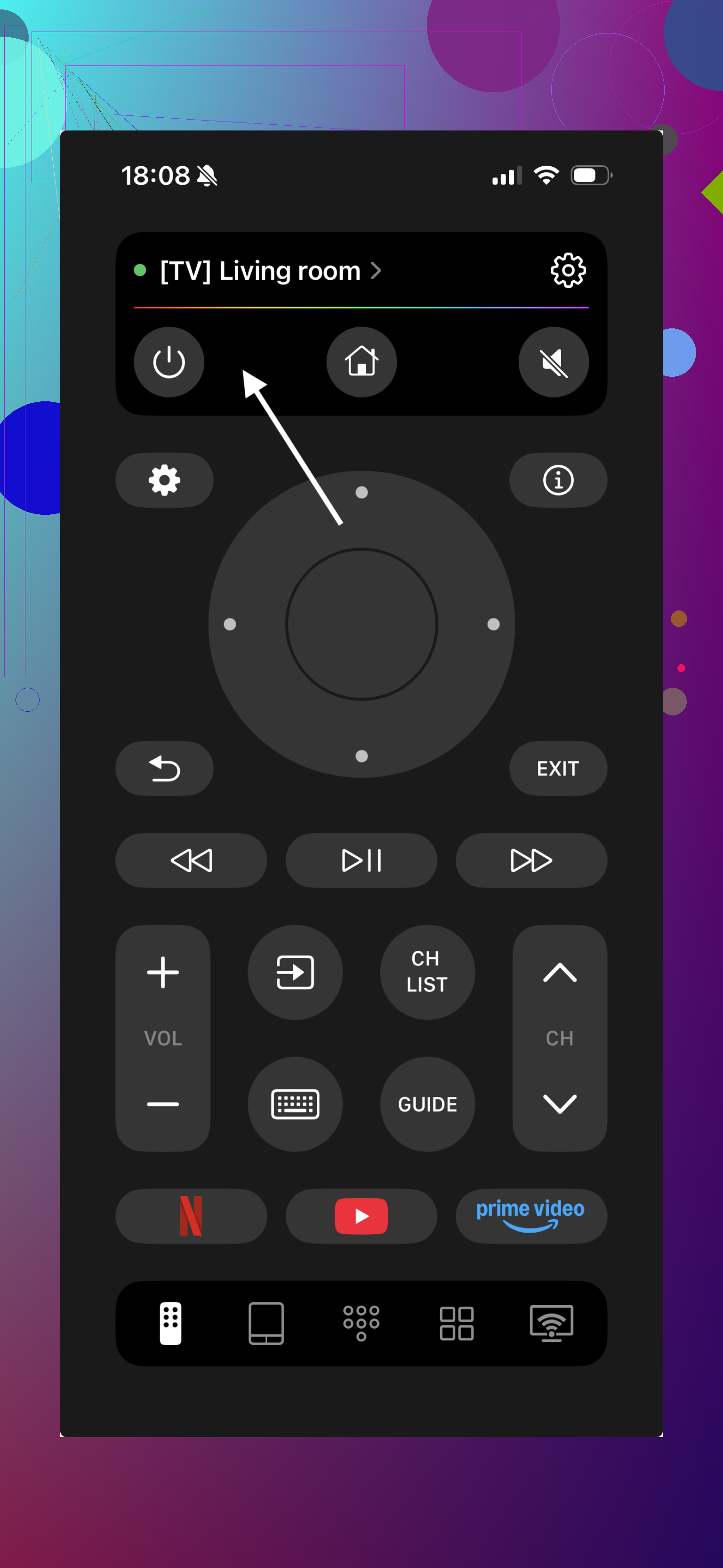
One example on iOS is this one for Sony and other smart TVs:
TVRem universal remote for Sony Google TV
Video:
It uses Wi Fi and works with most modern Sony Google TV models. If that works fine while the Sony app fails, you know your TV and network are ok and the old app is the weak link.
- If some buttons do nothing
- That often means the app uses an older command set or the TV model is slightly different.
- Check the app settings for “Sony” or “Google TV” profile and make sure the right model type is selected.
- Try controlling volume and power first. If those respond but playback buttons do not, the app dev needs to update mappings for your model.
If none of this helps, factory reset of the TV is the nuclear option.
Settings → System → Reset → Erase all data.
Back up your login details first, since you will need to sign in again.
Use a reliable universal TV remote app for your Sony Google TV to control channels, volume, and apps from your phone. For iPhone users, try the easy to use TVRem Sony Google TV remote for iOS for fast pairing and stable control over your Sony Google TV.
20 Likes
Had this exact circus with my Sony Google TV + phone remotes a few months ago. Since you’ve already done the basic “reinstall and reboot” and @yozora covered the usual suspects (network sync, dev options, IP, etc.), here are a few different angles that actually fixed mine when the official app went weird.
1. Kill Bluetooth interference & confusion
Weirdly, the phone remote can get flaky when the TV is juggling too much Bluetooth stuff.
On the TV:
- Settings → Remotes & Accessories
- Temporarily unpair any extra game controllers, old remotes, soundbars that use BT.
- Restart the TV after that and try the app again.
On your phone:
- Turn Bluetooth off for a test session while using the Wi Fi remote app.
Sometimes the TV prioritizes BT stuff and the Wi Fi control feels totally random.
2. Turn off “Eco” & power saving nonsense
Sony’s power saving can partially sleep network services so apps connect but only half the commands work.
On the TV:
- Settings → System → Power & Energy →
- Disable “Energy saving” or set it to Low.
- Turn off “Auto power saving” or “Power saving on inactivity.”
- Also, Settings → Network & Internet → Advanced
- Make sure “Wi Fi stays on in standby” or similar is enabled.
Then fully power cycle the TV by unplugging it for ~30 seconds. A soft restart sometimes isn’t enough.
3. Check for duplicate devices / ghost TVs in the app
Some Sony / Google TV apps get confused if they have multiple “copies” of the same TV saved.
In the remote app on your phone:
- Remove all discovered TVs, not just the one you think is right.
- Close the app completely (swipe it away).
- Turn Airplane Mode ON, then ON Wi Fi only.
- Open the app again and add the TV from scratch.
The Airplane Mode trick forces the app to redo local discovery instead of using cached junk.
4. Look for mixed control paths
If some buttons work and some don’t, the app might be trying to use two different APIs:
- Basic TV control via Android TV protocol
- TV-specific commands via Sony’s own control layer
Check inside the app’s settings:
- If there is a mode like “Sony Bravia” vs “Generic Android TV” or “Google TV,” try switching the profile.
- Test basic commands in this order: Home, Back, OK, Volume, Power.
If navigation works but, say, app shortcut buttons or input selection do nothing, that is usually a mapping issue in the app itself, not your TV.
Here I’ll slightly disagree with @yozora: if button mappings are broken, I would not waste much time trying to tweak ADB or dev options first. That’s usually a sign the app is behind your TV firmware version and just needs an update or replacement.
5. Check TV locale / language quirks
Sony firmware sometimes misbehaves with control apps when the TV language or region is set oddly (especially after updates).
On the TV:
- Settings → System → Language
- Settings → System → Location or Region
Set both to your actual country and the main language you use in the phone OS.
Restart the TV and see if the remote behaves any better.
6. Test a “clean network” scenario
To rule out router weirdness without touching DHCP setups:
- Turn your phone into a Wi Fi hotspot.
- Connect the TV to your phone’s hotspot.
- Connect the phone remote app to the TV over that hotspot.
If everything suddenly becomes stable, your main router is the guilty party: IGMP snooping, client isolation, or some “smart” security option might be blocking local discovery or packets. In that case, check for:
- “AP isolation” or “Client isolation” set to Off
- Any setting related to “Block LAN to LAN traffic” disabled
This is usually faster than messing with static IPs right away.
7. When the official / Sony app is just not worth it
If the OEM app remains flaky but the TV clearly responds fine over the network, I’d honestly just sideline it. I ended up doing this after a bad update that broke half the buttons for weeks.
For an alternative that actually behaves, try a universal remote that speaks nicely to Sony Google TVs. One solid option is described here:
feature packed universal remote app for Sony smart TVs
It gives you Wi Fi control, works with modern Sony Google TV sets, and avoids most of the pairing drama. If that app or the Google TV app both work fine while your original Sony app still glitches, then you’ve got your answer: the TV and network are fine, the old app is the weak link.
If you post your exact Sony model and the phone OS version you’re on, folks here can probably tell you if there’s a known buggy combo or recent firmware that broke the official remote behavior.